Opening Recently Used Artifacts Quickly
You can open artifacts that you have recently accessed in Smart View quickly using the Recently Used panel.
With the Recently Used panel, you get a quicker way to access your recently opened artifacts, without going to the Smart View Home panel and searching for them in the library. The Recently Used panel displays a list of items or artifacts such as forms, ad hoc grids, reports, and flex forms that you have recently opened in Smart View. These artifacts can be from multiple data sources that you have previously connected to. You can customize the number of recently used artifacts you want to see in the Recently Used list.
Guidelines on Recently Used Artifacts
Note the following guidelines on recently used artifacts:
- You can view 5 recently used artifacts by default and set to view up to maximum 10 recently used artifacts.
- When the recently used artifacts exceed the set limit, the last item in the recently used list is removed.
- If you clear a session by clicking Clear Session in the Connect dialog, the list of recently used artifacts in the Recently Used panel also gets cleared.
Setting the Number of Recently Used Artifacts to Display
You can set the number of most recently used artifacts you want to view in the Recently Used panel in Smart View Options.
To set the number of recently used artifacts to display:
- In the Extensions menu, select Smart View for Google Workspace, and then select Options.
- In the Options dialog, select the Advanced tab.
- In the Number of Most Recently Used Items field, enter a
number between 0 and 10.
- By default, you can view 5 previous items.
- The maximum number of recent items that you can set for display is 10.
- If you don't want to see your recent items in the Recently Used panel, set the number as 0.
- Click OK.
Opening Recently Used Artifacts
You can view and open your most recently used artifacts directly from the Recently Used panel. These include the artifacts you have recently opened.
To open a recently used artifact:
- In the Extensions
menu, select Smart View for Google
Workspace, and then select
Recently Used under Start.
The Recently Used panel opens in place of the Smart View Home panel. It displays the type of the artifact, name of the artifact, and the server, application, and cube to which the artifact belongs.
For example, in the image below, the first item displays the type of artifact as Ad Hoc Grid, followed by the name of the artifact, Ad Hoc Revenue Analysis. Below the name, the server URL of the data source, the application Vision, and the cube Plan1 to which the ad hoc grid belongs are displayed.
- From the recently used list, click the required artifact to open it.
If you are not connected to the data source to which the artifact belongs, you are prompted to make a connection.
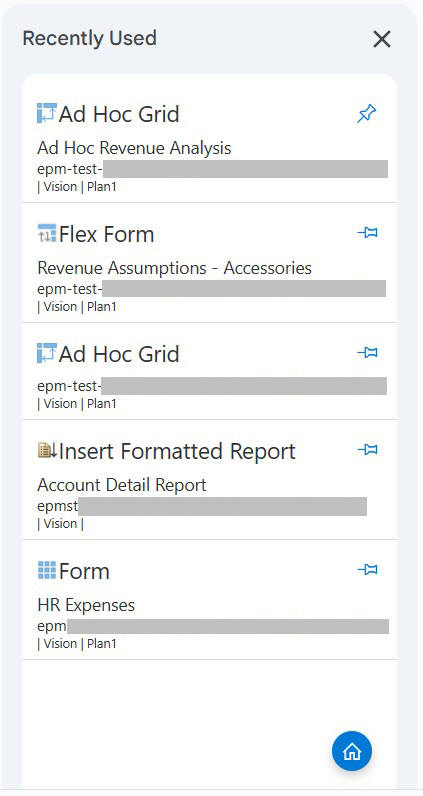
- Optional: You can pin an artifact so that it appears on top of the list and does not get removed when the set limit is crossed. In the above image, the Ad Hoc Revenue Analysis grid has been pinned to display at the top of the list.
- Optional: Click the Home icon in the Recently Used panel to open the Smart View Home panel.