Filtering Which Rules Are Displayed
Use filter and sort options to specify which rules are displayed and the order in which they are displayed. These options allow you manipulate the display so that you can isolate the rules that you want to focus on.
Defining Specific Filter Parameters
You can filter the rules displayed on the Mass Edit tab by:
- Rule Set
- Rule
- Type
- Enabled
- Rule Set Context
- Errors
- Warnings
Each filter parameter is represented by a tile:

To define specific filter parameters, you can either:
-
Enter a value in the Search field.
For example, entering "allocation" in the Search field displays all the rule sets, rules, and type of rules with "allocation" somewhere in the rule name or description.
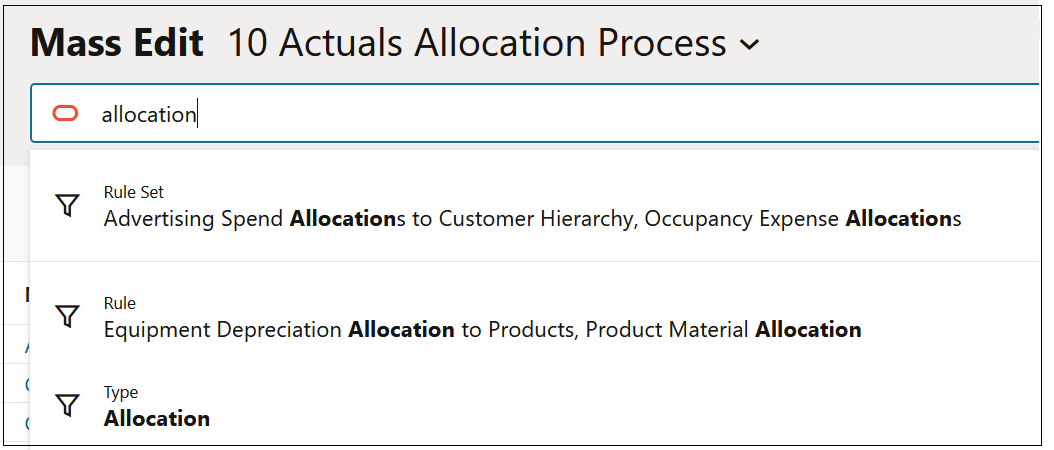
Click one of filters results to display the results on the Mass Edit tab.
In this example, clicking the filter results under "Rule" displays two allocation rules:

-
Click a tile, or drag and drop a tile into Search.
For example, you could move the Rule tile into Search, and then select an option from the resulting drop-down.

You can filter by more than one parameter by moving the tiles corresponding to the parameters into Search. For example, you could display all the Allocation rules that have been enabled but that do not have a rule set context defined.

To remove a filter, click the X on the tile to once again display all the rules on the page.
Note:
When you select an upper level member, all level-0 descendants of that member are included in the filter.
Defining the Sort Order
To define the sort order for the information on the Mass Edit tab, click the up arrow/down arrow to the right of the columns to sort in ascending or descending order.

To refresh the information on the Mass Edit tab to its original sort order, click Refresh.