Assign a Schedule to a Resource in Oracle Fusion Field Service

A supervisor can update a resource's calendar and the changes are visible with immediate effect. However, the supervisor is notified about the resource’s task allotment status when the calendar is updated.

Assigning a Schedule

You can assign a schedule that exists in the application to a resource.

  1. In Fusion Setup and Maintenance, go to Navigator > My Enterprise > Offering Setup. Select the Field Service offering. In the Scheduling and Dispatch functional area, select the Field Resources task. The Field Resources page displays all the Field Service resources, except those of Users/Dispatcher/Admin type.
  2. Select the calendar icon in the required row.
    The calendar page appears for the selected resource.
  3. Select a date for which you want to assign a schedule.
  4. Update these fields:
    Name Description
    Schedule

    This list includes work schedules and shifts. Select the work schedule or shift that you want to apply to the resource.

    Select Default schedule, to set the default schedule for the resource. Default schedule is the working time configured for the whole organization, division, or for a particular geographic region. That is, a default schedule is the working time added at the Organization unit or Bucket level, which is inherited by the child resources.

    A default schedule is displayed with a darker color on the calendar, and an individual schedule is displayed with a lighter color.

    End Date Select the date on which the work schedule or shift ends.
    Comment Enter any comments that you wish to provide, for example, the reason for changing the schedule.
  5. Click Update. The new schedule is applied to the resource.

What to do next

Nonworking Time Option

You can schedule an activity in the Nonworking Time category, if a mobile worker needs a day off, because of reasons such as vacation or illness. However, you can't apply nonworking time if the mobile worker has activities other than repeating, shift, or mass type activities assigned for the day. A warning message appears on the dialog box, and if you click Confirm, then the nonworking time is applied regardless of the resource’s schedule.
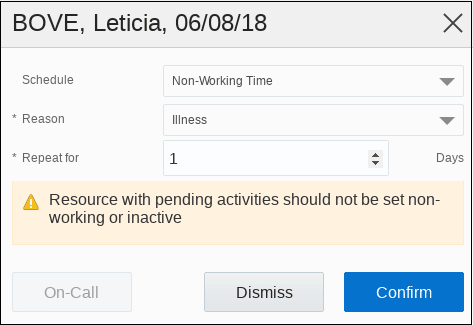

This screenshot shows the dialog box on which you can schedule the non-working time to a resource.