View and Change Available Quota
The Quota page lets you view and manage quota for up to 100 days, including a specific day or week. It also lets you manage capacity categories.
You can change quota values in the Quota%, Min Quota, Daily Quota %, Quota, and Stop Booking at columns for the present and future dates. Based on the edited values, the values in the Quotacolumn is recalculated. Also, when you click the Quota Historybutton after you edit the quota values for capacity categories and click Save, the edited quota values display in the Quota History window.
For example, if you enter 80% in the %Quota day column for the category, Deinstall and select a date, then you can only use 38352 mins for performing Deinstall activities on the selected date. However, if you enter 95% in the Stop Booking at column and select a date, then you can only book Deinstall activities that consume 45543 mins on the selected date.
To view and change available quota:-
Click View and select the columns that you want to display in
the Quota matrix.
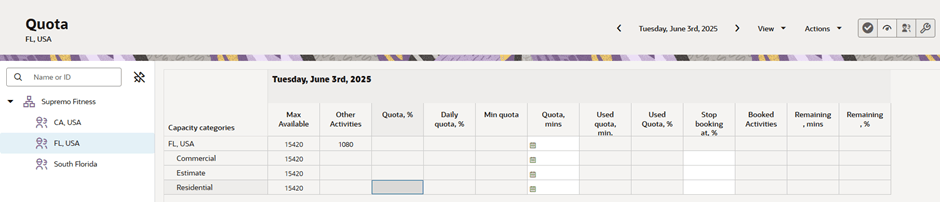
Column Description Max Available The maximum capacity that's available according to working calendars of resources working in the capacity area. This column is available regardless of the configured capacity area.
Planned Max Available The maximum planned capacity according to the values entered as working time plans in the capacity area. Displayed only if the quota is entered in percent of planned capacity.
Other Activities This is the capacity consumed by activities that don't match any capacity category configured for the capacity area. This column is available regardless of the configured capacity area and calculated on the "day" level. Quota If the column is read-only, then based on the configuration of the capacity area, the Quota value is calculated as: <Quota> = MAX (<% Quota> * <Base>, <Min Quota>)
Where depending on the capacity category and the configuration of the capacity area, the <Base> value is a <Quota> value from the day level or is the <Max available> value for the same category or is calculated as <Max Available> - <Other Activities>.
-
If Work Day is selected as a measurement unit on the QuotaConfigurationQuota and Capacity Management page, then quota is calculated as follows:
Quota = (hours of max available/ Number of hours per Work Day)
-
You can also enter a value in the Quota column to determine the quota for a specific capacity category.
-
When the % Quota value is empty in the Quota by category screen and if the time slot based quota is enabled, then the Quota value is presented as a sum of quota values for each capacity category.
-
If the Quota value is empty (for example, if quota % isn'tpopulated or if a negative value of quota is populated when value of Other Activities is more than the value of Max Available), then the Quota value is presented as a sum of all subsequent quota values for each capacity category.
- When using booking interval based buckets, 100% and empty values are treated differently. An empty value means there are no restrictions on the cell it applies to. This is used specifically for the "stop booking at" feature, where the percentage of the used quota for a particular day is calculated relative to the quota value defined for that day.
%Quota This is the % of Quota. Depending on the configuration of the capacity area, it can be read-write or read-only. -
Day level: If it's read-only, it's calculated as: <Quota> / (<Max available> - <Other activities>).
Note that there's a option to not subtract the <Other activities> value.
-
Category level: If it's read-only, it's calculated as: <Quota (category)> / <Max available (category)>
Category / % Quota (day) Depending on configuration of the capacity area, it can be read-write or read-only. If it's read-only, it's calculated as: <Quota (category)> / <Quota (day)>. Min Quota This value is to be used when the quota is defined as a percent. When a calculated quota value is below the minimum, the application uses this minimum value instead of the calculated one. Calculated as: <Quota> = MAX(<% Quota> * <Base>, <Min Quota>).
Used Quota Quota used by activities that match capacity categories configured for the capacity area. Used Quota % Calculated as: <Used quota> / <Quota> % to Stop Booking at This is only available on the category level. It's used to stop booking of activities in a given category when <Used quota %> on the day level exceeds the <% to stop booking value>. It allows implementing a reservation of remaining quota in other categories.
Booked Activities Indicates the number of booked activities. -