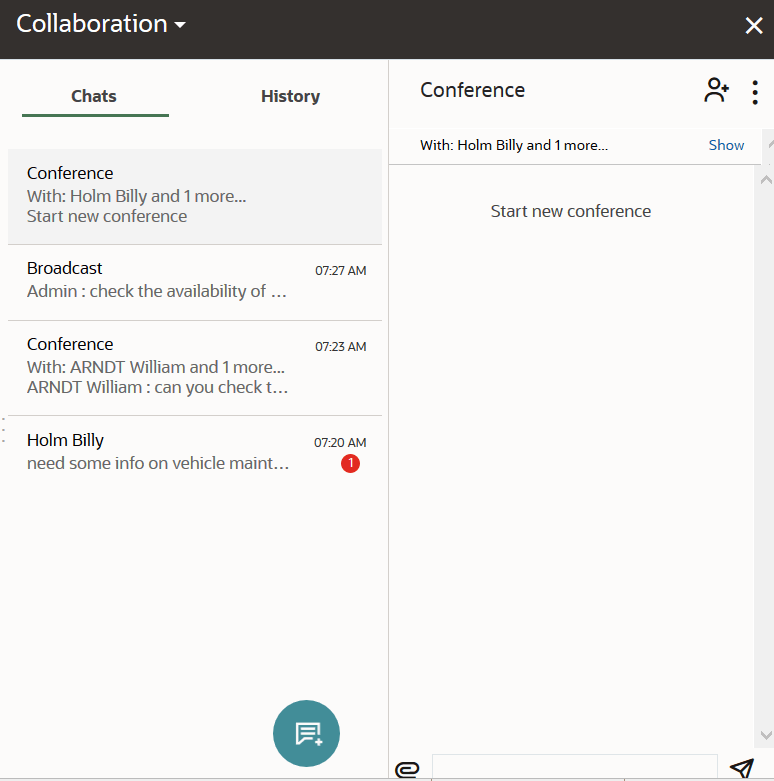
Collaboration Chat List Window
Updated Content Available: As part of our ongoing initiative to consolidate our documentation with up-to-date use cases, this page is being transitioned. The latest content is available in Collaboration. We recommend that you update your bookmarks accordingly.
Using collaboration, you can send and receive real-time messages. All active one-to-one chats, conference chats, helpdesk requests, Collaboration Group conversations, and broadcasts appear in the Collaboration window. Unread chat messages are displayed with a colored dot in the left pane of the Notifications tab.
-
The details of the conference.
-
The broadcasted message you initiated or received.
-
The name of the participant with whom you are chatting.
-
The name of the helpdesk you have sent your request to.
- The name of the Collaboration Group, if the conversation is with a group.
-
The last message of the conversation.
-
A left-pointed arrow next to the chat thread, if you have sent a message.
-
An empty grey colored message-number box, if you have sent the last message in the conversation.
-
The red colored unacknowledged message-number box, if another user/helpdesk operator sent the last message in the conversation.
-
The time in black color, if the message is unacknowledged and is within the threshold time.
-
The time in red color, if the message is unacknowledged and crosses the threshold time.
This screenshot shows the Chats tab: