Working with the Financial Consolidation and Close Consolidation Assistant
The Financial Consolidation and Close Consolidation Assistant helps Service Administrators identify and diagnose system issues, provides detailed diagnostic findings, and recommends appropriate resolutions to address the detected problems.
The Consolidation Assistant helps administrators understand the likely causes of consolidation performance issues and system health issues through a guided chat experience.
It combines metric anomaly analysis with recommendation-based findings, which enable Service Administrators to review a diagnosis summary instead of manually inspecting multiple data sources.
Running a System Rescan
Before running the diagnostic summary, you can perform an application rescan using the Consolidation Assistant to generate the latest recommendations report. Active system recommendations can influence diagnostic results, so performing a system rescan ensures that the diagnosis is based on the latest system status.
Viewing Diagnostic Results
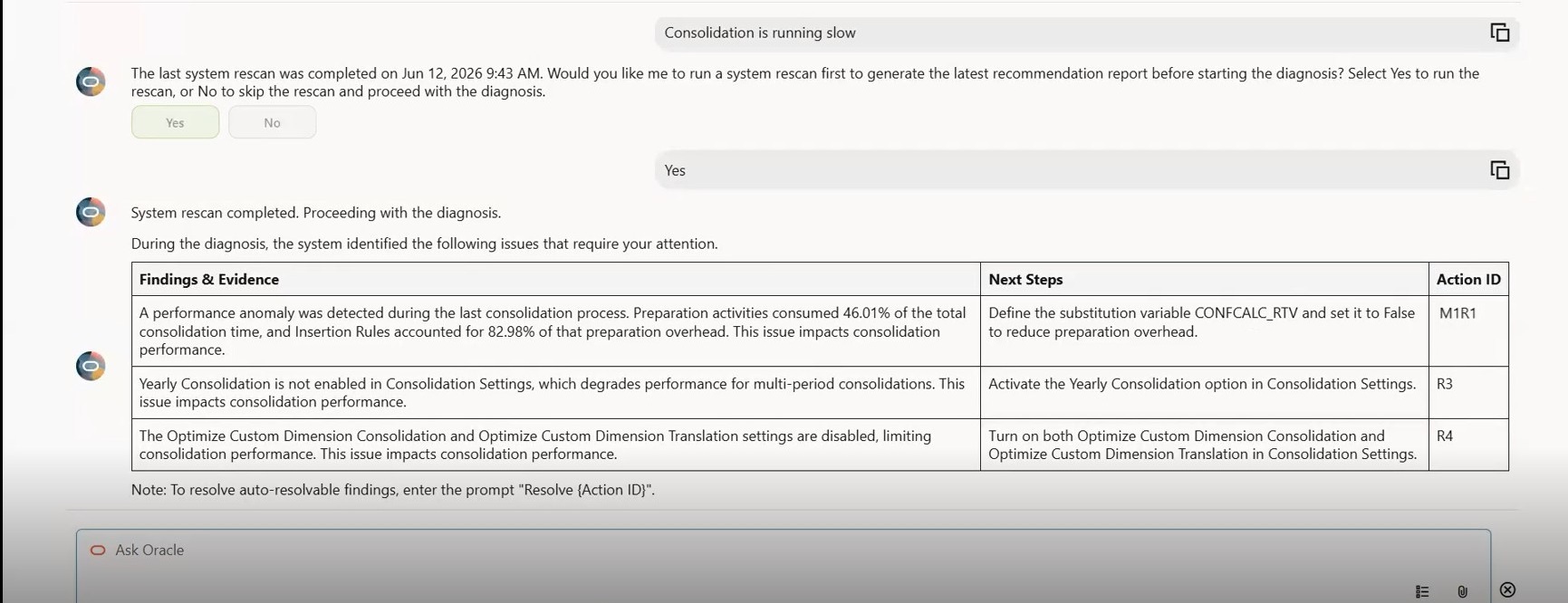
After you enter a prompt for the assistant to diagnose consolidation performance or system health issues, you can review the results. The results are displayed in a table as Findings and Evidence and Next Steps, When the assistant diagnoses system health, the table also includes a column for Category, to categorize performance issues and general system health issues.
If an issue can be automatically resolved by the assistant, an Action ID is also included in the corresponding row. See Resolving Issues using the Consolidation Assistant
The Consolidation Assistant also provides sample prompts at the bottom of the chat window
when you click the Instruction Templates icon  . The ready-to-use prompts are listed and you can select a prompt and press
Enter to run the consolidation performance diagnosis, system health diagnosis, or
perform a Resolve or Rollback action by providing the Action ID.
. The ready-to-use prompts are listed and you can select a prompt and press
Enter to run the consolidation performance diagnosis, system health diagnosis, or
perform a Resolve or Rollback action by providing the Action ID.
To use the Consolidation Assistant:
-
Enable the Generative AI option application setting. From the Home page, click Application, then Settings, and from the Enable AI section, select Generative AI, then click Save.
The Enable AI option is available only for EPM Enterprise subscriptions and when Hybrid mode is enabled.
-
From the Home page, click Consolidation Assistant.
-
The assistant displays a message that it is ready for your input:

-
Enter a prompt to run the diagnostics, for example "Consolidation is running slow" or "Check my system health".
-
The assistant searches for and returns the date and time of your last system rescan and asks if you would like it to run a system rescan first to generate the latest recommendation report before starting the diagnosis.
Select Yes to run the rescan, or No to skip the rescan and proceed with the diagnosis.
-
If you select Yes, a message displays that it is running a system rescan in the background.
When the system rescan is complete, or if you selected to skip it, the assistant proceeds with the diagnosis.
Note: If the task is taking too long and you need to stop the process, click Cancel Execution at the bottom of the chat window.