Managing the Validation Hub
The Financial Analysis Validation Hub provides a centralized page to manage standard and custom validations. It identifies and displays applicable validations in one place so that you can review and track validation coverage across your application.
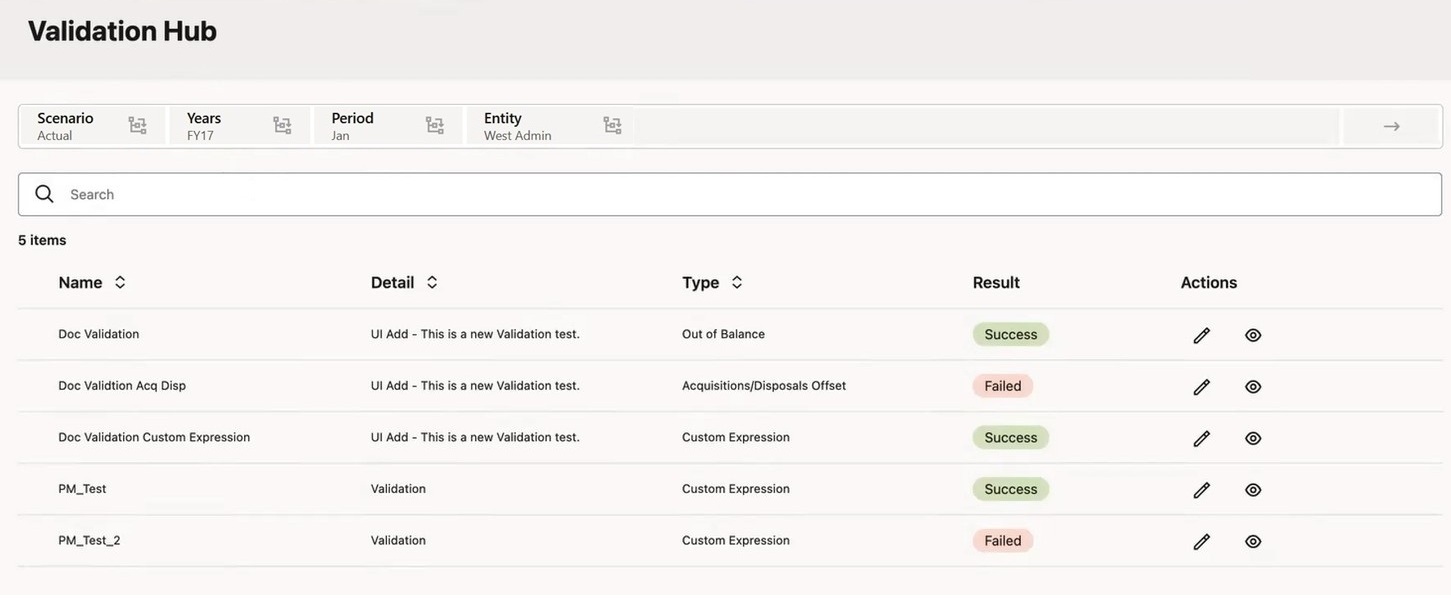
The Validation Hub main page displays a list of available validations. It displays the validation Name, Detail and Type (for example, Out of Balance, Acquisitions/Disposals Offset, Inter Module, or Custom Expression). The Result column displays the status of validations that been run - Success or Failed. From the Actions menu, you can edit a validation, or view and drill down into additional detail.
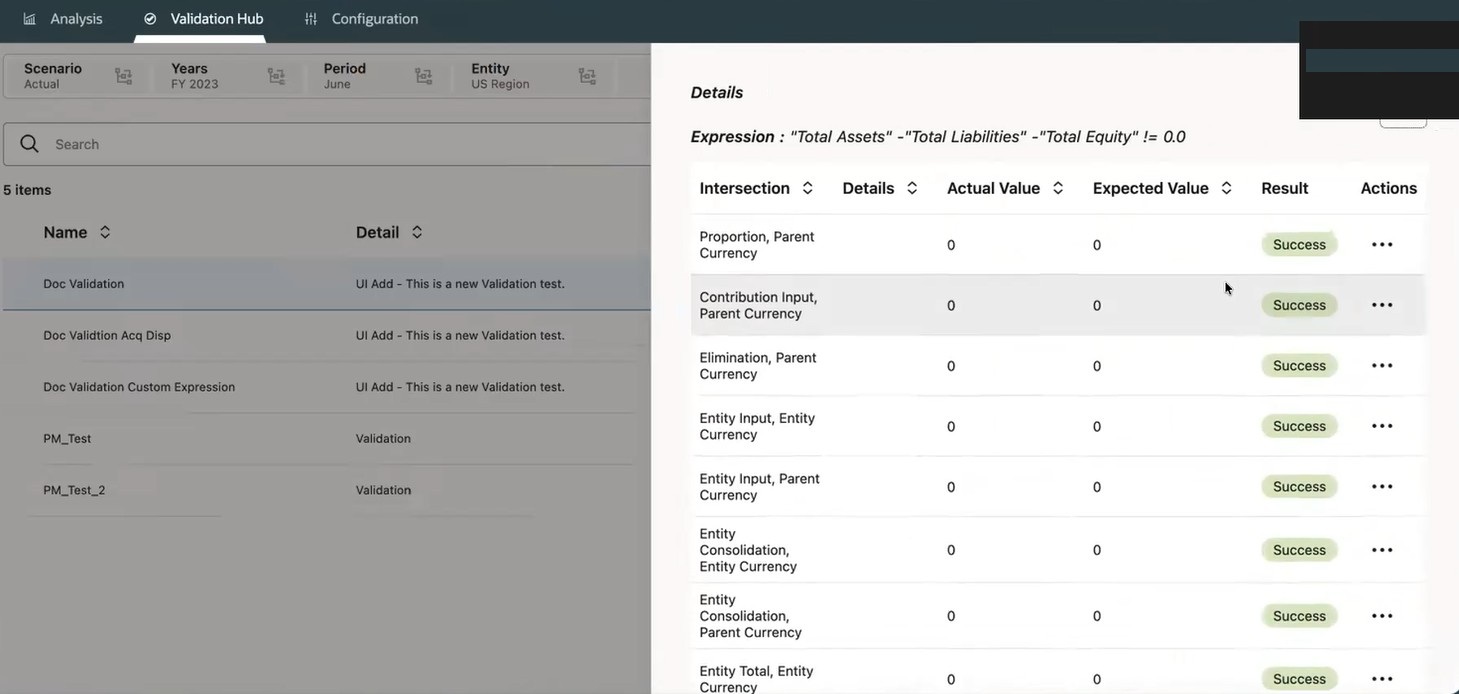
For example, if a validation failed, you can view the details, such as the expression and the intersection of selected members. You can select a member intersection and run the Data Discovery process on that intersection. You can then navigate to the Data Discovery Grids folder to view detailed results.
When you run the Data Discovery process, the specific folder location will be displayed at the bottom of the Details screen where the Data Discovery was executed. If there are any previous Data Discovery runs for that intersection, Financial Consolidation and Close will create a backup folder in the same folder location called "Previous Runs_<Validation Name>".
You can search for specific validations, and sort the validations list columns by ascending or descending order.
Note:
To create validations, see Configuring Financial Consolidation and Close Validations.
Figure 23-7 Financial Analysis Validation Hub
To manage validations in the Validation Hub:
-
On the Home page, click Financial Analysis Hub, then select Validation Hub
The Validation Hub page is displayed with a list of available validations.
-
Select a POV by using the Member Selector
 to select a Scenario, Years, Period and Entity.
-
To search for a validation, in the Search field, enter the text on which to search.
-
To edit a validation, select a validation, then click the Edit button.

-
To view details, select a validation, then click the View Details button
 .
.
The Details box opens and displays the validation Expression, Intersection, Details, Actual Value, Expected Value, Result, and additional Actions.
-
To drill down into additional details, select an intersection, then click the Actions button
and select Run Data Discovery.
A message displays that the Run Data Discovery job has been successfully submitted. To view the Data Discovery results, navigate to the Data Discovery Grids folder for grid analysis and to view Data Discovery notes. The specific folder location will be displayed at the bottom of the Details screen where the Data Discovery was executed.