Supplier Configuration for Virtual Card Payments
When you receive confirmation that a supplier accepts virtual card payments, navigate to the respective supplier site in Oracle Cloud ERP and update the supplier record, including the payment method, payment terms, and digital payment account.
Access Supplier Site
To access the supplier site, follow these steps:
- Go to .
- Select the Manage Suppliers task and search for the supplier.
- Open the supplier record and go to the Sites tab.
- Select the supplier site and click Edit.
- Navigate to the Payments tab.
Update Supplier Payment Method
Follow these steps to set virtual card as the default payment method for the supplier site:
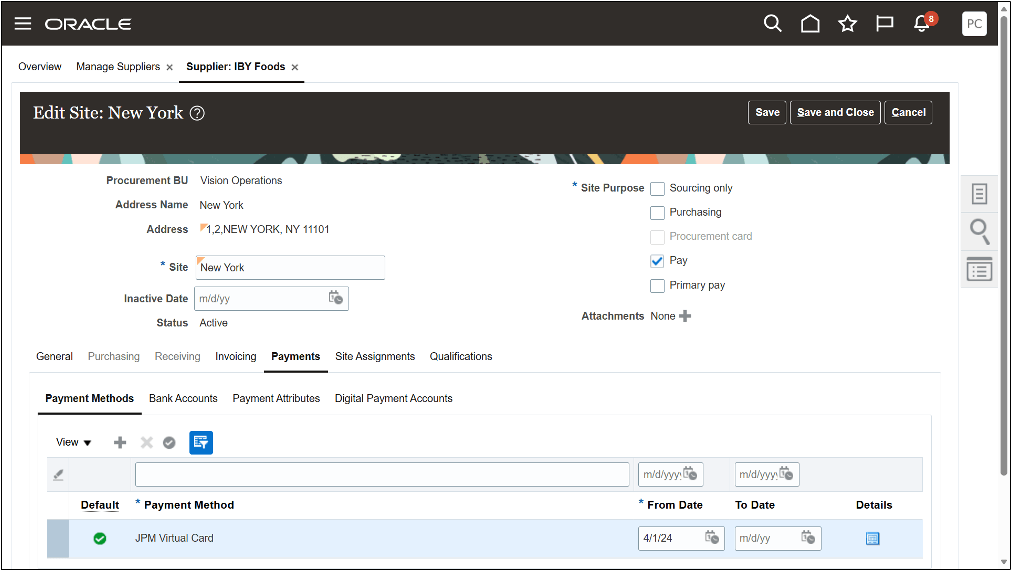
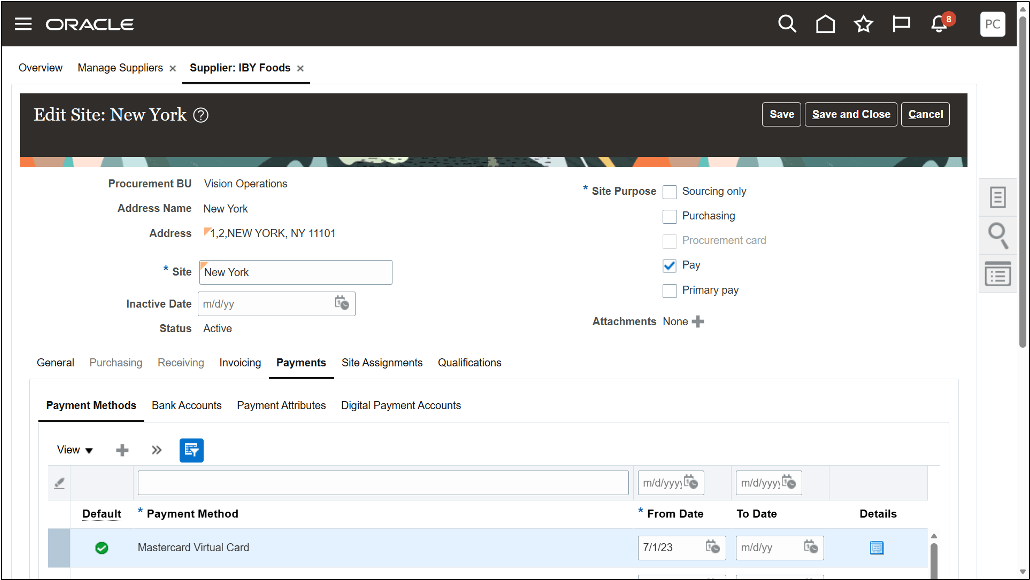
- From the Payments tab, go to Payment Method.
- Select the virtual card payment method for your card issuer:
- J.P. Morgan: JPM Virtual Card
- All Other Issuers: Mastercard Virtual Card
- J.P. Morgan: JPM Virtual Card
- Select Details.
- Select the agreed payment terms.
- Select Default.
Create Digital Payment Account
A Digital Payment Account is a payment instrument like a Bank Account but is purpose-built for modern payment methods such as virtual cards. It captures all necessary details for virtual cards, including email, currency, and other relevant virtual card information.
To create a digital payment account for virtual card payments, follow these steps:
- From the Payments tab, go to Digital Payment Accounts.
- Under Virtual Cards, select the Create icon.
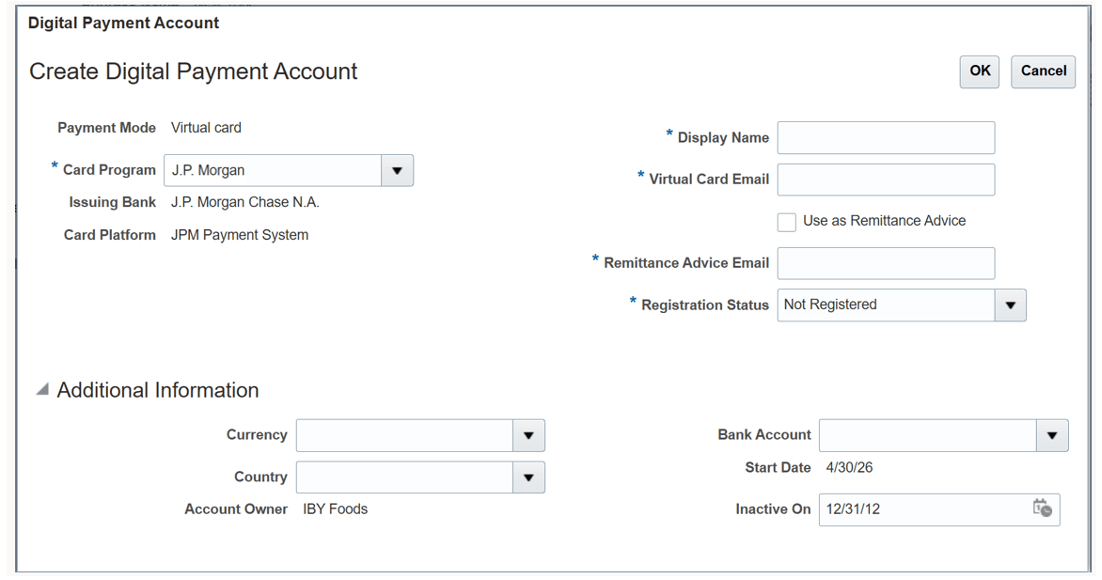
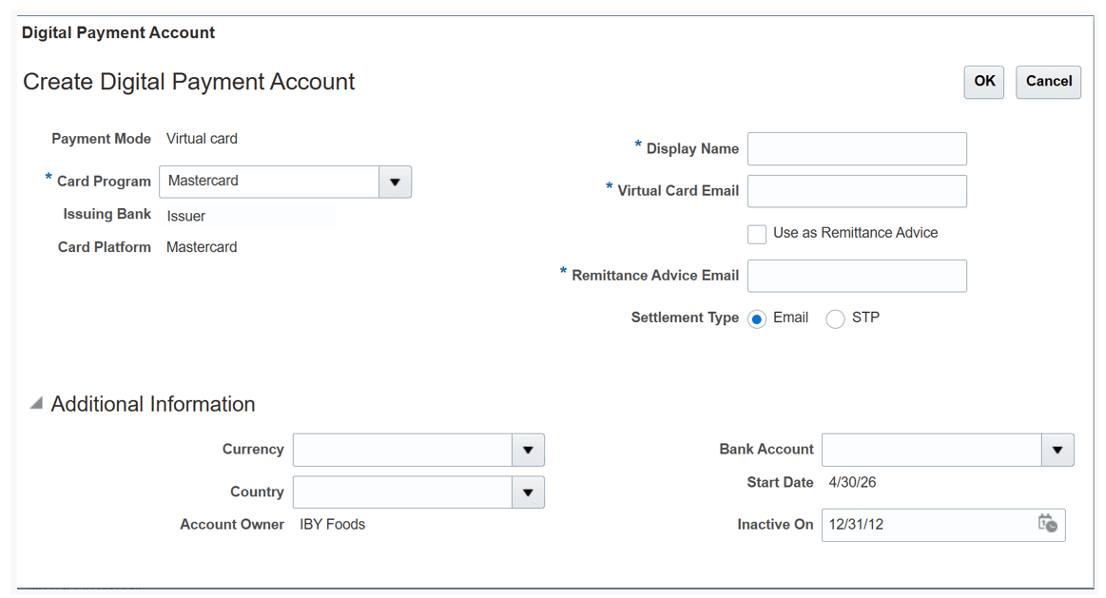
- Select the card program from the Card Program drop-down list.
- Enter the display name, such as supplier email address.
- The display name must be unique across supplier sites.
- Enter the virtual card email address to which the virtual cards will be sent.
- J.P. Morgan: Email address where virtual cards will be sent for Not Registered suppliers.
- All Other Issuers: Email address where virtual cards will be sent for STP and Non-STP suppliers.
- Select Use as Remittance Advice if you want remittance advice sent to the email address listed above. If you want it sent to a different email address, deselect Use as Remittance Advice and enter the email address in the Remittance Advice Email field.
- Select Registration Status: Registered or Not Registered
- J.P. Morgan: Registration status is required. This field indicates
whether a supplier is registered with the bank. If the supplier is
listed in the supplier campaign acceptance file provided by J.P. Morgan,
they are registered.Note: Before you begin testing, ensure that you share the Registered supplier details with J.P. Morgan so the bank can register the test suppliers in their staging environment.
- All Other Issuers: N/A
- J.P. Morgan: Registration status is required. This field indicates
whether a supplier is registered with the bank. If the supplier is
listed in the supplier campaign acceptance file provided by J.P. Morgan,
they are registered.
- If the supplier is enabled for straight through processing (STP), select STP as
the Settlement Type.
- J.P. Morgan: N/A
- All Other Issuers: Optionally, enter the STP ID provided by card issuer.
- Optionally, enter values in the Additional Information section.
- Select OK.