Configure the Virtual Card Program
Use the Manage Virtual Card Programs task to configure your virtual card program.
Prerequisites
Complete all prerequisite setups before creating the virtual card program:
- Configure card issuer
- Configure address and bank branch (only for J.P. Morgan)
- Configure data access to legal entity
- Configure payment instrument
Considerations
- Include a description that indicates purpose and currencies. For example, "This virtual card program is used to pay high volume suppliers in USD and CAD".
- It's recommended to use the predefined card platforms. If you use a custom payment system account, ensure Virtual Card Payments is selected in the Disbursement section of the payment system setup.
- Align the program start date with the supplier payment timeline.
- Use an end date to deactivate the program.
- After creating the program:
- You can't update the issuing bank, card platform, or company.
- You can't delete a virtual card program. Enter an end date to deactivate it.
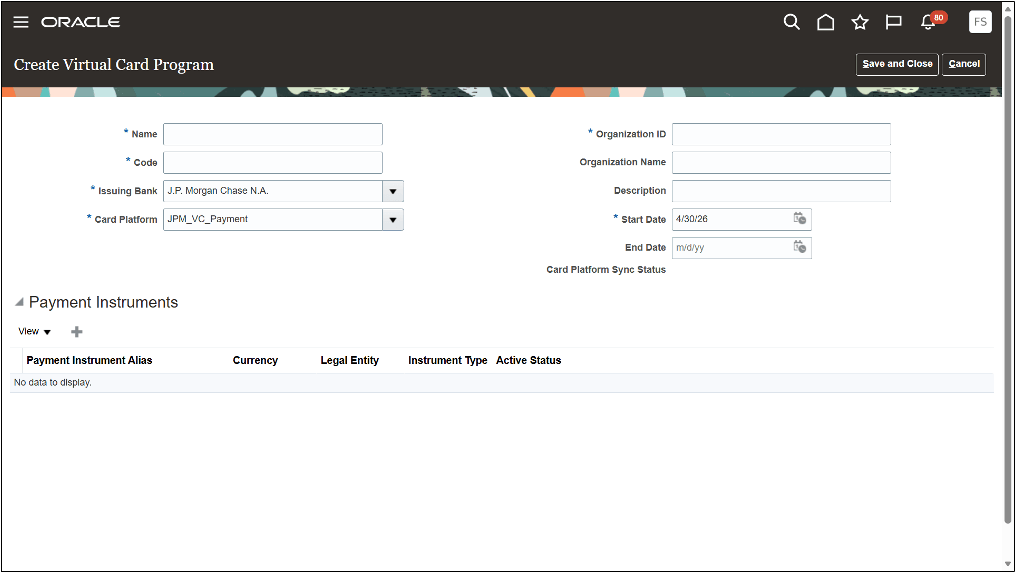
Set Up Virtual Card Program for J.P. Morgan
Follow these steps:
- Go to .
- Select the Create icon.
- Enter the Name of the virtual card program: <user-defined value such as Card Issuer VC Program>
- Enter the Code of the virtual card program: <user-defined value such as Card Issuer_VC_Program>
- From the Issuing Bank drop-down list, select the card issuer configured earlier.
- Select the Card Platform used by your card issuer from the drop-down list.
- Enter the Organization ID: <value provided by J.P. Morgan>Note: Ensure that the Organization ID is associated with the payment group ID used to configure the payment instrument.
- Enter the Organization Name: <value provided by J.P. Morgan>
- Enter a program description.
- Select the start date from which the virtual card program is active.
- In the Payment Instruments section, select the Create icon.
- From the Payment Instrument drop-down list, select the payment instrument you
created earlier for your card issuer.Note: Ensure that you associate a funding card payment instrument with only one active virtual card program.
- Select Save and Close.
Set Up Virtual Card Program for All Other Issuers
Follow these steps:
- Go to .
- Select the Create icon.
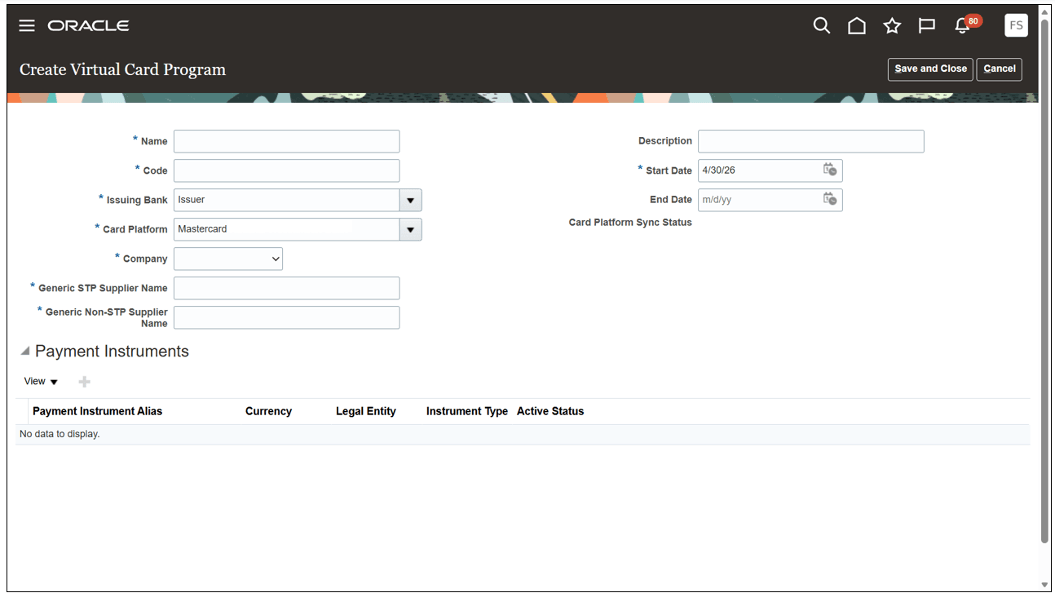
- Enter the Name of the virtual card program: <user-defined value such as Card Issuer VC Program>
- Enter the Code of the virtual card program: <user-defined value such as Card Issuer_VC_Program>
- From the Issuing Bank drop-down list, select the card issuer configured earlier.
- Select the Card Platform used by your card issuer from the drop-down list.
- Select the Company from drop-down list.
- In the Generic STP Supplier Name field, enter Generic STP Supplier.
- In the Generic Non-STP Supplier Name field, enter Generic Non-STP Supplier.
- Enter a program description. This is an optional field.
- Select the start date from which the virtual card program is active.
- In the Payment Instruments section, select the Create icon.
- From the Payment Instrument drop-down list, select the payment instrument you
created earlier for your card issuer.Note: Ensure that you associate a funding card payment instrument with only one active virtual card program.
- Select Save and Close.
Important:
The values for Company, Generic STP Supplier Name, and Generic Non-STP Supplier Name are set up in Mastercard Smart Data. For these fields, you must enter a value that's an exact match. See Mastercard Smart Data for details.
After you select Save and Close, ensure that:
- You get the message that your virtual card program has been synced up.
- The Card Platform Sync Status is changed to Complete before using the virtual card. You can check the status by opening the Virtual Card Program window again.
If you get an error message or the sync status is Incomplete, log an Oracle Service Request.