Configure Payment Instruments
Configure payment instruments to enable virtual card payments. Payment instruments are used in place of an internal bank account to facilitate supplier payments
- J.P. Morgan: Funding Card Group Account
- All other issuers: Funding Card Account
While creating the payment instrument, assign it to a legal entity. To do this, ensure you have access to the legal entity.
Provide Legal Entity Access
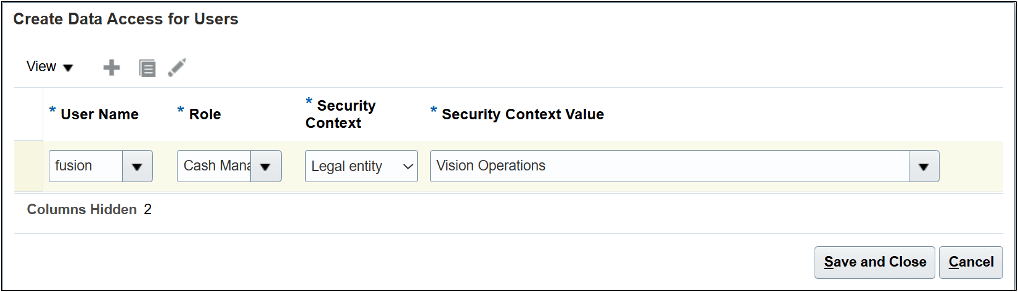
Use the Manage Data Access for Users task to provide access to the legal entity. Follow these steps:
- Sign in to Oracle Cloud ERP as an administrator.
- Go to .
- Select Create.
- Enter the user name.
- Set these fields:
- Role: Cash Manager
- Security Context: Legal entity
- Security Context Value: <Select legal entity name>
- Select Save and Close.
Select this legal entity while creating the payment instrument.
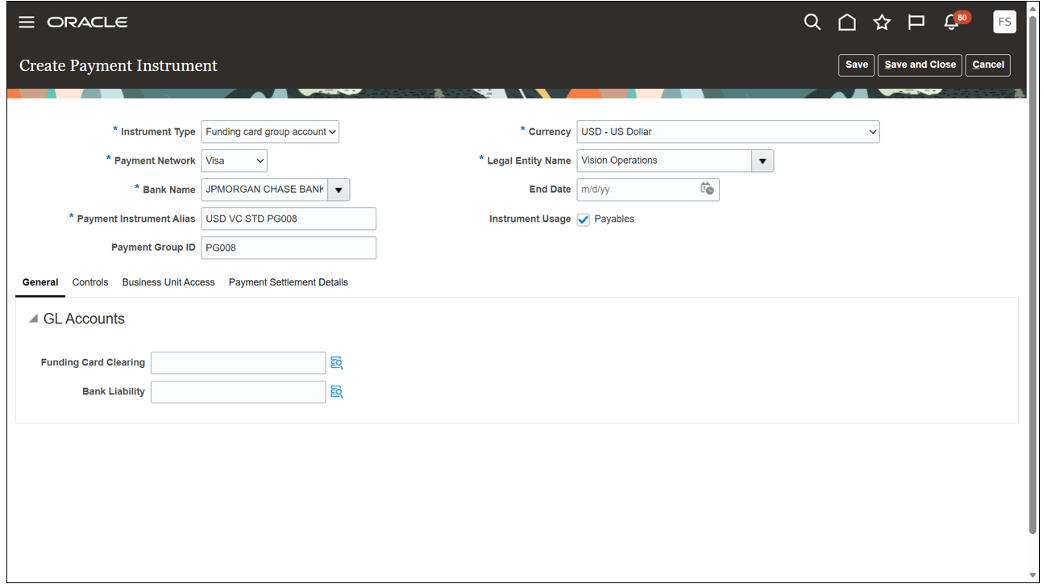
Set Up a Funding Card Group Account for J.P. Morgan
Follow these steps to configure a funding card group account for J.P. Morgan virtual cards.
- Go to .
- Select the Create icon.
- Enter these values:
- Instrument Type: Funding card group account
- Payment Network: Mastercard or Visa
- Bank Name: <Select the card issuer created earlier using the Manage Banks task>
- Payment Instrument Alias: <Payment group description shared by J.P. Morgan>
- If you require multiple payment instruments, enter a unique value for each payment instrument alias
- Payment Group ID: <Payment group ID shared by J.P. Morgan>
- If you require multiple payment instruments, enter a unique value for each payment group ID
Note: Enter the Payment Group ID exactly as provided. - Currency: <Select the payment group currency from the drop-down list>
- Legal Entity Name: <Enter the legal entity created earlier>Note: Use the legal entity that owns the card and is liable in case of disputes.
- Instrument Usage: Payables
- From the General tab, go to the GL Accounts section and enter:
- Funding Card Clearing: <GL clearing account>
This is an interim account where the amount is held prior to the card being used by the supplier.
Note: If you're using custom subledger accounting, add an accounting rule to credit the funding card clearing account. - Bank Liability: <GL account for bank liability>
- Funding Card Clearing: <GL clearing account>
- On the Business Unit Access tab, assign business units.Note: Ensure all required business units are granted access to the funding card payment instrument.
- On the Payment Settlement Details tab, enter these details:
- Payment Terms: <Select payment terms for settling the virtual card statement, as agreed upon with J.P. Morgan>
- Default Business Unit: <Select the default business unit used for recording charges and any unreconciled transactions>
- In the Payment Methods tab:
- Select the payment method for making payments to J.P. Morgan
- Select the check mark icon to set it as default
- In the Bank Accounts tab:
- Select the Create icon
- Select the Country from the drop-down list
- Enter the Account Number provided by J.P. Morgan
- Select the Bank Name that you created earlier
- Select the Branch that you created earlier
- Select Save and Close
Note: You need to create an additional bank if you've a US and Canada virtual card program. For CAD payments, J.P. Morgan may request that payment is routed to a Canadian branch. - In the Payment Attributes tab:
- Go to the Payment Delivery tab and select the Delivery Channel
from the drop-down list
- Select Nonurgent payment as the Service Level Code
- Go to the Separate Remittance Advice Delivery tab and select Email with .pdf as attachment as the Remittance Advice Delivery Method
- Enter the Remittance Advice Delivery Email ID provided by J.P. Morgan
- Go to the Payment Delivery tab and select the Delivery Channel
from the drop-down list
- Select Save and Close.
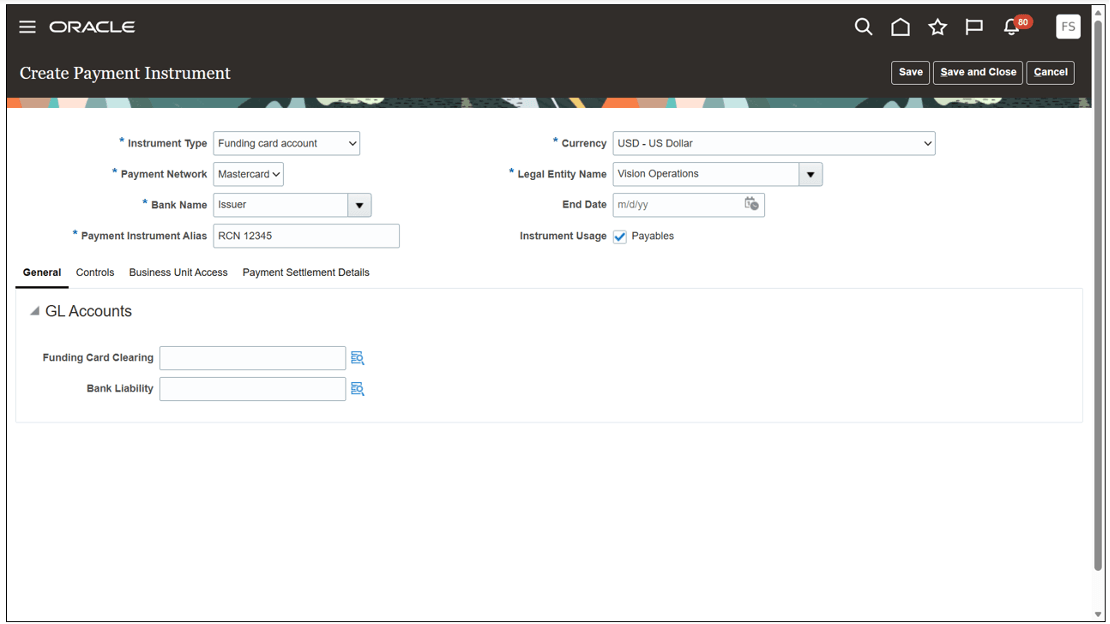
Set Up a Funding Card Account for All Other Issuers
Follow these steps to configure a funding card account, or Real Card Number (RCN):
- Go to .
- Select the Create icon.
- Enter these values:
- Instrument Type: Funding card account
- Payment Network: Mastercard
- Bank Name: <Select the card issuer created earlier using the Manage Banks task>
- Payment Instrument Alias: <Enter the real card alias set up in
Mastercard Smart Data. It must be an exact match>
- If you require multiple payment instruments, enter a unique value for each payment instrument alias
- Currency: <Select the payment group currency from the drop-down list>
- Legal Entity Name: <Enter the legal entity created earlier>Note: Use the legal entity that owns the card and is liable in case of disputes
- From the General tab, go to the GL Accounts section and enter:
- Funding Card Clearing: <GL clearing account>
This is an interim account where the amount is held prior to the card being used by the supplier.
Note: If you're using custom subledger accounting, add an accounting rule to credit the funding card clearing account. - Bank Liability: <GL account for bank liability>
- Funding Card Clearing: <GL clearing account>
- On the Business Unit Access tab, assign business units.Note: Ensure all required business units are granted access to the funding card payment instrument.
- Select Save and Close.