Working with Insights in Forms and Dashboards
You can review insights directly in your workflow, from a form or dashboard, based on the POV of your current data view, rather than having to navigate to the Insights list, making insights easier to access.
Note:
An administrator must have already run the Insights job in order to see the insights in forms and dashboards.To view insights from a form or dashboard:
-
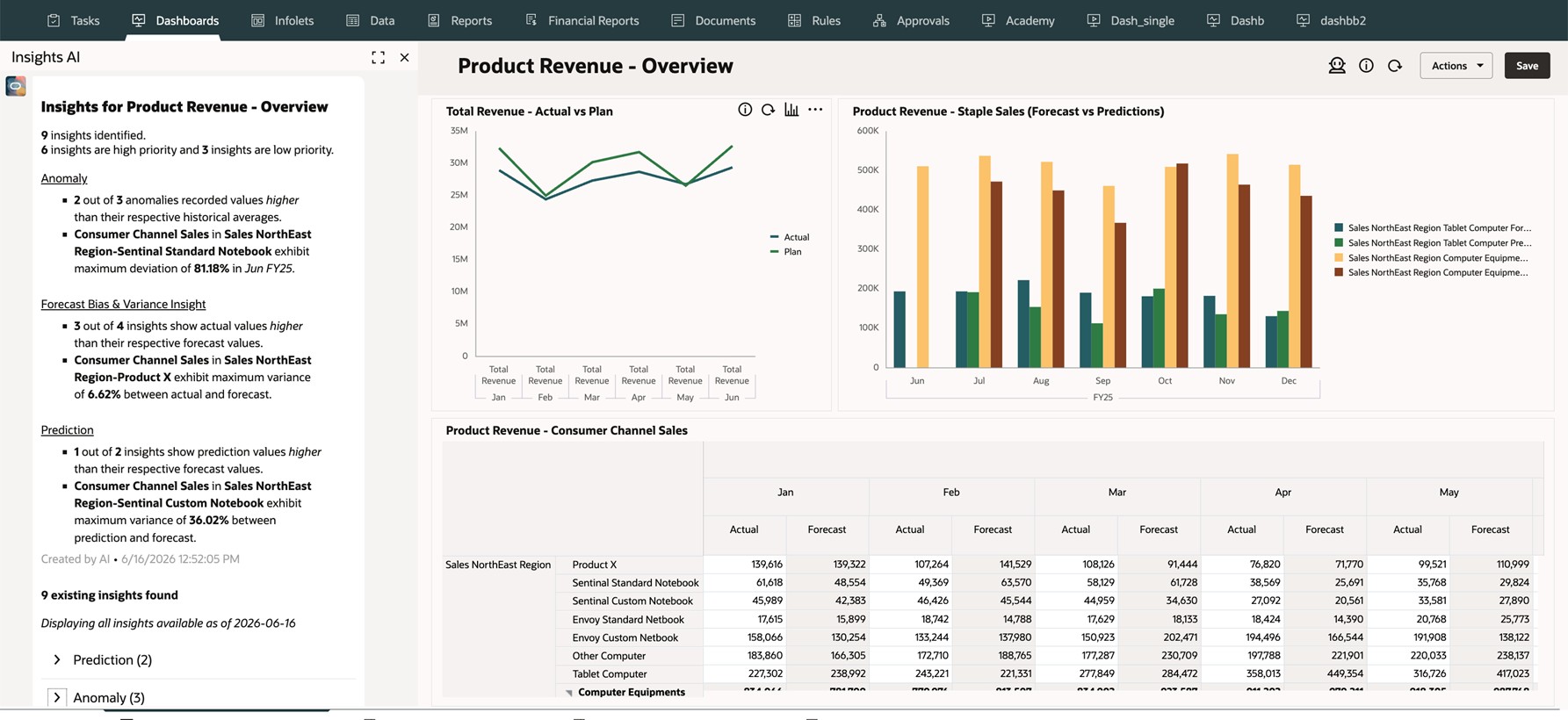
From a form or dashboard, click the Insights icon in the upper right corner.
 Pre-generated insights are retrieved based on the form or dashboard
POV. A panel opens on the left side of the form or dashboard.
Pre-generated insights are retrieved based on the form or dashboard
POV. A panel opens on the left side of the form or dashboard.
-
In the Insights panel, you see a summary of the pre-generated insights for the current POV. If GenAI is enabled, you see a GenAI-enhanced summary of the insights. If GenAI is not enabled, you see the number of insights identified and their categorization by insight type.
You also see Displaying all insights available as of <date>, which indicates when the currently displayed insights were last generated. This helps you understand the freshness of the insights and whether the Insights job might need to be run again to reflect more recent data changes.
- Insights are grouped by type. Click the > to expand and show the insights for each insight type.
- You can maximize the Insights panel, which makes it easy to see Insights details,
including Priority, Details,
POV, Impact, and
Created. You can also perform these actions:
- Click a column header to sort the insights list.
- Click the Details cell for an insight to open the Insights details page.
Notes:
- The Insights job must have already been run to see the insights in forms and dashboards.
- These insight types are supported:
- Prediction
- Anomaly
- Forecast Variance & Bias
- Period Movement Variance
-
You can see insights from within forms and dashboards, not from within ad hoc forms.
Videos
| Your Goal | Watch This |
|---|---|
|
Learn how to use pervasive insights to review key IPM findings directly within the forms and dashboards, understand their impact, and act on them without leaving your current workflow. |
 Overview: Analyzing Data with
Pervasive Insights in Cloud EPM
Overview: Analyzing Data with
Pervasive Insights in Cloud EPM |