About the Home Page
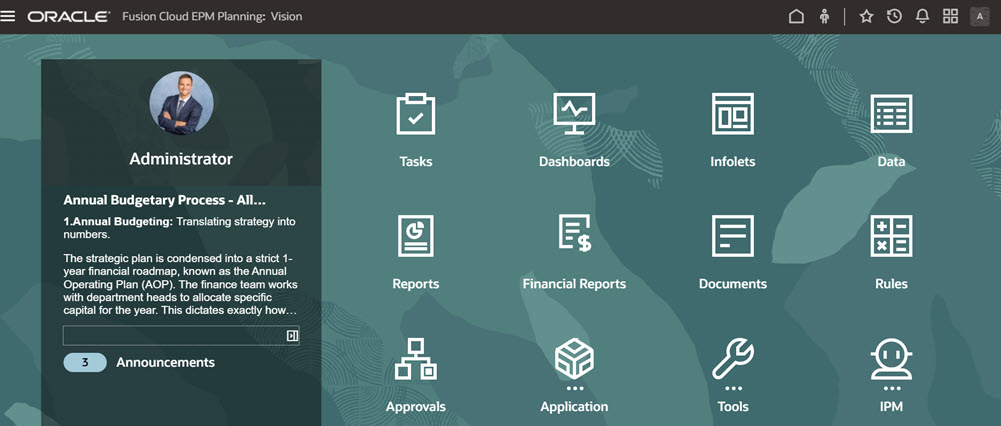
After you create the business process, the Home page is the launch point for accessing your business process tasks.
The application Home page uses Redwood styling and responsively adapts to different screen sizes, resolutions, and browser zoom levels. Navigation, cards, and other layout elements automatically resize to improve readability and accessibility.
The interface provides an intuitive user experience and an overview for quick access to commonly used functions. For example, users can access their tasks, work with data, approve budgets, view reports, and control settings. Service Administrators can manage and customize the business process, create forms and dashboards, import and export data and metadata, schedule jobs, define valid intersections, make announcements, and create cross-environment connections.
All Oracle Fusion Cloud Enterprise Performance Management services, business processes, and applications use Redwood Experience. Redwood Experience offers a default Oracle theme and these two additional appearance options: Custom Light and Custom Dark. You can switch between the Oracle, Custom Light, and Custom Dark themes on the Appearance page. You can also add a custom branding logo and custom background images to the Home page. To change appearance options for your environment, see Configuring Cloud EPM Appearance in Getting Started Guide for Administrators.
Example Home Page
Global Header
The global header spans the top of the user interface and provides access to key navigation and user options. It includes navigation icons, Accessibility Settings, the Settings and Actions menu, options to switch between navigation flows, and a username display.
For administrators, the global header includes drawers for Favorites, Recent Items, and Notifications. These drawers provide quick access to saved favorites, recently visited pages, and banner-message notifications, including previously dismissed messages.

Parts of the global header from left to right:
| Global Header Part | Description |
|---|---|
 (Navigator) (Navigator)
|
The Navigator icon opens the Navigator menu, which serves as a sitemap of the business process and displays links to all of the business process pages to which you have access. Note: Some of the links in the Navigator menu are available only if you're accessing the business process from the desktop. |
 (Logo Home) (Logo Home)
|
Click the Oracle logo to return to the Home page while working elsewhere in the business process. You can display a custom logo instead of the Oracle logo by selecting a Logo Image on the Appearance page. |
 |
The name of the current business process. You can hide the business process name by selecting No for the Display Business Process Name option on the Appearance page. |
 (Home) (Home)
|
The Home icon refreshes the Home page or returns you to the Home page while working elsewhere in the business process. |
 (Accessibility Settings icon) (Accessibility Settings icon)
|
Click the Accessibility Settings icon to enable accessibility features. |
 (Favorites icon) (Favorites icon)
|
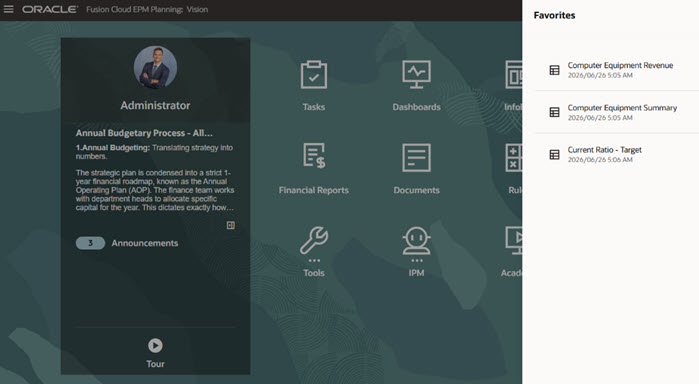
Click the Favorites icon to open a drawer to display a list of links to forms or dashboards that were tagged as favorites, and prevents them from being overwritten. Click a link in Favorites to launch the item in a secondary window.
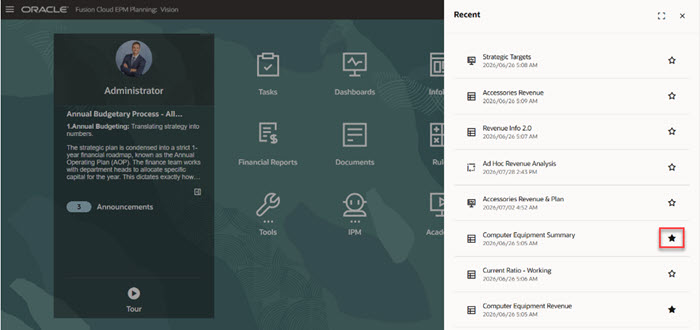
To add items to Favorites, click Recent to view your recent user activity, and then click the star to the right of the item. |
 (Recent icon) (Recent icon)
|
Click the Recent icon to open a drawer to display a list of links to recently visited forms and dashboards (up to 15 items). Clicking a link will launch the item in a secondary window. Clicking the star next to a link will tag it as a favorite.
|
 (Notifications icon) (Notifications icon)
|
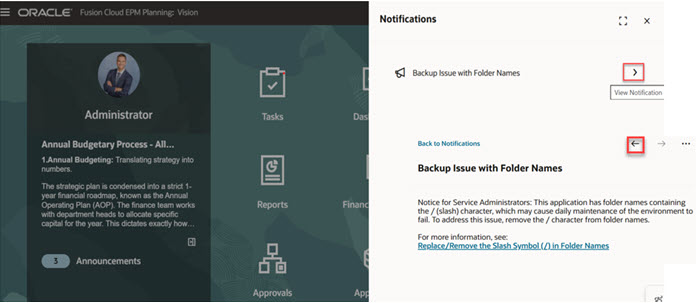
Click the Notifications icon to open a right drawer that lists instance-level banner messages for admin users. It allows administrators to review applicable notifications, including previously dismissed messages. The icon is visible only to administrators. If no notifications are available, the drawer displays an empty state. To review and read the notification messages, click on the View Notification arrow. Once reviewed, you can click on the back arrow to go back to the Notification drawer.
|
 (Navigation Flow) (Navigation Flow)
|
If you belong to multiple groups or if a navigation flow is assigned to a role, click the navigation flow icon to switch navigation flows at runtime. |
|
|
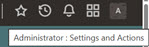
Click your user name to access the Settings and Actions menu. When you hover over the username, the label appears as <user_name>: Settings and Actions. |

Work Area
The icons that display in the work area link you to each functional area of the business process to which you have access; for example, Financials, Dashboards, and Data. The three dots above an icon label denotes that the icon opens a grouping of sub-icons, called a cluster.
The Academy icon links you to a variety of resources about using the business process.
To replace the default background image in the work area with a custom background image, select Background Image on the Appearance page. See Customizing Your Display.
Announcements Panel
The Announcements Panel displays your user name and profile picture (if set), any system announcements entered by the Service Administrator, and helps you track your activity.
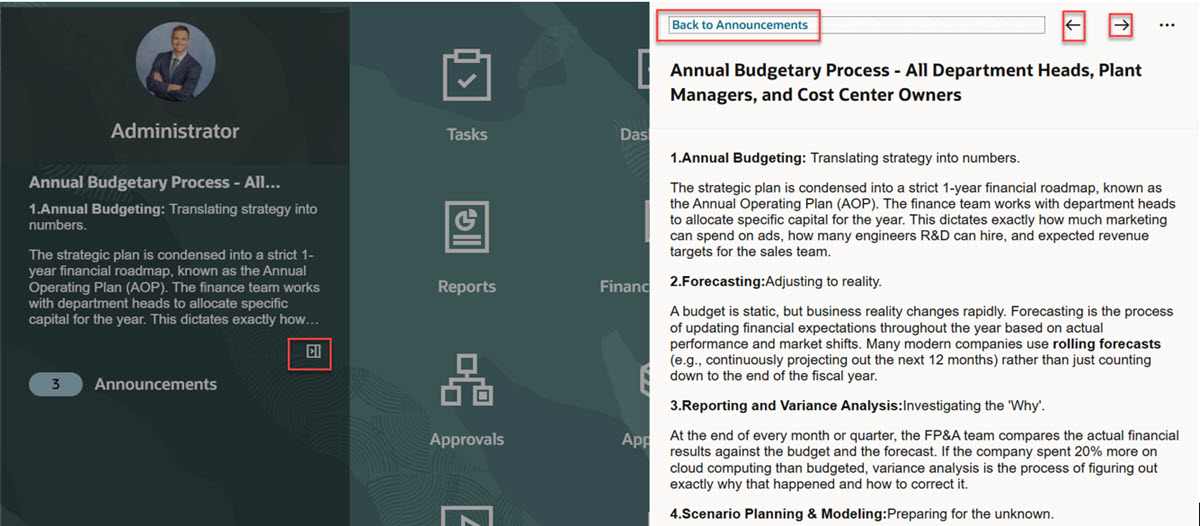
You can access all announcements from the expandable Announcements drawer on the Home page. When announcements are available, the panel displays a preview of the latest announcement. If the announcement text exceeds the display limit, select the provided link to open the right-side drawer and view the full announcement.
The panel also displays the total number of announcements. Select this count to open the complete announcement list, where you can choose any announcement to read.
While viewing an announcement, select Back to Announcements to return to the full list. You can also use the Previous and Next arrow icons to move between announcements without returning to the list.
The drawer includes options to maximize, minimize, and close it as needed. If no announcements are available, the Announcements panel is hidden and the page layout adjusts automatically.
-
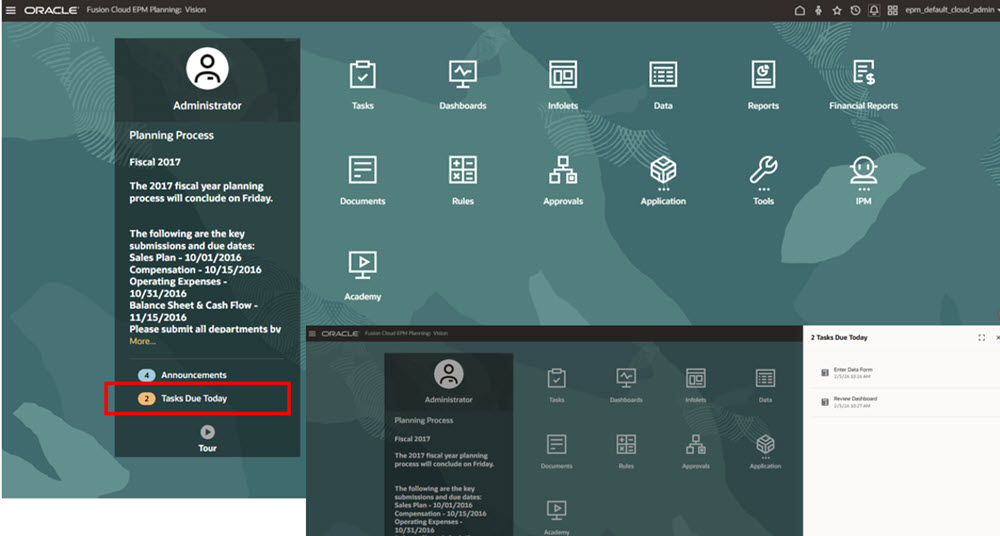
Accessing Tasks Due Today: The Announcements panel displays the total number of tasks due today.
Select the task count or the Tasks Due Today link to open a right-side drawer containing the relevant tasks. From this list, you can select a task and navigate directly to it. The drawer also includes options to maximize, minimize, or close it.
Note:
If Task Manager is enabled, selecting the task count or link takes you directly to the corresponding Work List in Task Manager, where you can begin working on your tasks. -
Setting Profile Picture: You can set your profile picture to display at the top of the Announcements panel of the Home page. To set your profile picture, click Tools, and then User Preferences.
For more information, see Setting Your Profile Picture in Working with FreeForm.
-
 (Tour): Click to launch a video about key features in the business
process.
(Tour): Click to launch a video about key features in the business
process.
Videos
| Your Goal | Watch This Video |
|---|---|
| Explore the default Redwood Experience theme. |  Overview: Announcing Cloud EPM's new Redwood
Theme
Overview: Announcing Cloud EPM's new Redwood
Theme |
| Learn how to customize the interface to streamline workflow. |
Overview: Customizing Workflow in Cloud
EPM |