Create and Use Run Profiles
Use run profiles to save and replay common test inputs without retyping prompts, ensuring they cover typical business scenarios, workflow branch paths, and known edge cases.
Here's a screenshot that displays the Run Profiles option. 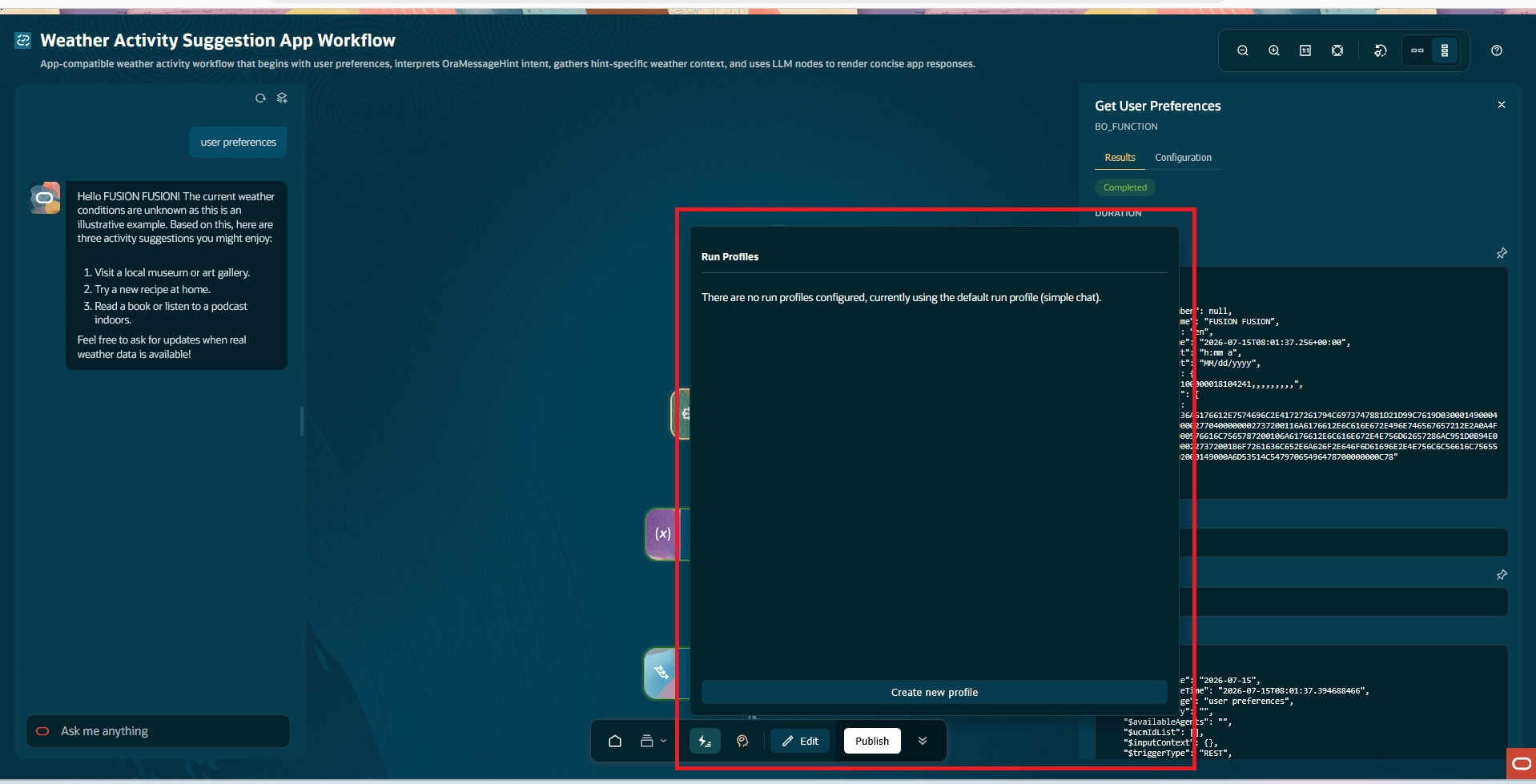
Create a Run Profile
- Go to AI Agent Studio and open the
Workflows
 tab.
tab. - Select Edit
 to modify a workflow.
 - From the toolbar, select Debug
 , and then select Run Profiles
 .
. - Select Create new profile.
- Select Edit
to enter a name for the profile. Note: Enter a profile name that describes the business scenario, not just the prompt text. For example, use Policy question with attachment or Specific record search instead of Test 1.
- Select the type and provide the other profile details.
Run an Existing Profile
- Go to AI Agent Studio and open the
Workflows
tab.
- Select Edit
to modify a workflow.
- From the toolbar, select Debug
, and then select Run Profiles
.
- Select the profile that matches the scenario you want to test.
- From the toolbar, select Run
 .
. - Confirm the expected route on the canvas.
- Inspect the key nodes on that route. For more information, see Inspect Node Results.
- Confirm the final chat response.
Recommended Profile Coverage
Create run profiles to validate each workflow path and ensure comprehensive test
coverage for the following scenarios:
- Each switch branch
- Each major user intent
- Positive and negative test cases
- Known bug scenarios
- Edge cases, such as missing attribute values, invalid attribute values, empty results, or policy lookup failures