Add a Client Certificate
Client certificates can be used to verify the authenticity of an Intelligent Advisor site that performs connector framework web service connections. A specific client certificate will be sent by a connection when outbound https calls are made from an Intelligent Advisor site.
To use a client-side certificate, a Connections administrator adds a client certificate via an Intelligent Advisor Hub, and then chooses which connections provide a client-side certificate. The custom web service connection validates the presented certificate.
Existing client-side certificates can be reviewed, and expired certificates removed.
Add a client certificate
To add a client certificate:
- In Intelligent Advisor Hub, navigate to the Connections Page.
- Select the Client certificates tab.
- Click Create. The Add client certificate page opens.
- In the Name field, enter a name for the new certificate.
- In the Certificate field, paste the certificate and private key data in the format:
-----BEGIN CERTIFICATE-----
<certificate content>
-----END CERTIFICATE-----
-----BEGIN PRIVATE KEY-----
<private key content>
-----END PRIVATE KEY-----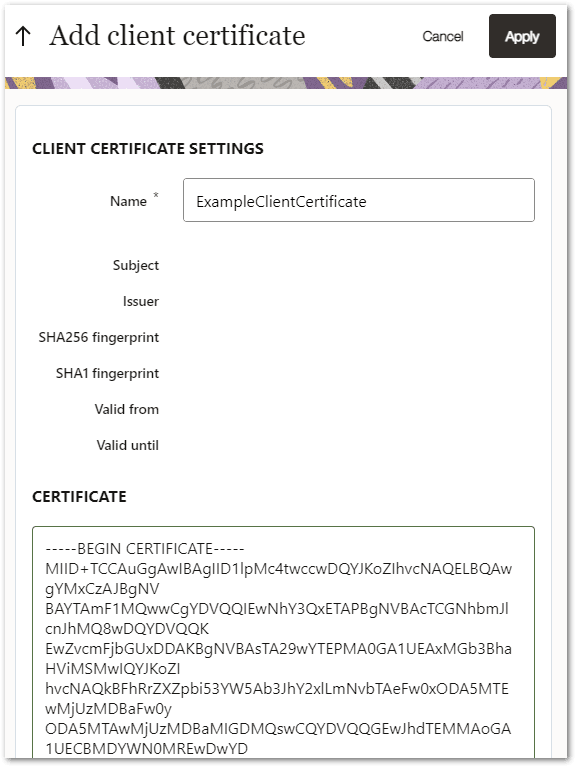
Note that:- There may be one or more certificates associated with a single private key.
- A client certificate must be in PEM (Privacy-Enhanced Mail) format, with the private key in unencrypted form, before it can be pasted into the Certificate field. To convert a certificate in PKCS12 format into PEM format, see Convert a client certificate.
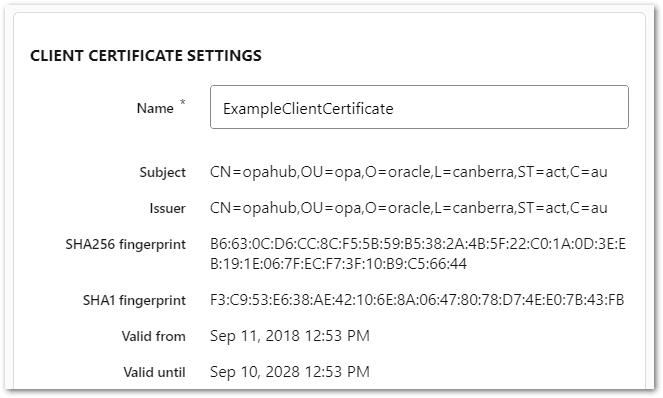
- Click Apply. The details from the certificate you provided are extracted and shown in the CLIENT CERTIFICATE SETTINGS panel.
Convert a client certificate
A client certificate must be in PEM format, with the private key in unencrypted form, before it can be pasted into the Certificate field.
The following command uses the OpenSSL command line utility to convert a certificate in PKCS12 format into PEM format:
openssl pkcs12 -in certificate.p12 –nodes –out certificate.pem
Enter the password used to encrypt the PKCS12 file. The resulting PEM file can be copied and pasted into the Certificate field.
The -nodes switch means "no DES encryption", meaning the resulting private key is not encrypted with DES or Triple-DES encryption before base-64 encoding is performed.
Delete a client certificate
To delete a client certificate:
- In Intelligent Advisor Hub, navigate to the Connections Page.
- Select the Client certificates tab.
- Click the certificate name.
- In the Actions menu, select Delete certificate. You will be asked to confirm that you want to delete the certificate. Click Delete. The certificate will be deleted and will no longer appear on the Client certificates page.