Debug a Field Expression
Intelligent Advisor Flows was only made available to select customers, and will not be made Generally Available.
The flow debugger allows you interrogate the current value of rule expressions in the Flow tab details view. For example, if you have a visibility expression for a control, in the details view you can select the field that is set by a rule and choose to debug that field by clicking the Debug value link.
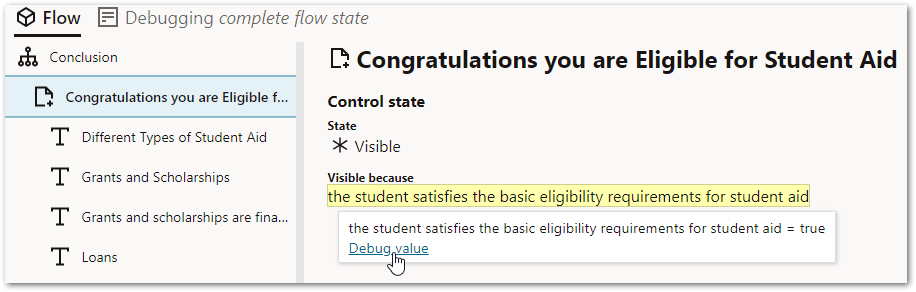
This will then open the rules view where the debugger is now using "contributed" mode. The field you selected to debug will be highlighted in a red box.
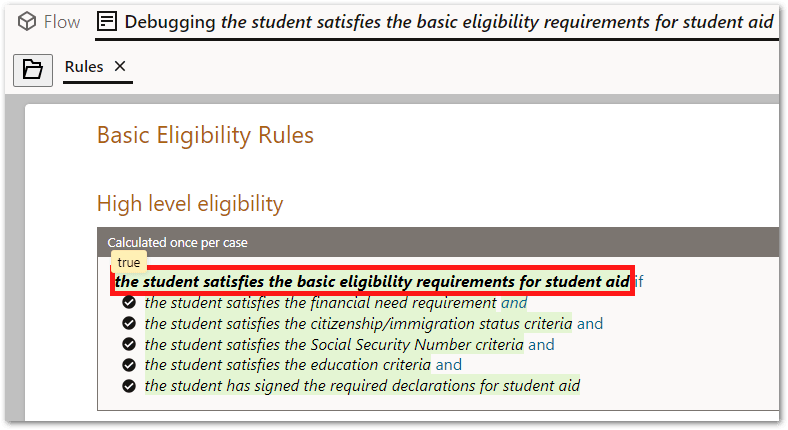
The rules view shows:
-
in green highlighting, the parts of each rule that have contributed to the value of the field that you selected to debug
-
in a pop-up above the field name, the value that has been inferred for the field that you selected to debug
Note: Due to the operation of the linearization algorithm, generally speaking a control's behavior cannot be influenced by values collected later in the flow. This means that when debugging an expression that is used to control the behavior of a control you must do so using a flow state that does not include values collected later in the flow (or by the control itself). The flow state shown in the rules view will not include the values collected later in the flow.