Decision Service Editing User Interface
When you open a rule document in a decision service project, it opens to the Edit view.
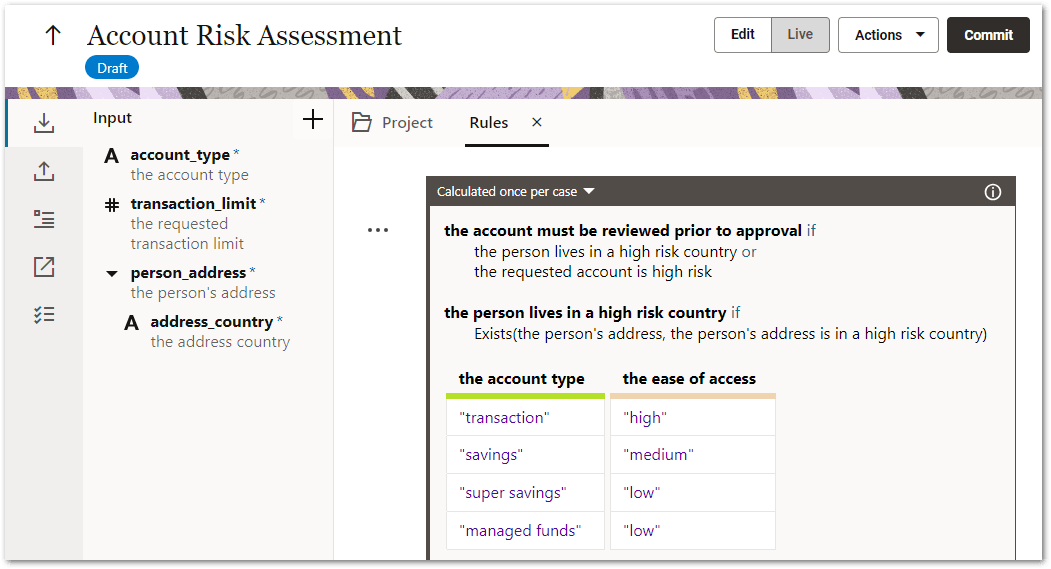
(Note that for users with only the Viewer role, a decision service project will open in View mode as they are unable to edit it.)
The Edit view has two main panes:
-
a left hand pane, known as the contract editor
-
a right hand pane, known as the rule editor
 Contract editor
The contract editor is where the Manager defines the inputs and outputs that will be sent through in the decision service call. The contract editor has five tabs:
- Output - where the outputs (individual values and record lists) that will be returned from the decision service are added and edited
- Input - where the inputs (individual values and record lists) that will be provided for the decision service are added and edited. Required inputs are shown on this tab with an asterisk.
- Data model - where the data model view is shown. Note that the Data model tab is only available when editing the draft (that is, the Data model tab won't be available when viewing a committed version).
- References - where the decision service and named record list references are shown.
- Tasks list - where the current tasks list for the project is shown. This includes warnings, errors and any user-defined tasks.
The contract editor can be hidden (to make more space) by clicking on the tabs on the left.
On the Output and Input tabs there is:
- an add button used to add an input or output:

- a pen button used to edit the selected input or output:

- an arrow used to expand and collapse the display of a record list:

- a Delete menu option
- a Move to <object name> menu option for an object
The icons used for the different input and output types in the contract editor are given in Table 1 below.
| Icon | Type |
|---|---|
 | Number |
 | String |
 | Boolean |
 | Date |
 | Record list |
 | Reference |
 | Reference list |
 | Object |
Errors in the contract are shown in red.
On the Data model tab:
-
Clicking on an entry will navigate to the definition of that entry.
-
There is a filter field that allows the list of data entries to be filtered.
On the References tab:
-
There is an add button used to Add a Decision Service Reference or Add a Named Record List Reference.
-
Clicking on a decision service reference will open the Decision service reference panel showing the properties for that reference. Decision service references are shown with a
 icon.
icon. -
Clicking on a named record list reference will open the External named record list panel showing the properties for that record list. Named record list references are shown with a
 icon.
icon.
On the Task list tab:
-
Clicking on a task will show that task in the rules document.
-
Clicking on a warning will open to the field that is unused.
-
Clicking on an error will open the contract editor or the rule document to that error.
-
There is a filter field that allows the list of tasks to be filtered by text. The filter also recognizes filtering by type (Error/Warning/Task) or by location.
Rule editor
The rule editor is where the Author defines the rules for the decision service. For more information, see Rule Editor User Interface.
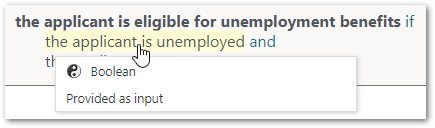
A rule document has a white background when in edit mode, and a grey background when in view mode. When in view mode, you can hover over an input or output in a rule to see the type of field and how it is set.
On the right hand side of the rule editor is a navigation drawer that provides quick links to headings within the rule document.