View the Project History
A complete history of committed project versions are kept allowing you to view and revert to an old version of a decision service, template, flow or flow scheme project if needed.
To view the project history:
- In Intelligent Advisor Hub, navigate to the Projects Page.
- Select the tab for the type of project.
- Click the project name. The project opens.
- In the Actions menu in the project header, select Version history. The Version history panel opens on the right hand side of the page. The history includes for each draft or committed version:
- the version number
- the date and time of the version
- the user who committed
- any comments that were added when the version was committed or after
- any branching information
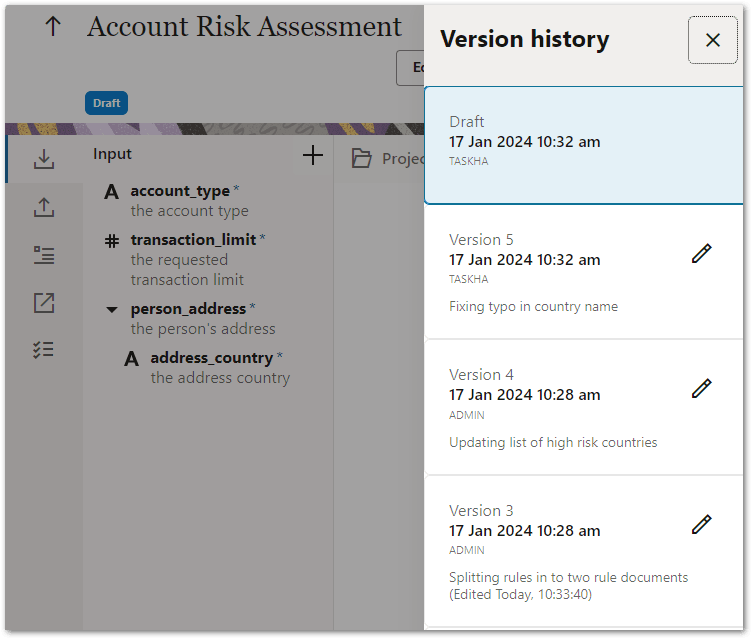
- Click on an historical version to open that version of the project in view mode.
Tip: If you want to make an historical version your working version, open that version from the version history and then in the Actions menu select Revert to this version. Otherwise, click the edit button (Edit, Edit latest version or Continue editing) to re-open the draft version in the editor. You can branch an historical version of a project by opening that version and then in the Actions menu, click Branch.