Insert Standard Text Or Images Into a PDF Form Template
Once opened in your PDF editor, standard text, images and formatting can be added to the PDF template document using the regular features of the editor.
In PDF form templates that are used to generate PDF documents, be aware that:
- Fonts used for static text in the template will automatically be embedded in the output PDF document.
- Fonts used for non-static text in the template (that is, text in form fields) will only be embedded in the output PDF document if:
- the font is a Analytics Publisher predefined font (no additional setup is required; the font will automatically be embedded in the output document), or
- the font is a TrueType font and is selected for embedding in Policy Modeling (see below).
If you are not sure if the font is a Analytics Publisher predefined font, you can specify in Policy Modeling to embed the font (assuming the font is embeddable).
- All other fonts used for non-static text will not be embedded. This may result in an inconsistent text appearance between the template and the generated form.
Embed TrueType fonts in generated PDF forms
TrueType fonts used in PDF templates for form fields need to be embedded. This ensures that generated PDF forms match their desired appearance (for example, matching corporate font standards). To do this:
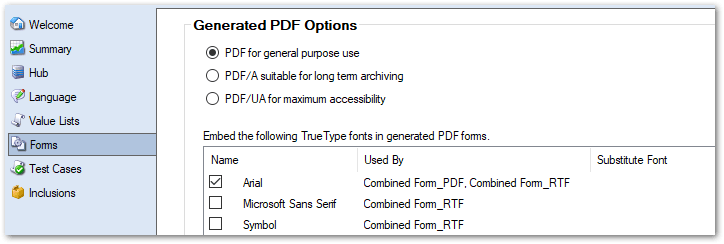
- In Policy Modeling on the Projects tab, select the Forms subtab.
- In the Generated PDF Options section, select the check box next to each font that you want to embed. (The list of fonts displayed will be all of the TrueType fonts currently in use and correctly identifiable in the form templates.) This will copy the font to the FormTemplates/fonts folder in the project so that it can be embedded in the output document. Note that you will only be able to select fonts that permit embedding.
Tip: To include non-English characters (for example, Greek and Arabic) in a generated PDF form, you need to use an embeddable TrueType font that supports those characters, and select the TrueType font for embedding in Policy Modeling.
Substitute fonts with other TrueType fonts in generated PDF forms
You also have the option to substitute a font used in a PDF template with another TrueType font in the generated PDF form. This can be useful when you do not want to change the template itself (for example, if it is shared with other users).
To substitute a font:
- In Policy Modeling on the Projects tab, select the Forms subtab.
- In the Generated PDF Options section, for the font that you wish to substitute, click in the Substitute Font column.
- Click the drop-down arrow and in the menu select the substitute font. This will copy the substitute font to the FormTemplates/fonts folder in the project so that it can be embedded in the output document. (There is no need to specifically select the font for embedding.)
