Define a New Value List On the Value Lists Subtab
To define a new value list on the Value Lists subtab in Policy Modeling:
- On the Project tab, click the Value Lists subtab.
- Click the New button.

The Create value list dialog box displays.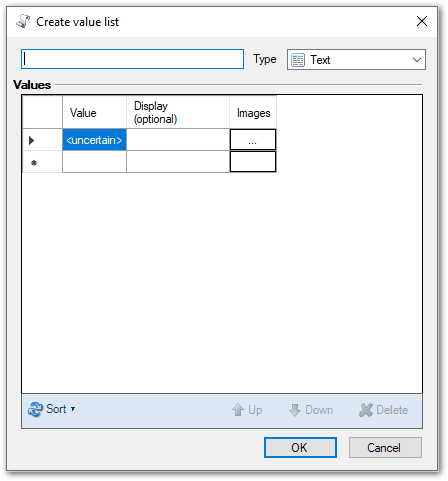
- Type a meaningful name for the value list into the field at the top left of the dialog box. This name will appear in the Edit Attribute dialog box and on the Data tab and Interview tab. If you have more than one value list in your project, ensure the name of each one is sufficiently descriptive to enable you to distinguish between them.
- Select a type for the value list from the Type drop-down list. Any attribute type, including Boolean attributes, can be used as the value list data type. Your selection will depend on the data type of the attribute you wish to connect to the value list.
- Type one value at a time into the cells of the Value column.
- (Optional) For each value in the Value column, type a corresponding display value into the adjacent cell of the Display (optional) column. Note that in Latest Version interviews, you can use attribute substitution in the display text.
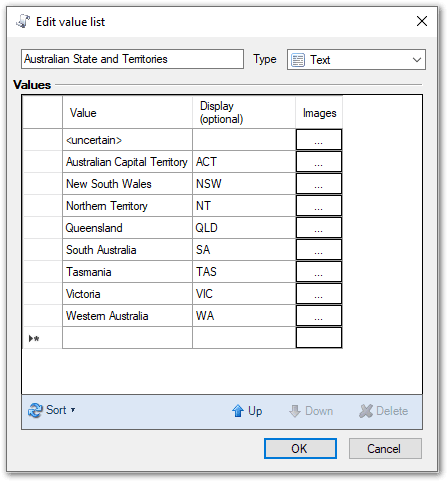
- (Optional) If the value list will be used with image buttons or text and image buttons, specify an image for each value in the Value column.
- (Optional) If the value list will be used with sliders, specify an image for each value in the Value column.
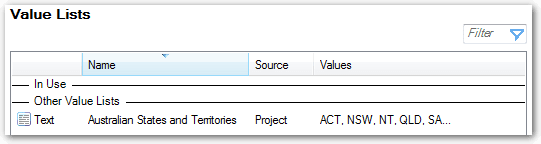
- When you have entered all your values, click OK. The Value Lists view is updated to show the new value list. User-defined value lists have a Source type of Project.
Tip: Value lists created in projects are demonstrated in the EnergySaver, Insurance Picker, Loan Advisor and myBenefits example policy models installed with Policy Modeling.
Notes on defining values lists in Policy Modeling:
- By default, the value list is created with <uncertain> as one of the values. It is not possible to delete the <uncertain> value. However, using the option visibility settings, you can configure the uncertain option in a value list. For more information, see Configure the Display of an Uncertain List Item. Values collected with radio buttons will not have an uncertain option if the control can never be both visible and optional.
- If you do not provide any display values in the Display (optional) column, when the list appears on an interview screen it will use the values in the Value column, except for the <uncertain> value. For the <uncertain> value, if you leave the Display (optional) column blank, the interview user will see a blank in the list. You may prefer to add a more user-friendly display value such as 'I don't know'.
- For text type value lists only, you can include a blank string in the Value column by leaving the column blank. When the interview user selects this option at runtime, the text attribute linked to your value list will be given a value of ' '. (A blank string in the Value column is not allowed for non-text type value lists and will cause Policy Modeling to display an error.) For the Display (optional) column for your blank string value, you can have a blank, or you may prefer to add a more user-friendly display value such as 'leave blank'.
- If you want to use your policy model to run interviews in multiple languages, you can provide translations for the items in your value list in the same way as you provide translations for other project elements. For more information, see Create a new language translation for a policy model.
- If the value list is associated with an attribute that is used in a Text or Concatenation function, the function will return the value list item's display text. If you want the function to return the value list's value instead, use the function with the Value function.