Adding badges
Badges allow you to create digital awards that recognize customer achievements and loyalty.
To add a badge:
- In Control Center, go to Badges.
- Click Add Badge.
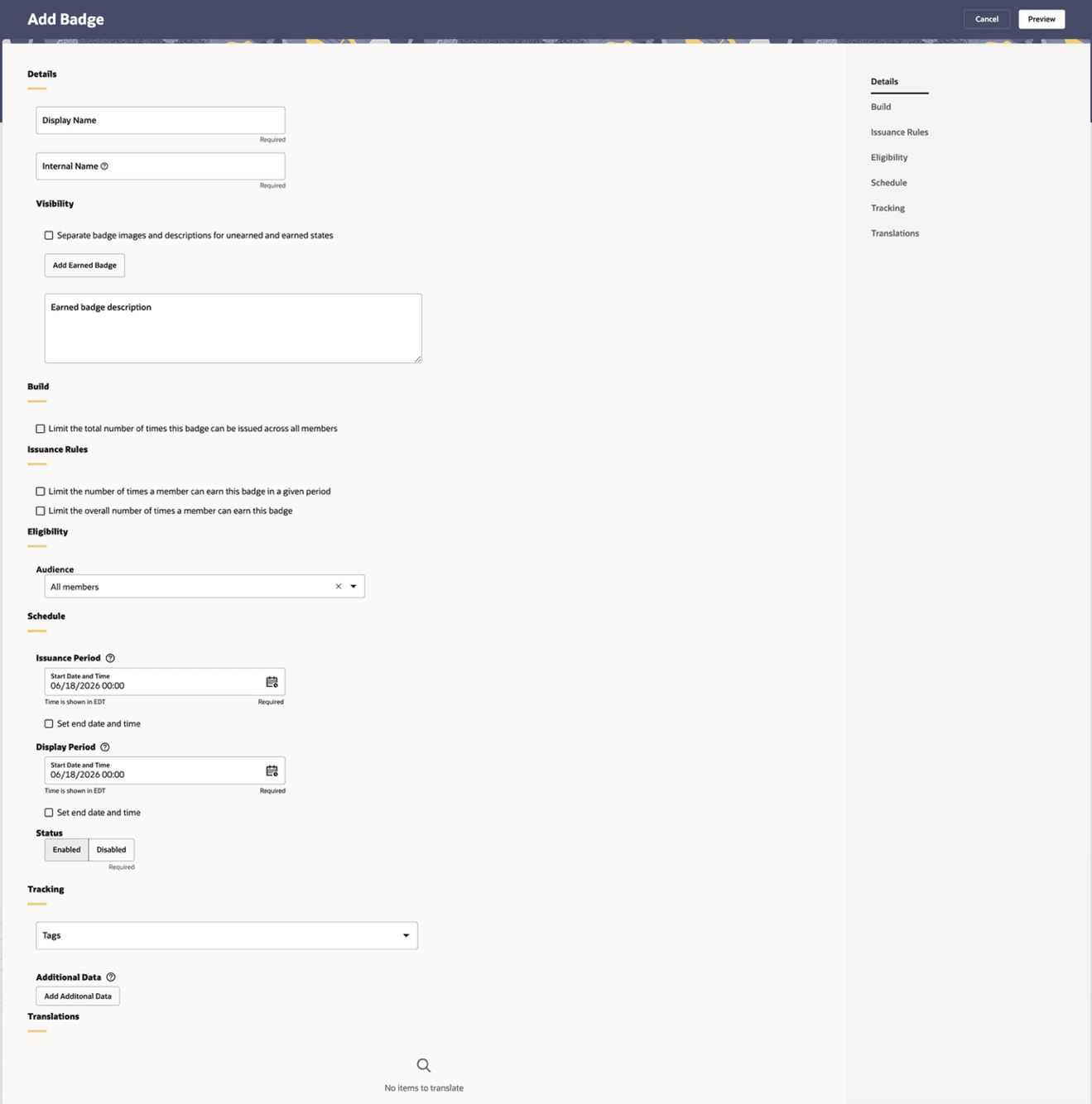
- Configure the following details about your badge:
- Details
- Display Name: Specify the name for this badge. The display name is shown to members.
- Internal Name: Provide an internal name for this badge. Internal names are not shown to members.
-
Visibility
- Separate badge images and descriptions for unearned and earned states: Enable this option if you want members to see different badge images or descriptions before and after they earn the badge.
-
Add Earned Badge: Click to add the badge image members see after earning the badge.
- Earned badge description: Provide the description members see after earning the badge.
- Build
- Limit the total number of times this badge can be issued across all members: Enable this option to set a maximum number of times the badge can be awarded.
- Issuance Rules
- Limit the number of times a member can earn this badge in a given period: Enable this option to control how often a member can earn the badge within a specific time period.
- Limit the overall number of times a member can earn this badge: Enable this option to set a lifetime earning limit for each member.
- Eligibility
- Audience: Select the audience that is eligible to earn this badge.
-
Schedule
-
Issuance Period: Specify the start date and time when the badge can begin being issued.
-
Set end date and time: Enable this option if you want the badge to stop being issued at a specific date and time.
-
Display Period: Specify the start date and time when the badge can begin being displayed to members.
-
Status: Select Enabled if the badge should be active. Select Disabled if the badge should not be active.
-
-
Tracking
-
Tags: Specify a tag or tags for the badge.
-
-
Additional Data: Click Add Additional Data to include additional badge data.
- Translations
- Review any badge content that is available for translation.
- Click Preview.
- Review the badge details.
- Click Submit.