Managing Program Builder folders
You can use folders and sub-folders in the Tree View in Program Builder to help organize your programs.
Note: The program builder is an application separate from the Program Canvas. Program Canvas is an easy to use, drag-and-drop whiteboard that allows you to transform data within Oracle Eloqua in real-time.
To create a folder:
-
Navigate to Orchestration
 > Tools, then click Program Builder.
 -
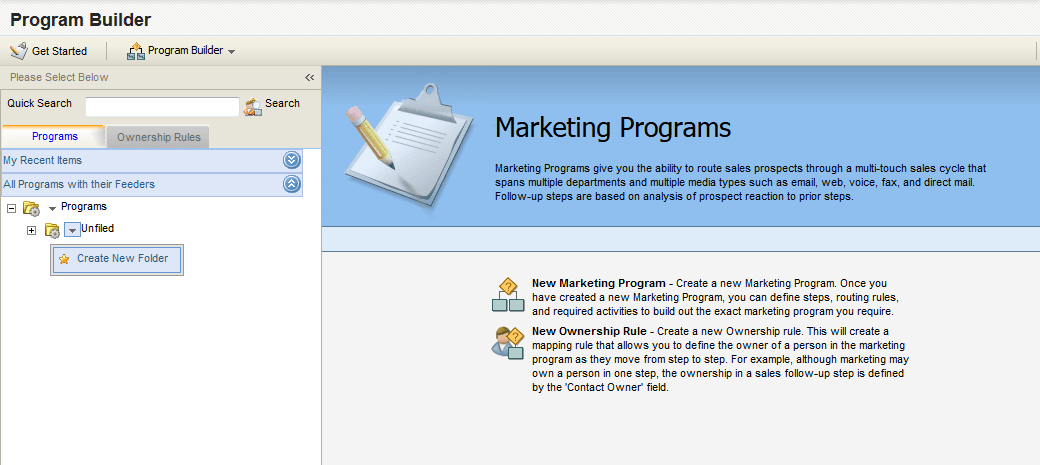
Click the drop-down arrow next to a folder on the left panel, then click Create New Folder.
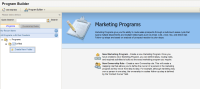
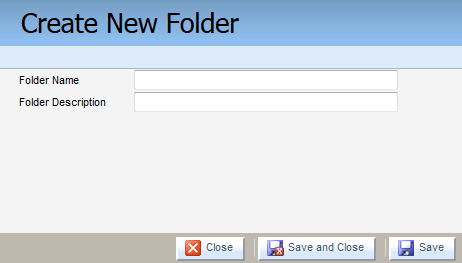
The Create New Folder window opens.
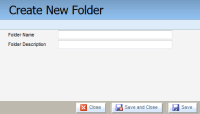
- Type a name into the Folder Name field.
-
(Optional) Type a brief, meaningful description in the Folder Description field.
- Click Save and Close.
The folder is added to the Tree View in the location and with the name you provided once the Tree View finishes refreshing.
To move a program to a folder:
- Click the drop-down menu next to the name of the program, then click Move To Folder.
- Select the folder from the list, then click Move to Folder.
The program file is now located in the selected folder.
To delete a folder:
-
Click the drop-down menu next to the name of the folder, then click Delete Folder.
Note: The folder must be empty in order to successfully delete it, and this includes programs that may have been archived or expired in the folder. If there are any programs in the folder when you try to delete it, you will see a message box indicating that the folder cannot be deleted until any programs associated with it are removed.
- Click OK in the confirmation dialog box that appears.
The folder is permanently deleted.