About Intelligent Attributes
You can create and manage custom views, intelligent attributes, and bucket attributes directly within the Unity Data Platform using the Intelligent Attributes Composer. It guides you through a clear, step-by-step workflow, from defining attribute metadata to configuring calculation logic on an interactive visual canvas.
Using governed data sources, aggregations, and functions you can build sophisticated attributes without needing technical expertise. The Data Workbench landing page then brings everything into one place, providing a single view of all attributes and surfacing essential metadata such as status, master entity alignment, lookback windows, and modification history to strengthen governance and operational transparency.
Access Requirements
Ensure you've the appropriate roles:
- Customer Data Platform Administrator: Full control over configuration, publishing, and governance
- Customer Data Platform Manager: Create and manage attributes aligned to business strategy
- Customer Data Platform Specialist / Analyst: Build and maintain attributes for analytics and activation
Access and Use Intelligent Attributes
- Sign in to Oracle Fusion Cloud Applications with a user account that has the required Intelligent Attributes access.
- From the navigator, select and a screen similar to the following is displayed.
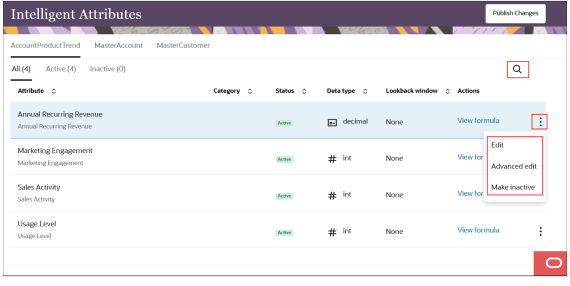
- Define basic details (name, data type, master entity, optional category, time window)
- Build logic using the visual canvas:
- Select data sources
- Apply aggregations and functions
- Map to a destination (master entity)
- Save your attribute modifications and Publish Changes the attribute.
- Run the Identity Resolution Pipeline Job via Data Feeds to generate attribute values.
- Use the attribute in segmentation and downstream workflows.
Edit Bucket Attributes
Here's how to edit a bucket attribute.
- Select the MasterCustomer tab and a screen similar to the
following is displayed.
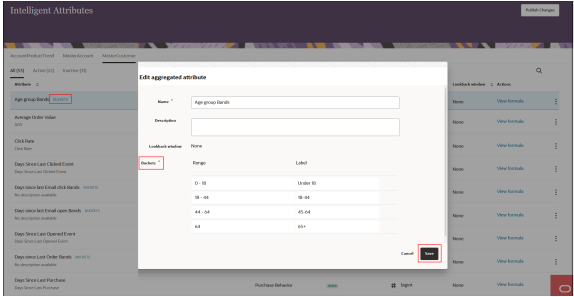
- From the Actions menu (horizontal ellipse), select Edit.
- Select an attribute from the chosen Master entity and define the bucketing logic.
- Save and Publish the bucket attribute.
After publishing:
- Only limited edits allowed (for example, name, description; restricted logic changes)
- Attributes must be published and pipeline jobs executed before values are available in segmentation