Manage Marketing Segments
The segment list page lets you view and manage the segments in your tenant. The page has a search bar with filters, a table that shows all your segments, an action menu for each segment, and a button to create a new segment.
You can search for segments by name and also use a filter to find the segment you're looking for. The list of segments shows the segment name, count, status, profile type, created by, created date, modified by and modified date. For each row, there's an option to duplicate or delete the segment, and to view the list of other segments it's referenced in.
Select the Create button to create a new segment.
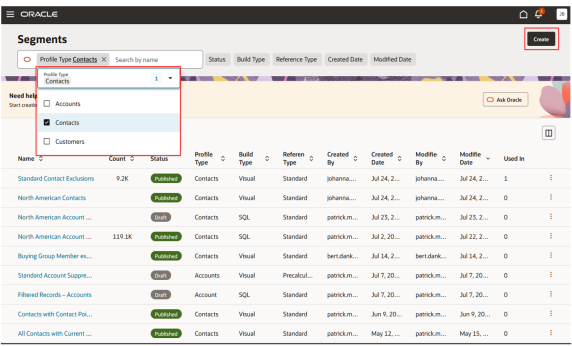
Create a Segment
- Navigate to to display the Segments landing page.
- Select Create and the New
Segment panel opens in the UI similar to the
following:
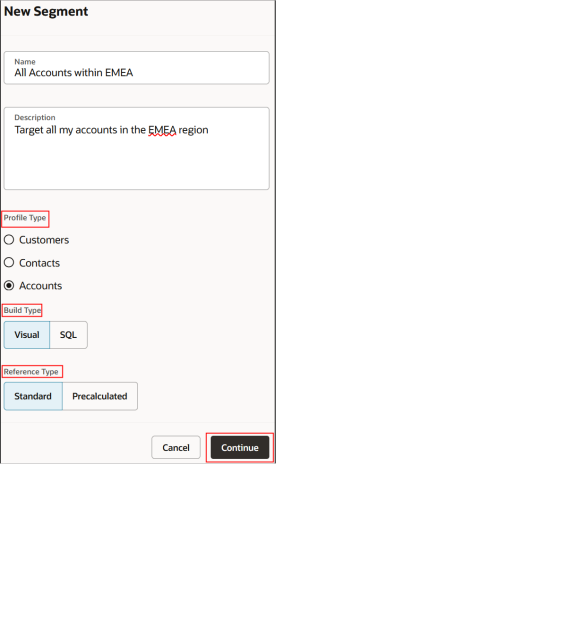
- In the drawer, enter the basic details:
- Name
- Description (optional)
- Profile type
- Select Continue to open the Segment Builder as follows:
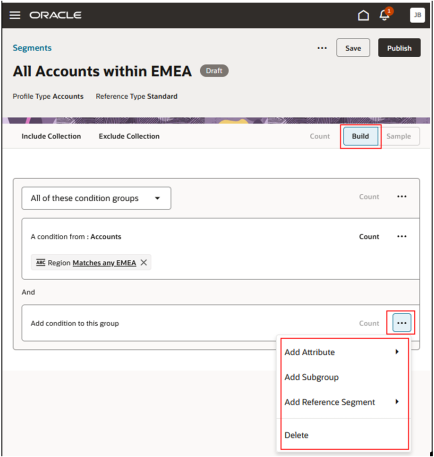
- Select Add Attribute from the
Actions menu.
When adding an attribute, search or browse the list to find the one you need.
- Select the attribute you want to add.
- Choose an operator for the condition and enter a value, if needed.
- To add more conditions, continue selecting attributes from the same data object or related data objects. The available options change based on your previous selections.
- To add another condition group, select the action menu at the top right of the collection
- To add a new collection, select the button at the top of the builder. You can create either an include collection or an exclude collection.
- Select Add Reference Segment from the
Actions menu.
When one segment is added to another segment, it's called a reference segment. Reference segments let you specify criteria once and use them over and over in other segments.
Note: Reference segments are very useful, but they also make segment queries very complex. For this reason, there are restrictions on how reference segments can be used. For example, you can only add five reference segments to a given segment, and a segment that contains a reference segment can't be used as a reference segment. - In the drawer, select an eligible segment and click Build.
- To spot-check values in your segment, select Sample. Up to 100 records will be loaded automatically.
- When you're ready, click Save. The segment is saved as Draft, and you can continue making changes.
- When the segment is complete and valid, select Publish. The segment status changes to Published, and you're returned to the segment list page.