Create a Data Augmentation Scripts Application
Create a Data Augmentation Scripts (DAS) application to use your custom logic to bring data from the source to your application data files.
- On the Custom Data Configurations page, click Create, and then select DA Scripts.
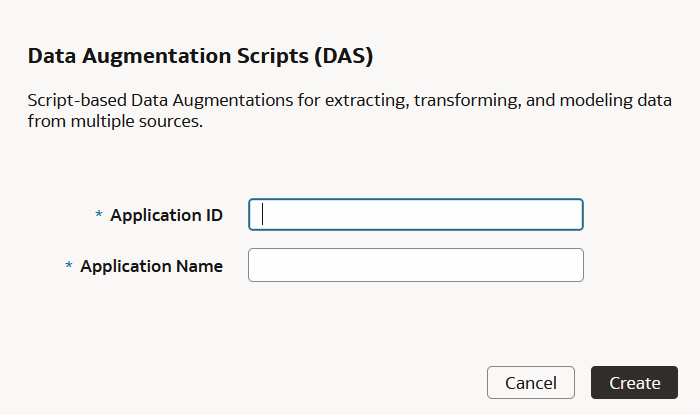
- In the Data Augmentation Scripts (DAS) dialog, enter an ID in Application ID, name in Application Name, and then click Create.
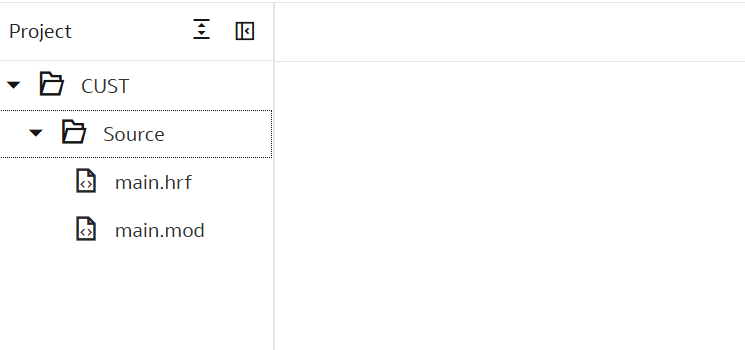
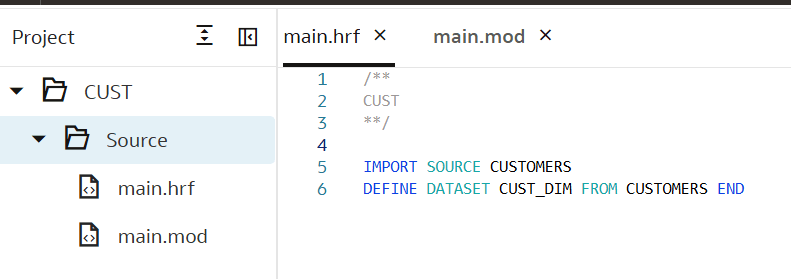
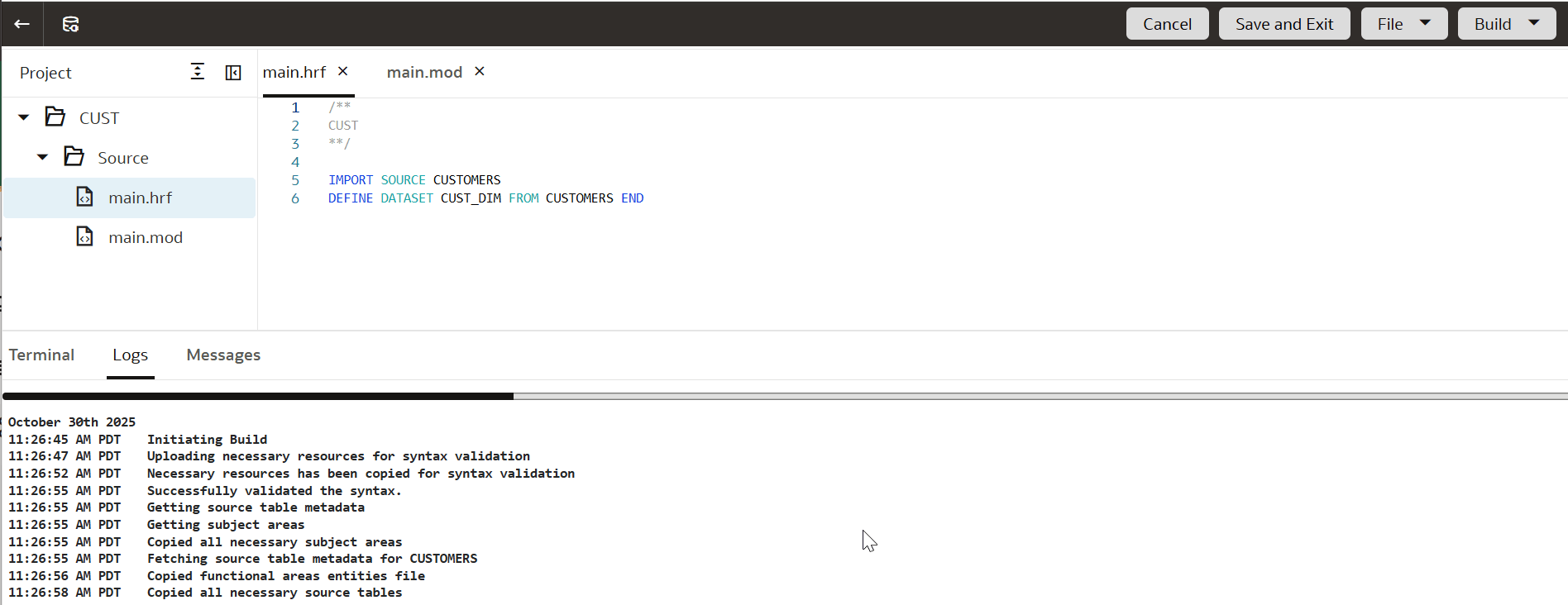
- Under Source, select main.hrf, and in the editor, enter the logic to bring data.In the following example, you create a data augmentation script for CUST_D using the sample Data Augmentation Scripts source files.To build your dataset, you can reference data from your sources into the data warehouse using the
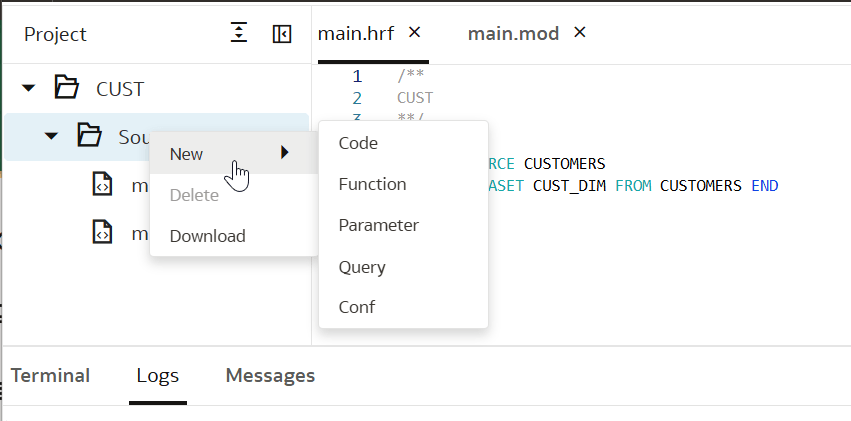
IMPORTcommand.See IMPORT Statement. - Right-click the Source folder, select New and then select the type of file you want to create.
See Supported Files.
- Click Build and then select Build project. The project compiles and validates your syntax and to ensure that the source metadata are mapped properly.