Extend the Semantic Model Using the Sandbox Framework

The Sandbox framework enhances the development process with its intuitive graphical modeling capabilities. It enhances the user experience by visually organizing related elements within each logical star and subject area. The logical task organization and minimal steps make customization easy and efficient.

The Sandbox framework streamlines development by allowing changes to be made without requiring chronological order, eliminating the need to wait for compilation until all modifications are complete. This framework promotes greater consistency in the semantic model, supporting adherence to best practices.

Multiple users can work concurrently in separate customization sandboxes. To ensure your work incorporates the latest changes, compare the update date of your sandbox with the main sandbox. If your sandbox was updated before the main sandbox, create a new customization sandbox and transfer your changes, then delete the old one, as changes merged to the main sandbox after your sandbox's creation won't be included. Before merging changes to the main sandbox, coordinate with other applicable users to prevent conflicts. Publish only one sandbox at a time. Publishing a sandbox removes any sandbox already published. If you've merged a sandbox, then the system preserves the changes that you published prior to merging with the main sandbox.

A typical workflow to create extensions involves these:
  1. Create a sandbox.
  2. Select Perform Action and then select Create or Manage a Star .
  3. Make changes as required (the changes are done to the logical model).
  4. Select Perform Action and then select Manage Subject Areas.
  5. Incorporate logical changes in the desired subject areas.
  6. Go back to Semantic Model Extensions page, select User Extensions, select Publish Model, and then select the sandbox to publish.
  7. In Oracle Analytics Cloud associated with your Oracle Fusion Data Intelligence instance, verify if the changes are reflected in the subject area.

Create Sandbox

To begin customizing your semantic model, create a sandbox.

You add customizations to the production environment. After you have added and tested your customizations, you can publish them to the model in the production environment.

  1. Sign in to your service.
  2. In Oracle NetSuite Analytics Warehouse Console, click Semantic Model Extensions under Application Administration.
  3. On the Semantic Model Extensions page, click User Extensions.
  4. In the User Extensions region, for Customization Sandboxes, click Create Sandbox to create your customizations.
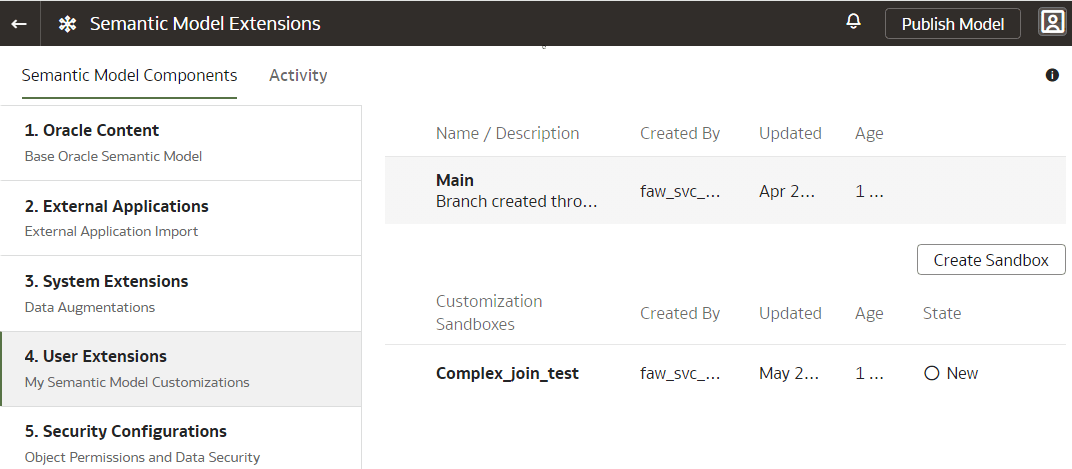
    Create Sandbox option

  5. In Create a Sandbox, enter a Name having up to 80 characters or less, provide a Description, and click Done.
  6. On the Semantic Model Extensions page, under Customizations Sandbox, hover over an applicable sandbox to view Actions, and then click View Sandbox.
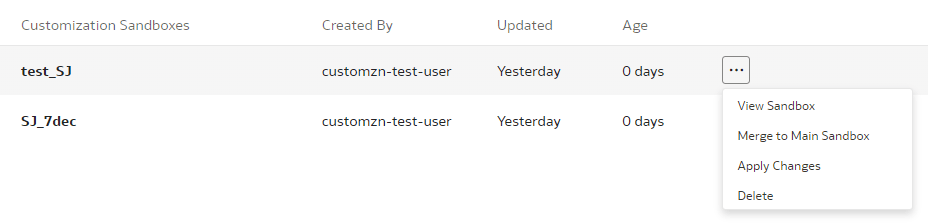
    View Sandbox option

  7. On the selected sandbox Details page, click Perform Action, and select as applicable.
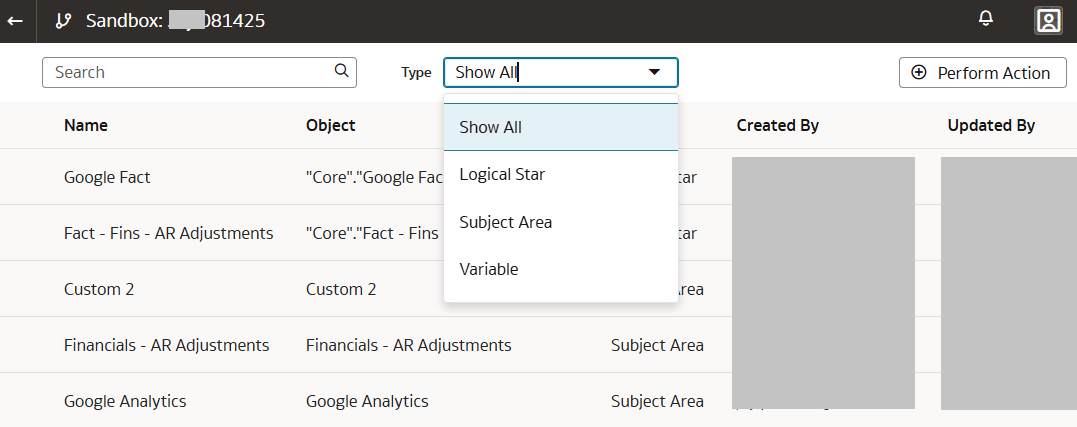
Manage Subject Areas

The Manage Subject Areas action enables you to organize all entities and attributes available for reporting in subject areas.

You can create business-friendly names and organize them in a desired order within folders to make it easier to find and include in the reports. The typical organization is to have each dimension organized in a folder with all its attributes within it, followed by folder for facts and calculations. You can rearrange columns based on your organizational preferences. You can reorder, rename, remove columns, and add folders to the custom dimensions and facts in the custom and prebuilt subject areas.

You can create a subject area or modify a subject area.

Create Subject Area

You can create a subject area as a container and later add facts and dimensions to your new subject area or create a subject area based on an existing one. The subject area enables you to organize all entities and attributes available for reporting.

  1. On the Semantic Model Extensions page, under Customizations Sandbox, hover over an applicable sandbox to view Actions, and then click View Sandbox.
  2. On the selected sandbox Details page, click Perform Action, and then select Manage Subject Areas.
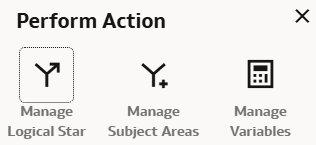
    Perform Action dialog

  3. In Perform Action, select Create a Subject Area, and then click Next.
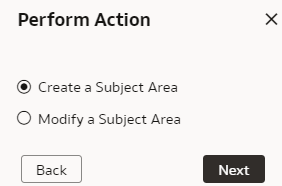
    Manage Subject Areas option in Perform Action dialog

  4. In step 1 of the wizard, create a subject area using one of the methods:
    • Select Create a Subject Area to create a subject area container, and provide these details:
      1. Enter a name without any leading or trailing white spaces, add a description, and then click Next.
      2. In step 2 of the wizard, click Add Elements, and then click either New Custom Elements to select custom elements that you created or Pre-built Custom Extensions to select factory data elements to rearrange the subject area elements that are delivered by Oracle.
      3. Click Add Subject Area to select and add data elements from multiple subject areas.
      4. In step 3 of the wizard, organize and rename the data elements in your new subject area, and then click Next.
      5. In step 4 of the wizard, review your new subject area and click Finish to create it.
    • Select Create a Subject Area based on an existing one to create a subject area using an existing one in the system, select an existing subject area, name your subject area, and then click Next. Complete steps 2, 3, and 4 of the wizard.

Modify Subject Area

You can modify custom and prebuilt subject areas. Modify a custom subject area to change the previously selected data elements or add more data elements and modify a prebuilt subject area to add more data elements.

Ensure to create custom elements if you want to add them to the custom subject area and add additional columns to the prebuilt subject area prior to modifying either of them.
  1. Sign in to your service.
  2. In Oracle NetSuite Analytics Warehouse Console, click Semantic Model Extensions under Application Administration.
  3. On the Semantic Model Extensions page, click User Extensions.
  4. On the Semantic Model Extensions page, under Customizations Sandbox, hover over an applicable sandbox to view Actions, and then click View Sandbox.
  5. On the selected sandbox Details page, click Perform Action, and then select Manage Subject Areas.
  6. In Perform Action, select Modify a Subject Area, select a custon or prebuilt subject area that you want to modify, and then click Next.
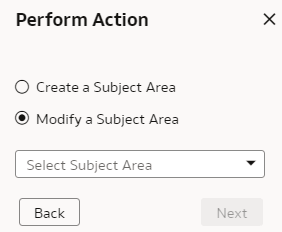
    Modify a subject area option

  7. In step 1 of the wizard, view the selected subject area details and click Next.
  8. In step 2 of the wizard,
    • If you're modifying a custom subject area, click Add Elements and then click New Custom Elements to select custom elements that you created.
    • If you're modifying a prebuilt subject area, click Add Elements and then click Pre-built Custom Extensions to select the prebuilt elements that you extended.
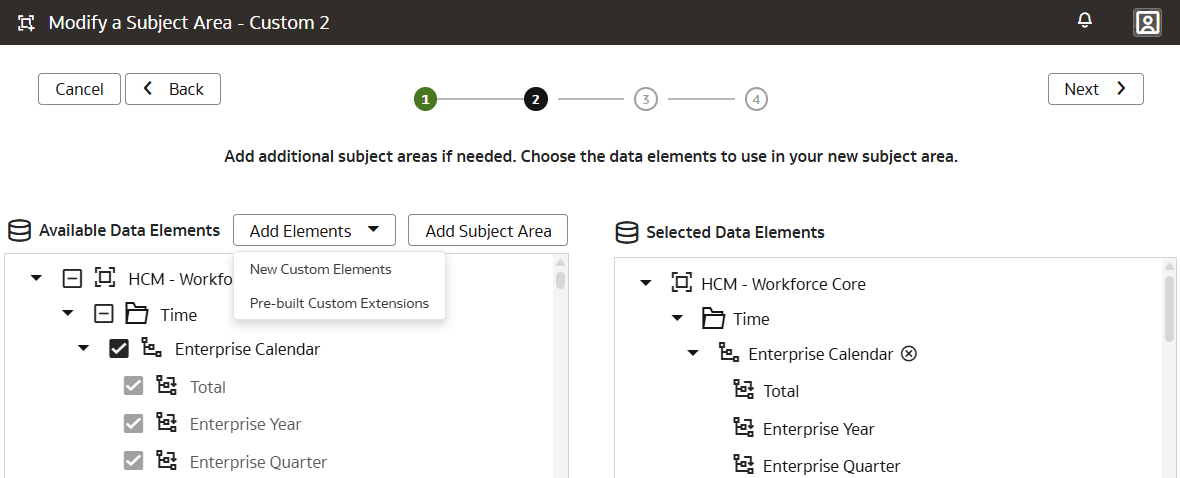
    Add Elements options

  9. Click Add Subject Area, select a subject area, and click Add to display the elements from the selected subject area under Available Data Elements. Select the elements to add them to the Selected Data Elements list.
  10. Click Finish.

Manage Logical Star

A logical star is the basic complete unit of a dimensional model with a fact at the center and joined to the surrounding dimensions. Manage a logical star by adding and updating objects, attributes, joins, and calculations.

Facts contain elements that you can measure such as count, aggregate, and perform statistical operations on; while dimensions contain elements that provide context to those measurements. Each logical star has one fact and one or more dimensions. You can manage your own custom star or you can manage a prebuilt star by adding dimensions. You do these operations to extend the model to make use of custom data objects or elements that you've added to the warehouse or to create new calculations or joins to address your reporting needs.

You can use the standard prebuilt tables in the semantic model extensions without creating custom SQL views and issuing grant statements. This simplifies the process of working with the prebuilt tables for frequent data refresh and aliasing dimension tables.

Within the Sandbox you can zoom and focus on specific areas of the logical star using the graphic tab on the logical star page. You can rearrange the objects in the logical star using the graphic tab on the logical star page. Additionally, you can view all the joins in a tabular format using the tabular tab on the logical star page.

Create Logical Star

Create a custom logical star to use custom data objects or elements that you have added to the warehouse or to create new calculations or joins to address your reporting needs.

  1. Sign in to your service.
  2. In Oracle NetSuite Analytics Warehouse Console, click Semantic Model Extensions under Application Administration.
  3. On the Semantic Model Extensions page, click User Extensions.
  4. On the Semantic Model Extensions page, under Customizations Sandbox, hover over an applicable sandbox to view Actions, and then click View Sandbox.
  5. On the selected sandbox Details page, click Perform Action, and then select Manage Logical Star.
  6. In Perform Action, select Create Logical Star, and then click Next.
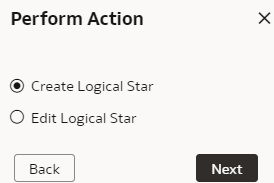
    Create a logical star

    You’re now ready to add facts, dimensions, hierarchy, and additional columns.

Add Fact

Add elements that you can measure such as count and aggregate, and perform statistical operations to your custom logical star using the Add Fact option.

While selecting an aggregation rule for each fact column to set the aggregation behavior, use a time-balanced aggregation when the added measure mustn't be "aggregated" by default across a time dimension. Oracle Fusion Data Intelligence supports non-aggregation types like "Last" or "First" in place of the "SUM" aggregation type when required. Use a level-based aggregation when the underlying measure must always be calculated to a specific level of a predefined dimensional hierarchy. For example, in a product hierarchy that has the Product Total, Product Category, Product Sub-Category, and Product Details levels, you add a new measure called "Revenue" and need this "Product Category Revenue" measure to be aggregated to Product Category, then you must use the level-based aggregation and choose the right level of the Product Dimension. This setting enables Oracle Fusion Data Intelligence to always aggregate and show the value of the measure at the Product Category level. This is useful when you need to calculate Product Revenue as a % of Category Revenue. Refer to the Create Fact section in Recommendations and Tips to Extend the Semantic Model.
  1. Navigate to the Semantic Model Extensions page, under Customizations Sandbox, hover over an applicable sandbox to view Actions, and then click View Sandbox.
  2. On the selected sandbox Details page, click Perform Action, select Manage Logical Star, and then select Create Logical Star.
  3. On the Logical Star page, click Add Fact, and in step 1 of the Add a Fact wizard, select the schema, and then select a view or table or synonym as the object. For example, FCT_CALC_Extensions.
    You see the fact table for the selected object.
  4. In the details of the fact table for the selected source table, click the Select Fact and Use for Key check boxes for the source columns that you want to add to your new fact table in the target subject area.
  5. Optional: In the details of the fact table for the selected source table, under Select Degen Attribute, click the check boxes for the attributes for which you need the degenerate dimension to be created.
  6. If any of the selected attributes have been removed or modified in the source table since the last refresh, then you see such columns highlighted and a message asking whether you want to update the table. Select OK in the message to reload the source columns. If you want to review the changes to the source columns, then click Cancel in the message, and later click Refresh to reload the source columns.
    If any of the attributes that you haven’t selected have been removed or modified in the source table, then you see the refreshed list of source columns. If any of the custom columns fail validation during the refresh, then you see a message asking you to resolve the cause of failure and revalidate.
  7. Optional: Click Create Column to add a new column to your new fact table in the target subject area using these instructions:
    1. In Create Column, enter a display name.
    2. Under Data Elements, search for a data element from the physical table of the selected dimension table.
    3. From the search results, double-click the data element to place it in the text pane.
    4. Under Functions, search for a function to construct a column using expressions. For example, search for functions like "substring" or "concatenate" to construct new expression-based columns. From the search results, double-click the applicable result to add it to the central text pane.
    5. Click Validate, and then click Save.
  8. Select the aggregation rule for each fact column to set the aggregation behaviour. You can set the time-balanced aggregation rule for a time dimension and hierarchy level-based aggregation rule for a dimension using these steps:
    1. For a fact column, click the Time-Balanced Aggregation icon.
    2. In the Time-Balanced Aggregation dialog, click Add Time Dimension, adjust the aggregation rule, and then click OK.
    3. For a fact column, click the Hierarchy Level-Based Aggregation icon, select the dimension and level. Click Add Dimension to add more dimensions. Click OK.
Manage Dimensions

You can create a custom dimension, join it to the prebuilt or custom facts, and add the custom dimension to any subject area to meet your business requirements.

Within the logical star, you can filter and focus on dimensions that are custom by selecting Show Customizations Only. Additionally, you can search and filter on the objects within the logical star. You can create a new or add an existing dimension in the logical star. Refer to the Create Dimensions section in Recommendations and Tips to Extend the Semantic Model.
  1. Navigate to the Semantic Model Extensions page, under Customizations Sandbox, hover over an applicable sandbox to view Actions, and then click View Sandbox.
  2. On the selected sandbox Details page, click Perform Action, select Manage Logical Star, select Edit Logical Star, select the applicable fact and then select Next.
  3. On the Logical Star – Fact page, click Add Dimension, and select either Create New Dimension or Add Existing Dimension.

    Add Dimension option

Create a Dimension

Create and add dimensions to facts to complete a new star or to update existing stars. You can create joins from your custom dimension to a prebuilt fact.

You can define a sort order column to control the sorting order of a logical column, especially when the desired sort order doesn't match the natural sort order of the data. This is useful for situations like sorting months in a specific chronological order or sorting descriptive columns based on a code or hierarchy.

  1. In step 1 of the Add a Dimension wizard, select the schema, and then select the dimension table in Object. For example, COST_CENTER_VIEW1, and add a name in Dimension Name.

    Note:

    If you don’t see the schema or table, then ensure that you have granted select permission to the OAX$OAC schema in the autonomous data warehouse. For example, grant select on <schema>.<table> to OAX$OAC. See Load Customization Data to the Autonomous Data Warehouse.

    You see the attributes available in the selected dimension table. You can use the Search and Filter fields to limit the attributes displayed for the dimension table.

  2. Select the attributes that you want to use from the dimension table and indicate an attribute to be used as the key for joining with a fact table in the target subject area.
  3. If any of the selected attributes have been removed or modified in the source table since the last refresh, then you see such columns highlighted and a message asking whether you want to update the table. Select OK in the message to reload the source columns. If you want to review the changes to the source columns, then click Cancel in the message, and later click Refresh to reload the source columns.
    If any of the attributes that you haven’t selected have been removed or modified in the source table, then you see the refreshed list of source columns. If any of the custom columns fail validation during the refresh, then you see a message asking you to resolve the cause of failure and revalidate.
  4. Optional: Click Create Column to add another column to your dimension table in the target subject area using these instructions:
    1. In Create Column, enter a display name.
    2. Under Data Elements, search for a data element from the physical table of the selected dimension table.
    3. From the search results, double-click the data element to place it in the text pane.
    4. Under Functions, search for a function to construct a column using expressions. For example, search for functions like "substring" or "concatenate" to construct new expression-based columns. From the search results, double-click the applicable result to add it to the central text pane.
    5. Click Validate, and then click Save.
  5. In step 2 of the wizard, assemble the product hierarchy using the attributes from this dimension and click Next. See Add Hierarchy.
  6. In step 3 of the wizard, select applicable values in Sort Order Column for the columns that you selected to expose or use as a key.
    Ensure that the sort order column is within the same hierarchical level as the display column. For columns not requiring a custom sort, leave the sort order column in the default Select state.
  7. On the Logical Star: Fact page, in the Graphic tab, click on the prebuilt fact and drag drop on the custom dimension that you created to open the Join dialog.
  8. In the Join dialog, select the join type, and then select the dimension keys to join them with the extended dimension keys. If you want to provide expressions as join conditions, then click Complex Join and in Create Joins, select applicable Content Level, click Add Joins, select the target and source logical tables, enter the join condition as an expression, and then click OK.
  9. Click Finish.
Add Existing Dimension

If you want to provide additional context to facts, you can create your own dimension and join to an existing available column in a fact.

For example, if you want to report on invoice categories, create a dimension called "Invoice Category" and join to a column in the fact that has that information. It is important to remember that one dimension record must join to one or more fact records; it should be a 1-many join. You shouldn't have many to one or many to many joins between a dimension and fact table.
  1. On the Logical Star – Fact page, click Add Dimension, and select Add Existing Dimension.
  2. In Add Table, select the dimensions to add.
Manage Extensions

After adding the extension, you can extend the dimensions, add hierarchy, and add columns to ensure that your custom logical star meets your business requirements..

Refer to the Extending section in Recommendations and Tips to Extend the Semantic Model.

On the Logical Star – Fact page, right click on an extension, click Manage Extension, and select any of these:
  • Extend Dim
  • Add Hierarchy
  • Add Column
Extend Dimension

Extend prebuilt dimensions with additional attributes from another data source. For example, you can create a category column that isn't available in the prebuilt dimensions.

You can define a sort order column to control the sorting order of a logical column, especially when the desired sort order doesn't match the natural sort order of the data. This is useful for situations like sorting months in a specific chronological order or sorting descriptive columns based on a code or hierarchy. Refer to Extend Dimension in the Extending section in Recommendations and Tips to Extend the Semantic Model.

  1. In step 1 of the Extend a Dimension wizard, select a schema and table from the database.
  2. Select the columns that you want to expose or use as a key for creating the join, or sort by.
  3. Click in the Display Name table field to enter a new name for the column or to edit an existing one and then click Enter to accept or click Esc to cancel.
  4. In Sort Order Column, select applicable values in Sort Order Column for the columns that you selected to expose or use as a key.
    Ensure that the sort order column is within the same hierarchical level as the display column. For columns not requiring a custom sort, leave the sort order column in the default Select state.
  5. If any of the selected attributes have been removed or modified in the source table since the last refresh, then you see such columns highlighted and a message asking whether you want to update the table. Select OK in the message to reload the source columns. If you want to review the changes to the source columns, then click Cancel in the message, and later click Refresh to reload the source columns.
    If any of the attributes that you haven’t selected have been removed or modified in the source table, then you see the refreshed list of source columns. If any of the custom columns fail validation during the refresh, then you see a message asking you to resolve the cause of failure and revalidate.
  6. Optional: Click Create Column to add another column to your dimension table in the target subject area using these instructions:
    1. In Create Column, enter a display name.
    2. Under Data Elements, search for a data element from the physical table of the selected dimension table.
    3. From the search results, double-click the data element to place it in the text pane.
    4. Under Functions, search for a function to construct a column using expressions. For example, search for functions like "substring" or "concatenate" to construct new expression-based columns. From the search results, double-click the applicable result to add it to the central text pane.
    5. Click Validate, and then click Save.
  7. Click Next.
  8. In step 2 of the wizard, select the join type, and then select the dimension keys to join them with the extended dimension keys. If you want to provide expressions as join conditions, then click Complex Join and in Create Joins, click Add Joins, select the target and source logical tables, enter the join condition as an expression, and click OK.
  9. Click Finish.
Add Hierarchy

Assemble the product hierarchy using the attributes from a dimension table. Hierarchies enable you to define aggregations and drill downs. This makes it easier to report on summary level and drill into details easily and within the same visualization.

Refer to the Create Hierarchy section in Recommendations and Tips to Extend the Semantic Model.
  1. In step 1 of the Add a Hierarchy wizard, name your hierarchy in Hierarchy Name.
  2. Select, drag, and drop available data elements into the Selected Data elements pane to design a hierarchy for the dimension.
  3. In the Selected Data Elements pane, click a level to update its primary key and set its display attribute in the Properties pane.
    You can add multiple levels in your hierarchy by right-clicking at a level and selecting Add Child or Add ‘n’ Child Levels. For example, your Region Hierarchy can have Region Total at Level 1, Region at Level 2, Country at Level 3, State at Level 4, and City at Level 5.
  4. Ensure Add hierarchy to Subject Area is selected and click Finish.
Add Columns

You can create columns to provide additional data elements or calculations. You can add derived and physical columns. While adding physical columns, you can filter available columns and tables to narrow down your selection.

  1. On the Add Column page, select Add Derived Column, and complete these steps:
    1. In Create Column, enter a display name.
    2. Under Data Elements, search for a data element from the physical table of the selected dimension table.
    3. From the search results, double-click the data element to place it in the text pane.
    4. Under Functions, search for a function to construct a column using expressions. For example, search for functions like "substring" or "concatenate" to construct new expression-based columns. From the search results, double-click the applicable result to add it to the central text pane.
    5. Click Validate, and then click Save.
  2. On the Add Column page, select Add Physical Column, and complete these steps:
    1. In Select Physical Column, select the columns and click OK.
    2. On the Add Columns page, for the physical columns, select the Display check box to expose the columns, and click the Logical Level icon to set the required level.
    3. In Set Logical Level, select the dimension, select the level of the dimension hierarchy, and then click OK.

Edit Logical Star

Edit your logical star to modify any of the extensions that you had previously added or to add further extensions.

  1. Navigate the Semantic Model Extensions page, under Customizations Sandbox, hover over an applicable sandbox to view Actions, and then click View Sandbox.
  2. On the selected sandbox Details page, click Perform Action, and then select Manage Logical Star.
  3. In Perform Action, select Edit Logical Star'
  4. To select the prebuilt objects, select Out of the box, select a subject area and an applicable fact within the selected subject area, and then click Next. Select Custom to add custom objects to the logical star, select the applicable fact, and then click Next.
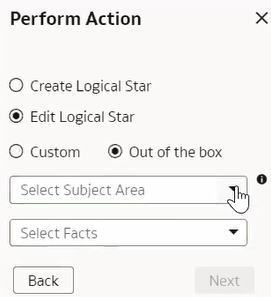
    Perform Action dialog displaying the Select Subject Area field for the Out of the box objects

  5. On the Logical Star – Fact page, click Add Dimension and proceed with the steps discussed in Manage Dimensions.
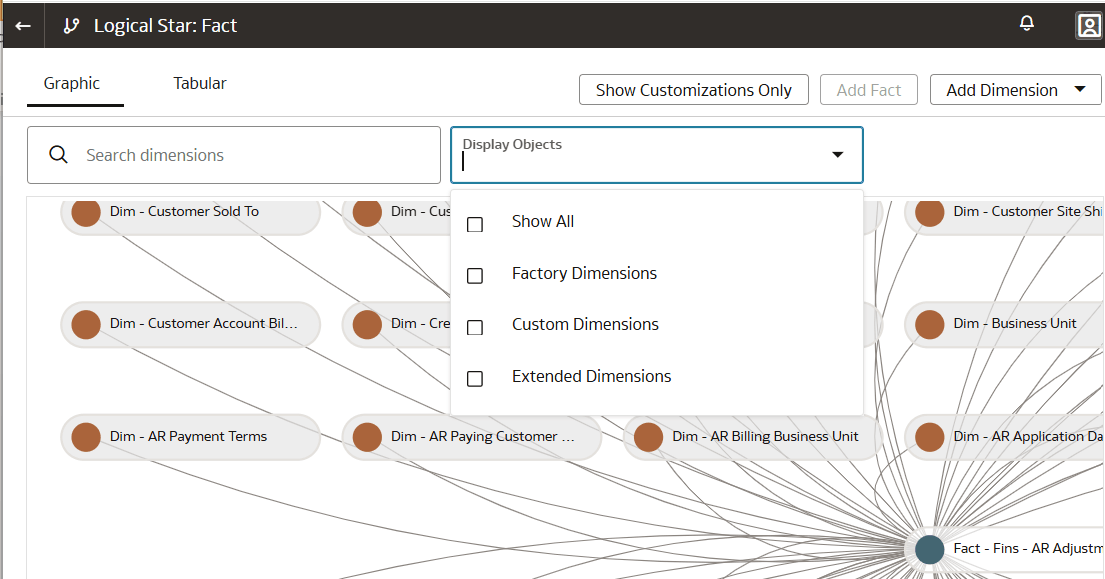
    Logical Star: Fact page displaying the Show Customizations Only, search, and filter options, and Add Dimension option

Manage Variables

Use the Manage Variables action to control the behaviour of sessions and queries. You can create and modify the custom variables.

Create Variable

Create custom session variables that you can use in your semantic model. The custom session variables are available for use only after yo've merged the applicable sandbox into the main sandbox.

The SQL query that you define is executed by user OAX$OAC. If you're using another schema in the query, then you must mention the schema name as prefix. You must ensure to grant user OAX$OAC access to all the database objects used in the query.
  1. Sign in to your service.
  2. In Oracle NetSuite Analytics Warehouse Console, click Semantic Model Extensions under Application Administration.
  3. On the Semantic Model Extensions page, click User Extensions.
  4. On the Semantic Model Extensions page, under Customizations Sandbox, hover over an applicable sandbox to view Actions, and then click View Sandbox.
  5. On the selected sandbox Details page, click Perform Action, select Manage Variables, and then select Create Variable.
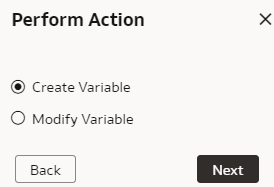
    Create Variable option

    You see the wizard sequence to add the session variables and a list of existing session variables.
  6. In step 1 of the wizard, check if any of the existing session variables serve your purpose. If yes, then you can exit the wizard and use the applicable existing session variables in your analyses. If no, then continue with the next steps to create the session variables that you require.
  7. In Initialization Block Name, enter a name such as Add a Session variable using Invoice Received Date, add a brief description, and select a preceding initialization block in Preceding Block.
  8. In SQL Query, enter the SQL query that would be executed in the autonomous data warehouse and return a value that you can use in the reports and click Next. For example, if you want to get the Exchange Rate Type that's defined in the system into a session variable, then you can use the following SQL script:
    Copy
             SELECT PARAMETER_VALUE FROM DW_CONTENT_PARAM_CONFIG WHERE
             PARAMETER_CODE='PARAM_GLOBAL_EXCHANGE_RATE_TYPE'
  9. In step 2 of the wizard, create the session variables using the output of the initialization block created in step 1 of the wizard. Select Row-wise Initialization to reset variable value for each row and Use caching check boxes to improve performance.
  10. Click Finish.

Modify Variable

Modify a custom variable to update the SQL query that would be executed in the autonomous data warehouse and return a value that you can use in the reports.

  1. Sign in to your service.
  2. In Oracle NetSuite Analytics Warehouse Console, click Semantic Model Extensions under Application Administration.
  3. On the Semantic Model Extensions page, click User Extensions.
  4. On the Semantic Model Extensions page, under Customizations Sandbox, hover over an applicable sandbox to view Actions, and then click View Sandbox.
  5. On the selected sandbox Details page, click Perform Action, and then select Manage Variables.
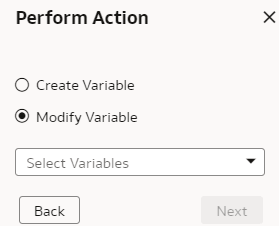
  6. In Perform Action, select Modify Variable, select the variables that you want to modify, and then click Next.

    Modify Variable option

  7. Follow through the wizard to modify the variable and click Finish.

Merge Customization Sandbox to Main Sandbox

After creating the semantic model extensions, you can apply and publish your sandbox or you can apply and merge the customization sandbox into the main sandbox to make the extensions available for processing.

  1. Sign in to your service.
  2. In Oracle NetSuite Analytics Warehouse Console, click Semantic Model Extensions under Application Administration.
  3. On the Semantic Model Extensions page, click User Extensions.
  4. On the Semantic Model Extensions page, under Customizations Sandbox, hover over an applicable sandbox to view Actions, and then click Merge to Main Sandbox.
  5. In Confirm Merge with Main, review the message and click Merge.
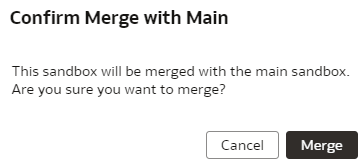
    Confirm merge with main option

Apply Changes

Apply changes to validate the semantic model's integrity before merging to main or publishing your sandbox.

  1. Sign in to your service.
  2. In Oracle NetSuite Analytics Warehouse Console, click Semantic Model Extensions under Application Administration.
  3. On the Semantic Model Extensions page, click User Extensions.
  4. On the Semantic Model Extensions page, under Customizations Sandbox, hover over an applicable sandbox to view Actions, and then click Apply Changes.

Validate Model

Prior to creating a semantic model bundle to deploy to another instance, you can validate the semantic model to confirm that it's error free.

Use the Validate Model option when:
  • You want to confirm that there are no errors in the model.
  • You see a banner on the Semantic Model Extensions page alerting you about errors in the model.

The initial banner provides a Learn More option linking to this information e Validate Model chapter, which references the Resolve Common Errors in Semantic Model Extensions appendix that can be used to debug and resolve your semantic model errors.

  1. Sign in to your service.
  2. In Oracle NetSuite Analytics Warehouse Console, click Semantic Model Extensions under Application Administration.
  3. On the Semantic Model Extensions page, click Validate Model and monitor the status of this activity on the on the Activity tab.
    • If there aren’t any errors, the Subject in the Activity tab shows as Validated with no detected errors and you can proceed with creating a semantic model bundle.
    • If there are errors, the Subject in the Activity tab shows as Errors Detected. Refresh your browser to review.
  4. On the Semantic Model Extensions page, if there are errors in your semantic extensions since the last system error check was preformed, an initial banner appears alerting you to address the errors immediately to prevent failures to upgrade the patches.

    Banner alerting you about the errors in your semantic extensions

  5. Click Learn More in the initial banner to learn how to debug and resolve your semantic model errors.
  6. Click View Errors in the initial banner to review the detected issues and then click Download Errors to download and export the errors as a spreadsheet for easier analysis
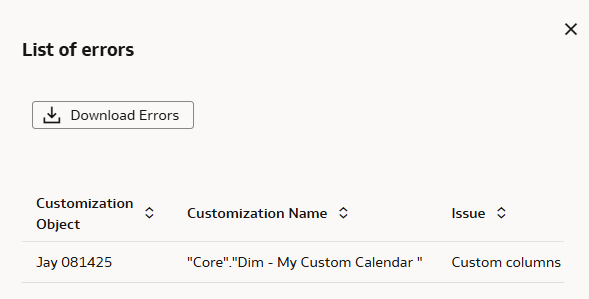
    List of errors in the semantic model

  7. Address each error in the semantic model by identifying the specific error and its location within the model.
    These debugging tips can help you address common errors in your semantic model; see Resolve Common Errors in Semantic Model Extensions.
  8. Click Validate Model to refresh the list of errors on the banner.

    Validate Model button

  9. After the validation process is complete, return to the semantic model components tab, reload the Semantic Model Extensions page to verify if any semantic model extension errors are identified.
    If errors are present, the banner appears. If errors are resolved, the banner doesn't appear.
  10. If you've closed the initial banner without correcting errors, review the second more urgent warning that alerts you about the adverse impact of your decision to ignore the errors, and:
    • Click View and correct errors to immediately export, review, and resolve all semantic model errors.
    • Click Acknowledge to ignore the errors.

      Note:

      This option has a downstream effect on the pipeline, upgrades, and usability, and is recorded as Upgrade Warning Acknowledged in the Activity tab.

      The second more urgent warning that alerts you about the adverse impact of your decision to ignore the errors

Publish Model

You can publish the sandbox in the non-production environments such as development or test to ensure that there are no errors.

While publishing the data model, you can select the user extensions and security configurations that you added as part of customizing the semantic model. If you select the security configurations, then the system applies them on the user extensions that you selected. If the security configurations refer to elements in the model that aren't part of the user extensions, then the system excludes them at the time of publishing the model.
  1. Sign in to your service.
  2. In Oracle NetSuite Analytics Warehouse Console, click Semantic Model Extensions under Application Administration.
  3. On the Semantic Model Extensions page, click Publish Model.
  4. In Publish Model, select a sandbox, select the user extensions and security configurations that you want to publish.

    Note:

    You can publish a specific sandbox or the main sandbox. If you select None - Unpublish custom extensions, the semantic model reverts to factory configuration.
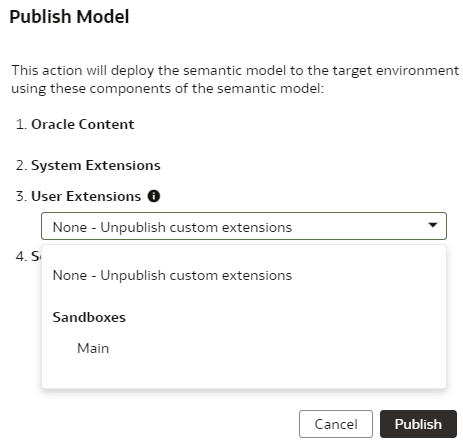
    Publish model dialog

  5. Click Publish.