Job Execution Portlet for Profitability and Cost Management
This portlet lets you run a job with a single click of a button. You can use up to three buttons to run three different jobs from NetSuite.
To use a button to run a job:
-
Go to NetSuite EPM > Profitability and Cost Management > Manage Jobs.
-
Click Edit next to a job you want to run from the portlet.
-
From the More list, select Job Execution Portlet Setup.
-
For any available line item, from the Job Description list, select the job that you want to run. Each line item corresponds to one button in the portlet.
You can only select from jobs that you've added in NetSuite. See Adding a Job in Profitability and Cost Management Sync.
Tip:If you haven't yet added any Profitability and Cost Management or Data Exchange jobs for the integration, click here in the Information bar. This opens a NetSuite page where you can add the jobs.

-
Click Save.
-
Go to NetSuite EPM > NetSuite EPM Overview to access the Job Execution portlet.
If you can't see the portlet on the NetSuite EPM page, you need to add the portlet to the page. For instructions, see Accessing Profitability and Cost Management Sync Portlets in NetSuite EPM Overview.
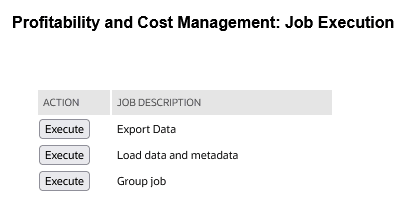
The following screenshot shows an example of the portlet setup:
-
Click the Execute button for the job you want to run. The button is dimmed and marked with one of the following icons:
-
An information icon
 - When you hover over the icon, a message appears indicating whether the job execution was queued or is already in progress.
 -
A red cross icon
 - When you hover over the icon, a message appears indicating the reason for the job failure.
-
-
You can watch the status of the job execution in the corresponding Execution Logs portlet. See Execution Logs Portlets for Profitability and Cost Management.