General
Audit Approval Workflow Settings
KPI Settings
The KPI Settings control the graphs and meters shown in the Key Performance Indicators portlet.
Modify the KPI Settings to set daily thresholds and variation ranges for the dashboard's KPI meter tiles.
To modify the KPI Settings:
-
Go to Compliance 360 > Settings > General.
-
Click the KPI Settings subtab.
-
In the Daily Threshold Limit fields, enter your preferred threshold limits for each KPI meter tiles.
For guidelines in setting threshold limits, see Daily Threshold Limits.
-
In the Variation Range fields, set your preferred variation ranges for the following statuses of each KPI meter:
-
Good
-
Concerning
-
Attention required
For guidelines and validations on setting variation range for KPI meters, see Variation Range.
-
Daily Threshold Limits
Daily thresholds control the colors and stats displayed in the KPI meter's gauges.
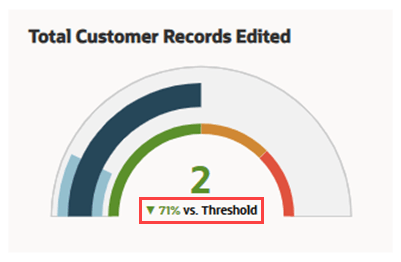
Threshold limits also affect the percentage change from the threshold value in KPI meter tiles.
The following screenshot highlights the percentage vs threshold value in the KPI meter tile, boxed in red:
When setting a daily threshold limit for KPI meter tile, consider the following:
-
You must only enter numbers, as non-numeric characters are not allowed.
-
Zero (0) is considered as a valid value.
-
If the Daily Threshold Limit field of a KPI meter is left blank, its KPI meter tile will be dimmed in the dashboard.
-
You must first set a threshold limit for a KPI meter tile before you can set its variation ranges. If the KPI meter's Daily Threshold Limit field is left blank, you cannot set a variation range for it.
-
The daily threshold limit in the KPI meter tile updates based on the time period filter applied in the Key Performance Indicators portlet.
For example, a daily threshold limit of 5 becomes 35 when applying the Week filter to the Key Performance Indicators portlet.
Variation Range
Variation ranges control the gauge meter colors and percentage displays in KPI meter tiles.
The Variation Range (%) column displays two sets of fields. The left set of fields are for the minimum range value and the right set of fields are for the maximum range value.
Set variation ranges for each status of a KPI meter tile. The following table outlines the color and range validations for each status:
|
Status |
Color |
Range Validations |
|---|---|---|
|
Good |
Green |
|
|
Concerning |
Orange |
|
|
Attention Required |
Red |
|
When setting variation ranges for KPI meter tiles, consider the following factors:
-
The total value of each range must be 100.
-
You can enter numbers with up to two decimals. (Example: 50.25 and 75.90)
-
You must enter a number not bigger than 100.
-
If the KPI meter count is below threshold limit, the gauge meter will be shown as green.
-
If the KPI meter count exceeds the 100% threshold limit, the gauge meter will be shown as red.
-
You cannot set a variation range for KPI meter statuses if the daily threshold limit for that particular KPI meter is left blank.
Date Filter Settings
The date filter settings control the data frequency shown in dashboard portlets.
To modify the date filter settings:
-
Go to Compliance 360 > Settings > General.
-
Click the Date Filter Settings subtab.
-
From the Default Dashboard Filter list, select one from the following:
-
Day - the tiles will show comparative numbers against the previous day
-
Week - the tiles will show comparative numbers against the previous week
-
Month - the tiles will show comparative numbers against the previous month
-
-
Click Save.
To see if the new settings have been applied to the dashboard, you must go to the Compliance 360 Dashboard and refresh the page. You can also click the Refresh button in each portlet to see individual changes.
Audit Approval Workflow Settings
You must have the Compliance Officer role to enable the audit workflow. Enable the audit workflow when future audits must receive an approver decision before completion. This setting is not enabled by default upon installation or upgrade.
To enable the audit approval workflow:
-
Go to Compliance 360 > Settings > General.
-
Click the Audit Workflow Settings subtab.
-
Check the Enable Audit Workflow box.
-
Click Save.
Future audits now use the approval workflow and must be approved before completion.
You cannot enable the workflow in if any audit status is In Progress. Complete the active audit before trying again.
You cannot disable the workflow when an audit is awaiting submission, review, approval, rejection, or resubmission. A reason is required when disabling it.
Viewing Audit Approval Workflow History
Use Audit Workflow History to review changes to the audit workflow setting. The history shows when the workflow was enabled or disabled, who changed it, and any comments entered for the change. You must have the Compliance Officer role to view the audit workflow history.
To view the audit workflow history:
-
Go to Compliance 360 > Settings > General.
-
Click the Audit Workflow Settings subtab.
-
Click See Audit Workflow History.
The Audit Workflow History window displays the following information:
Column
Description
Last Updated On
The date and time when the workflow setting was changed.
Last Updated By
The user who changed the workflow setting.
Action
Whether the workflow was enabled or disabled.
Comments
Comments entered for the change. Disabling the workflow requires a reason.