Review and Restore a Quarantined Report
Use the Quarantine Reports page in Oracle Analytics Publisher to identify reports that have been quarantined because of repeated failures, investigate their errors, and restore a report after resolving the underlying problem.
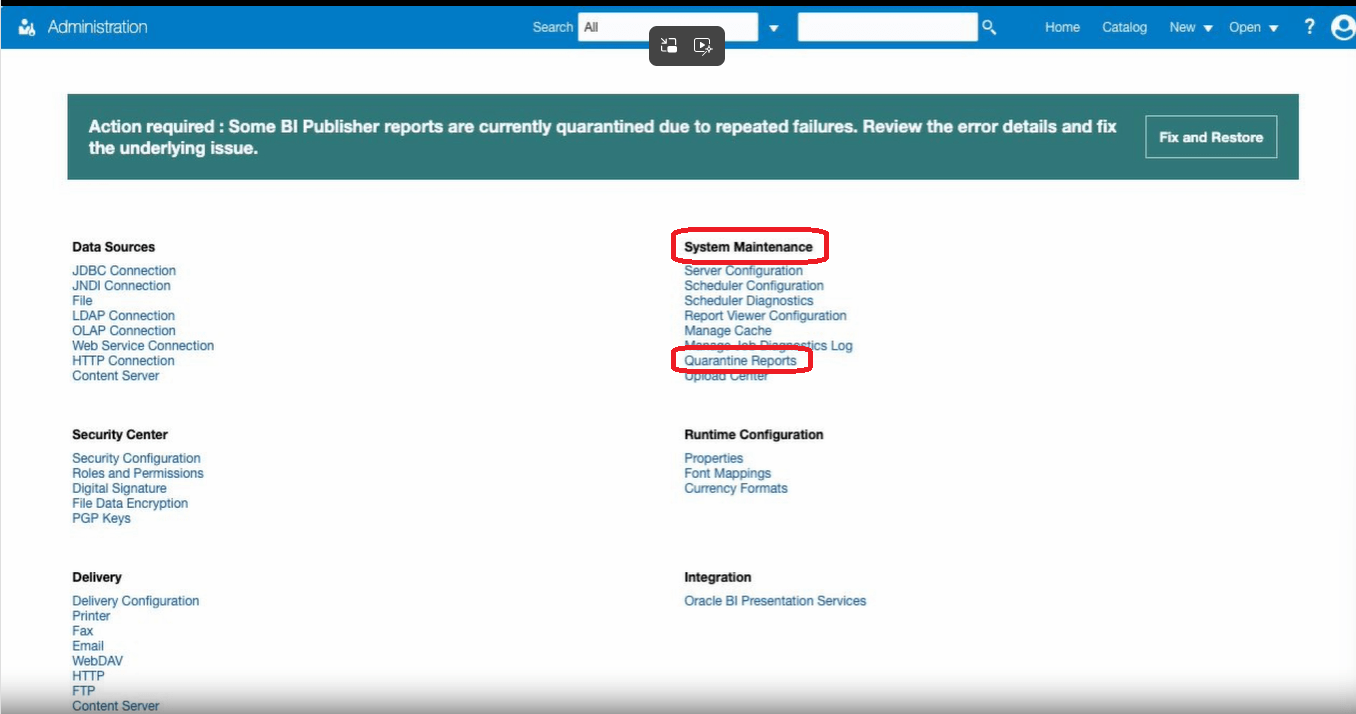
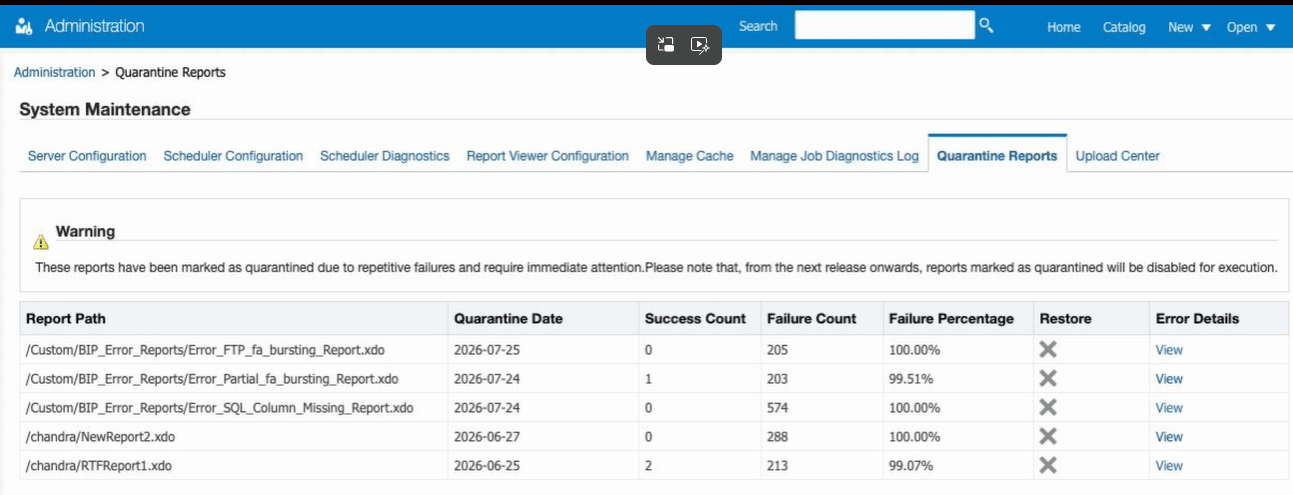
- Under System Maintenance, select Quarantine Reports.The Quarantine Reports page lists the quarantined reports and displays the following information for each report:
- Report path
- Quarantine date
- Success count
- Failure count
- Failure percentage
- Restore control
- Error details
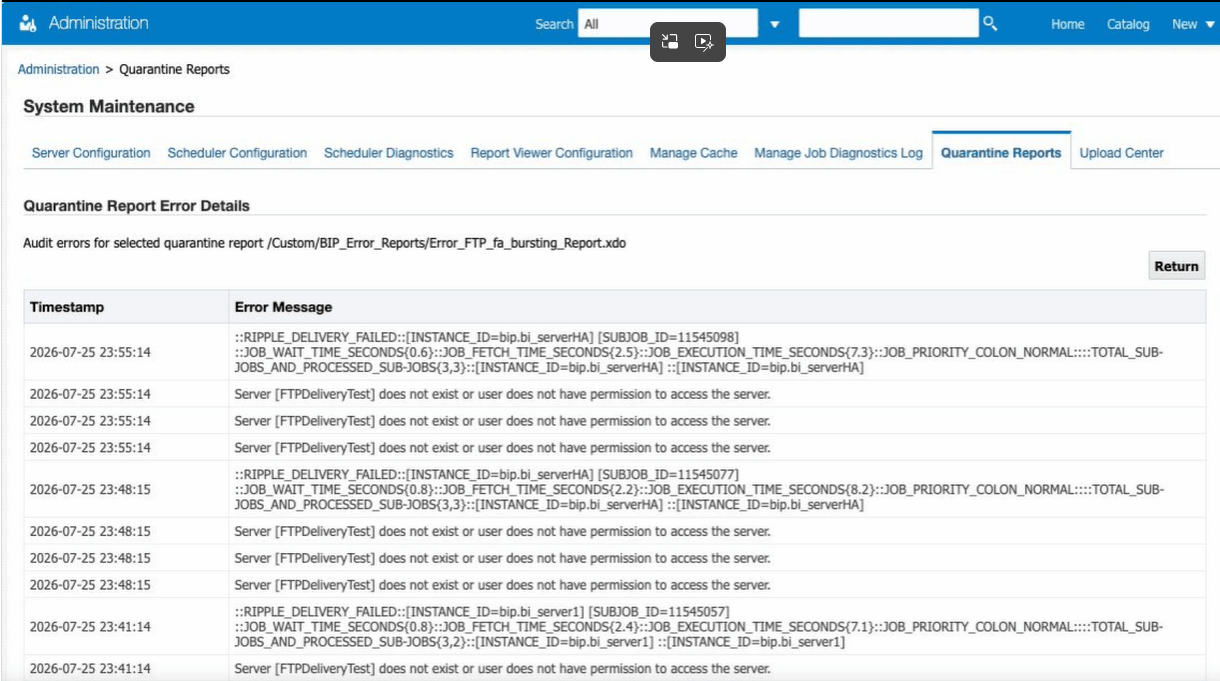
- For the report that you want to investigate, under Error Details, select View.The Quarantine Report Error Details page displays the audit errors for the selected report. Each entry includes a timestamp and an error message.
- Review the error messages to identify the cause of the repeated failures.For example, the error details might show an FTP delivery error in which the configured server doesn't exist, or the user doesn't have permission to access it.
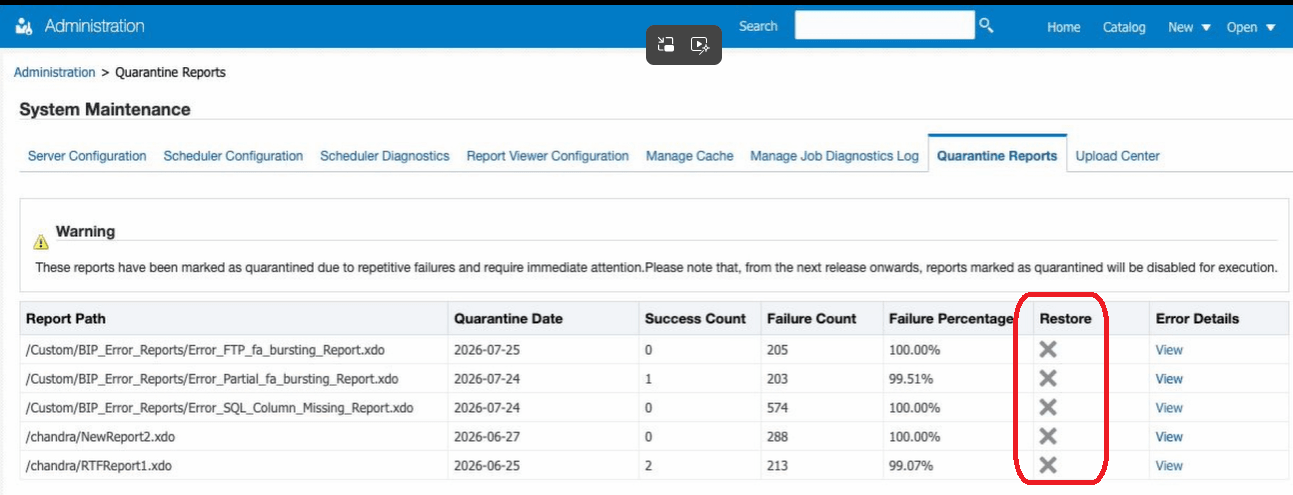
- In the Restore column, select the restore control for the report.
Oracle Analytics Publisher removes the report from quarantine.
After you restore the report, verify that the report can be processed successfully.