Using Workflow in Code Enforcement
This topic describes how to manage the workflow in code enforcement. For general information on workflow, see Using Workflow.
Managing Workflow Tasks in Code Enforcement
For Code Enforcement – Incident and Case, the Workflow pages can be toggled between a Stage view and a Milestone view.
When an incident or case is created, all related workflow tasks are assigned to a group or role by default. If required, the agency administrator must manually assign a staff member to each workflow task.
When an incident or case is reassigned to another staff member, then only those workflow tasks that were assigned to the previous assignee will be automatically assigned to the new assignee. The remaining task assignments won't change.
Workflow Task Assignment Changes with Reassignments
Consider an incident or case assigned to Code Officer 1 and it has three workflow tasks, assigned to Code Officer 1, Code Officer 2, and Code Officer 3 respectively.
When the incident or case is reassigned to Code Officer New, the workflow task that was assigned to Code Officer 1 will be reassigned to Code Officer New, and the remaining tasks will remain assigned to Code Officer 2 and Code Officer 3 respectively.
Using the Stage View or Milestone View in Code Enforcement
The Code Enforcement – Incident and Case Workflow pages display cards at the top of the page with a Task panel. With Code Enforcement, the underlying process definition differs from the type used for permits or planning applications. A process definition used for Code Enforcement is a dynamic process definition based on stages and milestones.
You can toggle between a stage view and milestone view. In the stage view, the agency staff gets a quick indication of the number of stages in the workflow as cards at the top of the page. You can click a stage to view details in the task panel below.
In the milestone view, the agency staff can see a time line of tasks and dates on which they were completed for the selected incident or case at the top of the page. Details are displayed in the task panel below. By default, the Code Enforcement – Incident and Case Workflow pages display a stage view.
To access Incident or Case Workflow page in the stage view:
-
From the Fusion Applications Permitting and Licensing homepage, click the Incidents or Cases tile.
You can also select the Incidents or Cases tile on the agency springboard.
-
Click the row for the incident you want to view. Or, from the Actions menu, click the View Details button for the case you want to view.
-
Use the navigation links in the left panel to select Workflow.
By default, the Workflow page for Code Enforcement displays the stage view as shown below.
This example illustrates the Code Enforcement – Case Workflow page in the stage view.

| Page Element | Description |
|---|---|
| Stage View and Milestone View icons | Use these buttons to toggle between the stage and milestone views. |
| Stages |
Click the stage cards at the top of the Workflow page to open the tasks associated with it in the task panels below. The names of these stages and their labels are displayed as configured in the OCI Process Automation workflow process definitions that are defined by the agency. The stages display different badges to show their status:
You can click the active and completed stages to view their details in the Task panel below. Examples of stages that appear in an incident's workflow include Reported, Inspection, Violation, Legal, and Closed. |
|
Task Panel |
The Task panel displays the tasks associated with the selected stage. Click a task row to open and view all information related to that task in the details drawer. |
|
Action button on the Workflow page |
Click the three-dot action menu on the workflow page to:
|
|
View Process Information |
Click this action menu item to view details about the process information. |
|
Terminate Workflow |
Click this action menu item to stop or terminate a workflow. Once a workflow has started, the Terminate Workflow option allows agency staff to stop the workflow at any stage without completing the remaining tasks. This action terminates or cancels all the tasks in the workflow, even if it was open for an agency staff. Note:
You can't activate a terminated workflow. |
To access the Incident or Case Workflow page in the milestone view:
-
Select the Incidents or Cases tile on the agency springboard.
-
Click the row for the incident or case you want to view.
-
Use the navigation links in the left frame to select Workflow.
The Workflow page appears on the right side of the page.
By default, the stage view is displayed. Click the Milestone View icon to toggle the view.
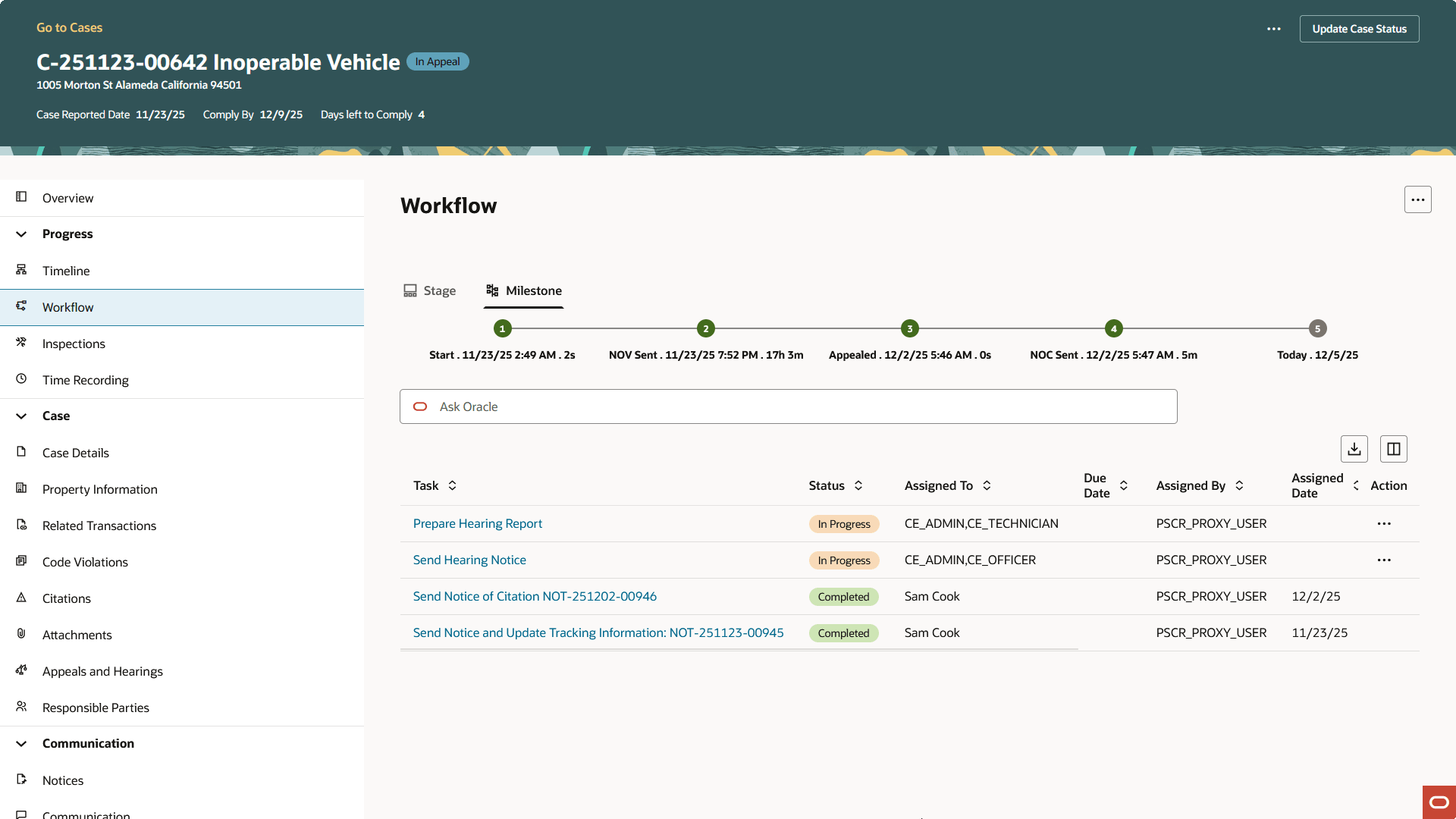
| Page Element | Description |
|---|---|
| Stage View and Milestone View icons | Use these cards to toggle between the stage and milestone views. |
| Milestones | Displays the milestone tasks and the date on which they were completed for the selected incident. Examples of milestone tasks that appear in an incident's workflow include Start, Incident Reported, Inspection Schedule, and Closed. |
|
Task Panel |
The Task panel displays the tasks associated with the selected stage. Click a task row to open and view all information related to that task in the details drawer. |
|
Action button on the Workflow page |
Click the three-dot action menu on the workflow page to:
|
|
View Process Information |
Click this action menu item to view details about the process information. |
| Terminate Workflow |
Click this action menu item to stop or terminate a workflow. Once a workflow had started, the Terminate Workflow button allows an agency staff to stop the workflow at any stage without completing the remaining tasks. This action terminates or cancels all the tasks in the workflow, even if it was open for an agency staff. Note:
You can't make a terminated workflow active again. |
Working with the Code Enforcement Task Details
You can view the details of the code enforcement case or incident workflow tasks in the details drawer.
-
Select the workflow stage in either stage or milestone view, and from the Tasks lists below, click a task row to open the task details drawer.
-
View the elements of the task details drawer:
Page Element Description Task ID
Displays the unique identification number for the task.
Reassign
Click the Reassign button to reassign the incident or case to a different code technician or code officer.
Claim
Click the Claim button to claim an incident or case.
Task details
Displays the options to add a result for the task and set the priority of the task.
Result
View or select the result for the task.
Priority
View or set the priority of the task. The options include: Low, Medium, and High.
Documents Checklist
Lists the documents that can be added for the task. Select the checkbox next to the required document.
Comments
View or add comments for the task. To know more about comments, see Working with Comments.
Attachments
View or add attachments for the task. To know more about managing attachments, see Working with Code Enforcement Attachments.
Form Use the form to check or enter information as specified by the agency.
Code Enforcement – Incident and Case Workflow details drawer has an option to include a form or a checklist. This form is customizable by the agency to cater to their specific requirement.
Using a Form in Code Enforcement – Incident and Case Workflow Pages
Code Enforcement – Incident and Case Workflow pages have an option to include a form or a checklist in the Task Details drawer. The agency can customize the form for their specific requirement.
An example of an incident task having a form can have the following checkpoints for the agency staff:
-
Check if Repeat Offender
-
Send Courtesy Notice
An example of an abatement task having a form can have the following checkpoints for the agency staff:
-
Schedule Inspection Post Abatement
-
Add Fee
-
Send Notice