Viewing Map Markers
Map markers identify the location of an object such as an application, project, incident, case, parcel, or address.
Map Markers
Maps display the following markers:
Transaction-specific icons to mark the locations of single transactions.
Numbered circles to mark locations with multiple transactions.
-
Shaded double circles to represent multiple neighboring locations that are clustered together because of the map zoom level.
On maps that support transaction search, such as Explore Your City, matching transactions are plotted on the map. If a location has a single matching transaction, the transaction-specific marker is displayed. If multiple matching transactions are at the same location, the marker displays the number of transactions.
The following table provides a key to the marker icons:
|
Map Marker |
Description |
|---|---|

|
The location has a single permit application. |
 |
The location has a single planning application. |
 |
The location has a single business license. |
 |
The location has a single case. |
 |
There are multiple transactions at the same location. The number represents the number of transactions. |
Viewing Details for a Marker
Clicking a marker displays a pop-up window with additional details.
On Explore Your City, selecting a transaction marker displays the applicable transactions for the location. You can review transaction information and open the Details drawer for additional information. The information and actions available depend on the transaction type and the user's access.
When transaction search returns multiple transactions at the same location, select the numbered marker to view the transactions associated with that location.
For case search, the map supports clustering when multiple case locations are close together at the current zoom level.
If the selection toolbar is visible and a selection tool is active, clicking a marker selects the location rather than opening the details pop-up.
This example illustrates the detailed information for a map marker. The location of the pop-up window depends on the docking settings in the map profile
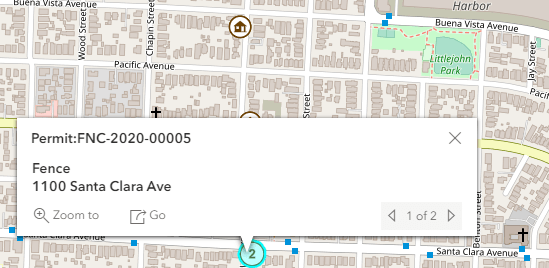
The detail window includes different information for different objects. Here is some of the information that can appear:
The object ID
On maps that show multiple types of objects, the object type (such as “Permit”) appears along with the object ID.
The object status.
Status information appears for incidents and cases, but not for other objects.
Any applicable categorization, such as a permit type or an issue type and subtype.
The address for the location.
Controls for paging through multiple objects, if applicable.
When there are multiple objects, the paging controls appear around the text <sequence number> of <total number of objects>.
A Zoom To icon for zooming in on the map location.
A Go icon for opening the corresponding detail page in a new window.
-
Explore Your City transaction search: When a transaction search returns multiple transactions at the same location, the map displays a numbered marker. Selecting the marker displays the transactions associated with that location.