Security Briefings Recommend Certification Actions
For each user-role combination in the certifier worksheet, a security briefing can display data that informs the certification decision. The briefing may now display a recommendation either to keep or to remove the role assignment.
To view a security briefing, click the role name in the record of a user-role combination you're reviewing. A Security Briefing drawer opens. If it makes a recommendation, it also provides a comment justifying the decision and a button to accept the action. If you agree with the recommendation, click the button.
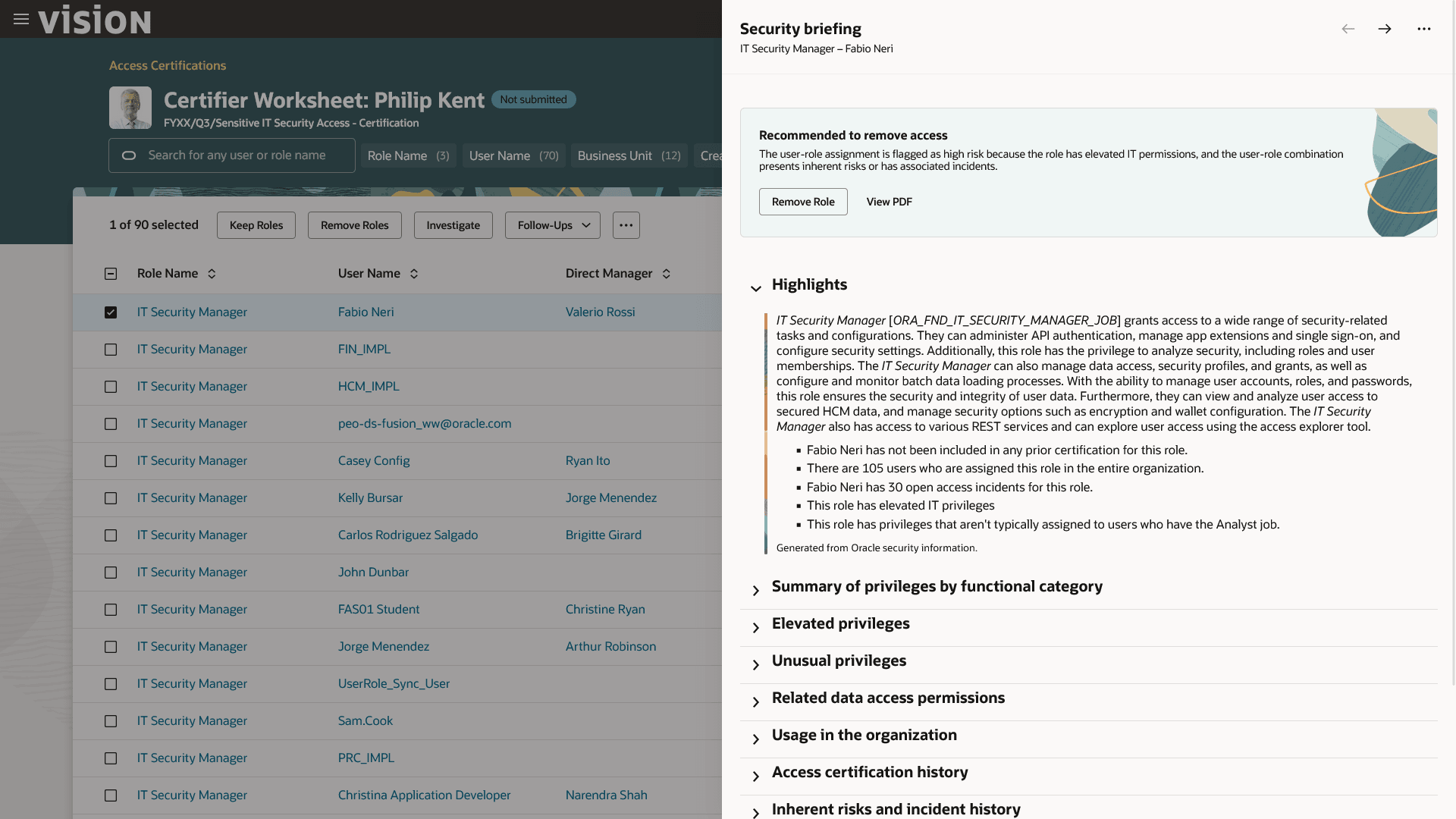
Security Briefing Recommendation to Remove
Depending on the recommendation, the Keep Roles or the Remove Roles drawer opens, replacing the Security Briefing drawer. Its Comment field displays the comment that appeared in the briefing. You can:
- Accept that comment.
- Click a Generate button to create a more-detailed AI-composed comment. It's derived from security-briefing data specific to the user-role combination. It cites factors that suggest both keeping and removing the role, but is worded to support the recommended action.
- Write your own comment.
To accept the recommendation, click the action button in the drawer.
As you review information in the Security Briefing drawer, you may disagree with the recommendation. Or, the briefing may report that a recommendation can't be made because factors support both actions. If so, you can click the Close option in the More Actions menu, then select the action you consider correct in the worksheet. Or you can click a Next or Previous arrow in the briefing to move to the briefing for the next or preceding user-role combination.
Business Benefit
Action recommendations reinforce certifiers' judgments by performing analysis that incorporates all the information in security briefings.
Steps to Enable and Configure
Security briefings are available only in the enhanced certifier worksheet, not in the original worksheet. To activate the enhanced worksheet and security briefings, you must set two profile options. If you haven't yet done so, you must also update job roles to recognize elements called "permission groups." See Activate the Enhanced Worksheet for Access Certifications and Required Security Update.