 Action History for Bill Transactions
Review which actions have been performed on a bill transaction, when, by whom, and why. New user experiences provide a detailed, chronological audit trail of all actions associated with bill transactions, making it easier to understand why transactions are in their current state or why specific actions have failed.
| Example User Goal | User Experience |
|---|---|
|
Analyze bill transaction actions holistically, by user or action status. For example:
|
The new Actions page, accessed from the In-App Navigator. For each action, drill down to the Action Details page, which shows:
|
|
Analyze actions performed on specific bill transactions. For example:
|
The new Action History tab is available when a single bill transaction is opened from the Bill Transactions page. For each action, drill across to the Action Details page (as detailed above) to discover other transactions within the scope of the action. |
Actions
Accessed from the In-App Navigator.
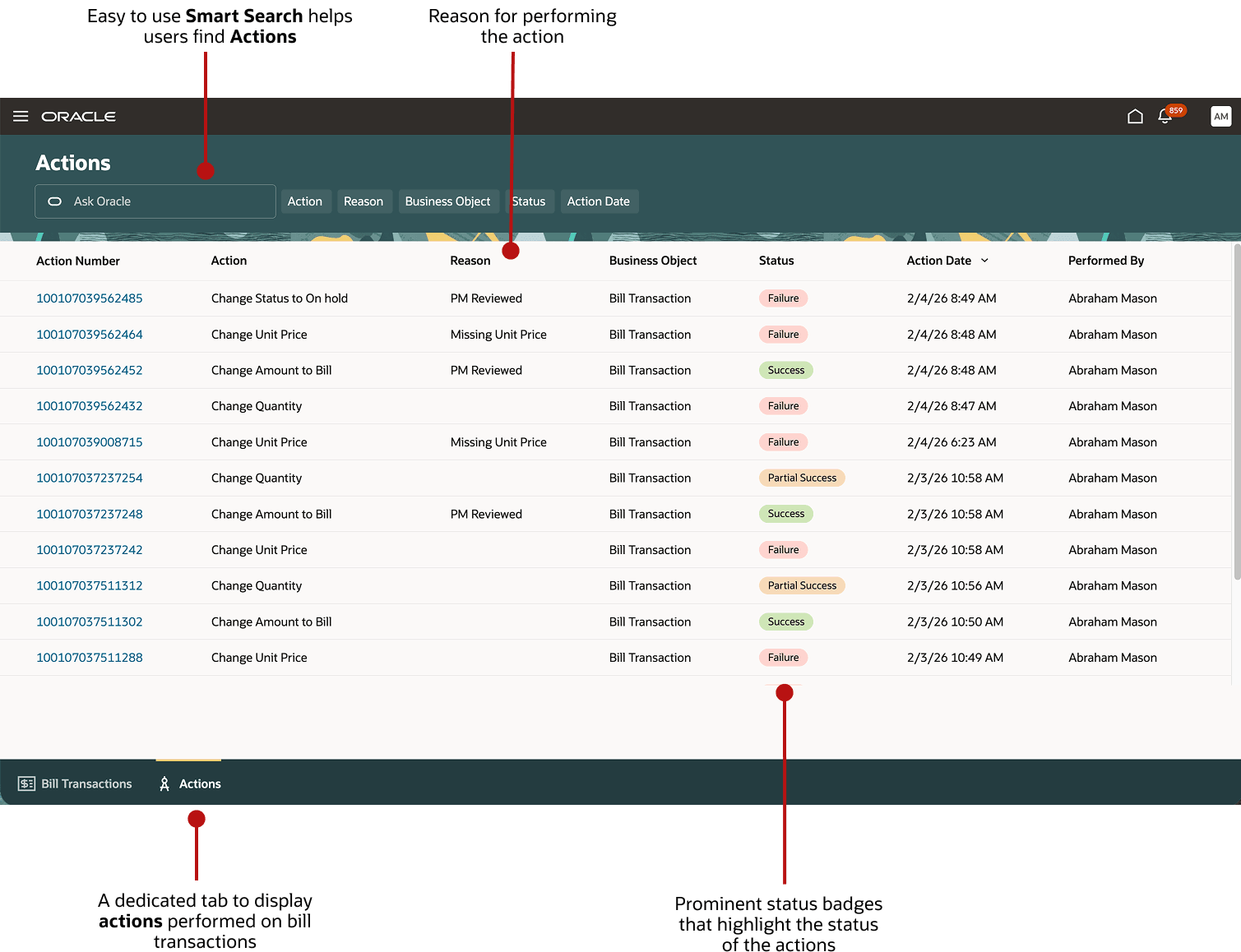
A screenshot showing the Actions page, highlighting the search capability and showing actions by status and action reason.
Action Details
Accessed by drilling down from the Action Number in the Actions page.
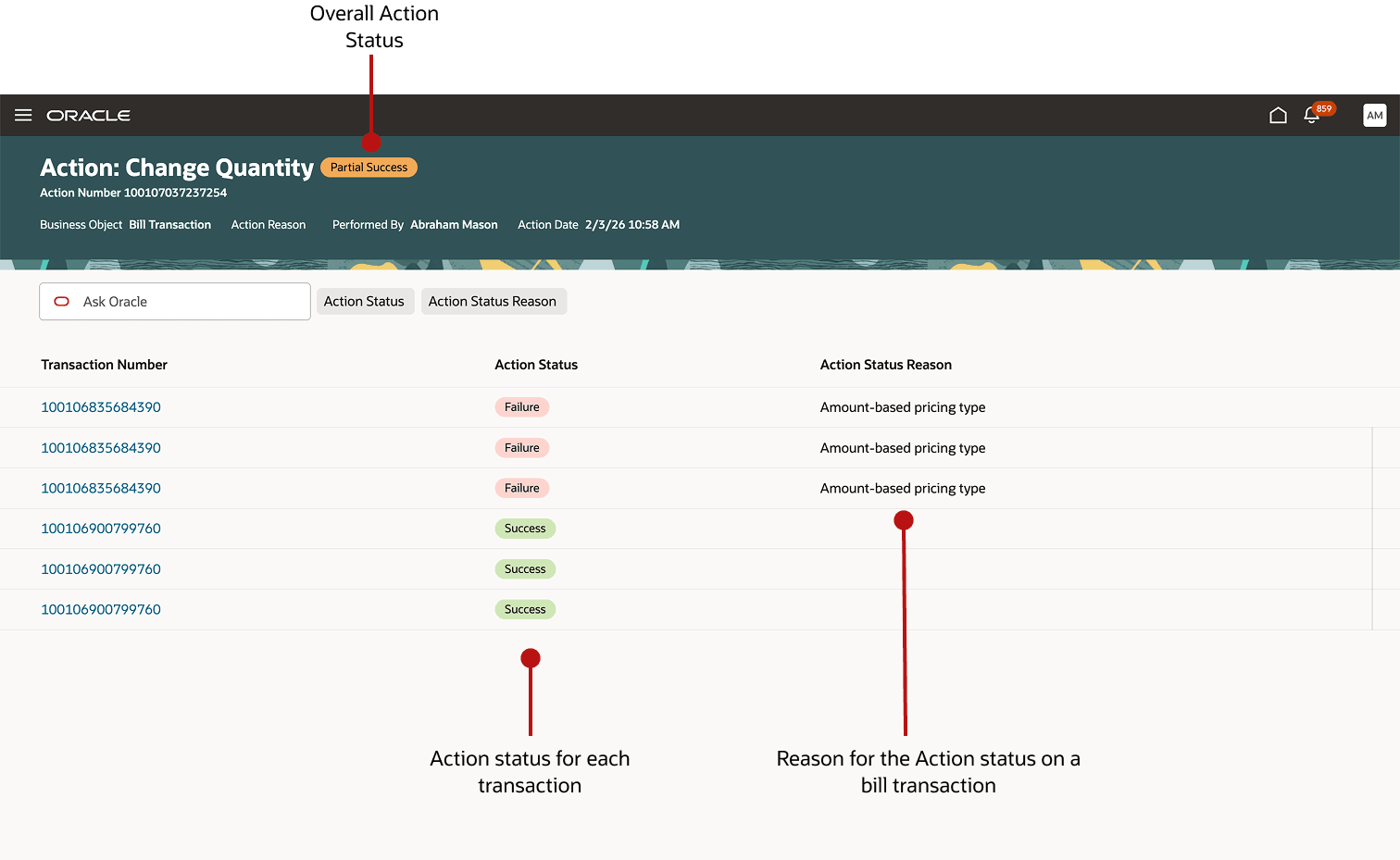
A screenshot showing the Action Details page with the action status and action status reason highlighted.
Action History
Accessed from the Action History tab when a single bill transaction has been opened.
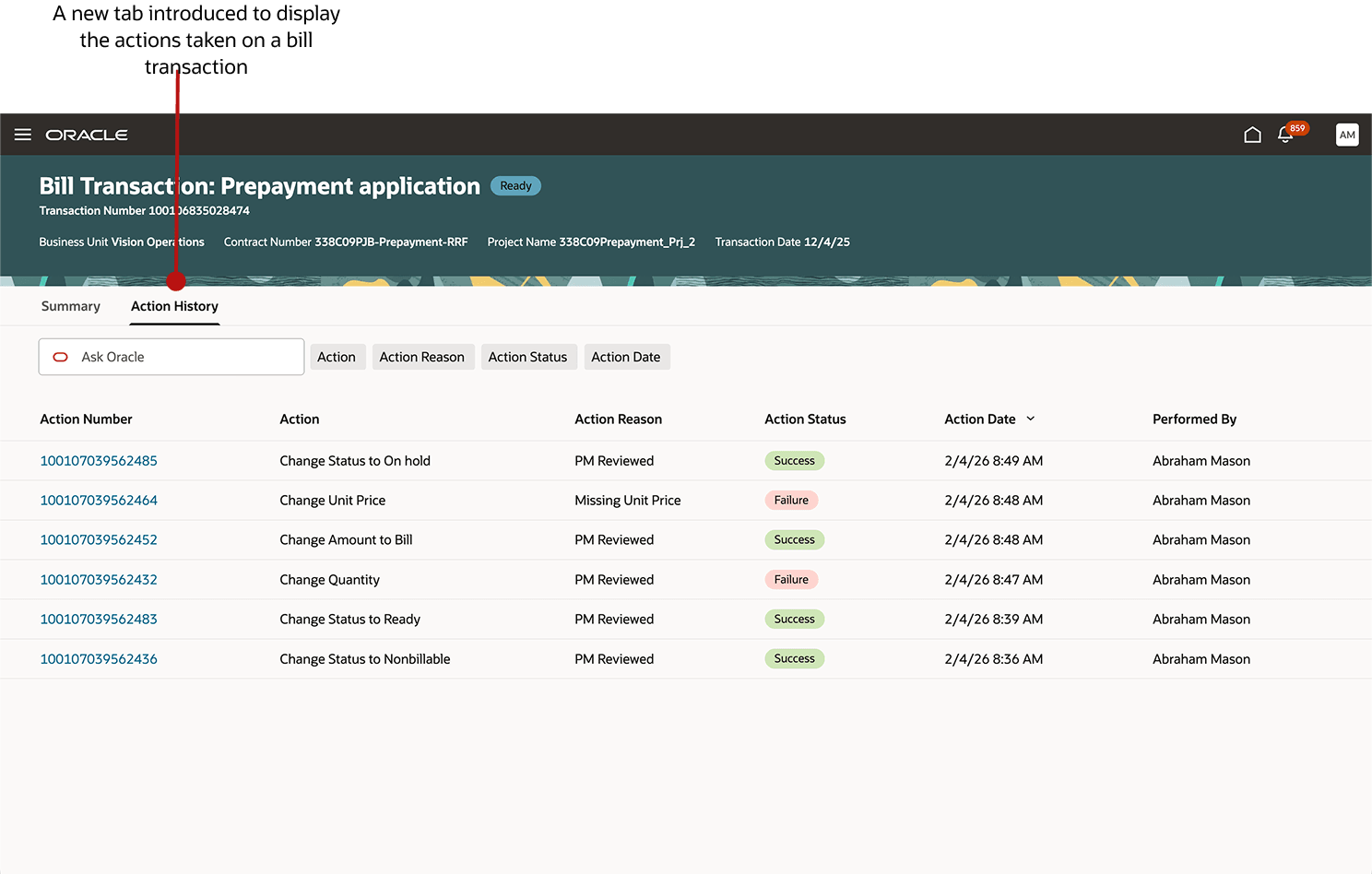
A screenshot showing the Action History tab for a bill transaction.
Let's explore this user experience through two user stories:
Ben Simmons, a Project Billing Specialist
Ben wants to update the unit price for a number of bill transactions within the Vision Operations organization. Ben uses the Bill Transactions page to find and select transactions and then initiates a “Change Unit Price” action.
After processing, a banner message informs Ben that the action wasn't successful for some selected transactions. Ben needs to understand why the action wasn't completely successful, so he clicks the 'View Details' link in the banner message, which takes him to the Action Details page.
Within the Action Details page, Ben can filter on the transactions for which the action failed. Ben reviews the Action Status Reason, which provides the reason for failure. With this information, Ben can take appropriate remedial actions, and if needed, initiate another bill transaction action.
With the Actions and Action Details pages, Ben has the transparency and tools he needs to troubleshoot, correct, and complete billing actions, minimizing delays and improving the accuracy of project billing.
Amy Watkins, a Project Manager
While using the Bill Transactions page to analyze transactions, Amy notices that the amount of a bill transaction is higher than expected. She wants to investigate the reasons for this.
Amy opens the bill transaction and selects the newly introduced “Action History” tab. Amy reviews the list of actions performed on the transaction and notices that Abraham Mason, a member of the PMO, had executed a “Change Quantity” action with the reason “Overtime authorized by client.”
Curious if this was an isolated change, Amy clicks on the Action ID to see all transactions associated with the same action. Amy discovers that Abraham applied this overtime adjustment across the entire consultant team for that week. Amy now has the information she needs to cross-check with Abraham that his actions were justified.
Leveraging the new Action History feature, Amy bypassed back-and-forth interactions and quickly understood how a transaction reached its current state, ensuring that the billing on her project is accurate and payments are prompt.
The benefits of this feature are:
- Maintain a robust, transparent audit trail showing all bill transaction changes, supporting internal controls and external regulatory compliance.
- Eliminate manual audits or reliance on custom reports for tracking changes.
- Accelerate the billing cycle by identifying why bill transactions are in their current state and the business rationale behind each adjustment (including error/failure reasons).
Steps to enable and configure
You don't need to do anything to enable this feature.
Key resources
- Based on Idea 546103 from the Project Management Idea Lab on Oracle Cloud Customer Connect.
Access requirements
Users must have the below functional privileges to view actions performed on Bill Transactions:
| Privilege Code | Privilege Name | Description |
|---|---|---|
| PJF_VIEW_PROJECT_ACTIONS_PRIV | View Project Actions | Allows users to view project actions that the user has access to. |
| PJF_VIEW_PROJECT_ACTIONS_SERVICE_PRIV | View Project Actions Service | Grants access to the project actions REST API. |
These privileges are rolled up to the following job roles:
- Project Billing Specialist (ORA_PJF_PROJECT_BILLING_SPECIALIST_JOB)
- Project Manager (ORA_PJF_PROJECT_MANAGER_JOB)
Data Access
- Within the Action History tab, users can see all actions for bill transactions they can access.
- Within the Actions page, data security is governed by the following delivered data security policies:
| Role | Policy | Action |
|---|---|---|
| Project Manager | Access the project actions for table PJF_PROJECT_ACTIONS for actions performed by the user. | View Project Actions Data (PJF_VIEW_PROJECT_ACTIONS_DATA) |
| Project Billing Specialist | Access the project actions for table PJF_PROJECT_ACTIONS for actions performed by the user. | View Project Actions Data (PJF_VIEW_PROJECT_ACTIONS_DATA) |
Additional data security policies can be created as needed using the Security Console. For example, if you want to extend access to actions performed by other users.