 Invoice Grouping Rules
Define simple, reusable rules to group transactions into invoices based on combinations of common attributes, such as project and top task. Align billing to customer preferences by controlling how transactions consolidate into invoices. Use invoice grouping rules in conjunction with existing functionality, such as bill sets, to eliminate the need for integrated solutions.
Rules are created using the existing Manage Invoice Formats task within Setup and Maintenance. A new invoice format type (Invoices) is used to create invoice grouping rules. For each rule, application administrators can select one or more commonly requested grouping attributes. Contract administrators can then select from the list of configured rules using the existing Invoice Grouping field on bill plans.
Worked Example 1 - Group Invoices by Project and Top Task
In this example each top task within a project represents a discretely funded deliverable, associated with the same contract, which need to be invoiced to the customer separately. The client is billed on a time and expenses basis.
To achieve this, an invoice format is created with grouping attributes of Project and Top Task, which is then assigned to the contract's bill plans by a contract administrator. For more details, refer to the Steps to Enable and Configure section below.
Resources then record time and expenses against the project: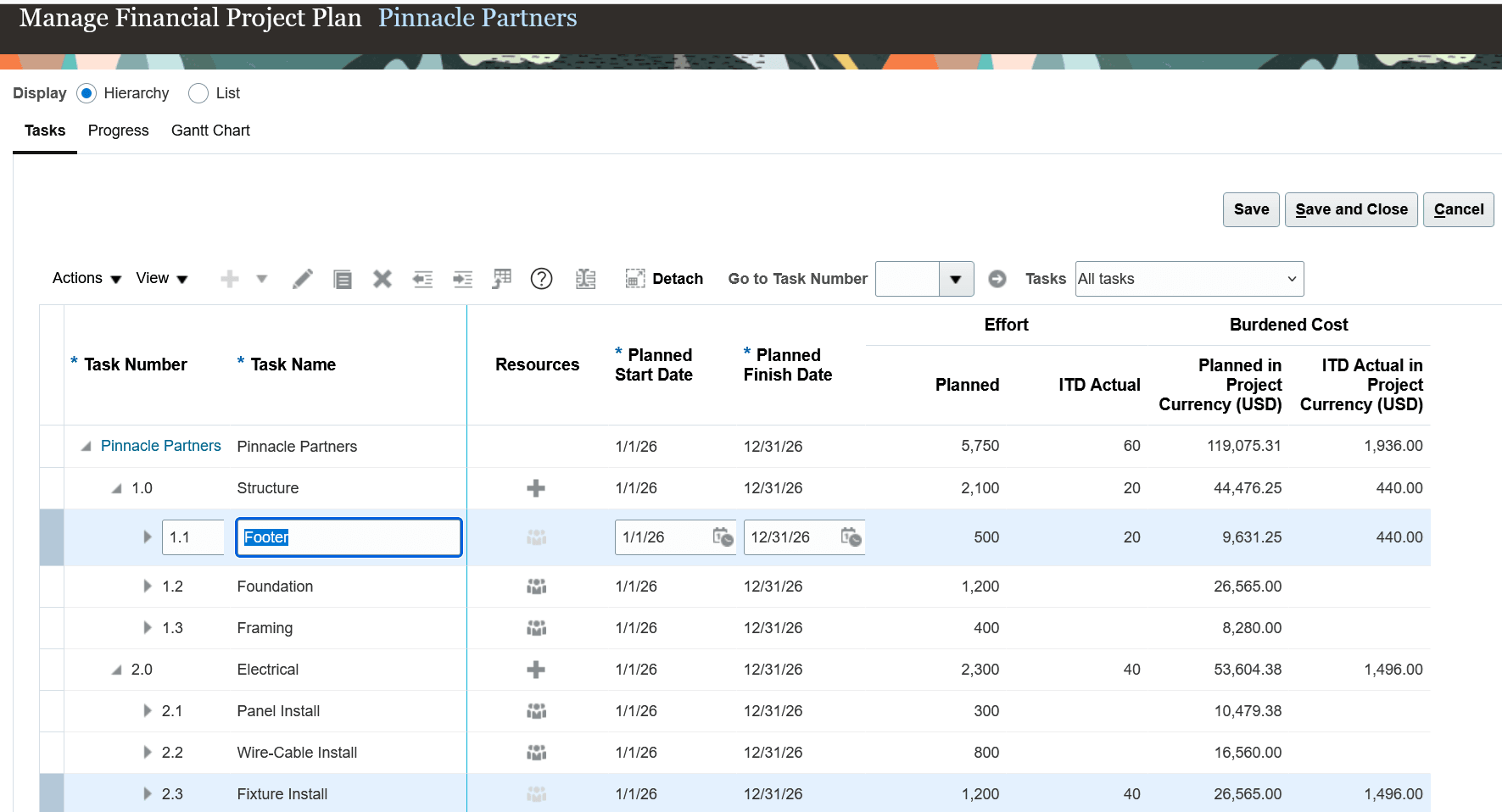
The Manage Financial Project Plan page showing actual costs for leaf tasks Footer and Fixture Install.
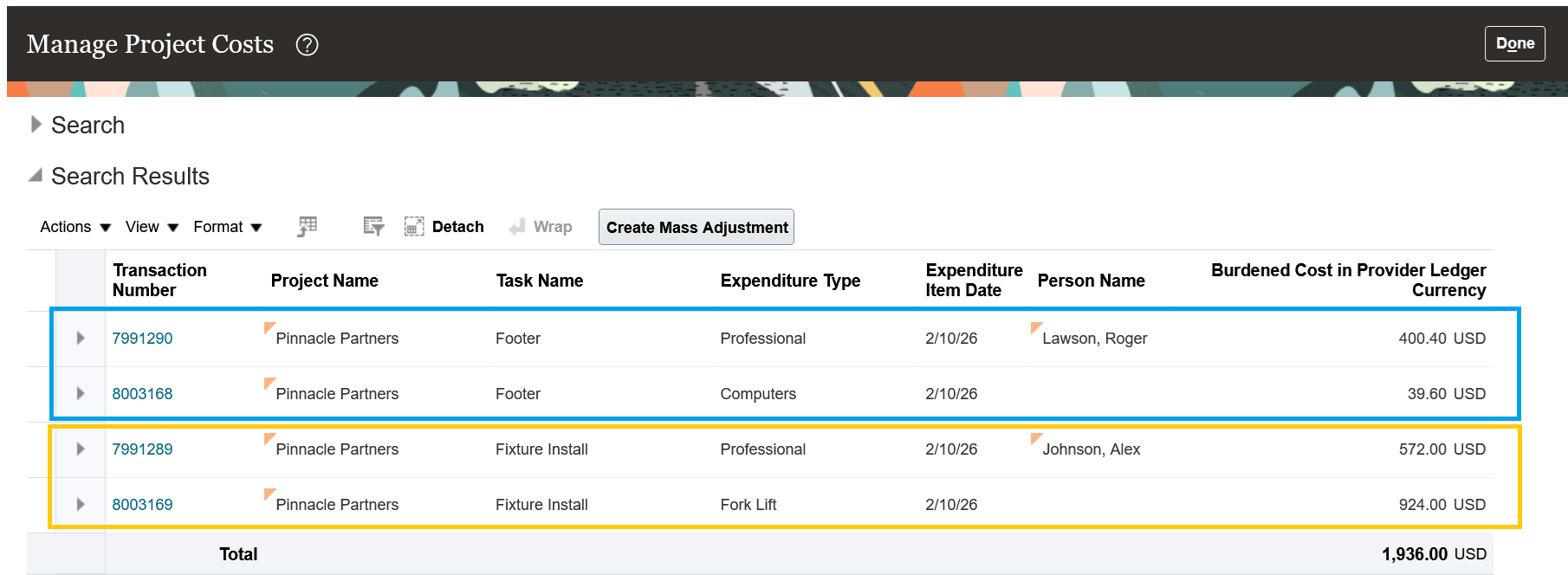
The Manage Project Costs page showing actual costs for leaf tasks Footer and Fixture Install.
When invoices are generated for the contract, two separate invoices are created, one for each top task with unbilled costs: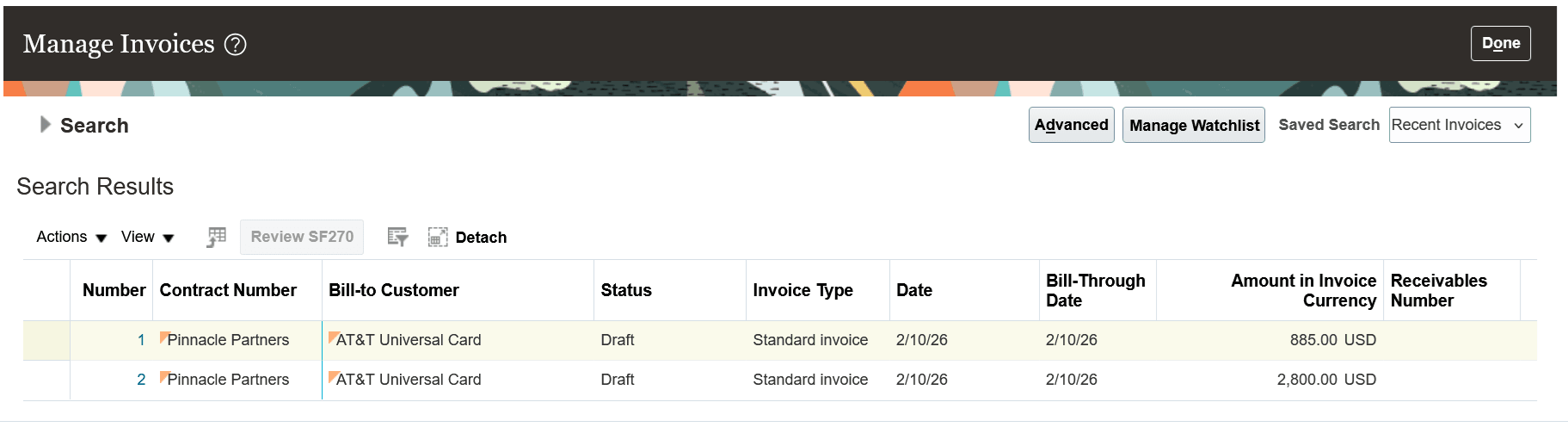
The Manage Invoices page showing two draft invoices, one for each top task; Structure and Electrical.
Worked Example 2 - Group Invoices by Person
A staffing firm provides labor resources to a client, Stark Consulting. The client is billed on a time and expenses basis, and resources record timecards and expense reports against a project. The client wants to receive a separate invoice for each resource.
To achieve this, an invoice format is created with the Person grouping attribute, which is then assigned to the contract's bill plans by a contract administrator. There's no need to include the Project grouping attribute, as in this case there's only one project associated with the contract. For more details, refer to the Steps to Enable and Configure section below.
Resources then record time and expenses against the project:
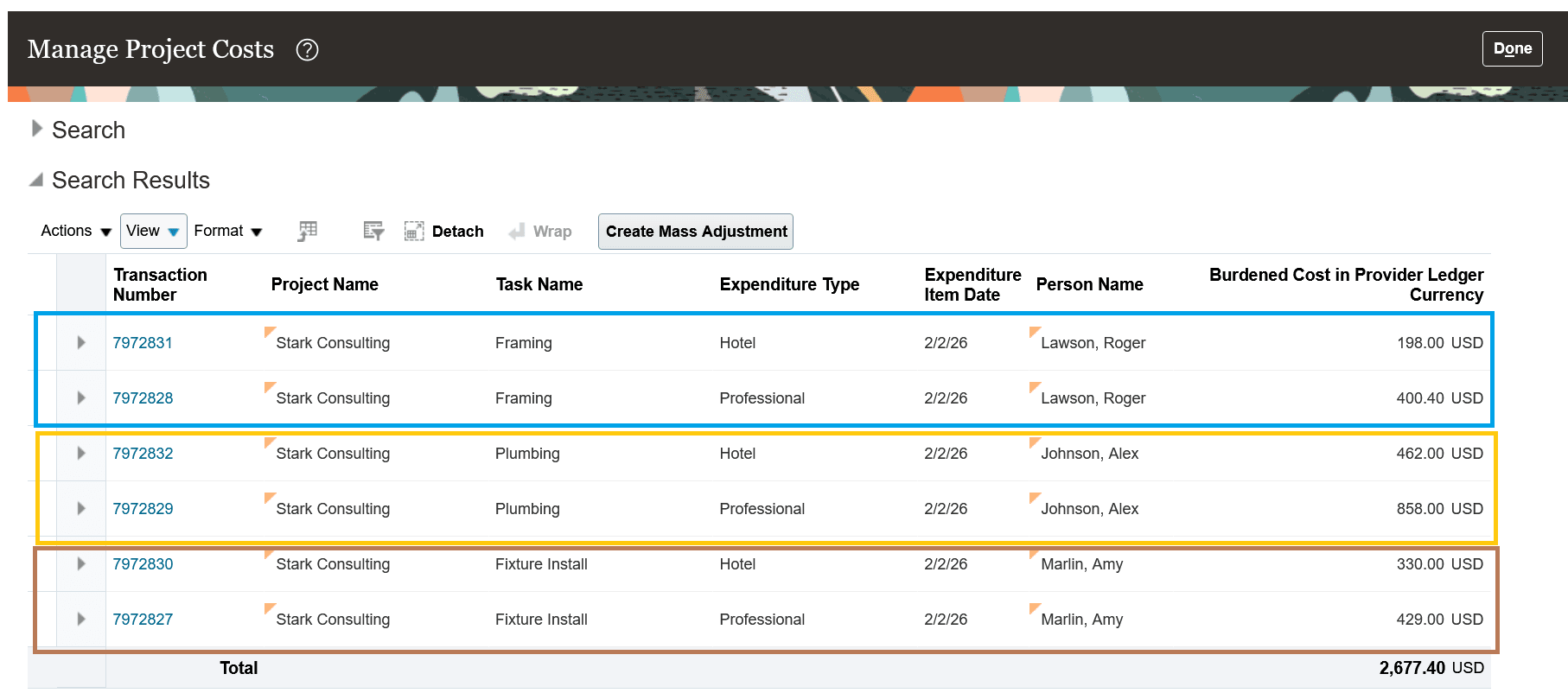
The Manage Project Costs page, showing time and expense transactions for three project resources (Roger Lawson, Alex Johnson, and Amy Marlin).
When invoices are generated for the contract, three separate invoices are created, one for each person:
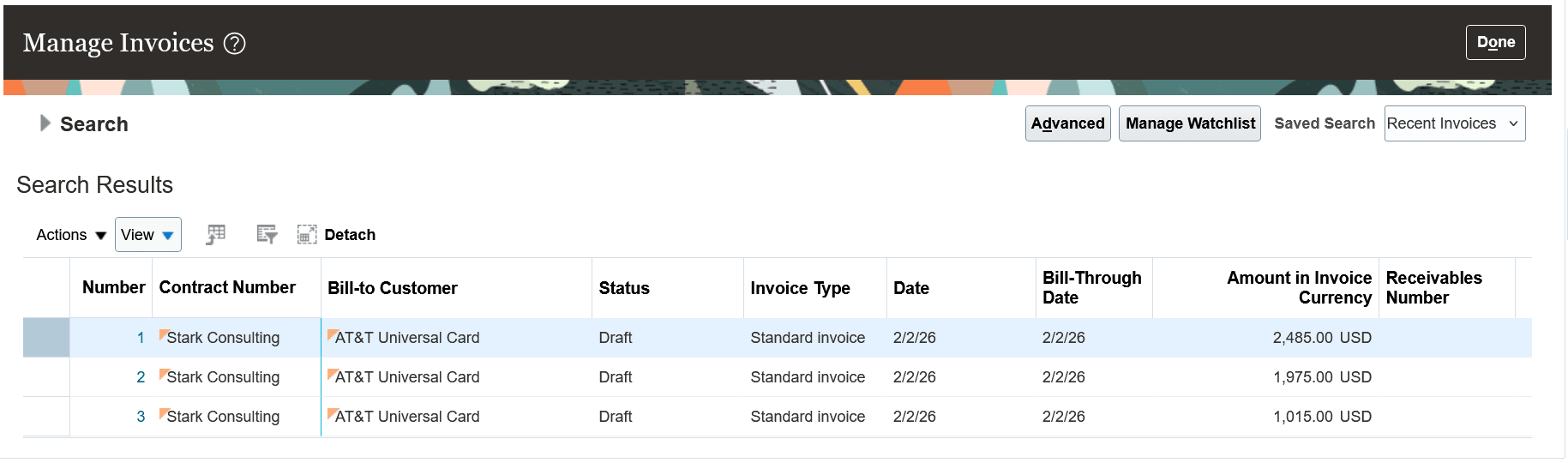
The Manage Invoices page showing three draft invoices, one each for Roger Lawson, Alex Johnson, and Amy Marlin.
Reviewing the invoice for Alex Johnson, we can see separate lines for time and expenses, as per the labor and nonlabor invoice formats on the bill plan. The labor and nonlabor invoice formats also determine the invoice line description (in this case, a concatenation of the resource's name and the expenditure type):
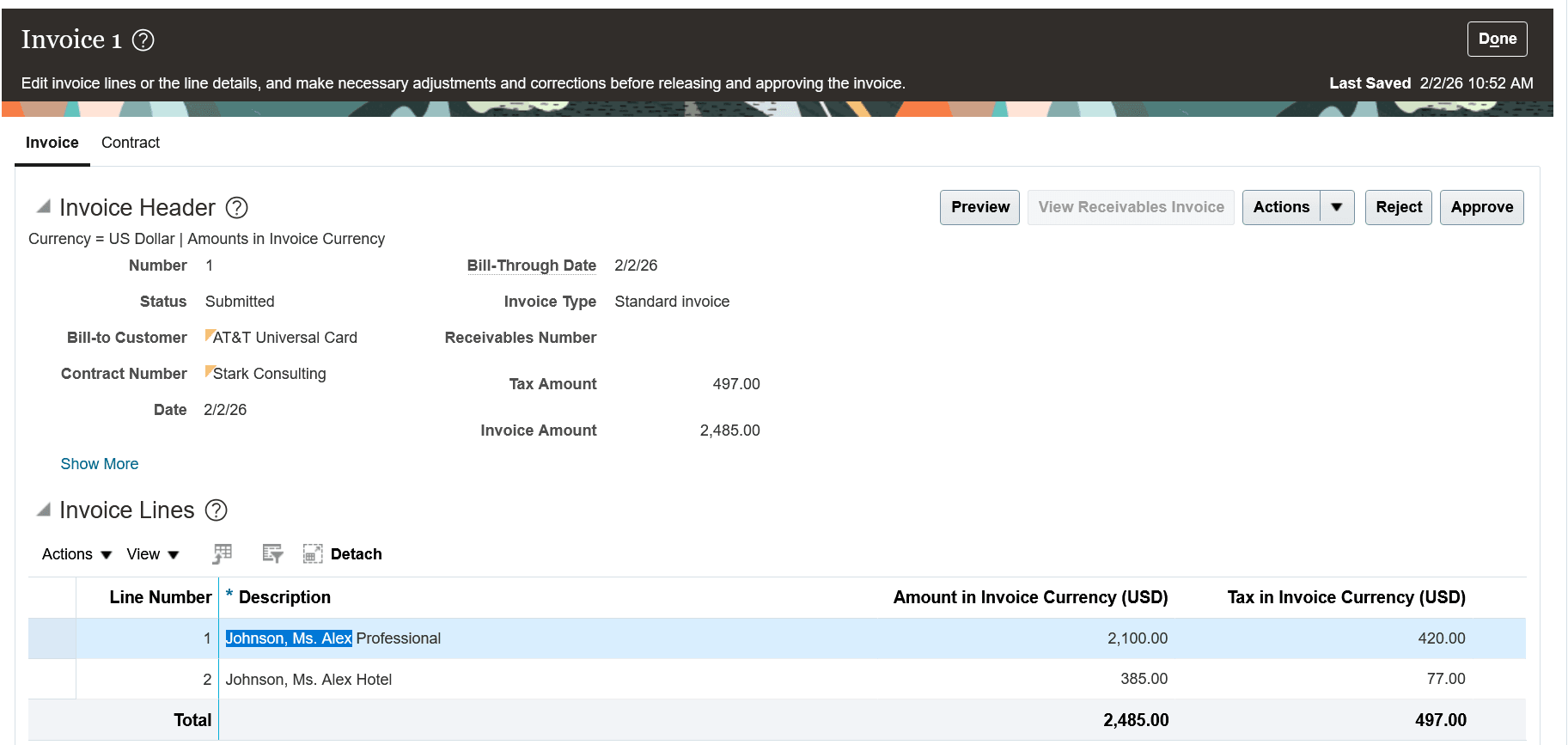
The Invoice Details page with the invoice for Alex Johnson opened. The invoice has separate lines for time and expenses.
NOTE: If billing events are entered for this time and expenses project contract, since billing events do not have a person reference, they're billed into a separate invoice.
Worked Example 3 - Group Invoices by Billing Event
A fixed price project is being delivered to a customer where each billing event represents billable project milestones, fees, and surcharges. A separate invoice is requested by the customer for each fixed price amount.
To achieve this, an invoice format is created with grouping attribute of Billing Event, which is then assigned to the contract's bill plans by a contract administrator. For more details, refer to the Steps to Enable and Configure section below.
Billing events are created for each fixed price amount, either using the contract milestones feature, manually, or using an integrated solution:
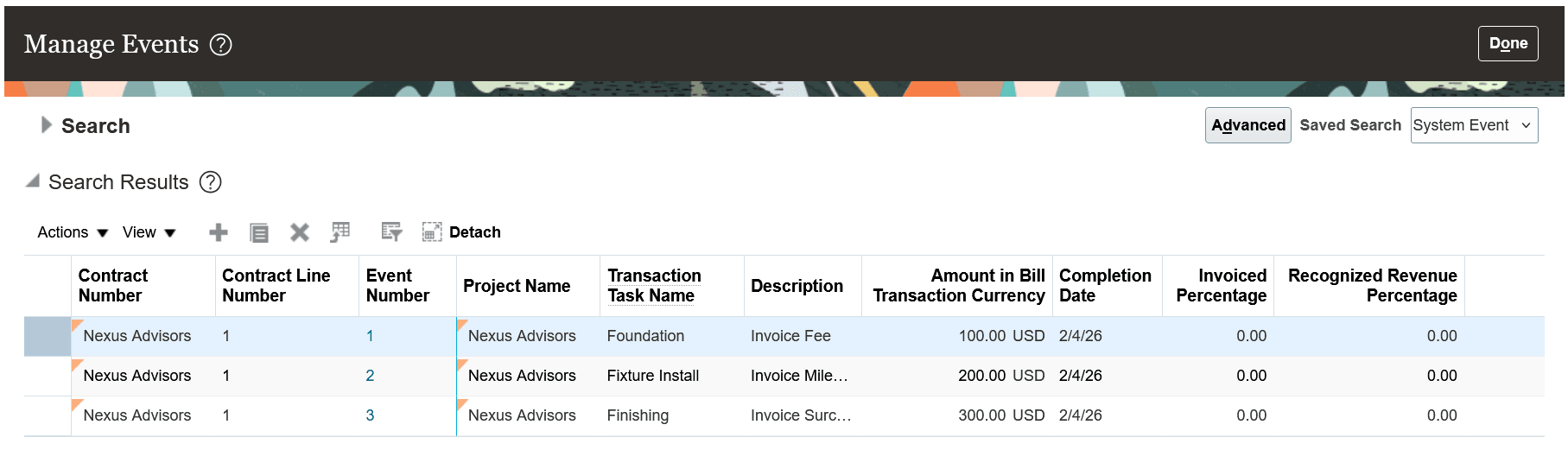
The Manage Events page showing three billing events associated with project milestones.
When invoices are generated for the contract, three separate invoices are created, one for each billing event:
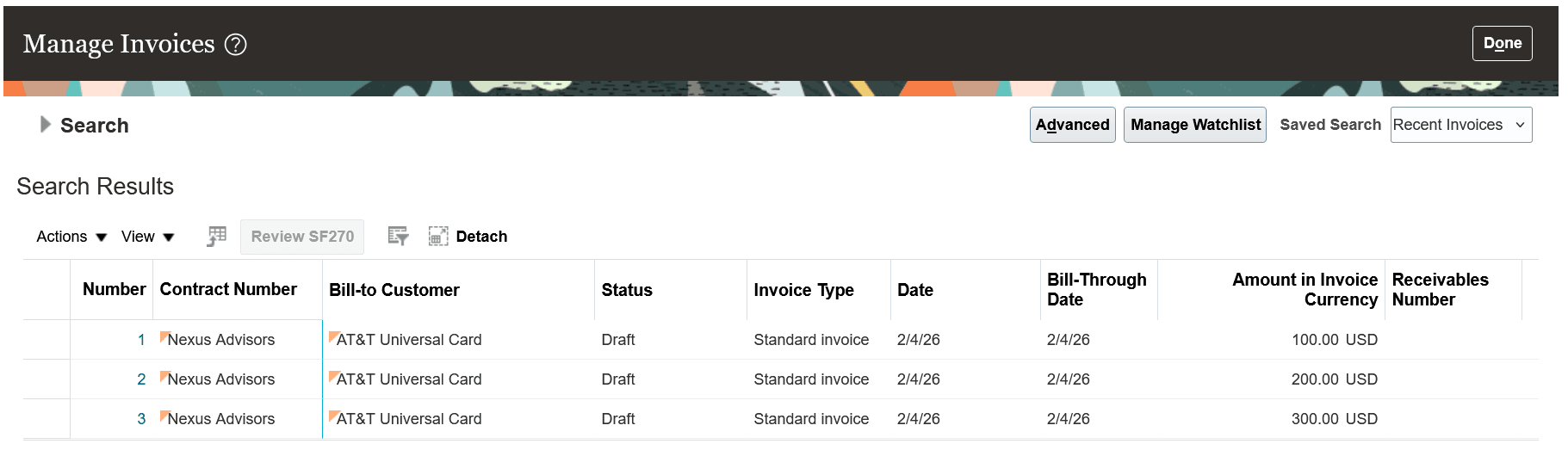
The Manage Invoices page showing three draft invoices, one for each billing event.
Reviewing the first invoice, we can see a single line for billing event 1, an invoice fee. The invoice line description was generated according to the event invoice format associated with the bill plan (in this case, a concatenation of the event number and description):
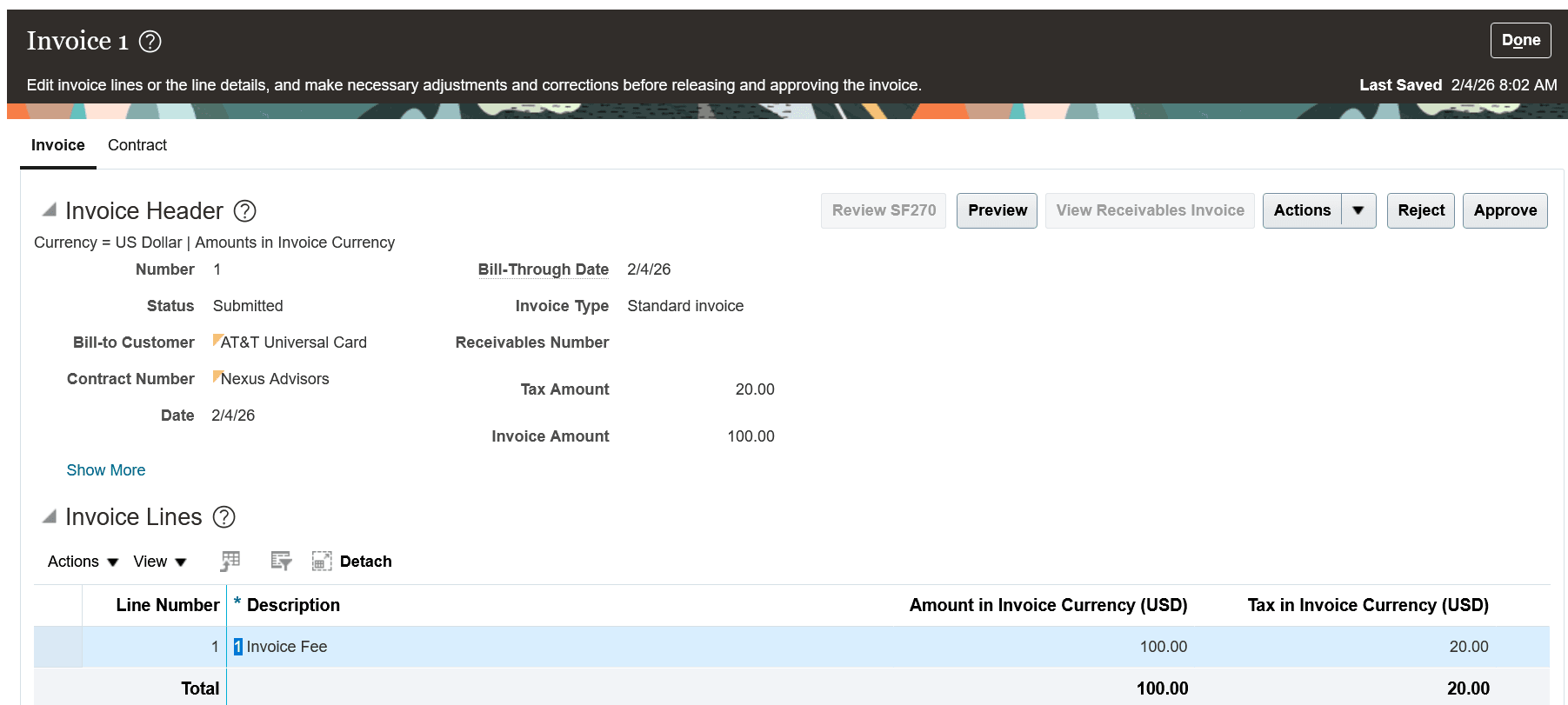
The Invoice Details page with the invoice for billing event 1 opened.
The benefits of this feature are:
- Increases the flexibility of how transactions are grouped into invoices, ensuring that customers are billed how they want to be billed.
- Reduces the need for complex and inefficient workarounds, which typically involve iteratively applying and releasing billing holds and running Generate Invoices.
Steps to enable and configure
Invoice Formats for Invoice Grouping (Setup and Maintenance > Manage Invoice Formats)
When configuring an invoice format for invoice grouping, set the Format Type to Invoices. The Grouping Option is not applicable for this format type, and will automatically default to All and can't be changed. The Fixed Format attribute is also not applicable.
The Customer Invoices and Internal Invoices checkboxes can be used to control which types of contract the invoice format can be assigned to:
- Invoice formats with just the Customer Invoices option enabled can only be assigned to contracts which bill external customers.
- Invoice formats with just the Internal Invoices option enabled can only be assigned to contracts configured for interproject or intercompany billing.
- Invoice formats with both options enabled can be assigned to any contract.
In the Format Details section you select the attribute(s) by which you want to group bill transactions into invoices. Each invoice format must have at least one grouping attribute specified. For example:
- To generate invoices by unique combinations of project and top task, select the Project and Top Task grouping attributes.
- To generate invoices by contract line and person, select the Contract Line and Person grouping attributes.
It doesn't matter which order you add the attributes.
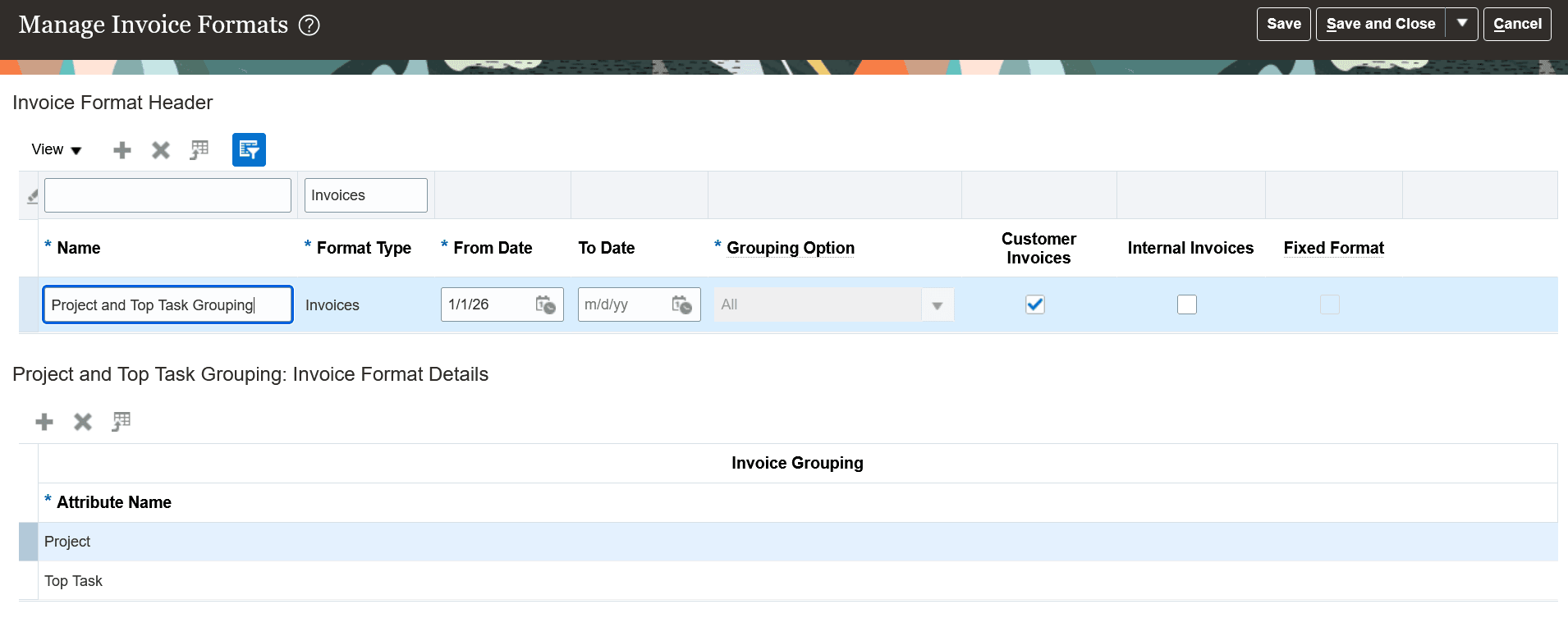
The Manage Invoice Formats page showing an invoice format used for grouping bill transactions into invoices by project and top task.
NOTE: If you just want to invoice by associated project, a preconfigured invoice format called "Associated project" is available for selection when you create bill plans. Note that this invoice format is not visible in the Manage Invoice Formats setup page.
Associate Invoice Format with a Bill Plan (Project Contract > Billing > Bill Plans)
Once you've configured invoice formats for invoice grouping you associate them with bill plans on your project contracts using the Invoice Grouping attribute. When you subsequently generate invoices for these project contracts, the grouping attributes from the invoice format will determine how bill transactions are grouped into invoices:
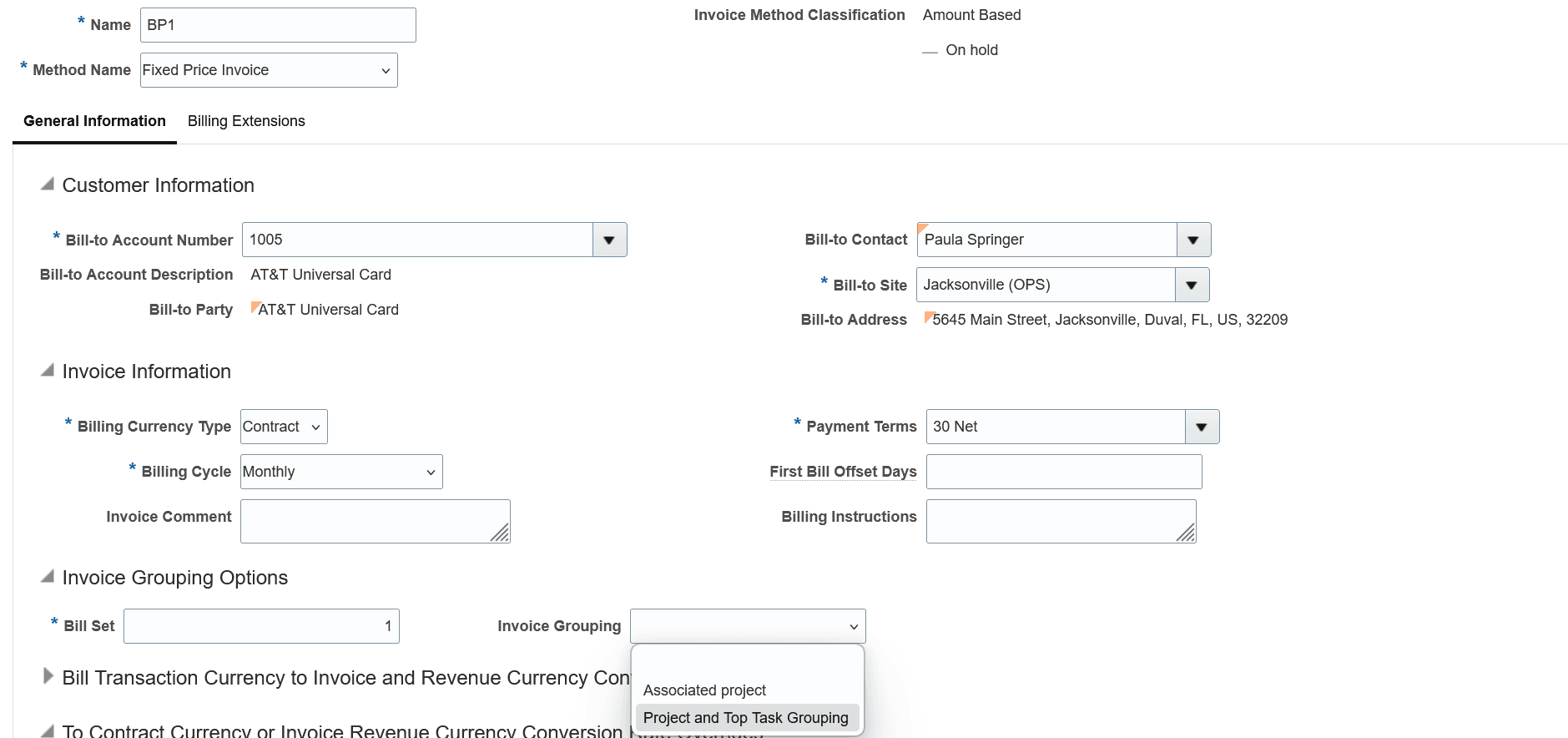
A project contract bill plan showing the list of values for the Invoice Grouping attribute. The seeded "Associated project" invoice format is available, along with a user-defined invoice format.
Tips and considerations
- Grouping is subject to existing built-in grouping logic, such as Contract and Bill Set. Invoice formats used for invoice grouping are applied in addition to the built-in logic.
- If your invoice grouping requirements are highly complex and can't be satisfied by invoice formats alone, consider exploring the Bill Groups to Combine Bill Transactions into Invoices feature released in 26A.
- Invoice formats for invoice grouping are not currently supported in the Grants Management user interfaces. While you can assign a grouping option in the Contract Management user interface after the award has been activated, and that grouping option is honored during billing, when a user reviews the billing details on the Review Award page the invoice grouping value is displayed as blank.
- For integration and data migration, you can set a value for the invoice grouping attribute on bill plans using the Contract REST API and Contract Import Management. However, for Contract Import Management only internal identifiers are currently supported:
- For the seeded 'Associated project' value, use PROJECT_CONTRACT_LINKAGE (which represents an internal lookup code).
- For user-defined invoice formats, use the internal invoice format ID, which you can obtain from the table PJB_INVOICE_FORMATS. The invoice format name is not currently supported.
- Billing resources are only derived for bill transactions if billing controls are enabled on the contract type. Therefore, if billing controls are not enabled, and the assigned invoice format includes Billing Resource as a grouping attribute, this will not influence invoice grouping.
- When percent complete or percent spent Project Process Configurators/billing extensions are used on a bill plan, invoice grouping attributes such as Contract Line, Billing Event, Billing Event Type, Project, Top Task, and Billing Resource are implicitly considered during invoice grouping.
- However, when Project Process Configurators/billing extensions include current-run measures (for example, to support fee or retention use cases), and invoice grouping is based on project cost attributes such as person, separate invoices are created by person excluding automatically generated billing events (which are grouped into a separate invoice). This is because project cost attributes such as person are not stored on billing events, so can't be used for grouping.
- As was the case prior to this feature, user-defined invoice formats do not support translation, irrespective of whether they're used for invoice or invoice line grouping. However, the existing preconfigured Associated project invoice grouping option, which is based on a lookup type, can be translated.
Access requirements
No new access requirements.