Project Cost Adjustment Assistant
Perform project cost transfer adjustments for individual transactions using natural language prompts. Transfer costs across projects, tasks, awards, and funding sources, and adjust attributes such as cost type and project role. Prompt templates, in-context transaction search, additional inquiries, and built-in validation help improve accuracy and streamline the adjustment process.
Use the Project Cost Adjustment Assistant to:
- Transfer project costs to a different project or task and, where applicable, to a different award and funding source.
- Update key transaction attributes, such as project role and cost type.
- Find transactions within a single project using supported filters, such as business unit, transaction date, cost type, or document details, and combine multiple filters to refine results.
- View supporting details for transaction attributes during the adjustment process, including project, task, award, funding source, cost organization, cost type, project role, and project cost category.
Users can enter a supported request directly in natural language or type “Show Templates” to view guided prompt formats for supported tasks. A few examples are shown below:
- Transfer transaction [transaction number] to project number: [target project number], task number: [target task number].
- Transfer transaction [transaction number] to project number: [target project number], task number: [target task number], contract number: [target contract number], funding source: [target funding source number], justification: [reason for adjustment].
- Transfer the project role for transaction [transaction number] to [new project role].
- Transfer the cost type for transaction [transaction number] to [new cost type].
- Find a transaction in project number [project number] for transaction dates between [mm/dd/yyyy] and [mm/dd/yyyy].
- Show details for project number [project number], task number [task number].
Example Flow
A project accountant needs to transfer a project cost that was charged to the wrong task and verify supporting setup details before completing the adjustment.
When the Transaction Number is Available
Transfer transaction "[Transaction Number]" to Project Number: "[Target Project Number]", Task Number: "[Target Task Number]", Justification "[Reason for adjustment]".
The assistant interprets the request, validates the transaction number, and confirms that the target project and task details are available before proceeding. Justification is optional and, when provided, is included in the adjustment.
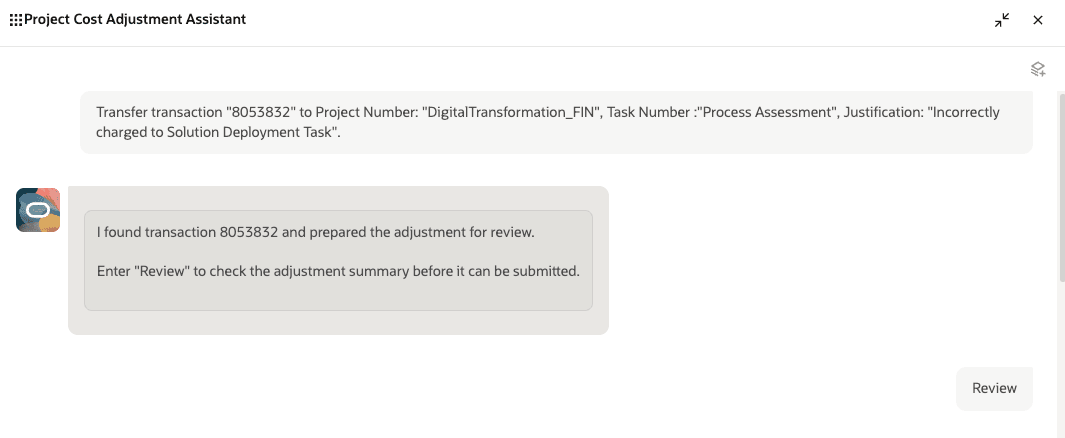
Transfer a project cost transaction using the Project Cost Adjustment Assistant
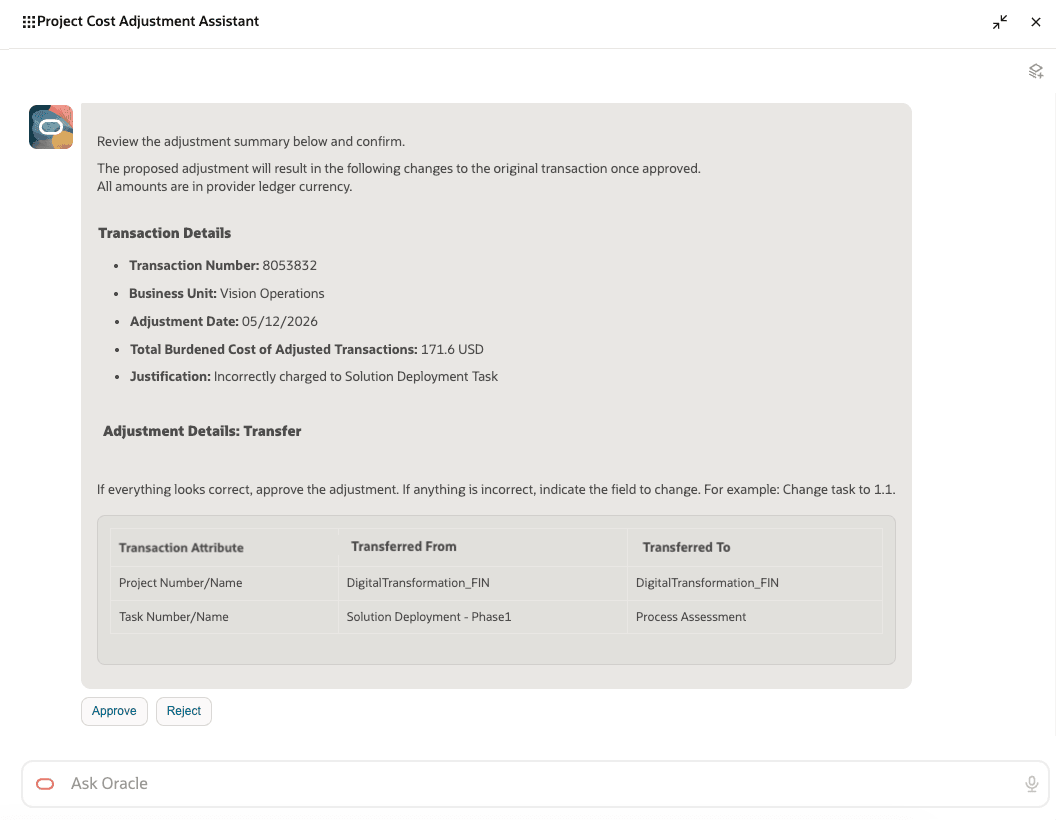
Approve or Reject a project cost transfer adjustment after reviewing the prepared adjustment in the Project Cost Adjustment Assistant.
If the user needs to confirm transaction or related setup details before approving the adjustment, they can ask follow-up questions such as:
- For transaction "[Transaction Number]", show project and task details
- Show details for Project Number "[Project Number]", Task Number "[Task Number]"
- Show details for Cost Type "[Cost Type]"
- Show details for Project Role "[Project Role]".
When the Transaction Number is not Available
Find a transaction in Project Number "[Project Number]" for Cost Type "[Cost Type]" and transaction dates between "[mm/dd/yyyy]" and "[mm/dd/yyyy]".
After identifying the correct transaction and confirming the target values, the assistant prepares the adjustment summary and seeks user confirmation. Once confirmed, it submits the request and informs the user of the status.
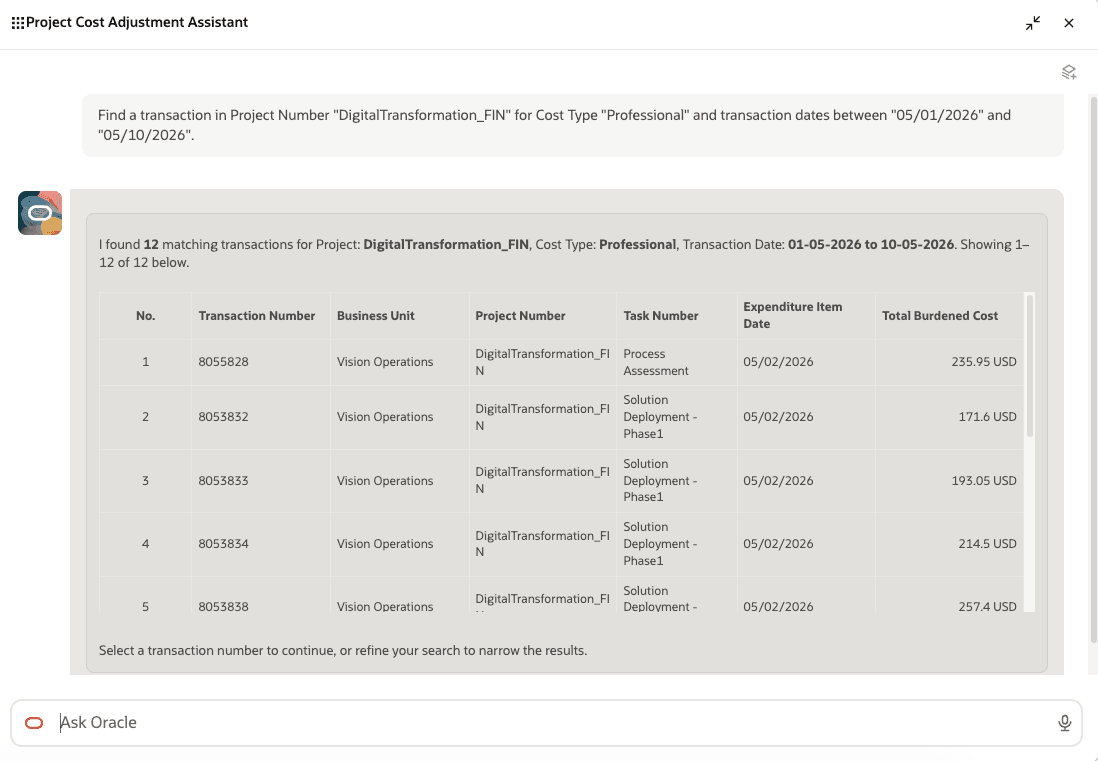
Find a transaction in the Project Cost Adjustment Assistant
Note: To align with the terminology change from Project Expenditure Item to Project Cost Transaction, Expenditure Type and Expenditure Organization will transition to be referred to as Cost Type and Cost Organization respectively.
These are the business benefits:
- Speed up project cost adjustments with a guided, conversational experience that reduces manual steps and navigation.
- Improve accuracy and reduce rework through guided prompt templates that structure user requests, validate inputs, identify the correct transactions, and ensure required information is captured before submission.
- Make better decisions faster by enabling in-context inquiries on transactions and related project attributes prior to adjustment.
- Ensure control and confidence with a built-in review summary and explicit user approval before processing adjustments.
- Get immediate visibility into outcomes with real-time feedback on adjustment status, including success or failure.
Here's the demo of these capabilities:
Steps to enable and configure
Project Cost Adjustment Assistant role is needed to use the assistant within the AI Agent Studio. Refer to the Access Requirements section for details.
Tips and considerations
Keep these points in mind when using the assistant:
- Start requests with a clear action word, such as Transfer, Find, or Show.
- Include required identifiers for the request type, such as transaction number, project number, or task number. For best results, provide exact values in double quotes.
- Use explicit labels, such as Project Number, Task Number, Cost Type, and Project Role.
- Submit only one request per message.
- Adjustments to multiple transactions aren’t supported; submit only one transaction per request.
- Include a justification in the initial request when required.
- Searches are case-sensitive and support exact matches only.
- Combine multiple search filters only within a single project search context.
- Use Show Templates to view example request formats.
- Submit requests in English, as the assistant currently supports English only.
Key resources
Access requirements
Take the following steps to provide users access to the Project Cost Adjustment Assistant.
A) Users without the Project Accountant Role
To enable users without the seeded Project Accountant role or a custom role derived from the Project Accountant role to use the Project Cost Adjustment Assistant, create and assign a custom role with the following configurations.
Function Security Policies > Privileges
- Project Cost Transaction Processing (ORA_PJC_PROJECT_COST_TRANSACTION_PROCESSING_DUTY)
For sponsored projects, assign these privileges:
- Get Project Setups (PJF_GET_PROJECT_SETUPS_PRIV)
- Manage Award Service (GMS_MANAGE_AWARD_SERVICE_PRIV)
Data Security Policies
- Access for Business Units
- Data Resource: Business Unit
- Data Set: Select by Instance Set
- Condition Name: Access the business units for which the user is explicitly authorized.
- Actions: View Project Expenditure Item, Manage Project Expenditure Item
- Access for Managing Project Cost Transactions
- Data Resource: Project Expenditure Items for Table PJC_EXP_ITEMS_ALL
- Data Set: Select by Instance Set
- Condition Name: Access the project expenditure items for table PJC_EXP_ITEMS_ALL for business unit.
- Actions: Manage Project Expenditure Item
- Access for Awards - For sponsored projects, configure award data access.
- Data Resource: Award for Table GMS_AWARD_HEADERS_B
- Data Set: Select by Instance Set
- Condition Name: Access awards for table GMS_AWARD_HEADERS_B for business units based on Grants Management Award security as defined in the Manage Data Access for Users page.
- Actions: View Award Data
Role Hierarchy > Roles and Permission Groups
- Project Cost Adjustment Assistant (ORA_PJC_PROJECT_COST_ADJUSTMENT_ASSISTANT_DUTY)
- Project Cost Transaction Processing (ORA_PJC_PROJECT_COST_TRANSACTION_PROCESSING_DUTY)
- Project Cost Setup Inquiry (ORA_PJC_PROJECT_COST_SETUP_INQUIRY_DUTY)
B) Users with the Project Accountant Role
To enable users with the seeded Project Accountant role or a custom role derived from the Project Accountant role to use the Project Cost Adjustment Assistant, create and assign a custom role with the following configurations.
Function Security Policies > Privileges
For sponsored projects, assign these privileges:
- Get Project Setups (PJF_GET_PROJECT_SETUPS_PRIV)
- Manage Award Service (GMS_MANAGE_AWARD_SERVICE_PRIV)
Data Security Policies
- Access for Awards - For sponsored projects, configure award data access.
- Data Resource: Award for Table GMS_AWARD_HEADERS_B
- Data Set: Select by Instance Set
- Condition Name: Access awards for table GMS_AWARD_HEADERS_B for business units based on Grants Management Award security as defined in the Manage Data Access for Users page.
- Actions: View Award Data
Role Hierarchy > Roles and Permission Groups
- Project Cost Adjustment Assistant (ORA_PJC_PROJECT_COST_ADJUSTMENT_ASSISTANT_DUTY)
- Project Cost Transaction Processing (ORA_PJC_PROJECT_COST_TRANSACTION_PROCESSING_DUTY)
- Project Cost Setup Inquiry (ORA_PJC_PROJECT_COST_SETUP_INQUIRY_DUTY)
Business Unit Access
For both scenarios, ensure that users have access to the relevant business units. In Setup and Maintenance, use the Manage Data Access for Users task, select Business Unit as the security context, and assign the applicable business units.