Project Performance Agents
Improve project oversight with timely performance insights and guided analysis throughout the project lifecycle. Project Performance Agents analyze project performance data in the background and surface proactive insights when defined conditions are met.
The Project Performance Agents provide a preview of agent-driven project management that you can try out in this release. This will be replaced with an agentic app-based experience, available in a future release.
Users can ask natural-language questions about a specific project or across the projects available to them. The agents translate business terms into project performance measures and analytical queries, and return a concise explanation with supporting details. This helps project teams reduce manual report review, access relevant information faster, and make more informed decisions to keep projects on track.
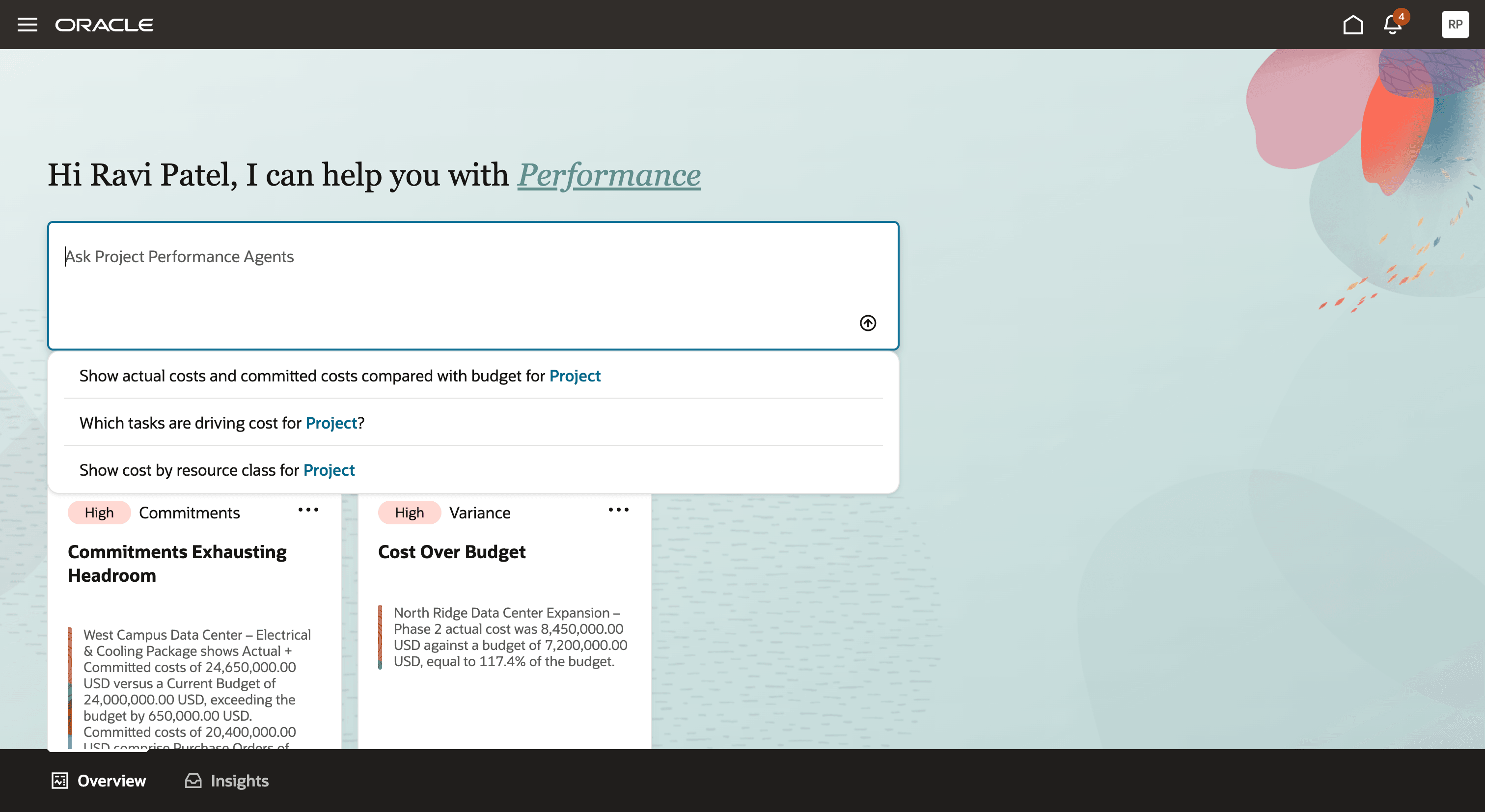
Users can choose from predefined prompts for frequent quick queries and see insights
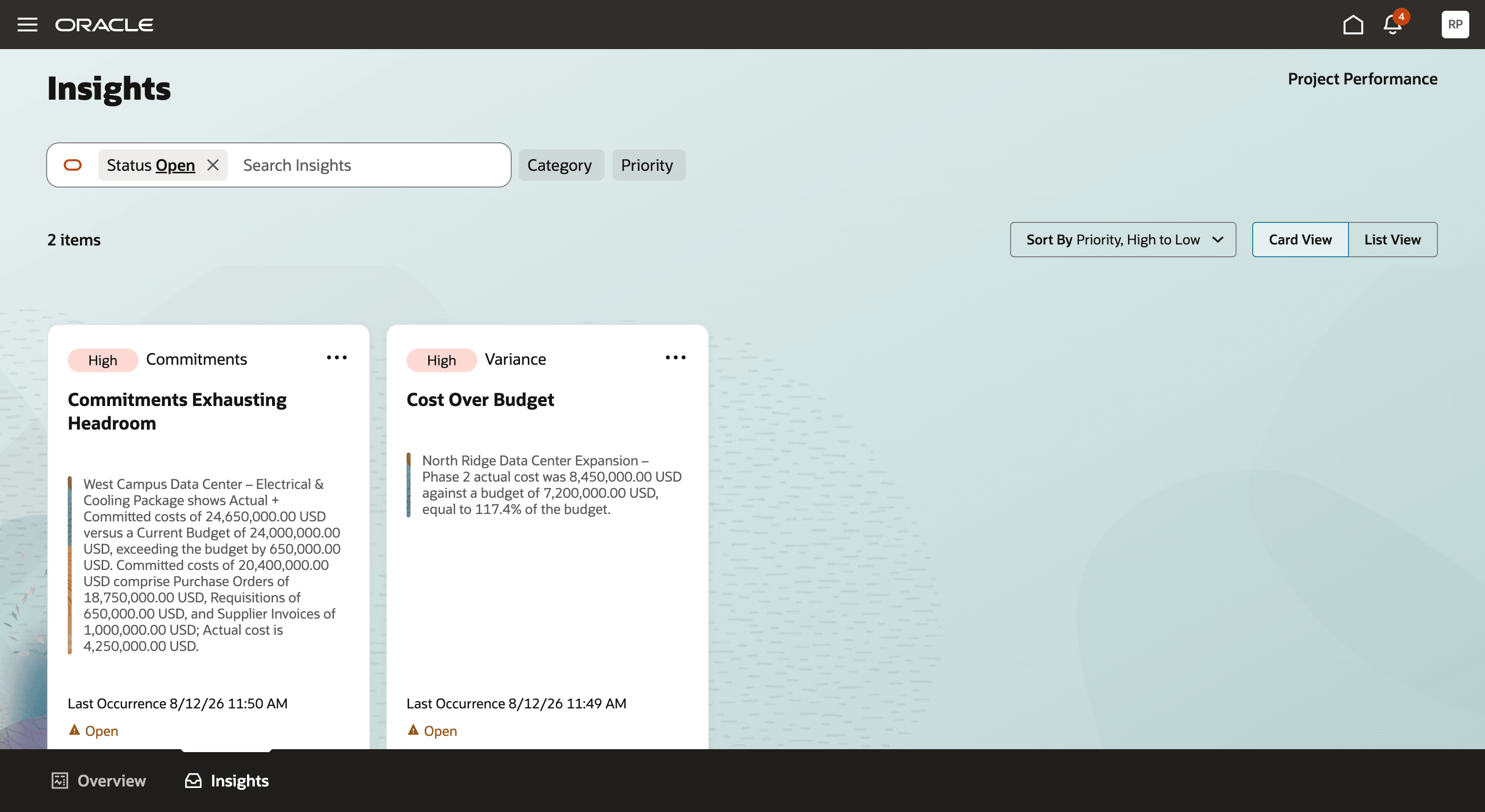
Users can review all insights in one place
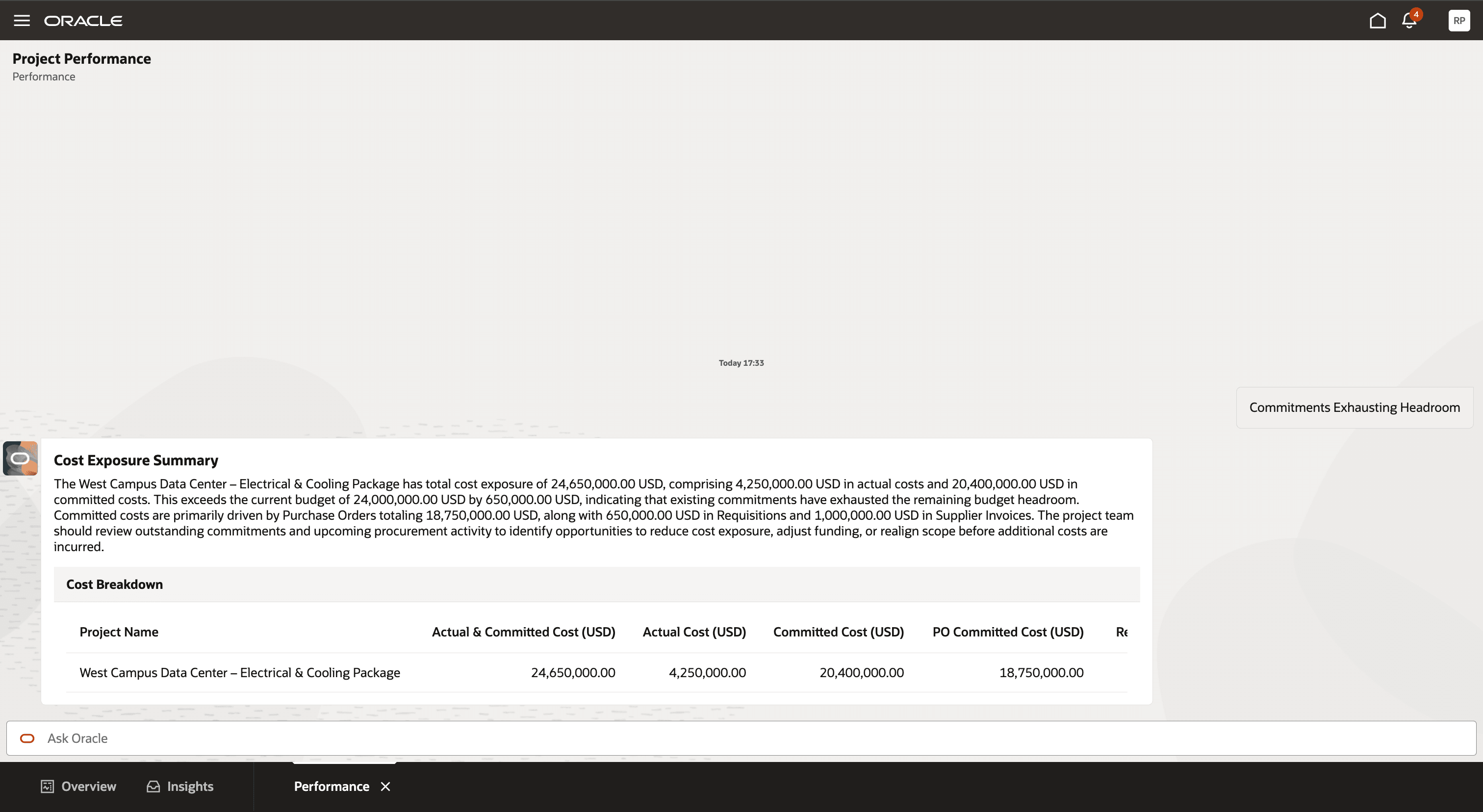
Cost Exposure Details
Business Benefits
Project Performance Agents help project teams:
- Identify cost overruns and limited budget or forecast headroom earlier through proactive insights.
- Reduce the time spent manually reviewing project performance reports.
- Get relevant answers faster by asking project performance questions in natural language.
- Investigate supporting performance details for a specific project or across the projects they can access.
- Take timely, informed actions to help keep projects on track.
Steps to enable and configure
1. Initialize Project Performance Summary Data
- Go to Scheduled Processes.
- Schedule the Update Project Performance Data process.
- Enter $$SET_AV_FACT_INITIALIZATION$$ in both the From Project and To Project parameters.
- Submit the process and wait for it to complete successfully.
Enter the initialization value exactly as shown, including both pairs of dollar signs. The Update Project Performance Data process summarizes the project performance information used for analysis, including actual costs, commitments, budgets, and forecasts.
2. Configure User Access
Configure one of the security options described in the Access Requirements section:
- Users who have the Project Manager job role can be granted the additional Project Performance Agents role.
- Users who don’t have the Project Manager job role require a custom job role with Permission Groups enabled.
3. Access Project Performance Agents
After completing the data and security setup:
- Sign in as a configured user.
- On the application home page, click ERP Agents.
- Click Project Performance Agents.
- Select an insight, select a predefined prompt, or enter a natural-language question.
Selecting an insight or submitting a question opens the analysis in a Performance tab within the Project Performance Agents workspace.
Tips and considerations
Delivered Insights
Project Performance Agents include the following delivered insights:
| Insight | What It Identifies | Evaluation Schedule |
|---|---|---|
| Cost Over Budget | Identifies a project that isn’t closed when its actual cost is more than 10 percent above its current budget. | Fifth day of every month |
| Commitments Exhausting Headroom | Identifies a project that isn’t closed when actual and committed costs are close to exhausting the current budget or forecast, leaving limited headroom for additional project costs. | Every Monday |
Consider the following when using the feature:
- Both insights are delivered, but an insight appears only when at least one project available to the signed-in user meets its condition. The overview page may therefore display no insights, one insight, or both insights.
- Insights are generated through scheduled background analysis and aren’t real-time notifications. Their availability depends on the insight evaluation schedule and the latest project performance data.
- Projects with a closed status aren’t evaluated for the delivered insights.
Key resources
- Project Performance Data Summarization: Learn about the Update Project Performance Data process and summarized project performance information.
- Creating Custom Roles for Projects: Learn how custom enterprise roles and project roles work together to provide functional and project-level access.
- Create Project Roles: Learn how to create a project role and associate it with an enterprise role.
- Configure the Security Console: Learn about the security synchronization processes used after role configuration.
- Security Reference for Project Management: Review the delivered Project Management roles, duties, privileges, and security policies.
- Project Manager Job Role: Review the delivered Project Manager role hierarchy and privileges.
Access requirements
Users require both access to Project Performance Agents and project-level access to the projects they need to analyze.
Configure one of the following access options:
A. Users with the Project Manager Job Role
Enable Permission Groups for the applicable role if they aren’t already enabled, and assign the following roles to the user:
| Role | Role Code |
|---|---|
| Project Manager |
ORA_PJF_PROJECT_MANAGER_JOB |
| Project Performance Agents |
ORA_PJF_PROJECT_PERFORMANCE_AGENTS_DISCRETIONARY |
Users who already have the Project Manager job role require only the additional Project Performance Agents role.
B. Users Without the Project Manager Job Role
Create a custom job role and enable Permission Groups for the role.
On the Roles and Privileges tab, add the following roles:
| Role | Role Code |
|---|---|
| Project Management Duty |
ORA_PJF_PROJECT_MANAGEMENT_DUTY_ABSTRACT |
| Project Performance Agents |
ORA_PJF_PROJECT_PERFORMANCE_AGENTS_DISCRETIONARY |
On the Roles and Permission Groups tab, add the following roles:
| Role | Role Code |
|---|---|
| Project Performance Agent Insights Duty |
ORA_PRJ_PROJECT_PERFORMANCE_INSIGHTS_DUTY |
| Project Performance Inquiry |
ORA_PJS_PROJECT_PERFORMANCE_INQUIRY_DUTY |
| Project Performance Setup Inquiry |
ORA_PJS_PROJECT_PERFORMANCE_SETUP_INQUIRY_DUTY |
| Project Inquiry |
ORA_PJF_PROJECT_INQUIRY_DUTY |
| Project Performance Agents |
ORA_PJF_PROJECT_PERFORMANCE_AGENTS_DISCRETIONARY |
Ensure that the roles added on the Roles and Permission Groups tab are enabled for Permission Groups.
After creating the custom role:
- Assign the required users to the custom role.
- In the Setup and Maintenance work area, open the Manage Project Roles task.
- Create a project role and associate the newly created custom enterprise role with it.
- Run the Import User and Role Application Security Data and Maintenance Stream scheduled processes as described in the Steps to Enable and Configure section.
- Assign the new project role to users for the projects they need to access.