Project Financial Control Agents
Gain clear insight into project costs, capitalization, and billing to improve financial oversight and keep projects aligned with business objectives. With the Project Financial Control Agents, project teams can quickly understand cost distribution flows and monitor financial progress through guided, conversational interactions. By providing fast, accurate answers to complex financial questions, the agents reduce manual investigation, improve operational efficiency, and give project personnel the confidence to make informed decisions that keep projects on track and support the delivery of high-quality products and services.
The Project Financial Control Agents provide a preview of agent-driven project financial management that you can try out in this release. This will be replaced with an agentic app-based experience, currently targeted for 27A.
The current experience includes:
- Cost Exception Assistance: Identify and address exceptions related to project costs.
- Financial Inquiry: Access financial information for project costs, unprocessed costs, assets, asset assignments, and asset lines.
- Contract Bill Transactions Assistance: Find and review bill transactions using criteria such as project, contract, status, date range, and amount to bill, with direct navigation to the Bill Transactions page for follow-up actions.
- Project Capitalization Assistance: Identify project costs pending capitalization and receive guidance to resolve them.
Users can view predefined prompts that help them quickly start common project financial activities, such as finding project costs, unbilled amounts, invoice statuses, and pending capitalization activities. Other project financial investigation can be performed by asking a natural language question, and the agents will help refine or clarify your requirement to get the appropriate information within its scope of capabilities.
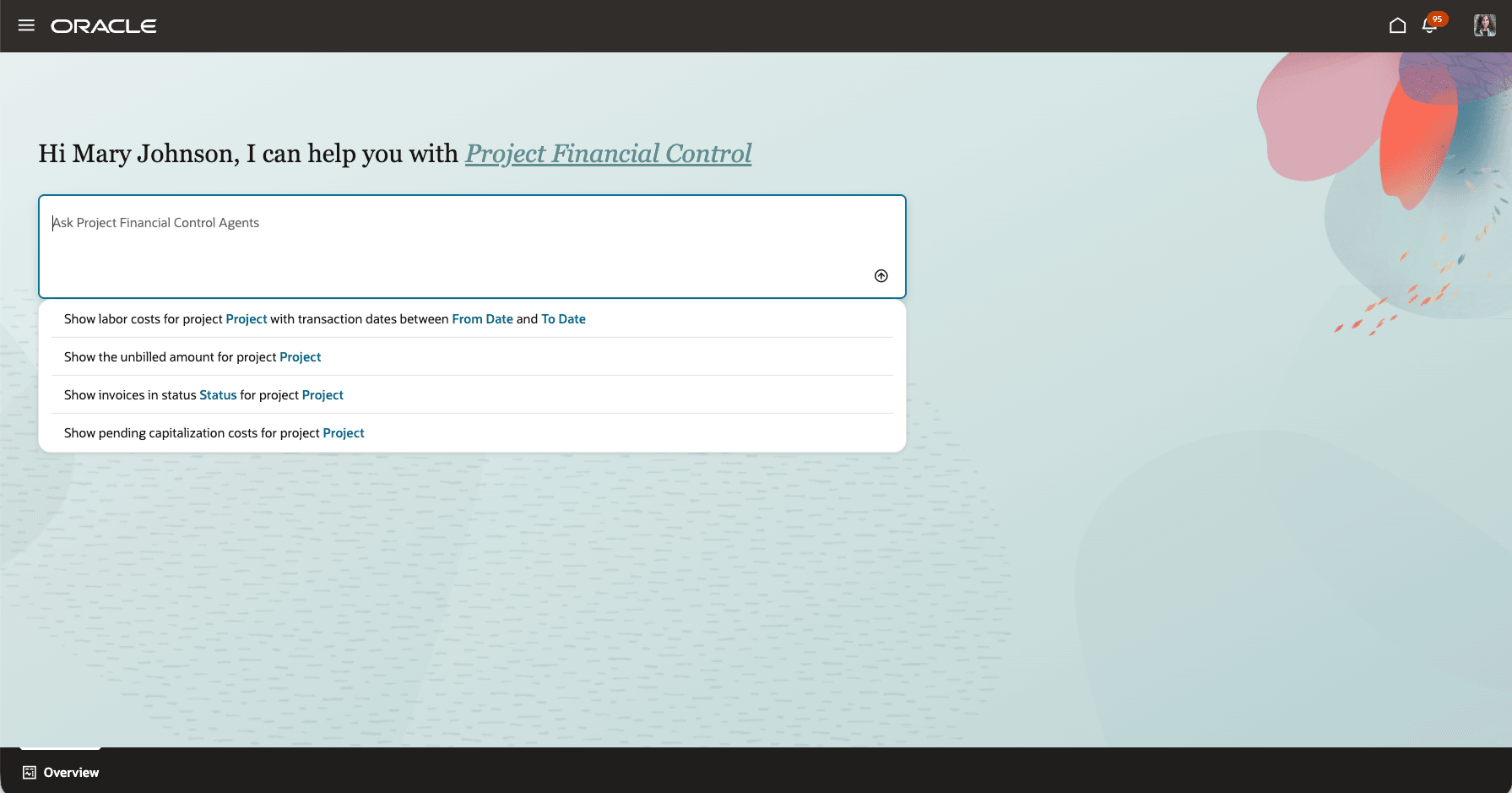
Financial Control Agents Landing Page with predefined prompts
In addition to the predefined prompts, users can ask natural-language questions to view and explore project financial information across these areas:
- Project costs
- Project cost exceptions and unprocessed costs
- Project assets
- Asset assignments
- Asset lines
The business benefits are:
- Accelerates access to project financial information by enabling users to retrieve answers through natural language questions, eliminating the need to navigate multiple application pages or know where specific information resides. This improves productivity and allows teams to focus on managing strategic project risks and delivering business outcomes.
- Speeds financial issue resolution with real-time inquiries into project costs, assets, billing, and invoicing discrepancies. This reduces the time required to investigate and resolve outstanding transactions, helping organizations streamline project and period-end close processes.
Steps to enable and configure
Configure one of the security options described in the Access Requirements section.
After completing the security setup, navigate to Project Financial Agents using the following steps:
- Sign in as a configured user.
- On the application home page, click ERP Agents.
- Click Project Financial Control Agents.
- Select a predefined prompt, or enter a natural-language question.
Tips and considerations
- Results are limited by the user’s functional and data security access.
-
When a result contains more than 50 rows, the assistant displays only the top 50 rows ranked by impact.
- If your inquiry isn't providing the expected response, try including more specifics in your request, like "project bridge remediation" instead of just "bridge remediation". This provides additional context to help route your inquiry to the appropriate agent.
- Project Cost Exceptions: Support in this release is limited to Import Cost exceptions. Exceptions related to borrowed and lent, burdening, and Project Cost Adjustments are out of scope.
Key resources
- Creating Custom Roles for Projects: Learn how custom enterprise roles and project roles work together to provide functional and project-level access.
- Create Project Roles: Learn how to create a project role and associate it with an enterprise role.
- Configure the Security Console: Learn about the security synchronization processed used after role configuration.
- Security Reference for Project Management: Review the delivered Project Management roles, duties, privileges, and security policies.
- Project Accountant Job Role: Review the delivered Project Accountant role hierarchy and privileges.
Access requirements
Users require both access to Project Financial Control Agents and associated Duty Role access to the projects or business units they need to analyze.
Configure one of the following access options:
A. Users with the Project Accountant or Project Manager Job Roles
Enable Permission Groups for the applicable role if they aren’t already enabled, and assign the following roles to the user:
| Role | Role Code |
|---|---|
| Project Accountant | ORA_PJF_PROJECT_ACCOUNTANT_JOB |
| Project Manager | ORA_PJF_PROJECT_MANAGER_JOB |
| Project Financial Control Agents | ORA_PJF_PROJECT_FINANCIAL_CONTROL_AGENTS_DISCRETIONARY |
Users who already have the Project Accountant job role require only the additional Project Financial Control Agents role.
B. Users Without the Project Accountant or Project Manager Job Roles
Create a custom job role and enable Permission Groups for the role.
On the Roles and Privileges tab, add the following roles:
| Role | Role Code |
|---|---|
| Project Financial Control Agents |
ORA_PJF_PROJECT_FINANCIAL_CONTROL_AGENTS_DISCRETIONARY |
Duty roles are needed for the agents to perform. Project Accountant and Project Manager roles have them, but the table below can be used for the custom role as a reference set:
| Role | Role Code |
|---|---|
| Project Cost Transaction Processing | ORA_PJC_PROJECT_COST_TRANSACTION_PROCESSING_DUTY |
| Project Cost Setup Inquiry | ORA_PJC_PROJECT_COST_SETUP_INQUIRY_DUTY |
| Accounted Project Cost Distribution Inquiry | ORA_PJC_ACCOUNTED_PROJECT_COST_DISTRIBUTION_INQUIRY_DUTY |
| Project Asset Maintenance | ORA_PJC_PROJECT_ASSET_MAINTENANCE_DUTY |
| Project Contract Invoice Management | ORA_PJB_PROJECT_CONTRACT_INVOICE_MANAGEMENT_DUTY |
Function Security Policies > Privileges
- Get Project Setups (PJF_GET_PROJECT_SETUPS_PRIV)
- Manage Award Service (GMS_MANAGE_AWARD_SERVICE_PRIV)
(Note: This privilege is required to view award and funding source configuration details.) - View Project Contract Bill Transactions Service (PJB_VIEW_PROJECT_CONTRACT_BILL_TRANSACTIONS_PRIV)
- Manage Project Contract Bill Transaction (PJB_MANAGE_PROJECT_CONTRACT_BILL_TRANSACTION_PRIV)
- View Contract (OKC_VIEW_CONTRACT_PRIV)
Permission Groups
- read:Project Contract Bill Transaction (oraErpCoreProjectBillingTransactions_ProjectContractBillTransaction_read)
- read:Project Contract Billing Event Bill Transaction (oraErpCoreProjectBillingTransactions_ProjectContractBillingEventBillTransaction_read)
- read:Project Contract Cost Bill Transaction (oraErpCoreProjectBillingTransactions_ProjectContractCostBillTransaction_read)
- For each of these permission groups, set the Security View to Business Unit Access Rows and All Fields.
Data Security Policies
- Access for Business Units
- Data Resource: Business Unit
- Data Set: Select by Instance Set
- Condition Name: Access the business units for which the user is explicitly authorized
- Actions: Manage Project Unprocessed Expenditure Item
- Access for Project Unprocessed Cost Transactions
- Data Resource: Project Unprocessed Cost Transaction for Table PJC_TXN_XFACE_ALL
- Data Set: Select by Instance Set
- Condition Name: Access the Unprocessed Transaction for Table PJC_TXN_XFACE_ALL for business unit
- Actions: Manage Project Unprocessed Expenditure Item
- Access for Awards
(Note: This data security policy is required to view award and funding source configuration details.)- Data Resource: Award for Table GMS_AWARD_HEADERS_B
- Data Set: Select by Instance Set
- Condition Name: Access awards for table GMS_AWARD_HEADERS_B for business units based on Grants Management Award security as defined in the Manage Data Access for Users Page.
- Actions: View Award Data
- Access for Bill Transactions
- Data Resource: Bill Transaction for table PJB_BILL_TRXS
- Data Set: Select by Instance Set
- Condition Name: Access to project contract bill transactions for table PJB_BILL_TRXS for the contract business units
- Actions: View Project Contract Bill Transaction Data
After creating the custom role:
- Assign the required users to the custom role.
-
Assign the required Business Unit Access:
-
Ensure that users have access to the relevant business units. In Setup and Maintenance, use the Manage Data Access for Users task, select Business Unit as the security context, and assign the applicable business units.
-