Redwood Experience for HCM Data Loader
Enrich user experience with the new View Business Objects page developed using the Redwood tool set. This page is built from the ground up using Visual Builder Studio (VBS) to give you a unique experience of Oracle applications.
Using this UI, you can review the business objects supported by HCM Data Loader and HCM Spreadsheet Data Loader.
View Business Objects:
You can access this task from the Data Exchange work area. Browse various objects supported by HCM Data Loader and HCM Spreadsheet Data Loader by filtering through product area, business object and supported features.
For a selected object, you can view the object hierarchy, attributes supported, and guidance on providing valid data for the object. Additionally, this page now includes the ability to review the parameters and post processes available for a business object.
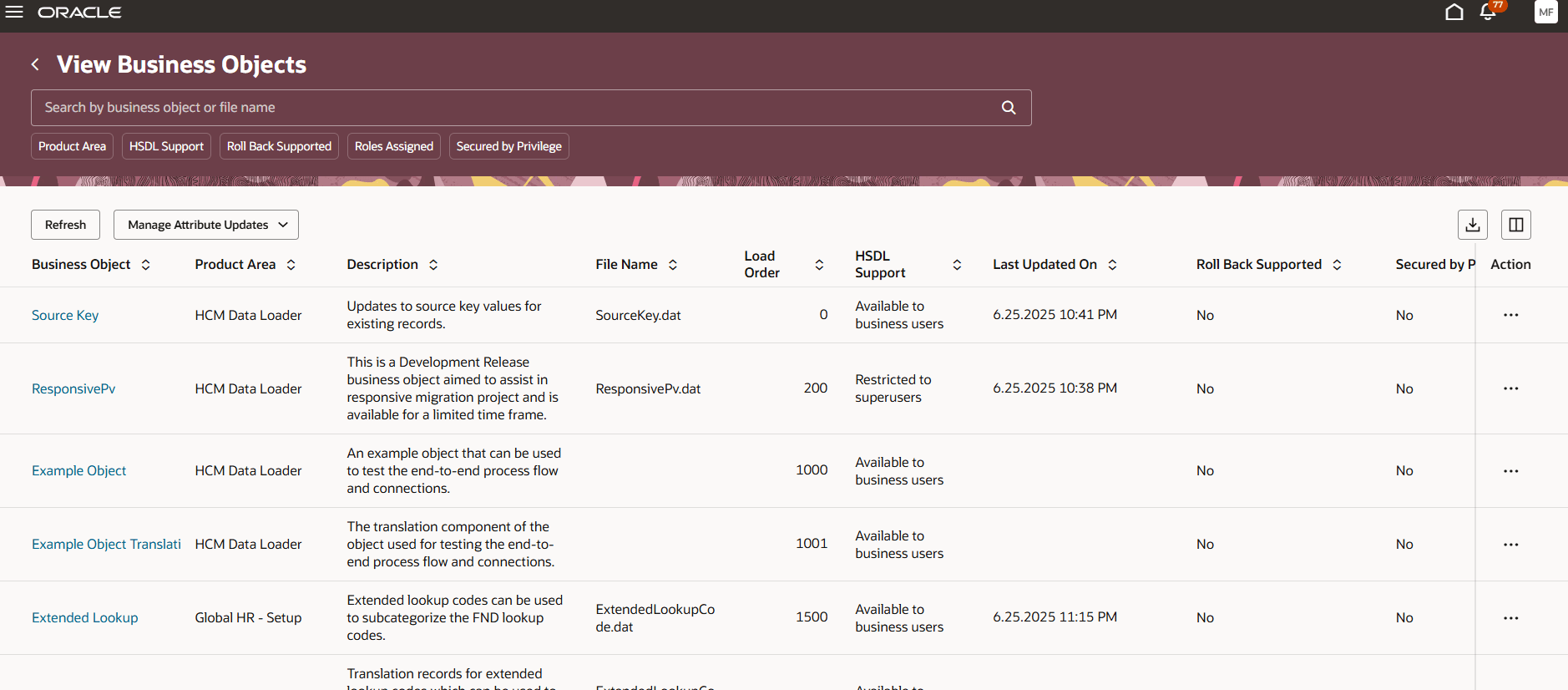
Business object details table:
-
Column name
Description Business Object Name of the business object. Navigates to the Business Object Hierarchy page for the selected object. Product Area Product area of the business object. Description Description of the business object. File Name The file name to use when supplying data for this object to be uploaded by HCM Data Loader. Load Order The order in which business object data is provided when submitting multiple files for bulk data loading. HSDL Support Indicates if the business object can be uploaded using HSDL spreadsheets. Roles Assigned Indicates if the business object has been assigned to at least one role, either directly or via a product area mapping. Oracle Search Bulk Ingestion Enabled Indicates if the business object maintains Oracle Search indexes. Last Updated On The date and time when the business object details were last refreshed. Roll Back Supported Indicates if the business objects support roll back of loaded data. Secured by Privilege Indicates if access to use this object is secured by a function security privilege. Automated Postprocessing Indicates if the business objects have automatically submitted post processes after load.
When the value is Yes you can navigate to the Business Object Post Processes panel.
Actions
Download METADATA file
- Downloads a text file which includes the METADATA lines that define the object's shape.
Download Overview Spreadsheet
- Generates a spreadsheet which downloads the definition of the business object for off-line review.
Download OIC Mapping File
- Downloads an .xsd file defining the object shape for use in Oracle Integration Cloud (OIC).
Update Attributes
- Submits the Refresh HCM Data Loader Object process, which updates the internal attribute mappings for the business object and creates the latest template file and overview spreadsheet. If Oracle Integration Cloud is enabled, this process also generates a mapping file for integration purposes.
View Assigned Roles
- Displays the Role Access panel.
View Parameters
- Displays the Business Object Parameters panel.
View Post Processes
- Displays the Business Object Post Processes panel.
TABLE LEVEL ACTIONS -
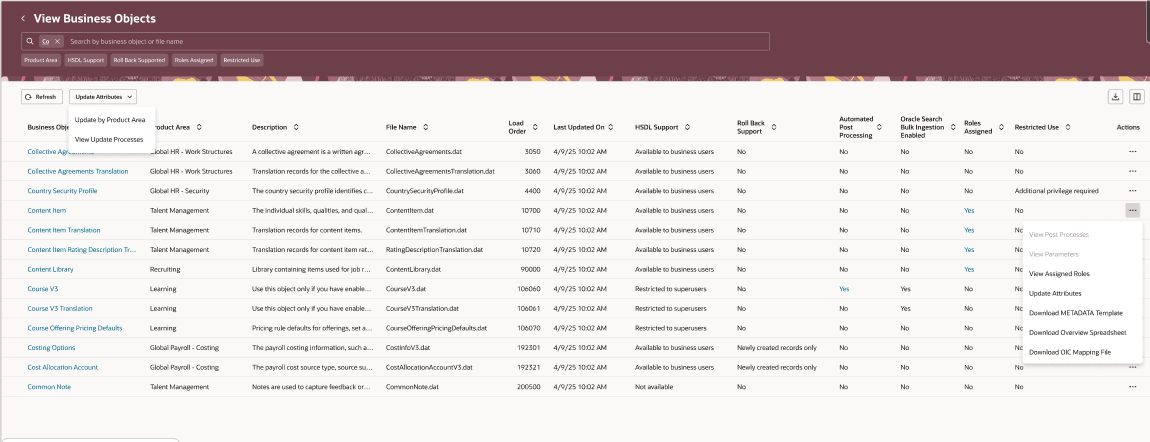
-
Component Description Search Search using its business object name or .dat file name. Filter Chips Narrow the list using product area, HSDL-supported business objects, rollback-supported business objects, role-assigned business objects, or those secured by function security privileges. Sort Order and arrange the table details by clicking the column headers sort as needed. Refresh action Refresh the table content to check when the business objects where last refreshed. Manage Attribute Updates action You can perform two actions with this:
1. Update by Product Area
2. View Update Processes
Update By Product Area - opens the Update Business Object Attributes by Product Area panel. Here, you can select a product area and submit a process to refresh the business objects.
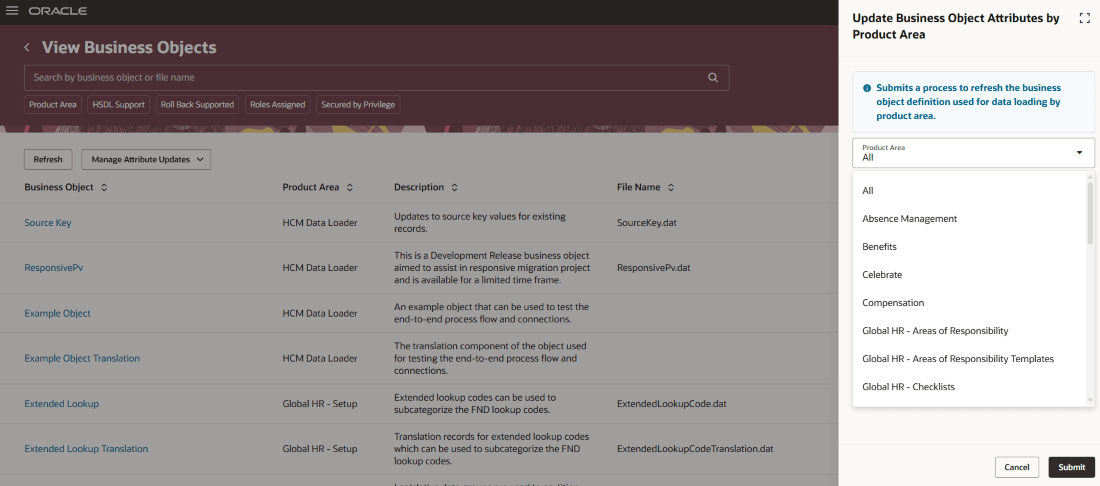
Update Attributes by Product Area
View Update Processes - opens the Business Object Attribute Update Results panel where you can see the details of the processes submitted for refreshing the business object definitions.
You can also download a file that contains the METADATA definition lines for the business object and the log file when they're available. When you refresh a product area, the downloaded file will be a ZIP archive containing business object definitions for each object within that product area.
Additionally, you can use the Update by Product Area action to refresh the attributes map from this page.
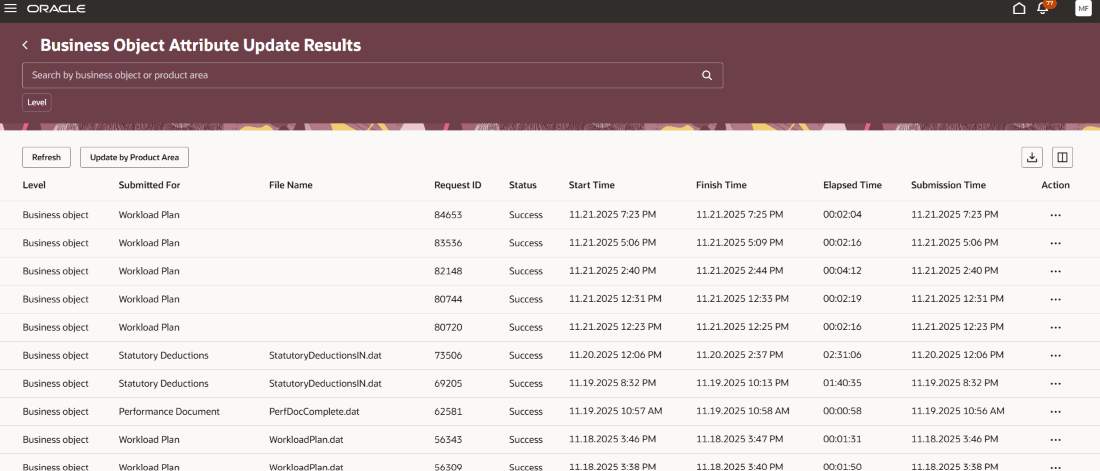
Business Object Attribute Update Results page
View the business object hierarchy details:
To see a list of all components in the object hierarchy, reflecting their parent/child relationships, click the business object name on the View Business Objects page.
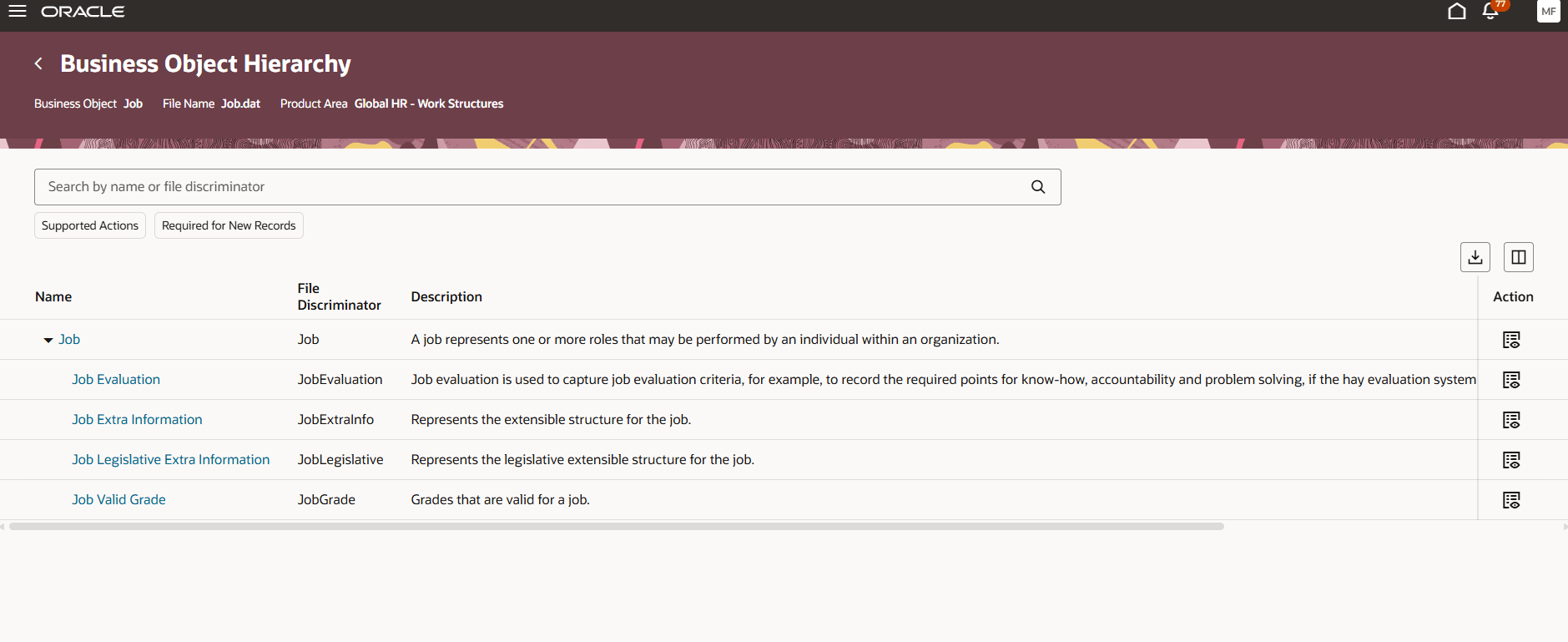
Business Object Hierarchy page
-
Component Description Search
Search to view hierarchy using a business object name or file discriminator
Filter Chips
Narrow the list using the Supported Actions or Required for New Records filters
Business Object Hierarchy Details
Columns: Business Object name - opens the Business Object Details page. File Discriminator, Description, Supported Actions, Data Effectivity, Required for New Records indicator
Actions - View Business Object icon
Displays the business object information panel
Business Objects Details page: consists of two tabs: Attribute and Flexfield Attributes.
Note: The Flexfield Attributes tab appears only if the object has flexfield segments enabled with HDL.
Attribute Tab: You can see attribute details such as the name, METADATA attribute, Data Type, key Type, Integration Object Name, User Key, Required indicator, Lookup, Description, Integration Key Supported, Length, and Scale.
You can search using the METADATA attribute name and filter using Key Type, Data Type, Required columns.
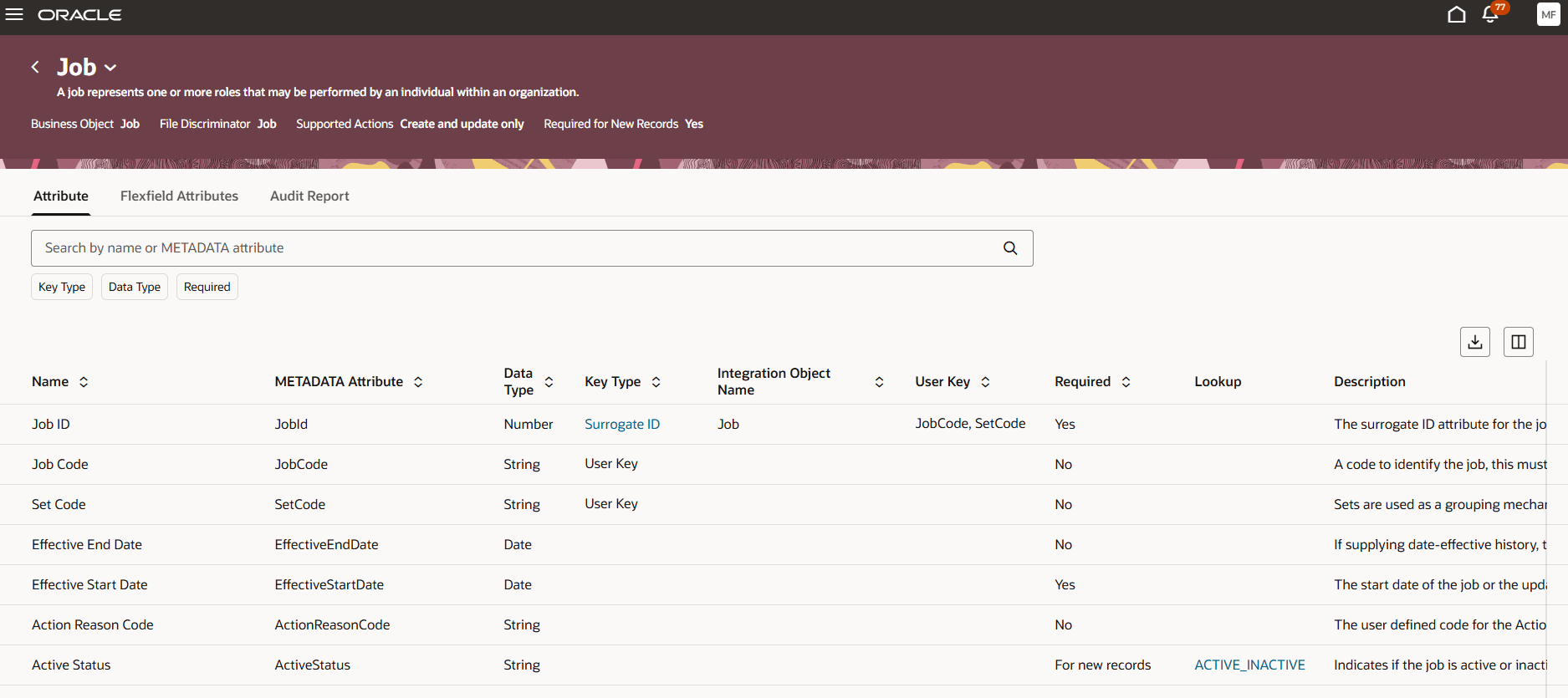
To see the properties of attributes that uniquely identify a record on the business object details page, click the link on the key type column.
These are the attributes that are surrogate ID attributes for the local, parent or a foreign object reference, or the link on the count in the User Key column, when multiple user keys exist.
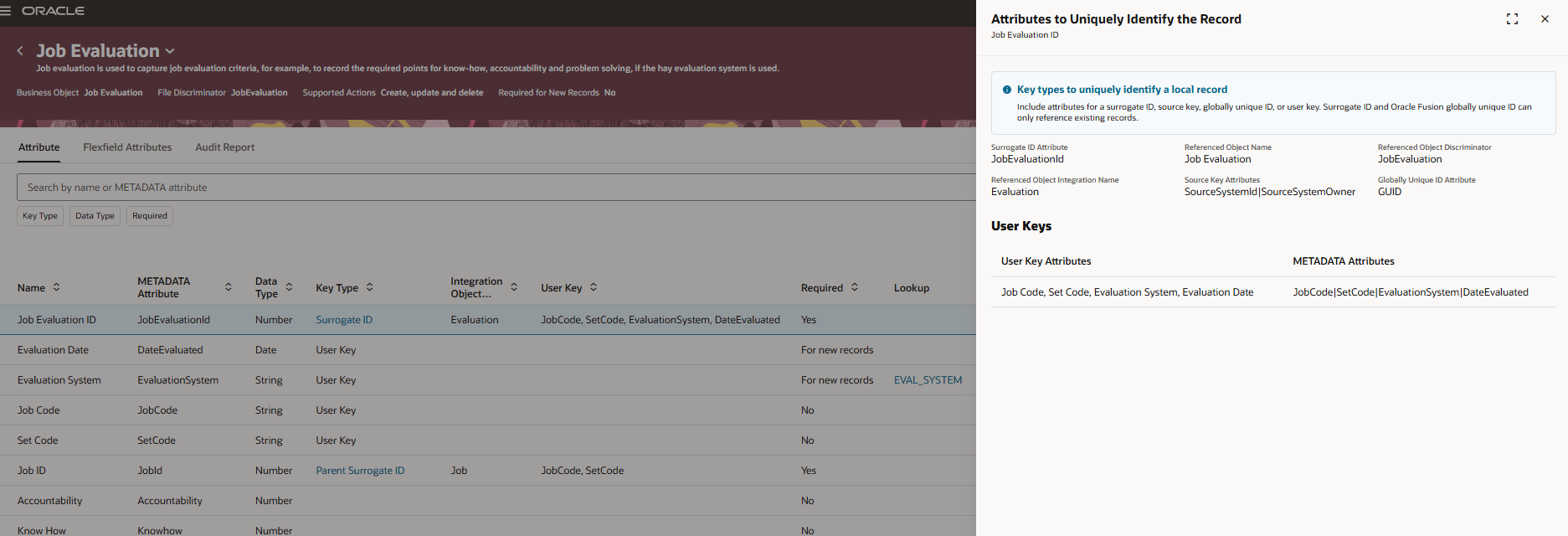
Attributes that uniquely identify a record
To view the look up information for the attribute on the business object details page, click the link in the Lookup column.
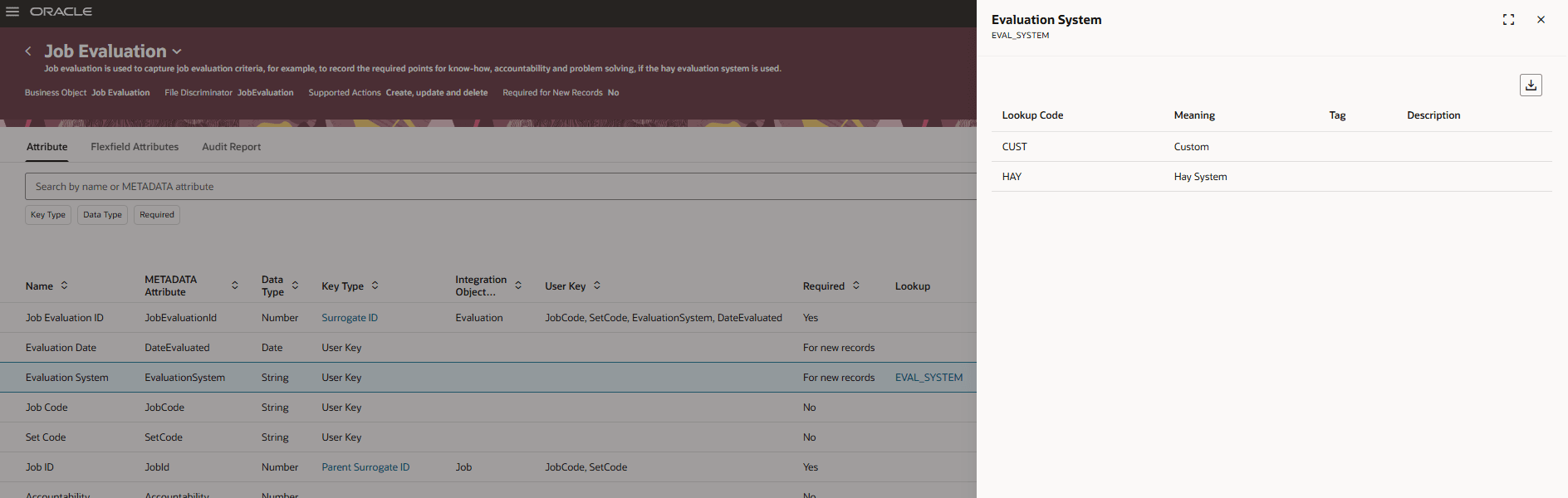
Look Up Details
Flexfield Attributes Tab: displays the flexfield attribute information such as the Name, METADATA attribute, Required indicator, Value Set Code, Category, Context, Description, Data Type, Length, Category Code, and Context Code.
You can search using the METADATA attribute name and filter using Flexfield, Context and Required indicator.
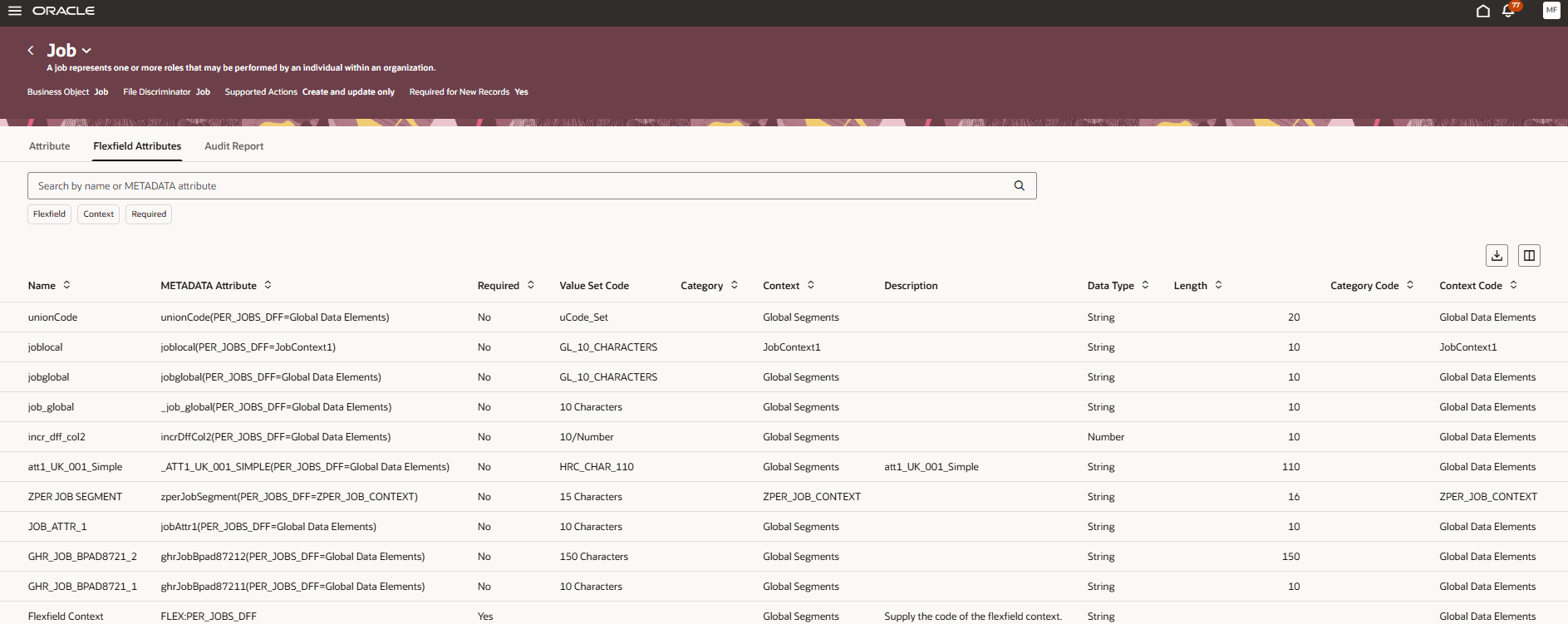
Business Object Information panel: is displayed when you click on the View Business Object Details icon at the end of the business object record for quick reference.
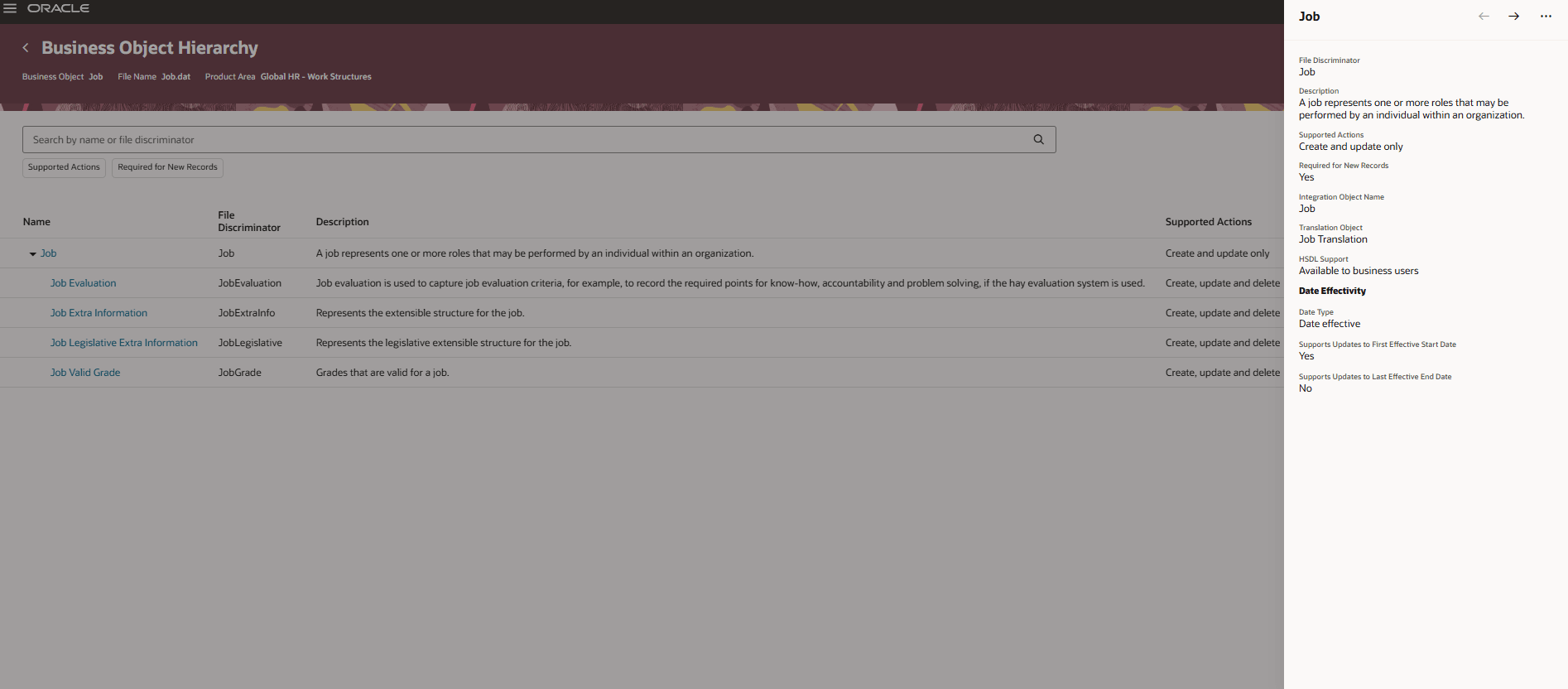
Business Object Information panel
View the post processes for the business object:
The View Post Processes menu action is enabled only for business objects that have associated post processes. To view the list of automatically submitted post processes, select the View Post Processes option from the ... icon under the Actions column. This opens the Business Object Post Processes panel, which displays details such as Name, Description, SET Instruction, and Enabled status for each applicable post process of the business object.
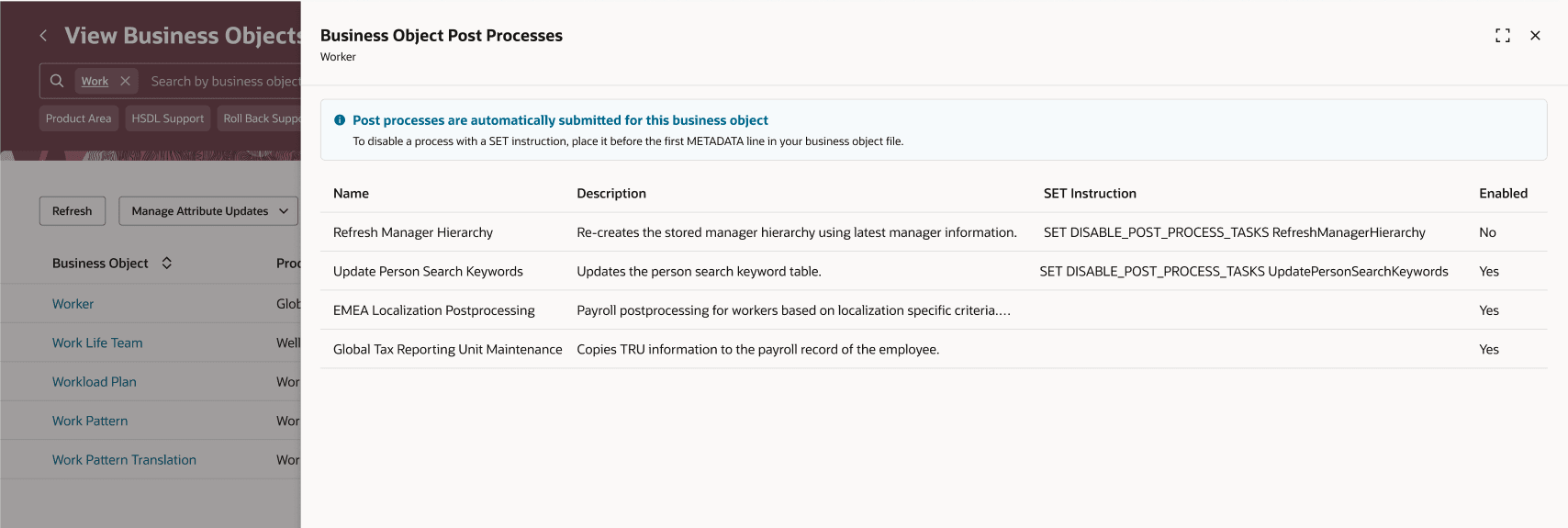
Business Object Post Processes
View the roles that have bulk-loading access to the business object:
The roles assigned to the business object are either for HCM Data Loader usage or for importing and creating HSDL templates. It includes both roles that are directly mapped to the business object and those with access granted through a mapping to the product area to which the business object belongs.
When the value under the Roles Assigned column for a business object is Yes, the View Assigned Roles menu action is enabled, allowing you to click the ... icon under the Actions column and select View Assigned Roles to open the Assigned Roles panel for that record.
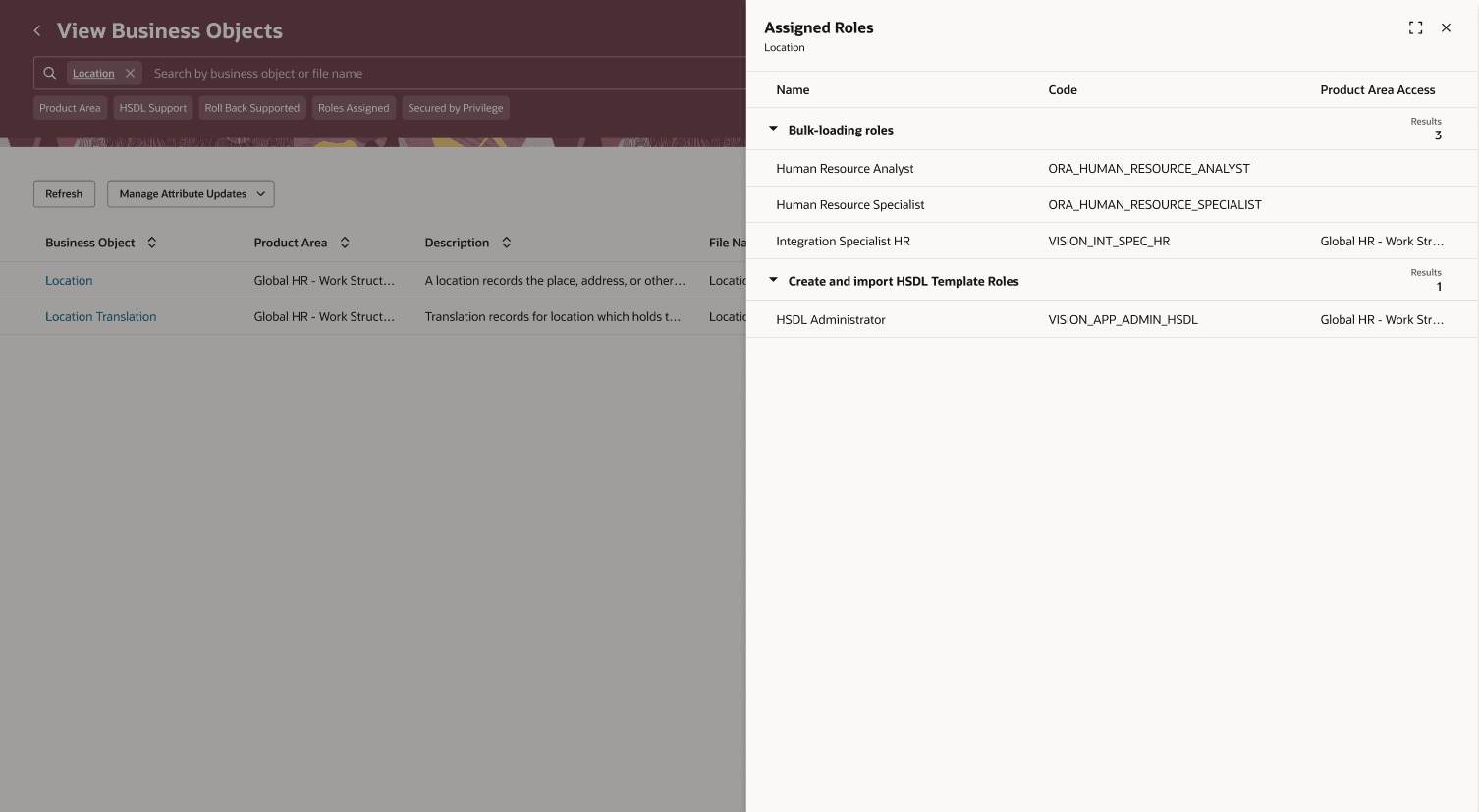
View Assigned Roles
View the business object parameters:
The View Parameters menu action, available from the ... icon under the Actions column only if the business object has parameters, lets you view details such as Name, Description, Default Value, and SET Instruction for those parameters.
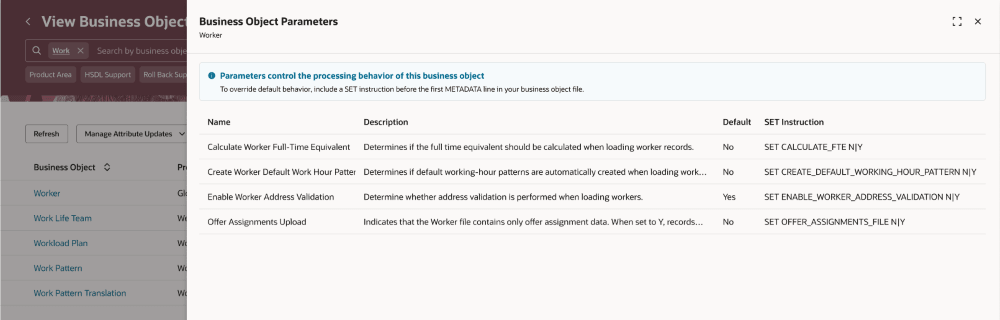
Business Object Parameters
Update business object attributes:
You can refresh the attribute maps of the business object and generate template file and overview spreadsheet. This process also generates a mapping file for use with Oracle Integration Cloud if that feature is enabled. To initiate this, click Update Attributes menu action from the ... icon under the Actions column, this pulls up the Update Business Object Attributes panel.
The Generate OIC mapping file checkbox is selected by default when the Generate OIC Mapping Files configuration parameter is set to Yes, and not available when it's set to No or Custom only.
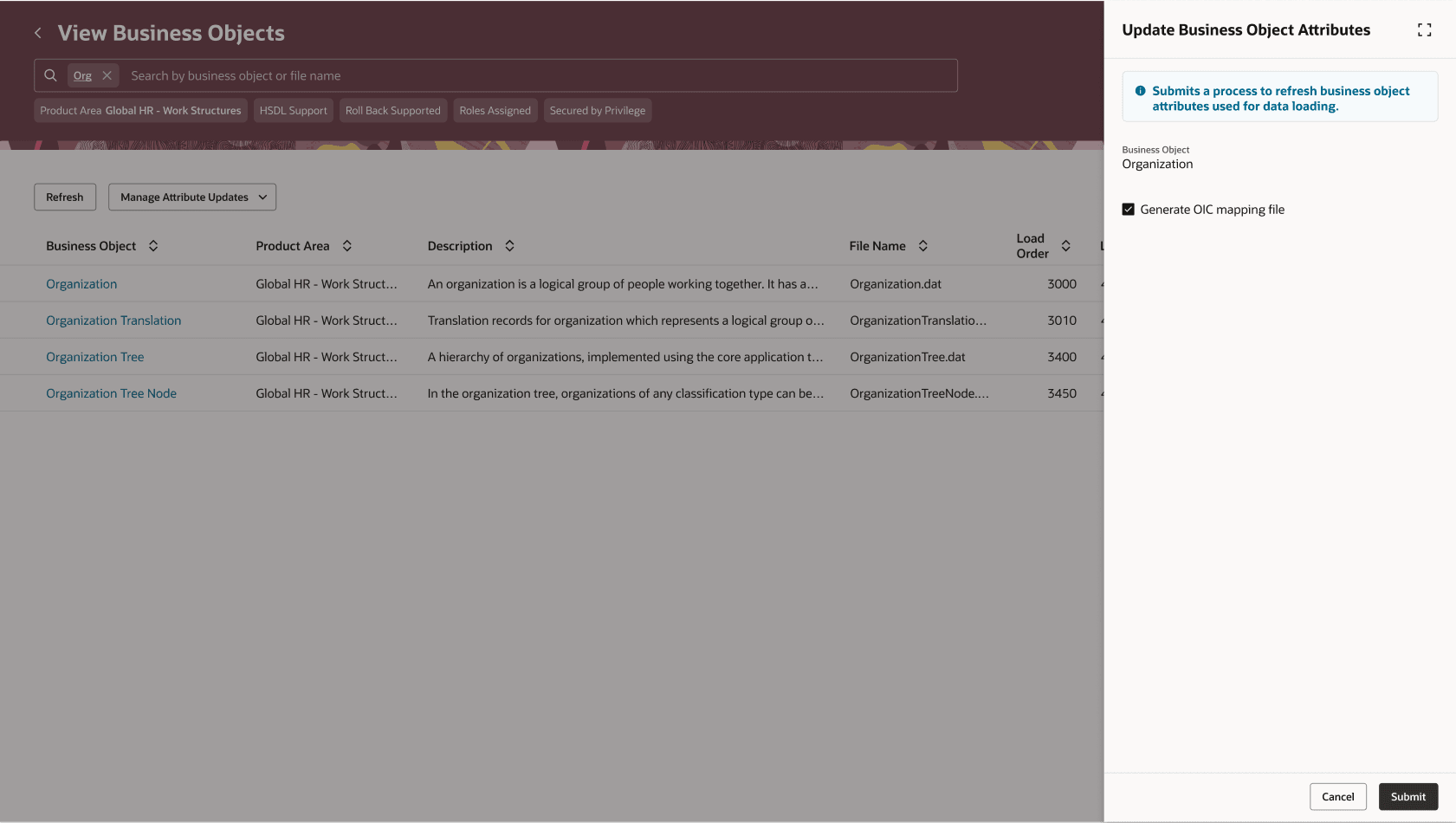
Update Attributes
Download METADATA Template file:
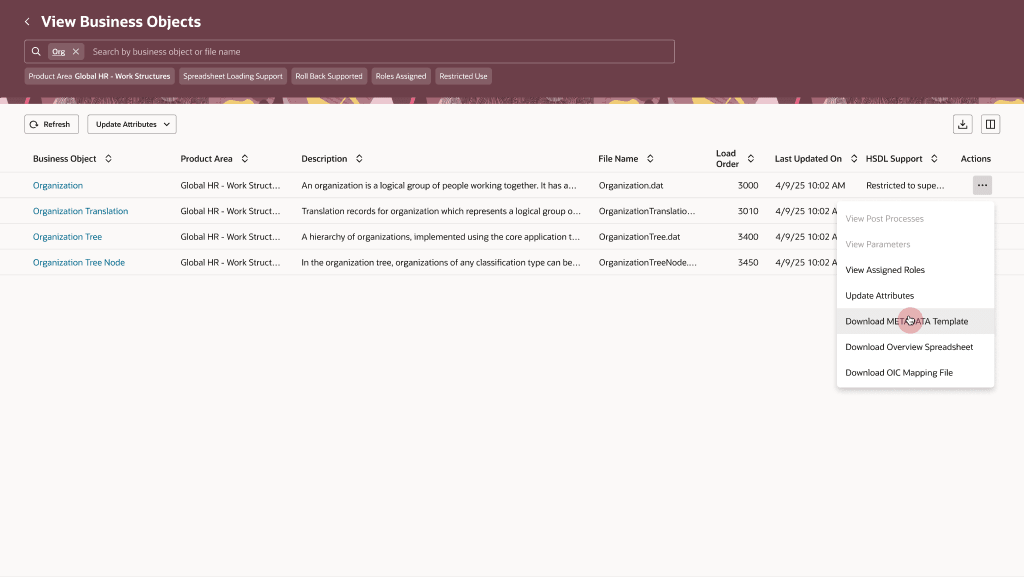
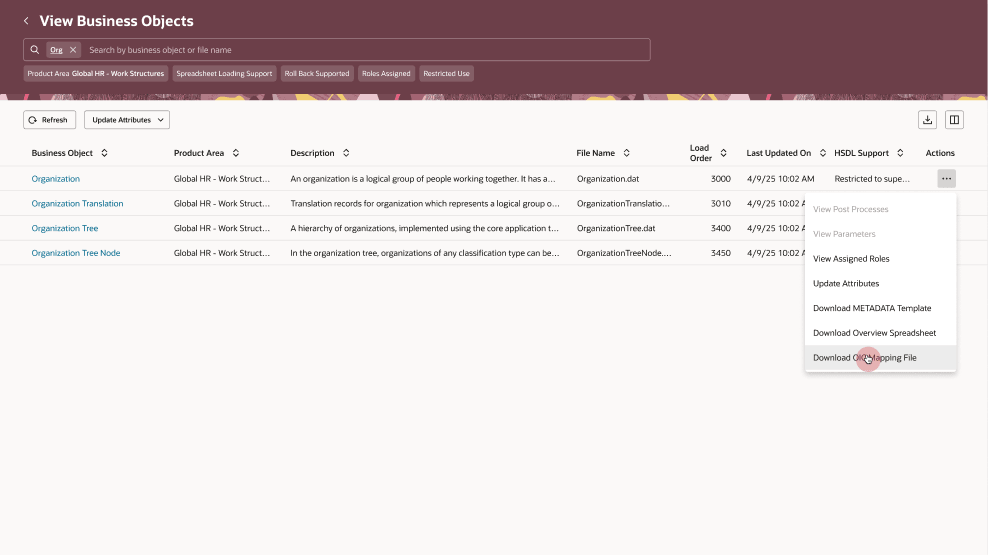
To download the METADATA template file for a business object, select the desired business object record, click Download METADATA Template menu action from the ... icon under the Actions column.
Download Overview Spreadsheet file:
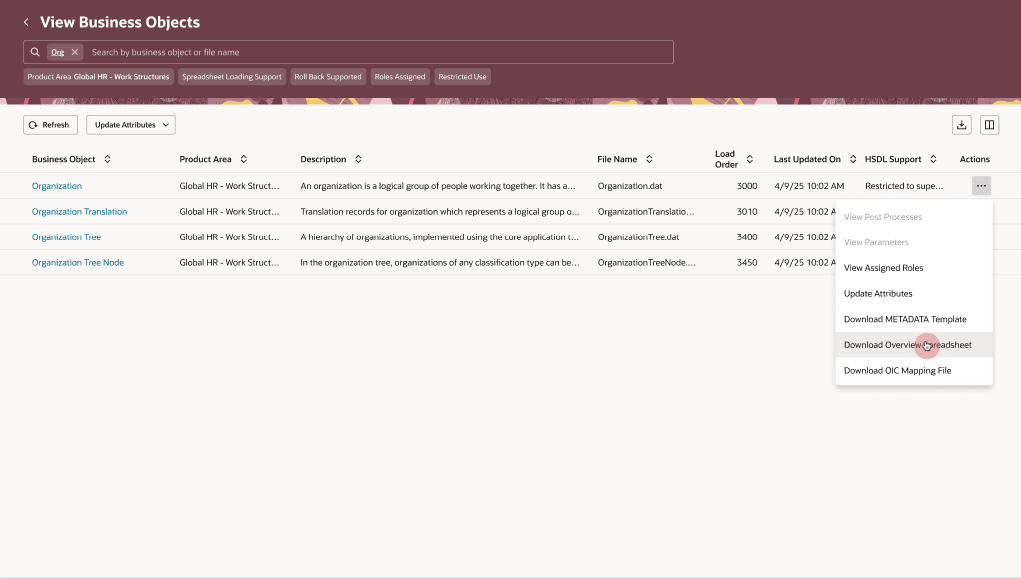
To download the overview spreadsheet file for a business object, select the desired business object record, click Download Overview Spreadsheet menu action from the ... icon under the Actions column.
Note: You need to install the Desktop Integrator tool in order to generate the overview spreadsheet.
Download OIC Mapping File:
This action is available only when an OIC mapping file is available for download; to download the OIC mapping file for a business object, select the desired record and click the Download METADATA Template menu action from the ... icon under the Actions column.
Business Benefit:
The new View Business Objects page lets you experience Redwood’s high-fidelity interactions. It offers fewer clicks, better performance and increased cohesiveness.
Steps to enable and configure
In order to work with the new HCM Data Loader pages, you must first enable the profile option. By default, the profile option is delivered as disabled. If you want to use the new HCM Data Loader pages, you need to set the profile option to Yes.
|
Profile Option Code |
Profile Option Display Name |
Value |
|---|---|---|
| ORA_HRC_HDL_INT_SPEC_REDWOOD_ENABLED |
Enable HCM Data Loader Integration Specialist Redwood Pages |
Y |
For more information, see How do I enable a profile option?
Key resources
For more information, see:
- Configuring Access to HDL and Understanding HDL Security Options
- Generate OIC mapping files for HCM Data Loader
- HCM Data Loader Business Object Access
- HSDL Business Object Access
Access requirements
The View Business Objects page is secured with the function security privilege: HRC_REVIEW_HDL_BUSINESS_OBJECTS_PRIV