Global Payroll Interface - Payroll Connect By Events
Extract employee biographical and employment data when payroll critical HR events like hire, termination, salary change etc. occur and interface them to third-party payroll systems.
Payroll Connect by Events provides a secure, reliable, and configurable mechanism to publish employee biographical and employment changes to third-party payroll providers in real-time or near-real-time, with batch fallback. Supported events include Hire (including rehire), Termination (voluntary/involuntary), Employment Changes (changes to Job/position, location, department, grade, manager, FTE, work schedule, global and local transfers, Personal Data Changes (name, address, tax identifiers), Payment Changes (Regular salary, one-time payments) etc.
NOTE: This feature is current under Controlled Availability. Customers should raise a Service Request to enable this feature.
NOTE: This feature is currently not supported for integrations with ADP Global Payroll, ADP Celergo and ADP Workforce Now.
Payroll Connect by Events help to
- Integrate payroll critical data real-time or near-real-time.
- Reduce payroll defects caused by late or inconsistent data.
- Payloads tailored to report only the data relevant for a selected event.
Steps to enable and configure
To enable this feature you need to log a Service Request (SR).
Follow the steps below to configure Payroll Connect by Events:
- Configure payroll interfaces through My Client Groups > Data Exchange > Extract Definitions using the Global Payroll Interface template. Refer the Oracle Payroll Interface guide for details.
Ensure that the "Event Enabled" checkbox is checked when creating the interface.
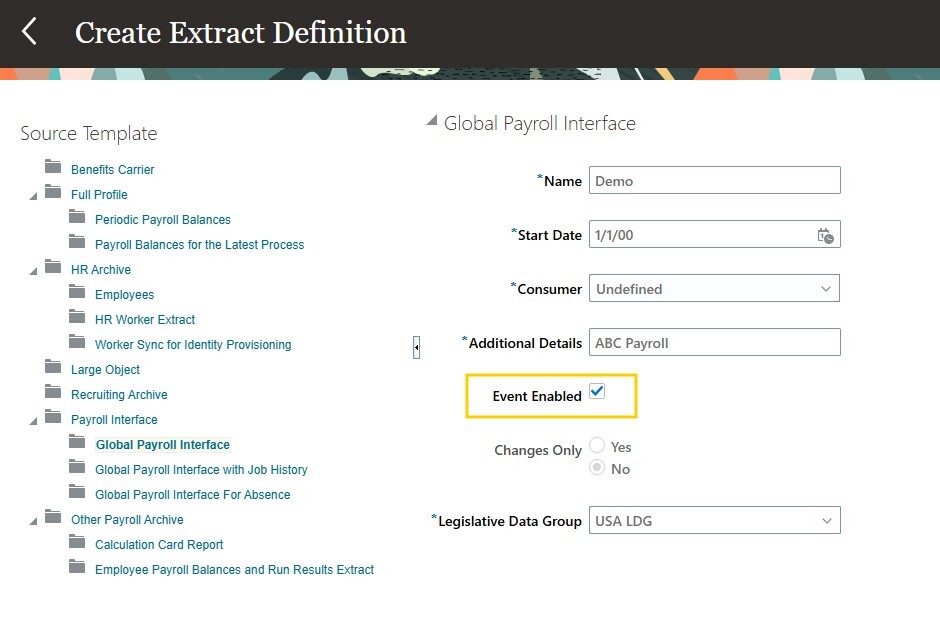
Create Payroll Interface
- If you have different data requirements for different events, create different interfaces for each event. For example, create an interface for New Hire event with only the data that is required to construct a hire on the payroll system.
- Navigate to My Client Groups > Data Exchange > Payroll Integrations
- Add a new Payroll Integration for your payroll provider giving the following information
- Name
- Provider
- Ensure the Enabled checkbox is checked.
- In the Payroll Details section, select the payroll within the legislative data group for which you wish to enable Payroll Connect by Events
- Using Add Events, specify the Event you wish to consume and the corresponding payroll interface definition you created for the event in Step 1.
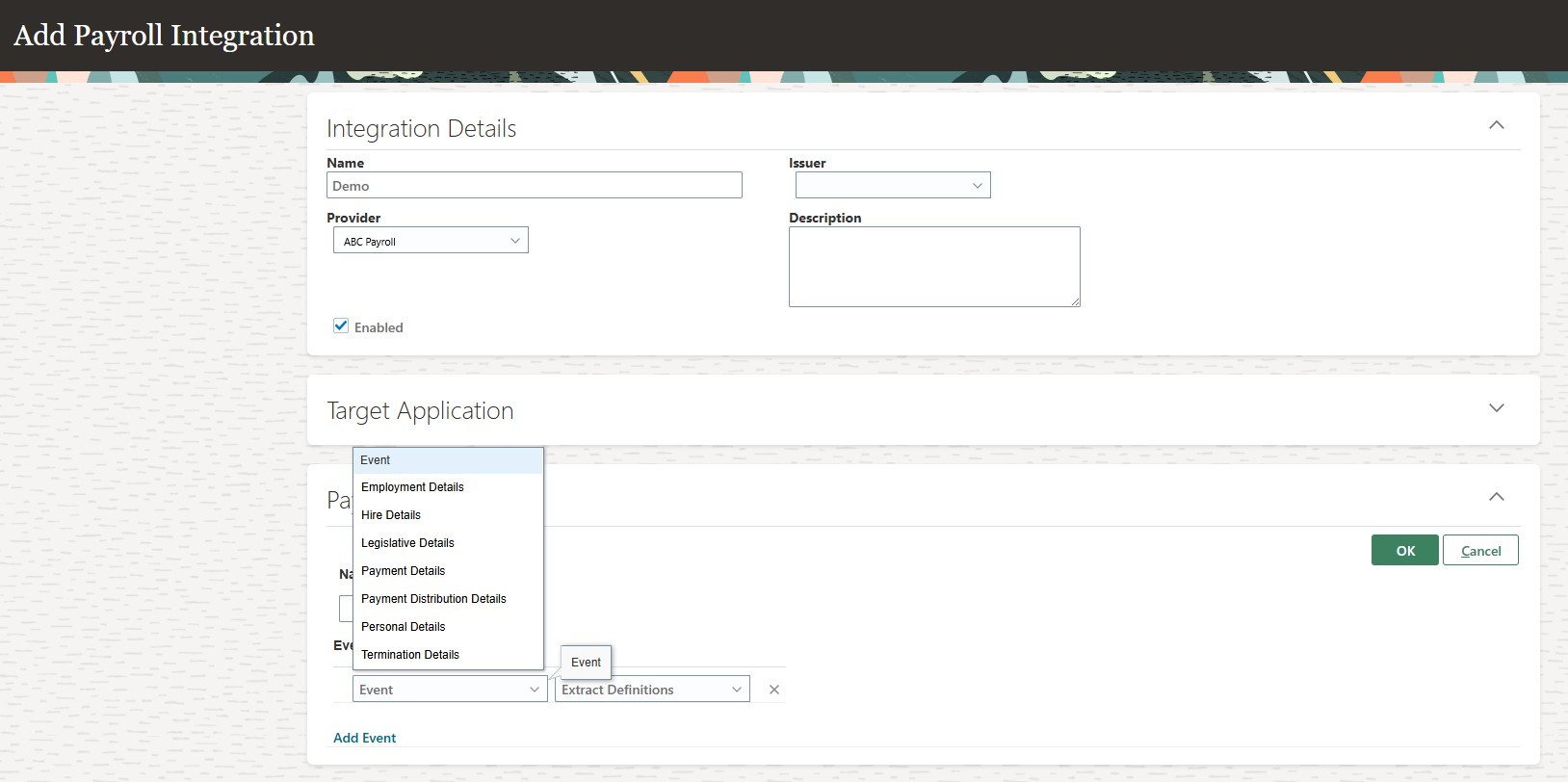
Configure events
Repeat this step for all the events you wish to consume for the selected payroll.
- Repeat Step 6 for all the payrolls for which you wish to use Payroll Connect by Events.
- To generate the data for the selected Events, navigate to Tools > Scheduled Processes.
- Search for the process Generate Payroll Connect for Events and submit the process for the payroll for which you have configured events.
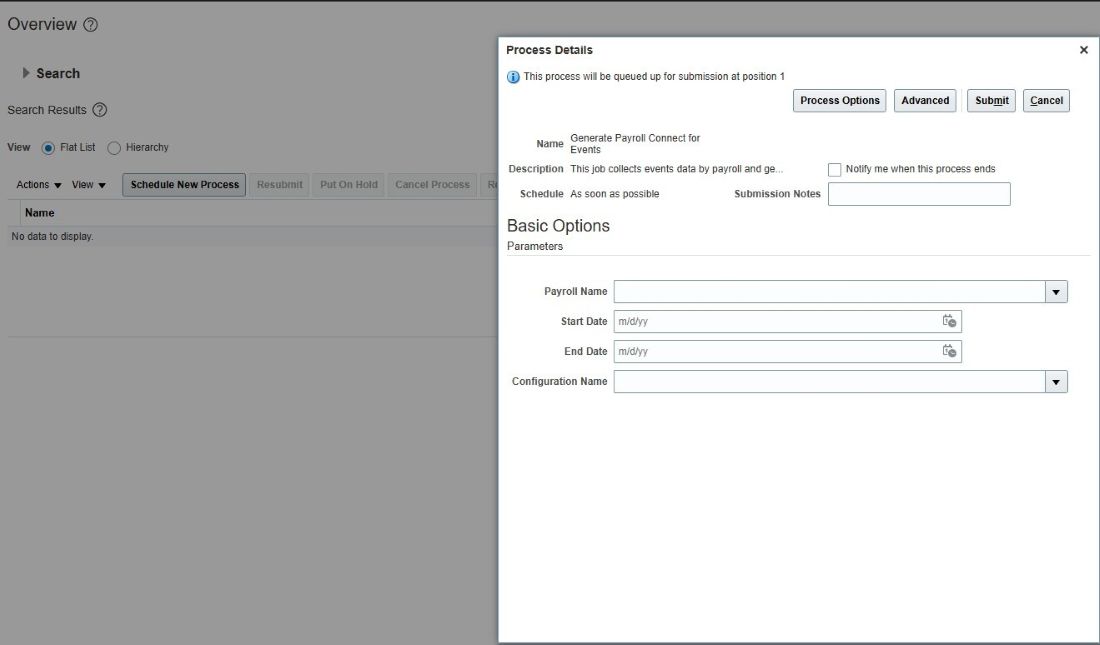
Generate the data for the selected Events