Additional Filter of Legal Employer for Location, Job and Department in Redwood Employment Processes
You can now filter job, location, and department based on the legal employer.in Redwood Employment processes. But you need to set up the legal employer filtering for job, location, and department.
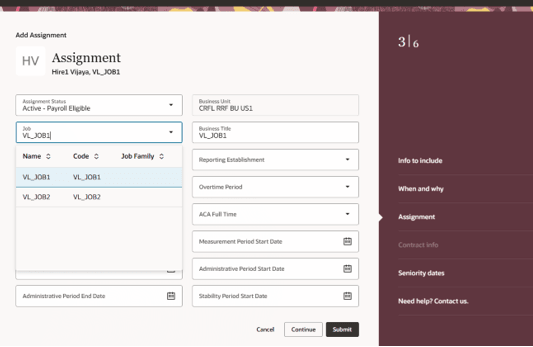
Filter based on job
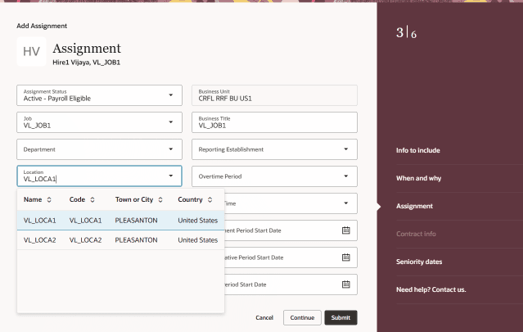
Filter based on location
In the above screenshots you can see the jobs and locations are displayed based on the associated legal employer.
When creating or updating the job, location, or department respectively enter the legal employers in the following sections to see this job, location, and department in the list of values.
- Legal Employers That Use This Job
- Legal Employers Operating At This Location
- Legal Employers That Share This Department
Refer to these resources for more information:
- Associate Legal Employers with a Job
- Associate Legal Employers with Locations
- Associate Legal Employers with a Department
This feature is useful when multiple legal employers are associated with a job, location, and department, and you want to view these only for a specific legal employer.
Steps to enable and configure
You need to set these Oracle Search profile options to Yes.
- ORA_PER_ORACLE_SEARCH_JOBSLOV_ENABLED
- ORA_PER_ORACLE_SEARCH_LOCATIONSLOV_ENABLED
- ORA_PER_ORACLE_SEARCH_DEPARTMENTSLOV_ENABLED
You need to also set this profile option to Yes.
- HRC_ELASTIC_SEARCH_ENABLED
To enable the profile option, navigate to the Setup and Maintenance work area:
- Search for and click the Manage Administrator Profile Values task.
- Search for and select the above profile options.
- Select the Level as Site.
- Enter the applicable value in the Profile Value field.
- Click Save and Close.
Key resources
For more info, refer to these resources on the Oracle Help Center:
- Employment Processes in the Using Global Human Resources guide