View Legal Employer Changes Using New Redwood Dashboard
You can now view legal employer changes directly in the new Redwood Change Legal Employer Dashboard. The dashboard offers a summary related to the global transfer for each worker.
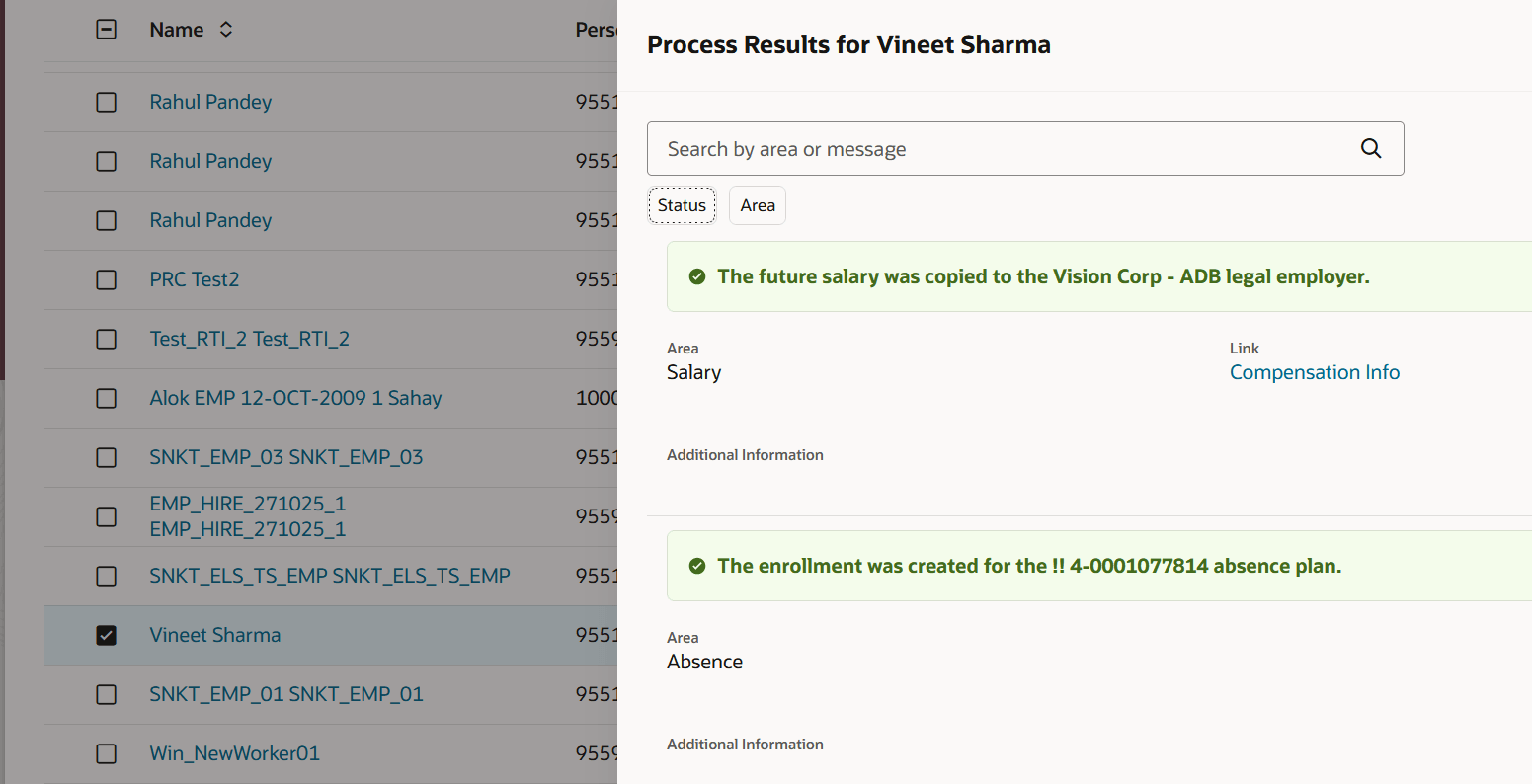
Summary of the global transfer
The new Change Legal Employer Dashboard offers a modern and intuitive user experience with improved navigation, usability, and visual consistency across the HCM suite.
Steps to enable and configure
In order to work with the new Mass Download of Document Records page, you must first enable the ORA_HCM_VBCS_PWA_ENABLED profile option. In addition, you need to enable the ORA_PER_EMPL_CLE_DASHBOARD_REDWOOD_ENABLED (Redwood Change Legal Employer Dashboard Enabled) profile option. By default, the profile option is delivered as disabled. If you want to use the View Legal Employer Changes page, you need to set the profile option to Yes.
To disable the profile option, navigate to the Setup and Maintenance work area:
- Search for and click the Manage Administrator Profile Values task.
- Search for and select the profile option: ORA_PER_EMPL_CLE_DASHBOARD_REDWOOD_ENABLED
- Select the Level as Site.
- Enter Yes in the Profile Value field.
- Click Save and Close.
Tips and considerations
- Even if the Change Legal Employer dashboard is enabled for Redwood, the deep links on this page continue to follow their own product-specific profile options. So, for example, clicking the Compensation Info link will open the Compensation page based on its profile setting—Redwood only if that page’s Redwood option is also enabled, otherwise responsive.
- Messages and deep links are displayed on the dashboard only if the user has the required access to the target page. For example, if an error prevents the transferred employee’s payment method from being copied and the user doesn’t have permission to view the employee’s personal payment method, the related message and deep link aren’t shown. This behaviour applies to all messages except those related to element entries and calculation cards. For these messages, no security filtering is applied.
- For element entries and calculation card messages, the deep links aren't currently displayed.
Key resources
For more information, refer to these resources on the Oracle Help Center.
- Employment Processes in the Using Global Human Resources guide
- Dashboard for Legal Employer Change in the Using Global Human Resources guide