Self-Paced Learning Translation Editor
You can now manage translations for self-paced learning directly from the details page. Click More Actions > Translate to open Translation Editor where you can enter and update translations for the title, summary, and description.
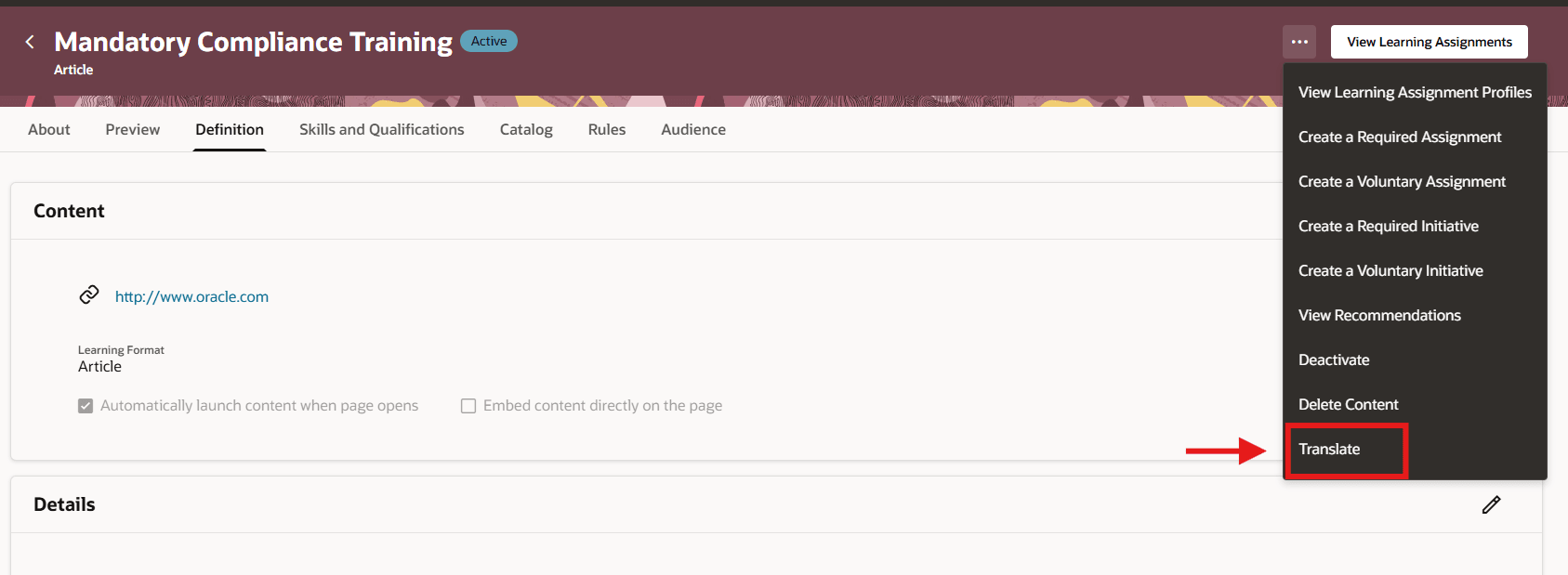
Self-Paced Learning Details Page Showing the More Actions > Translate Menu Option
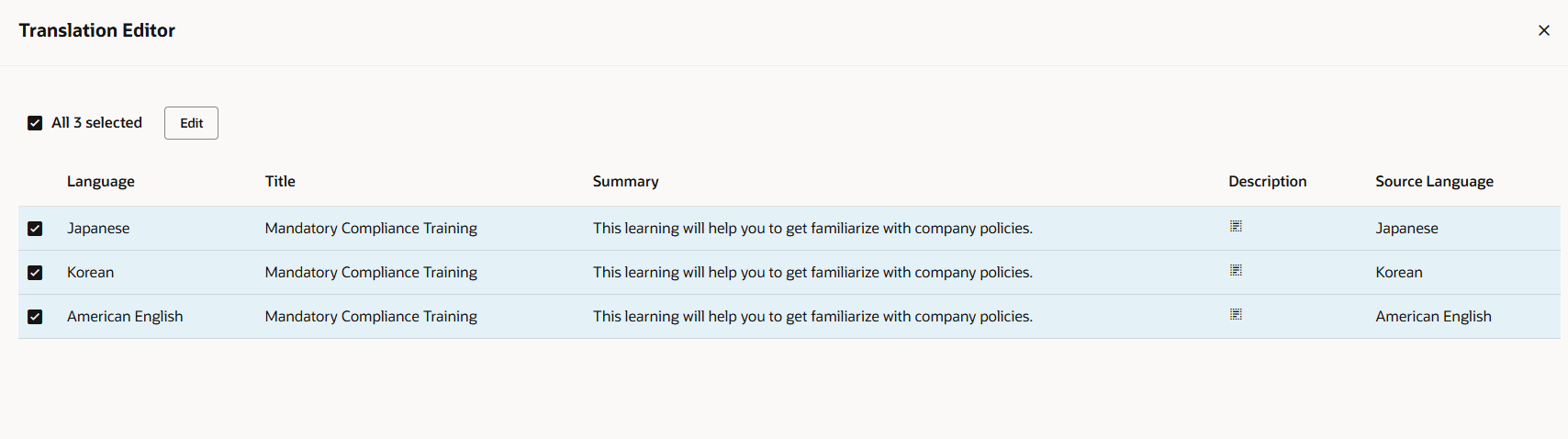
Translation Editor with All Languages You Can Create Translations For
To start entering translations, select one or more languages. If you select multiple languages, you add translations for a language then select Update > Update and Next to add translations for the next selected language.
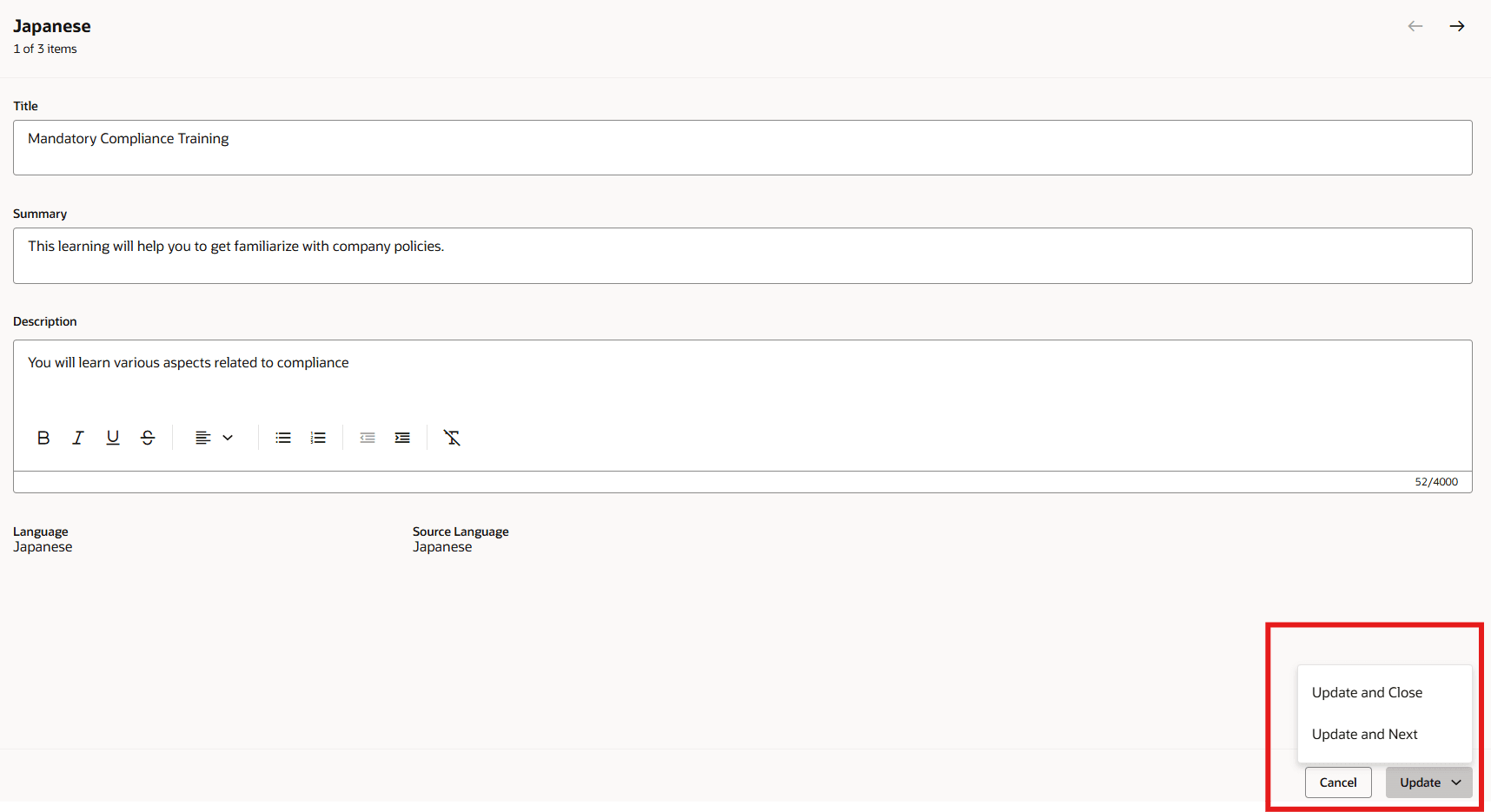
Update Menu Button Options Available After Selecting Multiple Languages on the Translation Editor Page
If you change the language without saving your current edits, you get a reminder message to update before proceeding. After you update all applicable translations, you get a confirmation message. And when you close Translation Editor, any changes made to the title, summary, or description in the session’s active language instantly appear in the self-paced learning definition section
This enhancement enables organizations to deliver localized learning experiences, improving accessibility, clarity, and global adoption.
Steps to enable and configure
You don't need to do anything to enable this feature.
Tips and considerations
For provider content, the Translate action isn't available.