Display Optional Regions in Compact Guided Process Redwood Template Pages
The behavior of the Redwood Compact Guided Process (CGP) template pages is now aligned with that of responsive CGP template pages to improve the handling of optional regions when Info to include is hidden.
In processes such as Hire an Employee or Add Assignment, optional regions can now be displayed automatically without requiring them to be made mandatory when Info to include is hidden.
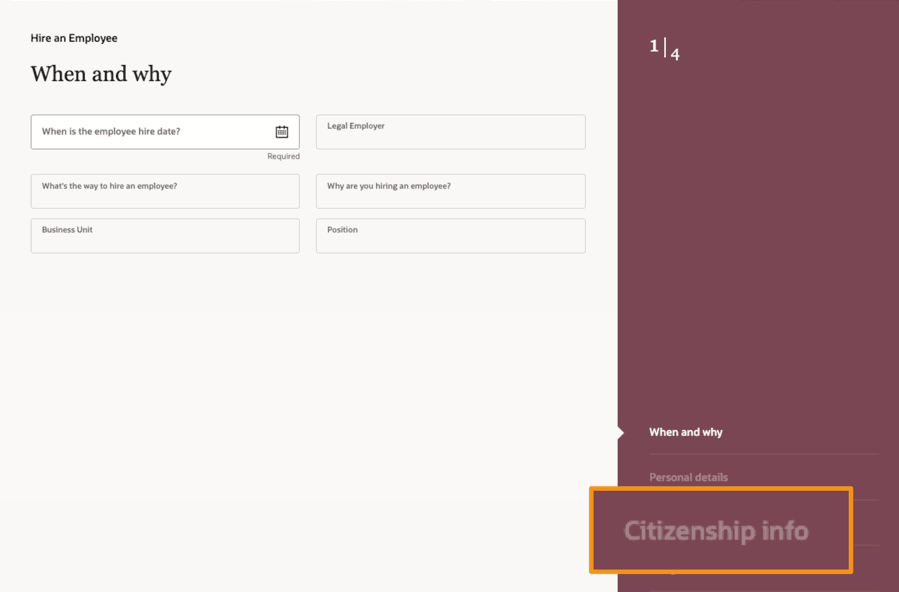
Hire an Employee process displays Citizenship Info section that's optional when Info to Include is hidden
What's Changing?
Any region marked as both "Optional" and "Visible" in Configure Fields and Regions (Express Mode in VB Studio) when Info to include is hidden will now appear automatically in the steps. These regions can be completed by your end-users if they choose to provide that info.
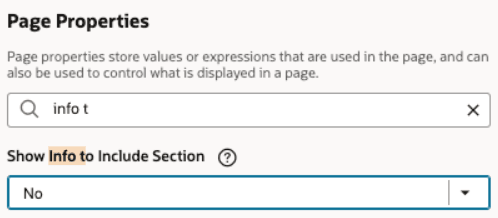
Section is set to hide in Info to Include
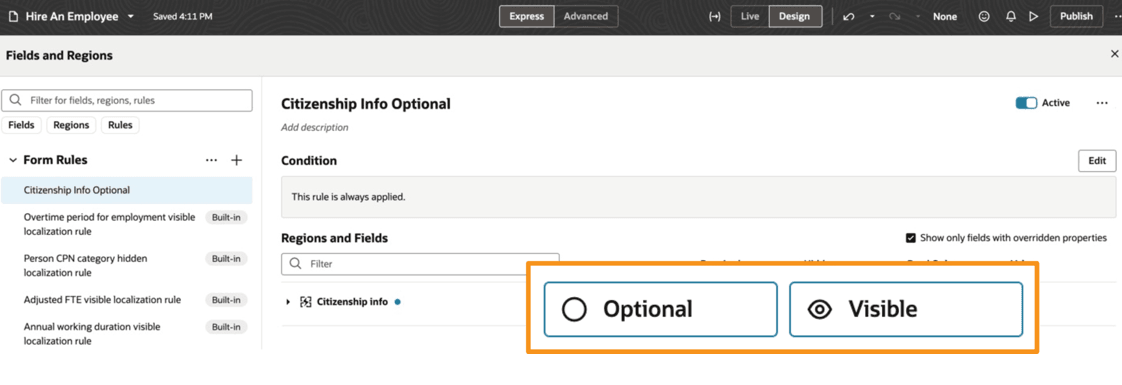
Sections marked optional and visible are displayed in the steps
What You Need to Do
This change applies automatically in your applications. There’s no need to update your current Business Rules configuration.
This feature helps you in these ways:
-
Reduces manual effort by automatically guiding users through all optional and required sections eliminating the need to select or toggle them individually.
-
Improves data accuracy and compliance by ensuring no sections are missed in the process.
-
Enhances user experience with a streamlined, error-proof workflow that removes guesswork and simplifies processes.
Steps to enable and configure
The behavior is automatic only after the profile option is enabled in 26C, and becomes automatic regardless of the profile option from 26D.
In Manage Administrator Profile Values, set the following profile option to Yes:
- Profile Display Name: Optional and Visible Regions Enabled When Info to Include is Set to No
- Profile Display Code: ORA_HCM_DISPLAY_OPTIONAL_REGIONS_ENABLED
To enable the profile options, navigate to the Setup and Maintenance work area:
- Search for and click the Manage Administrator Profile Values task.
- Search for and select the profile option listed above.
- Select the Level as Site.
- In the Profile Value field, enter Yes..
- Click Save and Close.
Important:
This profile option is planned for deprecation in release 26D. All customers should review and update their Business Rules configurations before this change takes effect.
What You Need to Do
- Beginning with release 26D, this behavior will be applied automatically in your applications, regardless of the profile option value.
- We strongly recommend that you review the configuration of the Redwood CGP template pages in your environment prior to 26D. Ensure the correct regions are visible to your end users when the Info to Include step is hidden.
When the Info to Include step is hidden:
- Regions marked as visible will be displayed in the steps.
- Regions marked as hidden will not be displayed in the steps.
List of Redwood Pages Impacted by This Change
|
Family |
Product Area |
Redwood Page |
|---|---|---|
|
Global HR |
Employment |
Add a Contingent Worker |
|
Global HR |
Employment |
Add a Nonworker |
|
Global HR |
Employment |
Add a Pending Worker |
|
Global HR |
Employment |
Add Assignment |
|
Global HR |
Employment |
Change Assignment |
|
Global HR |
Employment |
Change Location |
|
Global HR |
Employment |
Change Manager |
|
Global HR |
Employment |
Change Working Hours |
|
Global HR |
Employment |
Convert Pending Worker |
|
Global HR |
Employment |
Correct Employment Details |
|
Global HR |
Employment |
Correct Terminate Employment |
|
Global HR |
Employment |
Create Work Relationship |
|
Global HR |
Employment |
Direct Reports |
|
Global HR |
Employment |
Edit Pending Worker |
|
Global HR |
Employment |
Hire An Employee |
|
Global HR |
Employment |
Local and Global Transfer |
|
Global HR |
Employment |
Promote |
|
Global HR |
Employment |
Promote and Change Position |
|
Global HR |
Employment |
Resign from Employment |
|
Global HR |
Employment |
Terminate Employment |
|
Global HR |
Employment |
Transfer |
|
Global HR |
Employment |
View Resignation |
|
Global HR |
Employment |
View Termination |
|
Global HR |
Employment |
Work Relationship |
|
Recruiting |
Job Offers |
Create Job Offer |
|
Recruiting |
Job Offers |
Edit Job Offer |
| Workforce Structures | Positions | Request a New Position |
| Workforce Structures | Positions | Request a Position Change |
| Workforce Structures | Positions | Request a Duplicate Position |
| Workforce Structures | Organizations | Legal Entity HCM Information |
| Workforce Structures | Organizations | Legal Reporting Unit HCM Information |
Tips and considerations
- If your conditions for the page properties are based on attributes that change in the When and why section, then the application behaviour won't change when you change these attributes in the When and why section.
- For example, if you created a rule without any condition and made the Info to include section as hidden and you create a rule to make the Info to include as Visible based on the "B1" business unit and the profile option is set to Y. So when you enter the UI and as the BU is not "B1" and Info to include is set to No, all optional sections are displayed on the CGP. Now when the user selects the "BU1" in When and why section, the Info to include is added in the CGP steps. Optional sections such as the Manager, Payroll, Salary, and Compensation are already there in the CGP and these are shown as selected in the Info to include section.