Redwood Experience: Shared Interview Schedule List
Take advantage of the Shared Interview Schedules list page that has been recreated in the Redwood toolset called Visual Builder Studio. When profile options are enabled, you can access the Shared Interview Schedules list page from the Manage Shared Interview Schedules quick action (My Client Groups > Show More > Hiring).
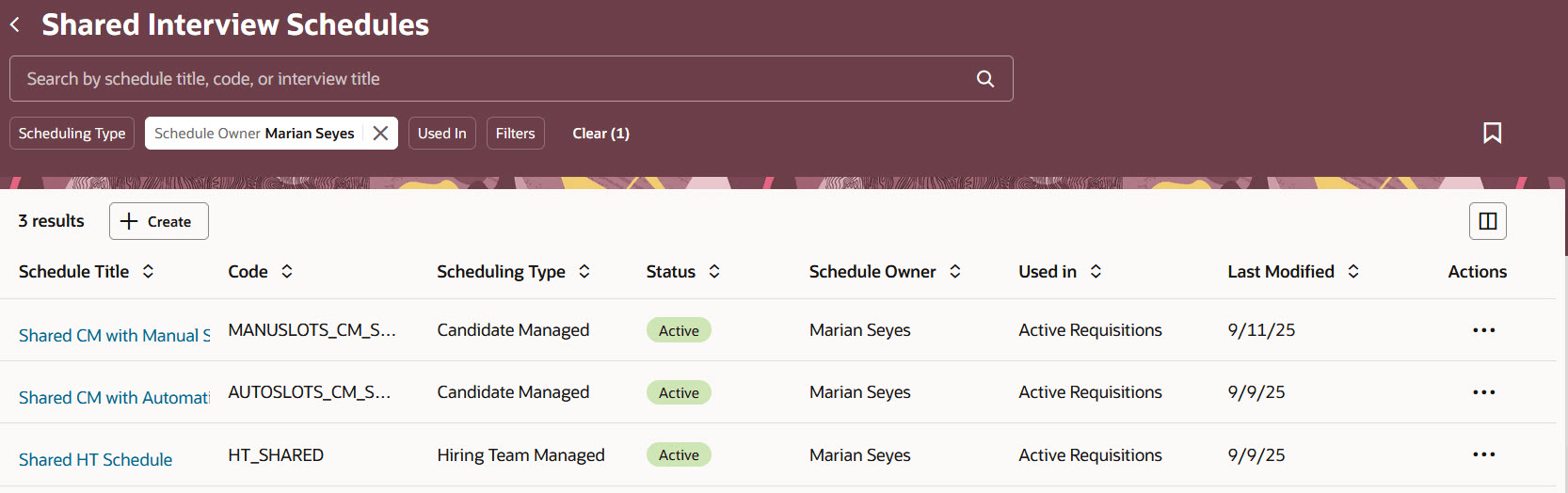
Shared Interview Schedules List Page
By default, the list displays only active schedules where the current user is the schedule owner.
By default, the list is sorted by descending last modified date (most recently updated requisition is displayed first).
You can enter keywords to search for shared schedules. You can save your searches.
You can perform actions on individual schedules. Batch actions aren’t possible. Actions vary depending on the status of the schedule. Available actions are:
- Activate Schedule
- Inactivate Schedule
- Duplicate Schedule
- Translate Schedule
- View Associated Requisitions
Note: The View Associated Requisitions action displays a list of both requisitions and requisition templates to which the schedule is associated. For requisitions, only requisitions which the user has access to based on requisition data security are displayed.
Business benefit: The Redwood version of the Shared Interview Schedule list delivers a more modern, intuitive, and visually consistent user experience.
Steps to enable and configure
You need to enable these profile options to use the Redwood Shared Interview Schedules list page:
- ORA_IRC_INTERVIEW_REDWOOD_ENABLED
- ORA_IRC_JOB_APPLICATION_REDWOOD_ENABLED
- ORA_IRC_RECRUITING_REDWOOD_ENABLED
For details, see How do I enable a profile option?
You can customize the display and order of columns on the Shared Interview Schedules list page using Visual Builder Studio. For details on enabling and customizing Redwood for HCM, see How do I adopt Redwood for HCM? and Extending Redwood Applications for HCM and SCM Using Visual Builder Studio.