Enhancements to the WhatsApp Communication Channel
WhatsApp communication has been enhanced with these features:
- View delivery status indicators for WhatsApp messages
- Resend WhatsApp messages
- Enable candidates to opt out from WhatsApp messages
View Delivery Status Indicators
When you send a WhatsApp message to candidates, you can now view the delivery and read status of the message on the Messages tab in the candidate profile page and in Message Center.
These status indicators are now supported based on status updates provided by the service provider through Webhook:
- Sent: The message is successfully sent to the service provider from Oracle Recruiting Cloud.
- Failed: The message has not been sent either from Recruiting to the service provider, or from the service provider to the candidate due to network or application errors.
- Delivered: The message is successfully delivered to the candidate.
- Read: The message is read by the candidate. Note that for this status, the candidate must have enabled the Read receipt setting on their WhatsApp account.
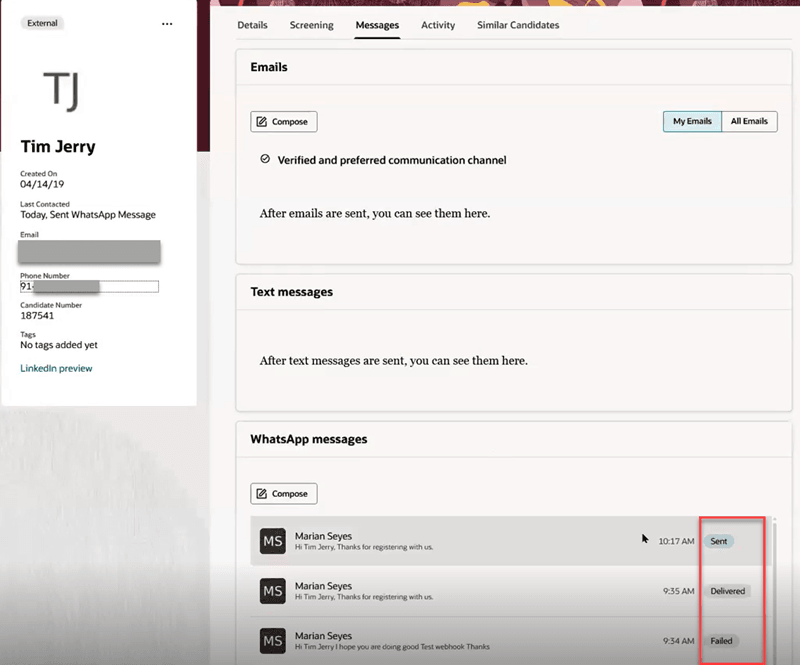
Delivery Status Indicators on the Messages Tab
Resend WhatsApp Messages
You can resend failed or blocked WhatsApp messages, based on the type of message and associated conditions listed here.
Failed Messages
If messages fail to send from Recruiting to the service provider, you can resend these messages once the issue is resolved, and subject to the following conditions. However, if messages fail at the service provider’s end and don’t reach the candidate, you can’t resend those messages.
|
Type of Message |
Resend and Edit Actions |
|---|---|
|
Conversation starter messages created using the Blank Template type. |
You can edit and resend the message at any time. |
|
Free-form messages |
You can edit and resend the message, only if the candidate is within the 24-hour conversation window. If you don’t resend within this window, you must compose a new message and send it. |
|
Messages that use business templates (except the Authentication category). This includes automated messages. |
You can’t edit the messages, but you can resend them. |
|
Automated messages that use the Authentication category of business templates. These messages are usually initiated based on the recruiter’s actions. |
You can’t edit or resend these messages. You need to try the action that initiated this message or contact the candidate through phone or email. |
Blocked Messages
WhatsApp messages could be blocked due to reasons such as the system hard limit being reached, or the candidate message limit being reached, or due to blocked phone numbers, patterns, or countries.
| Type of Message | Resend and Edit Actions |
|---|---|
|
Conversation starter messages created using the Blank Template type. |
You can edit and resend the message after the reason for the block is removed (that is, messaging limits are reset or after the phone number, pattern, or country are unblocked). |
|
Free-form messages |
You can edit and resend the message, if the candidate is within the 24-hour conversation window and the reason for the block is removed. If you don’t resend within the 24-hour window, you must compose a new message and send it after the reason for the block is removed. |
|
Messages that use Business Templates (Except the Authentication category). This includes automated messages. |
You can’t edit the messages, but you can resend them after the reason for the block is removed. |
|
Automated messages that use the Authentication category of business templates, which are usually sent based on the recruiter’s actions. |
You can’t edit or resend these messages. If you need to resend, you need to try the action that initiated this message after the reason for the block is removed. |
You can resend messages from the Messages tab on the candidate profile page and also from Message Center. When you click a failed or blocked message, the message details drawer is displayed. If resending the message is possible based on the above conditions, the Send button will be enabled. Otherwise, an error message will be displayed.
Stop Receiving WhatsApp Messages
Candidates have the flexibility to opt in or opt out of WhatsApp communications. To stop receiving WhatsApp messages, they can send a message with a STOP keyword or similar in the WhatsApp thread that they’re communicating with hiring team members. To resume receiving messages, they can send a message with a START keyword or similar in the same thread.
These predefined profile options that are currently available for SMS can also be used for WhatsApp. The keywords sent by the candidate to start or stop WhatsApp messages are validated against these profile values.
|
Profile Option |
Default Values |
|---|---|
|
ORA_IRC_CAND_SMS_OPTOUT_PATTERN |
STOP, STOPALL, UNSUBSCRIBE, CANCEL, END, QUIT |
|
ORA_IRC_CAND_SMS_OPTIN_PATTERN |
START, UNSTOP |
Note: This feature uses the Webhook functionality. The Webhook used for reading incoming WhatsApp messages is used for the opt-out feature as well. The configured Webhook sends all incoming messages from candidates to Oracle Recruiting, which in turn validates the messages against the opt-out profile values. If it finds a match, any new messages from Recruiting aren’t sent to the respective candidates.
When a candidate opts out, WhatsApp is removed as a preferred communication channel from the candidate’s profile. If the candidate’s email is verified and preferred, the email will continue to be used for communications. If it’s verified but not preferred, it’s set as the preferred channel and a notification is sent to the candidate about this change. A new content library template is now available for sending this notification:
- Category: Candidate Opt-out Notification (ORA_CAND_OPTOUT_UPDATE_EMAIL)
- Content Item Name: Email Notification To Candidate for Updated Communication Channel from WhatsApp
- Code: WA_OPTOUT_CAND_COMM_PREF_UPD
In the meantime, they can set also SMS as their preferred communication channel. If the candidate sends START again to resume WhatsApp communications, it’s added back as their preferred communication channel along with email.
Business benefit: These enhancements provide more flexibility to recruiters and candidates in using WhatsApp as a communication channel.
Steps to enable and configure
WhatsApp must be enabled for these features to work. For details, see How do I set up WhatsApp communications?
For delivery status indicators, Webhook must be configured. For details, see the document Webhook Configuration for WhatsApp Messaging Providers on My Oracle Support (Document ID KB200540).