Redwood Experience: Apply Design Template to Selected Emails
You can now send free-form emails and selected content library notifications that include a design template that reflects your company’s brand.
The design template can be applied to emails that are based on these content library categories:
- Candidate Profile Notification - ORA_PROFILE_EMAIL_TEMPLATE
- Job Application Notification - ORA_JA_EMAIL_TEMPLATE
- Prospect Candidate Notification - ORA_PROSPECT_EMAIL_TEMPLATE
- Candidate Pool Member Notification - ORA_POOL_EMAIL_TEMPLATE
- Event Pool Member Notification - ORA_EVENT_POOL_NOTIFICATION_TEMPLATE
The design template can also be applied to free-form emails (created with the Blank Message template type).
This enhancement is applicable to one-to-one emails that are initiated through the following actions:
- Compose action on the Messages tab
- Send Email action in candidate list views
- Message Candidate action in Recruiting Activity Center
- Compose action in Message Center (available with Recruiting Booster)
Apart from these, free-form emails sent using the Send Message action in candidate list views and job application list views will also have the design template applied.
To use this feature enhancement, you need to associate an active AdHoc template with notifications created using the content library categories mentioned above. You can create the AdHoc template using the HTML Email templates task. You can also create templates of type Global or Internal using this task.
For external candidates, this is how the design templates are selected to be applied to emails:
- Free-form emails: Since free-form emails aren’t associated with a content library item, the global design template is applied, if available. If not, the email is sent without any branding.
- Emails based on the Candidate Profile Notification, Prospect Candidate Notification, and Candidate Pool Member Notification content library items: If a design template is associated with these content library items, it’s applied. If not, the global design template will be applied. If no global design template is available, the message will be sent without any branding.
- Emails based on the Job Application and Event Pool Member Notification content items: If a design template is associated with these content library items, it’s applied. If not, we look for the source of the job application or event and then apply the design template based on these considerations:
- If the candidate applied from a specific career site, the email notification template associated with that career site is applied, if it’s available. To associate an email notification template with a career site, use the Career Sites Configuration task in Setup and Maintenance.
- If the candidate applied directly or through LinkedIn, we check for the career site where the candidate was created, and apply the default email notification template associated with that site.
- If no email notification template is available in both scenarios, then we use the global design template, if it’s available.
This feature applies to emails sent to internal candidates too, based on these considerations:
- If an AdHoc design template is associated with the content library item, that template is applied.
- If no AdHoc design template is associated, an Internal design template, if available, is applied. For free-form emails, the internal design template is applied.
- If no internal template is available, the global design template is used, if available. If none of these are available, the email is sent without any template.
Before you send emails, you can preview them with the design template applied. Here’s an image of a free-form email with the global design template applied to it:
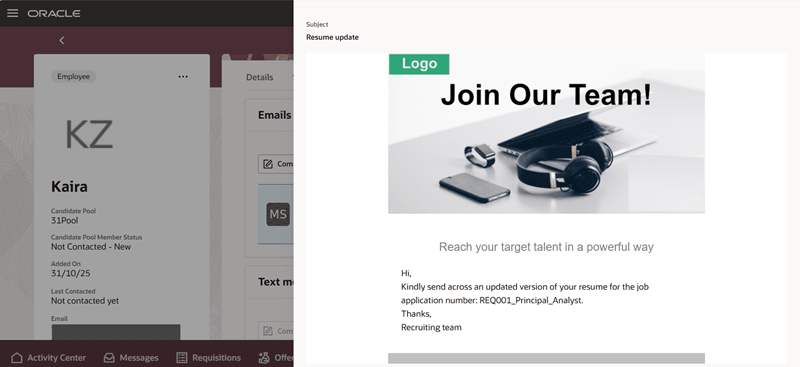
Global Design Template Applied to a Free-Form Email
The emails are sent in the current session language of the user, including the design template. Automated emails are sent in the candidate’s preferred language, including the design template.
Business benefit: Sending branded emails to candidates increases brand recognition and trust. This helps assure them that the email is legitimate, reducing concerns about phishing or spam. Branding also helps maintain compliance with corporate standards for communication and marketing.
Steps to enable and configure
In the Redwood experience, this feature is enabled by default for one-to-one emails. However, if you want to disable it, you need to create the profile option, IRC_REDWOOD_COMPOSE_EMAIL_DISABLE_BRANDING and set it to Y. For details, see Create and Edit Profile Options.
As a prerequisite to using this feature, you first need to create design templates using the HTML Email templates task and make them active. These templates can be of type Internal, Global, or AdHoc. You then need to associate the AdHoc template type with the content library items listed earlier.
As a prerequisite to using this feature:
- Create design templates using the HTML Email templates task and make them active. These templates can be of type Internal, Global, or AdHoc.
- When creating a content item based on the content library categories listed earlier, associate the AdHoc design template with it.
To ensure that a language-specific design template is included in the email:
- Create a design template in the desired language and make it active, using the HTML Email Templates task in Setup and Maintenance.
- Ensure that there’s a translated version of the content library item with which you’ve associated the language-specific design template.
Key resources
For more information, see these topics in the Implementing Recruiting guide in Oracle Help Center: