Redwood Experience for HCM Extracts: View Extract Results
Enhance your experience with the redesigned View Extract Results page, developed using the Redwood toolset. Built with Visual Builder Studio (VBS), the page delivers a modern, intuitive interface aligned with Oracle Applications design standards.
The View Extract Results page displays a list of extract instances that have been submitted, including those currently in progress and those that have completed processing.
To access the page, navigate to My Client Groups > Data Exchange > View Extract Results.
You can search for a submitted instance by name and filter the results using Extract Name, Legislative Data Group, Status, Submitted By, and Submission Date.
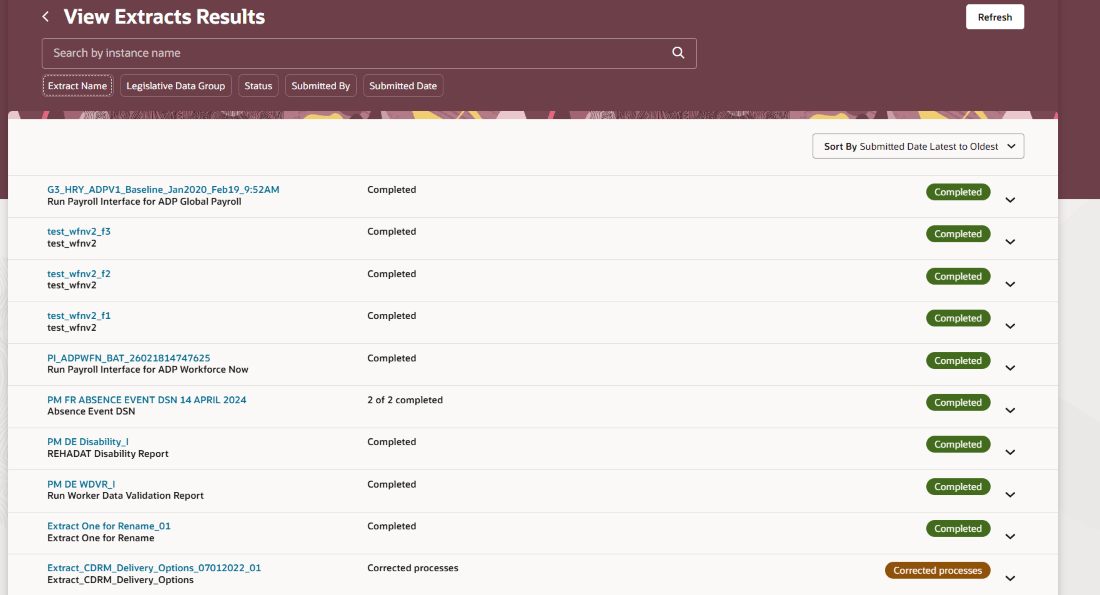
View Extract Results
Viewing Quick Instance Submission Details:
Use the chevron icon at the end of the instance row to quickly view details such as the associated legislative data group, process status, submitted by, submission date, and instance age.
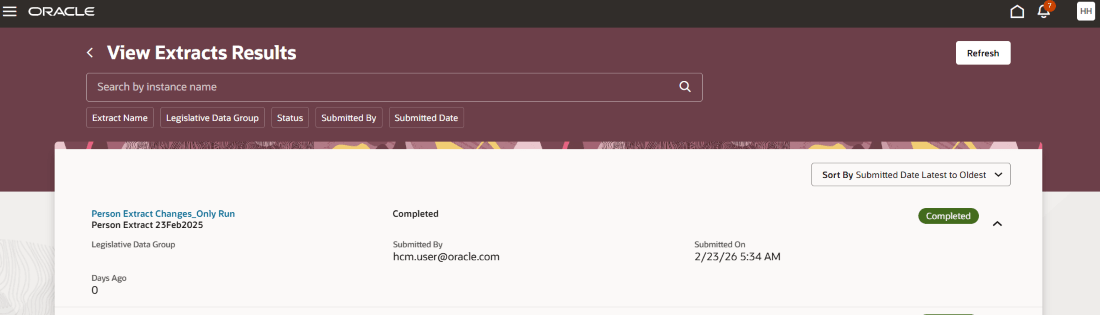
View Quick Details for Instance
Viewing Detailed Extract Run Information:
Select the instance name to open the details page. This page displays the extract name, workflow process name, submission and completion dates, overall status, process occurrence state, and elapsed time.
Additional information is organized into the following tabs: Criteria, Instance Details, Changes Only Details, Extract Delivery Options, Diagnostics, and Extract Run Analysis.
The Rollback button is available for completed extract instances that were successfully archived. When selected, it removes the archived data associated with the instance, allowing you to resubmit and reprocess the extract. The Rollback action isn’t available for instances that are in progress or that didn’t complete successfully.
CRITERIA TAB:
The Criteria tab displays the parameters defined for the extract run, such as Baseline Only, Changes Only, Process Start Date, Process End Date, and Process Configuration Group.
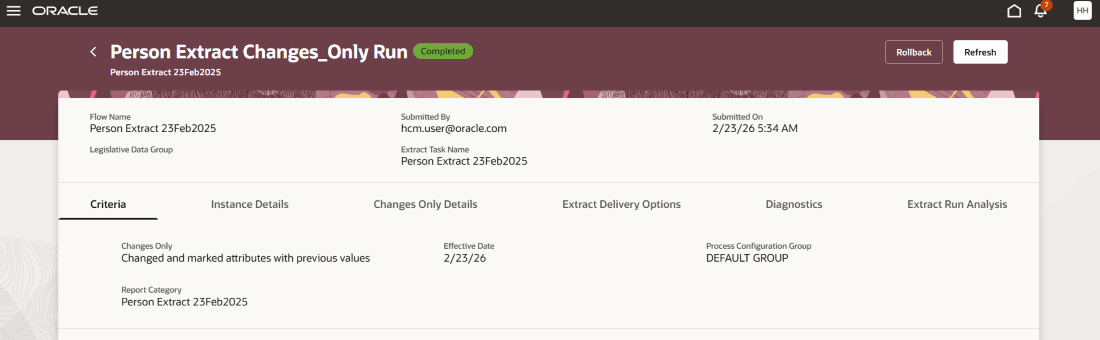
View Extract Run Details
INSTANCE DETAILS TAB:
The Instance Details tab displays the process hierarchy for the extract run. You can review the status of each process, along with its start time and completion time. Log files are available for download to help troubleshoot failed processes or analyze long-running extract executions.
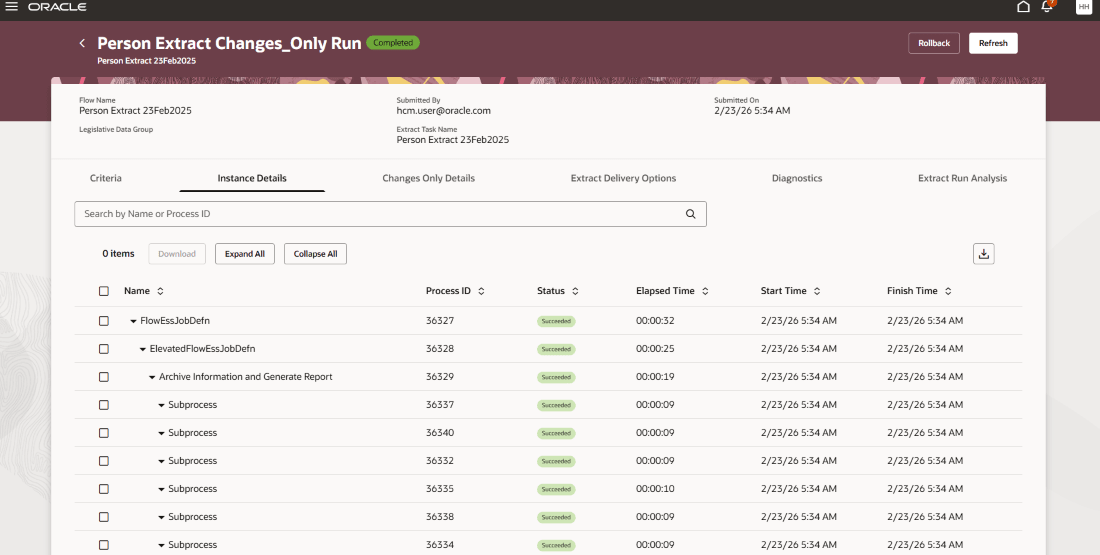
Instance Details Tab
CHANGES ONLY DETAILS:
The Changes Only Details tab enables you to review attribute changes since the last successful extract run. This tab is available only when the extract is executed in Changes Only mode. You can confirm whether the Changes Only parameter was enabled on the Criteria tab. Select an attribute and specify a value to review changes from the previous successful run.
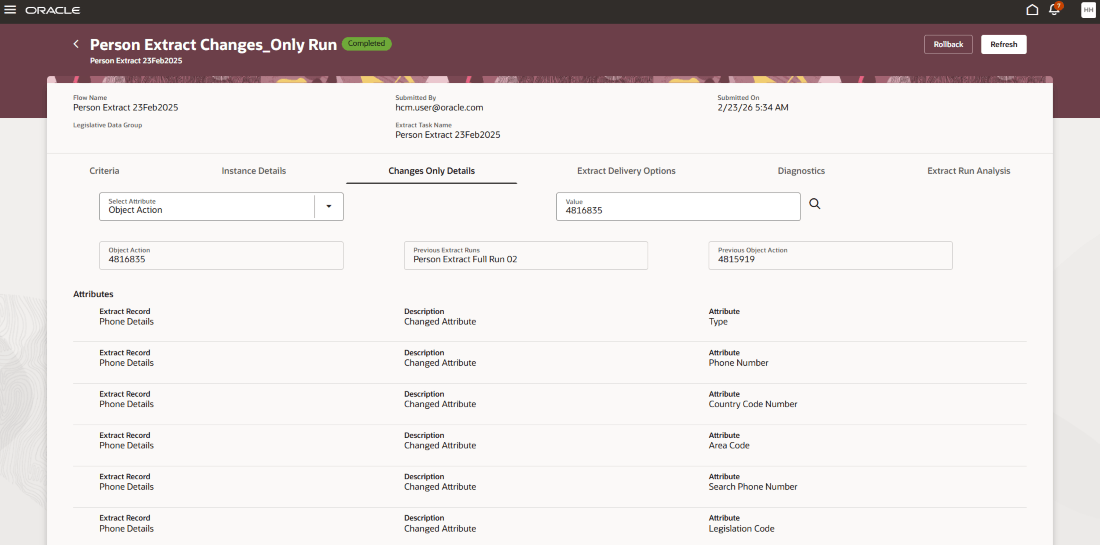
Changes Only Details tab
EXTRACT DELIVERY OPTIONS:
The Extract Delivery Options tab lists the output files generated by the extract run. You can download these files if the extract instance completed successfully.
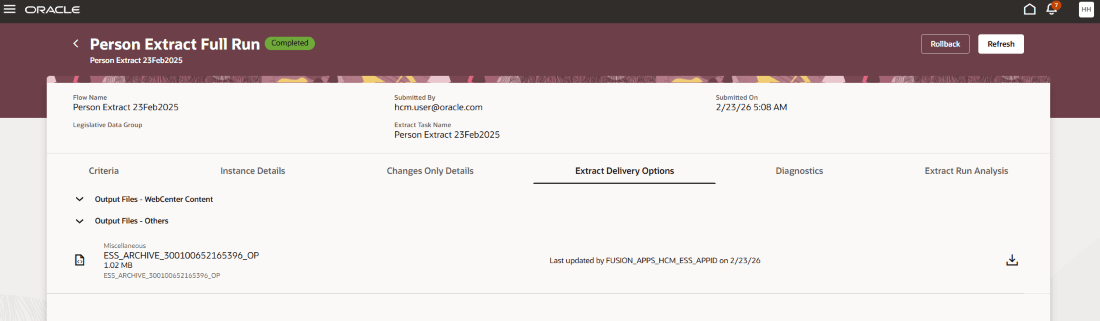
Extract Delivery Options Tab
DIAGNOSTICS:
The Diagnostics tab displays a table showing the start time, finish time, duration and percentage completion of each processing phase, for the processes: Preprocessing, Archive processes, Root Data Group extract, XML Generation, XML Delivery, and Attachment Delivery.
A metrics dashboard is available to display the total number of processed objects and the corresponding counts of successful, failed, pending, and ignored records.
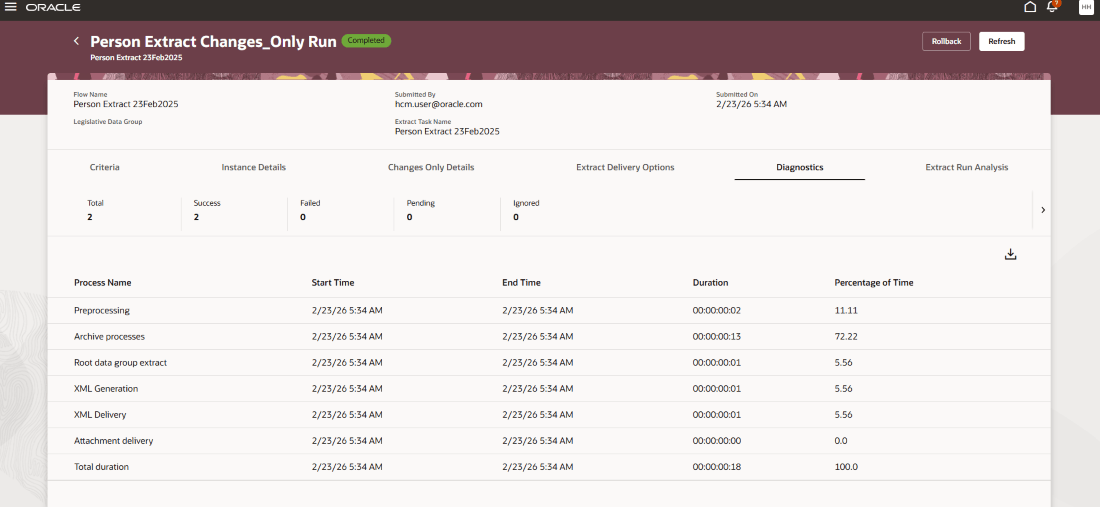
Diagnostics Tab
EXTRACT RUN ANALYSIS:
The Extract Run Analysis tab enables you to select previous extract instances and related ESS and extract jobs to generate a comparative line graph.
You can use this analysis to review phase-wise execution times and identify opportunities to optimize performance for future runs.
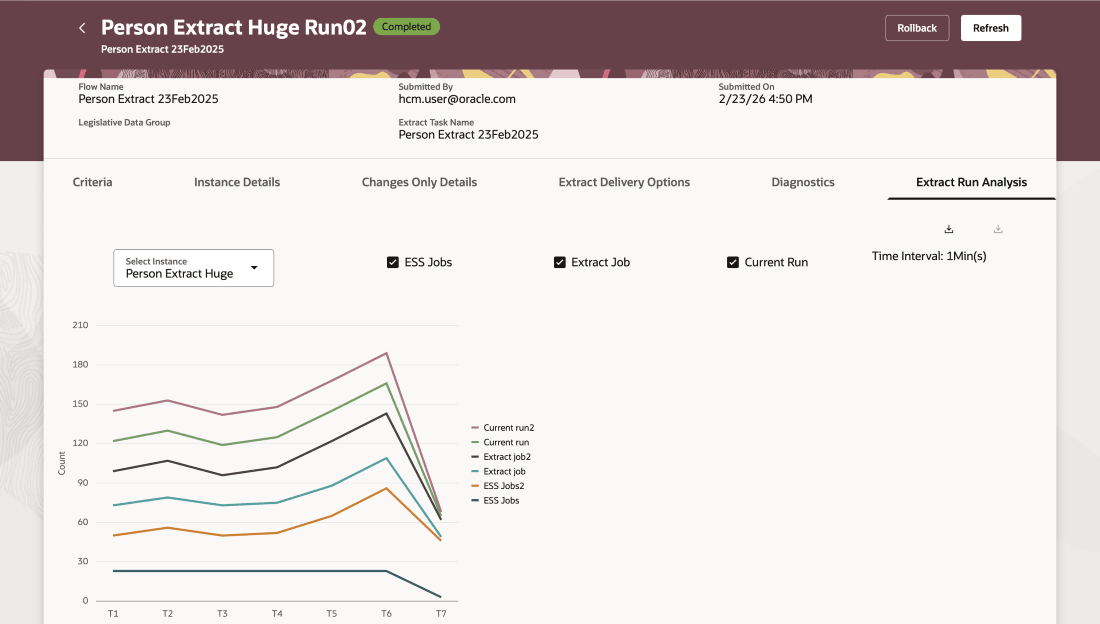
Extract Run Analysis Tab
Business Benefit:
The new View Extract Results page delivers a streamlined Redwood experience with high-fidelity interactions. It reduces navigation steps, improves performance, and provides a more cohesive user interface.
Steps to enable and configure
This feature is enabled by default in Redwood; no further action is required.
Access requirements
The role needed for View Extract Results is PER_RUN_HCM_EXTRACT_PRIV.