Migration of Specific Extracts to the Enhanced Version
Starting in 26B, you can create and upgrade extracts to the enhanced version for improved performance and optimized storage management. This feature is optional in 26B and needs to be explicitly enabled.
The following extract types are eligible for migration to Enhanced Extracts (HEX2.0):
- Benefits Carrier
- HR Archive
- Other Payroll Archive
- Payroll Interface
- Full Profile
- Recruitment Archive
Business Benefit:
Enhanced Extracts deliver improved processing performance and superior storage efficiency, leveraging multi-level threading and automatic output chunking to support scalable processing of large data volumes.
Steps to enable and configure
CONFIGURE EXTRACT TYPES TO USE ENHANCED VERSION (HEX_V2):
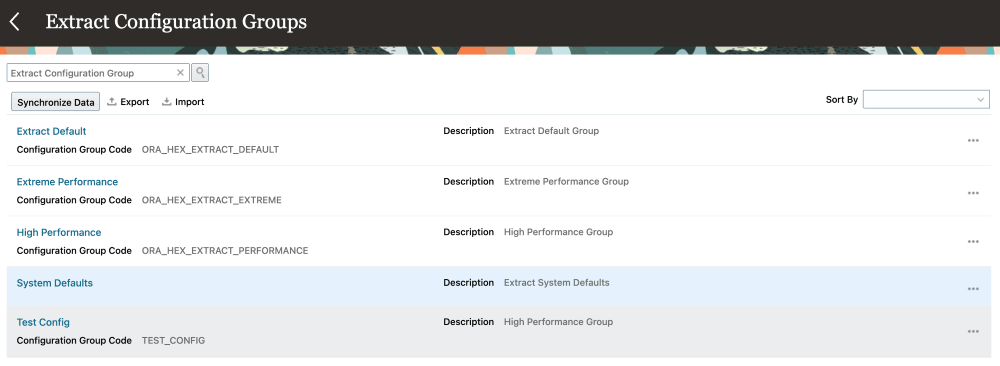
- Navigate to My Client Groups > Data Exchange > Extract Configuration Groups.
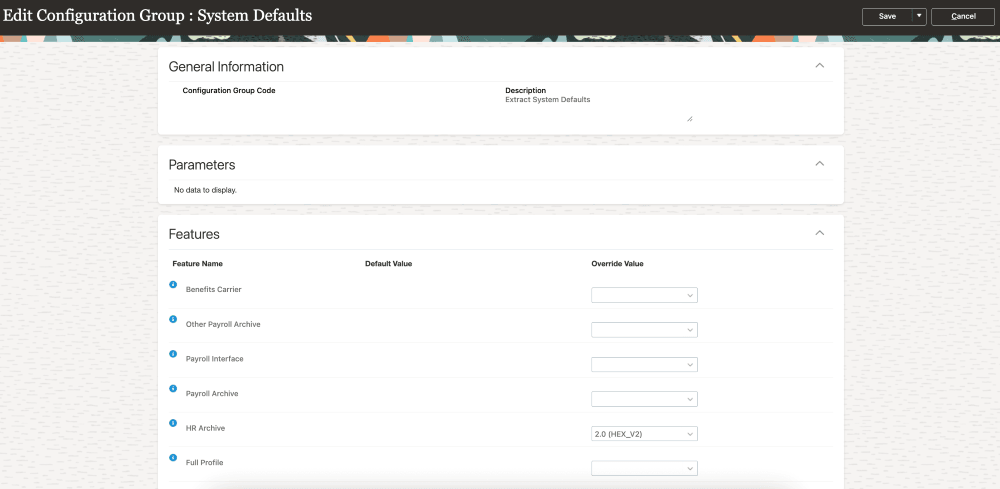
- Select the System Defaults extract configuration group, set the override value for the desired extract types to 2.0 (HEX_V2), and then save and close the configuration group.
CREATING NEW EXTRACT DEFINITIONS TO BASED ON ENHANCED EXTRACT TYPES
- Navigate to My Client Groups > Data Exchange > Extract Definitions
- Select + > Create New
- On the Create Extract Definition page, select an upgraded extract type and provide the Name, Consumer, and select OK.
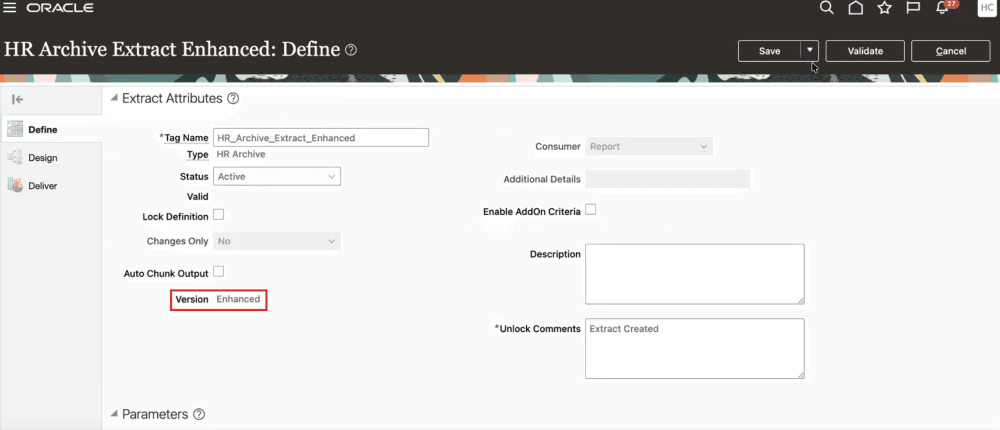
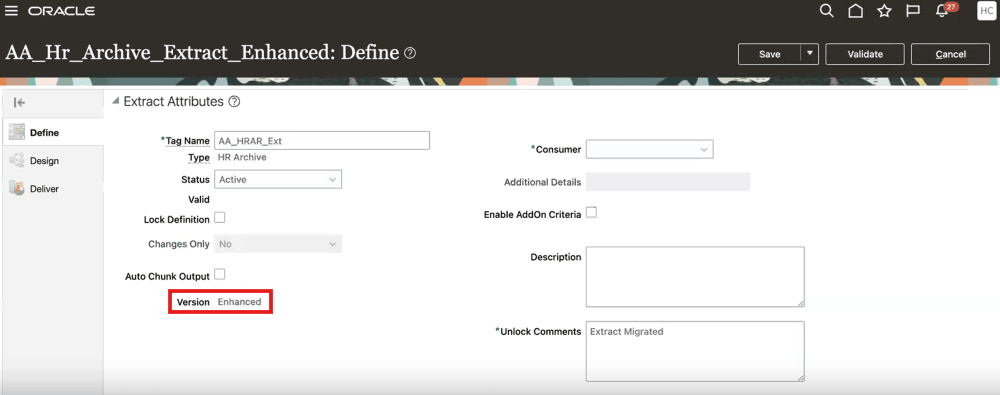
- On the Define page, verify that Version is Enhanced and proceed with creating the extract.
UPGRADE EXISTING EXTRACT DEFINITIONS TO ENHANCED VERSION:
- On the Extract Definitions page, select the extract definition and choose Upgrade Extract from the Actions menu.

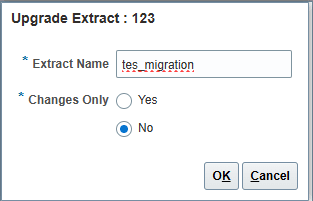
- Give an Extract Name in the Upgrade Extract dialog box and select OK to validate the extract.
- Validation results of the migration process:
- Successful: If the enhanced version migration was successful, you'll see a confirmation message
- Select Continue to proceed with the upgrade.
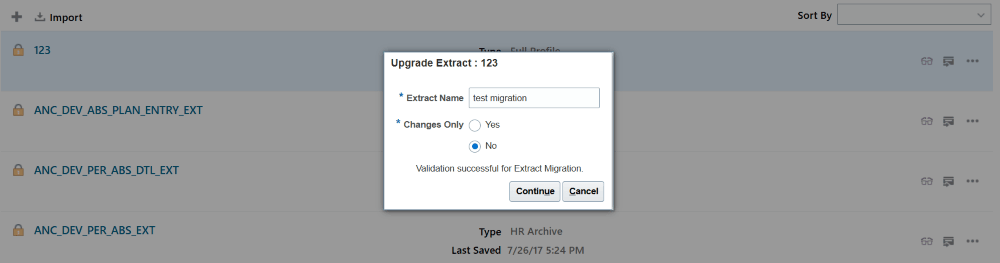
- On successful upgrade, you'll see another confirmation and select OK.

-
Select the upgraded extract on the Extract Definitions page to verify that the version is updated to Enhanced.
-
Validate the extract and submit it.
- In Error: If the validation failed due to issues during migration, you'll be able to download log file to troubleshoot the problem. You can either fix the existing extract definition or create a temporary version to analyze.
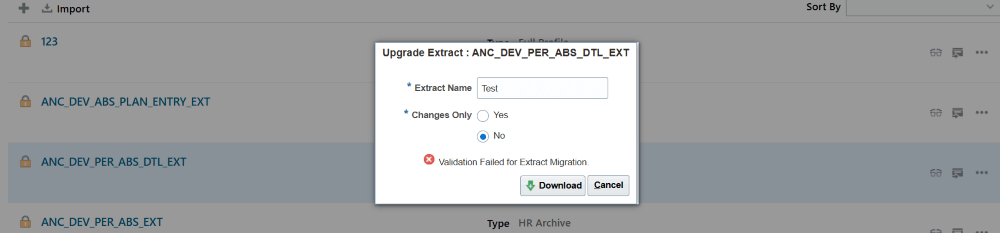
- Correct any validation errors and revalidate the extract.
- After successful validation, select the extract definition and verify that the Version field displays Enhanced, then proceed to submit the extract.