 Spotlight Link Replaced in Redwood Share Data Access Notification
When you share data access from the Redwood Share Data Access page, the recipient’s notification now includes a link to the Redwood Employment Info page. This link replaces the Spotlight link used with the responsive version of the page. The following image shows the notification that's sent to the recipient. It has a link called View Shared Information. There's no change to this notification, but we've changed what happens when you click the link.
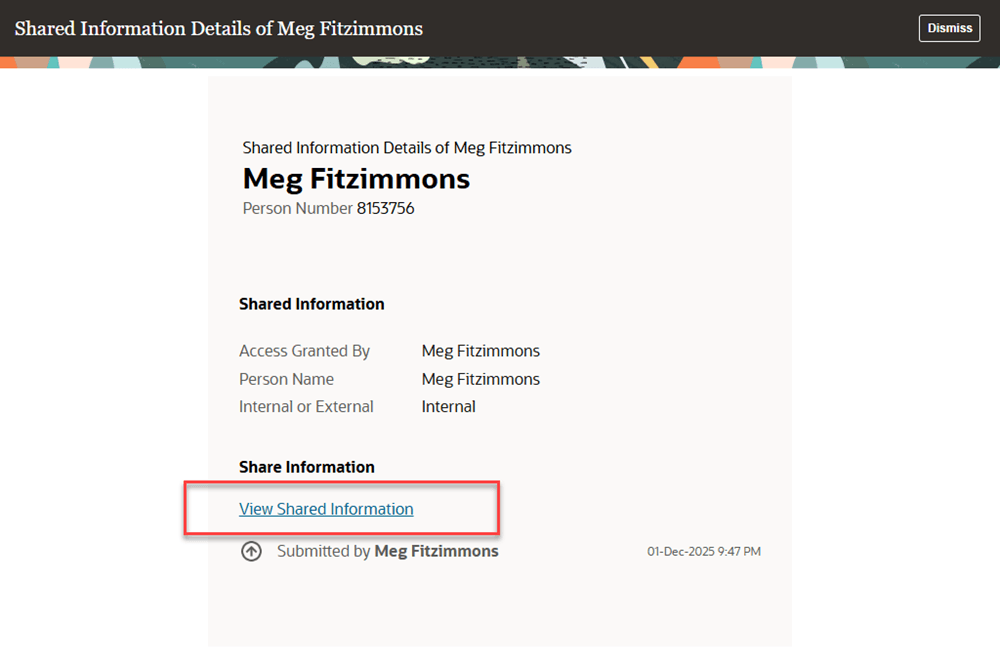
Notification to Recipient showing the View Shared Information link
When the recipient clicks the link, they’re taken to the Employment Info page for the worker, as shown in the following image. Using the 3 dots menu on the Employment Info page, the recipient can take actions such as Transfer or Promote, provided they have the required security privileges for the actions.
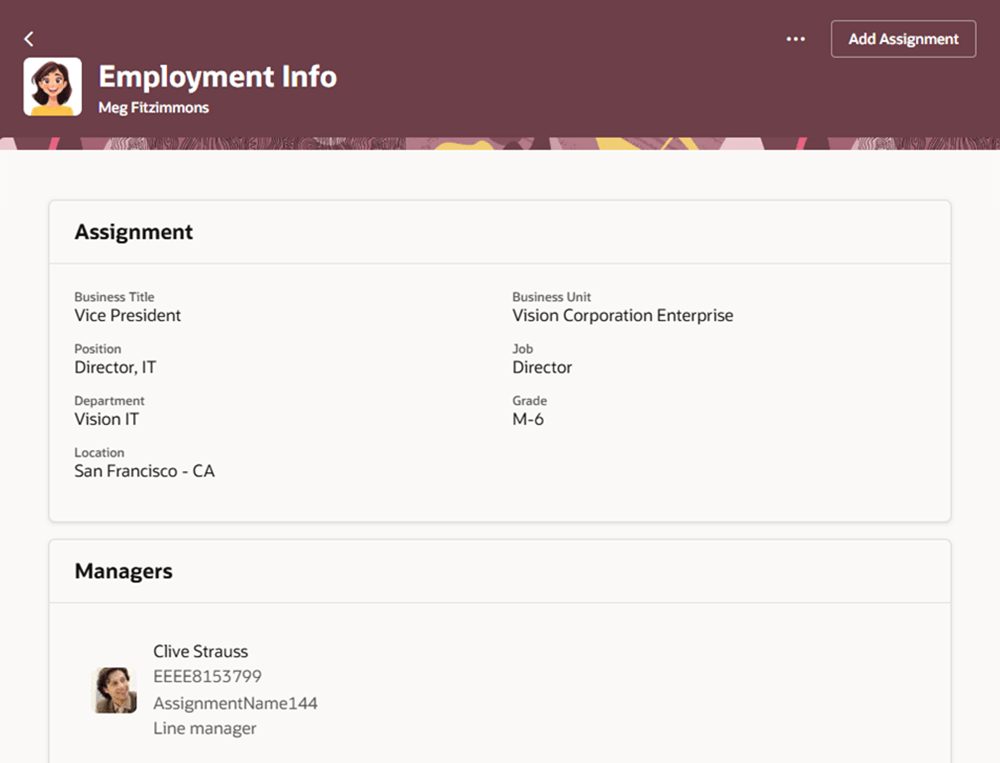
Recipient clicks the View Shared Information Link and is taken to the Employment Info page
For the user with only an employee role, which doesn’t have access to others’ Employment Info pages, this message appears as shown in the following image: "Permission is required to view this content". This is expected, because the employee has access only to his own information. The Share Data Access task is intended to be used to share with users who have roles such as Line Manager or Human Resource Specialist.
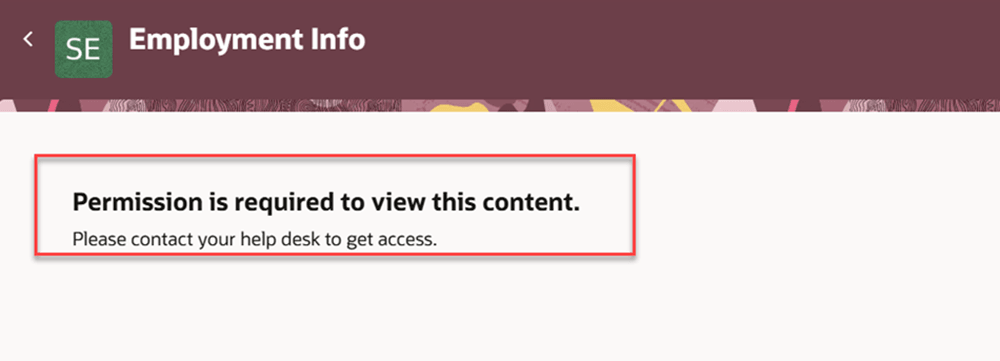
Employee without access sees a permission required message when viewing the Employment Info page
We also changed the notification that's sent to the approver. We revised the message text to eliminate the reference to Spotlight. For improved clarity, we also reworded the message to include the name of the worker whose data is being shared, rather than the name of the recipient. The image below shows the notification that's sent to the approver when Meg Fitzimmons shares Kathi Law's data with Louise Beckham. Louse is listed as the recipient. The message text says, "You're allowing the recipient to view and edit the information for the worker Kathi Law".
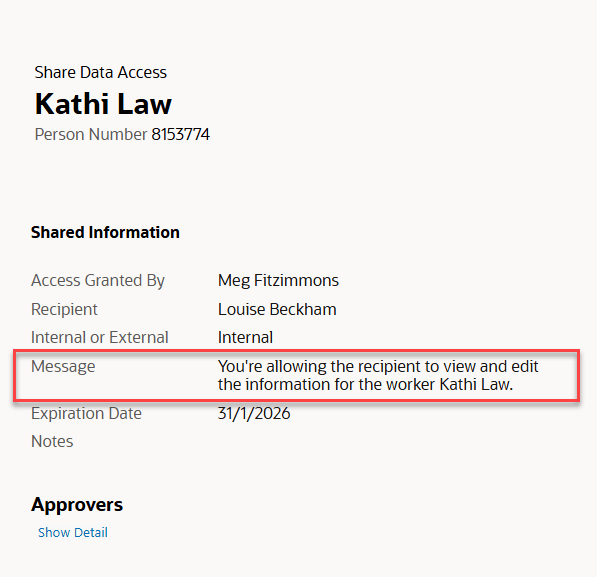
Share Data Access notification to Approver
A consistent link is provided from Redwood notifications to the Redwood Employment Info page, enabling recipients to view information and take actions in one place.
Steps to enable and configure
The link in the notification will take the recipient to the Redwood Employment Info page, if you're using the Redwood Share Data Access page.
To enable the Redwood Share Data Access page, set the ORA_PER_SHARE_DATA_ACCESS_REDWOOD_ENABLED profile option value to Yes. For detailed steps, see How do I enable a profile option?
Tips and considerations
- The recipient will only be able to view the worker's information if their person security profile has "Include Shared People Information" selected. That's not new with this release.
- The View Shared Information link is rendered based on whether you use the Responsive or Redwood version of the Share Data Access page.
- If you use the Responsive version of Share Data Access, the link will take the recipient to Spotlight.
- If you use the Redwood version of Share Data Access, the link will take the recipient to Employment Info, even if you haven't enabled the Redwood Employment Info page via a profile option.
Key resources
For more information on Share Data Access, refer to these resources on the Oracle Help Center.
- How You Share Data Access With Another Person, Using Global Human Resources guide.
- Include Shared People Information in a Person Security Profile, Securing HCM guide.
- Approval Rules for Share Data Access and Share Personal Info, Using Global Human Resources guide.