Redwood Experience for Configure Seniority Dates Page
Enrich the user experience with the Configure Seniority Dates page developed using the Redwood tool set. The page is built from the ground up using Visual Builder Studio (VBS) to give you a unique experience of Oracle applications.
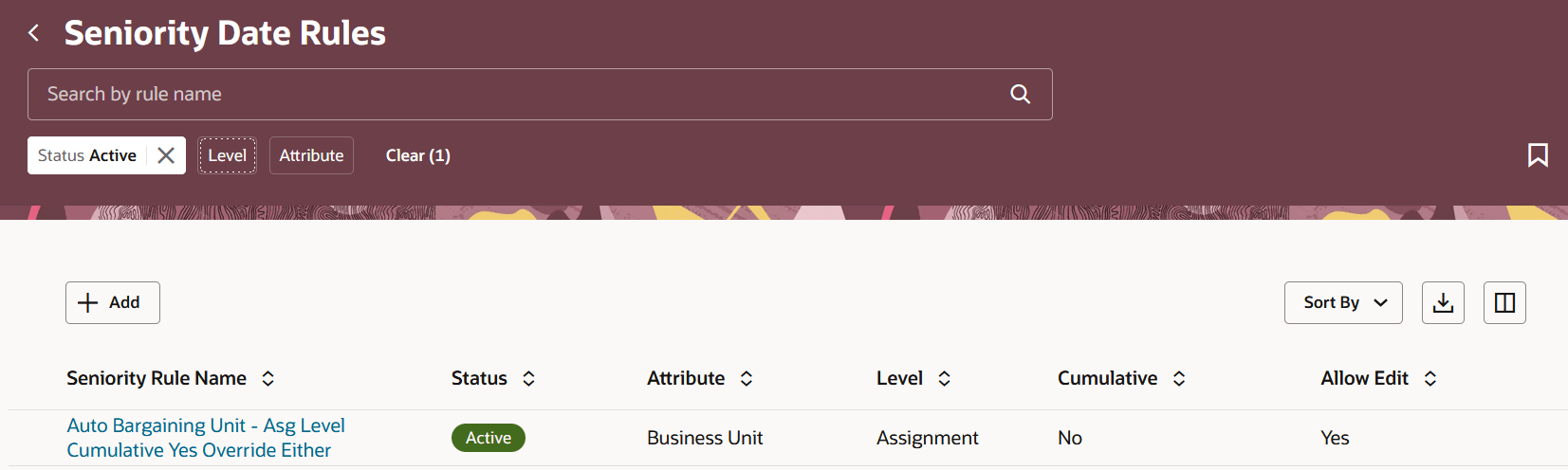
Seniority Date Rules page
You can also create a new rule or edit an existing seniority date rule.
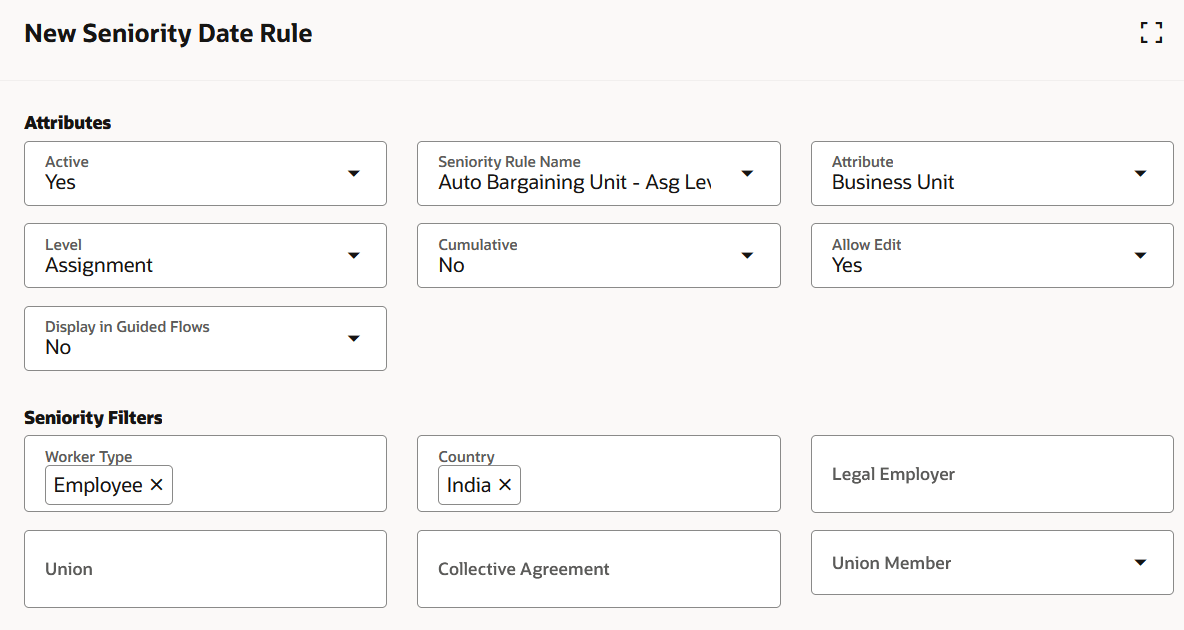
New Seniority Date Rule page
Page Properties - The following page properties are added for the page in VBS
- Hide the 'Add' button on the landing page.
- Hide the 'Delete' button on the panel drawer.
The new page offers a modern look and feel, fewer clicks, and better performance. By using these new pages or flows, you can take advantage of the cohesiveness through the application.
Steps to enable and configure
You don't need to do anything to enable this feature.
Tips and considerations
- The Override Seniority Basis, Hours in a Day, Hours in a Month, Hours in a Year, and Use Formula for Hours Conversion attributes are hidden out-of-the-box.
Key resources
For more information, refer to this resource on the Oracle Help Center:
- How You Configure Seniority Dates in the Implementing Global Human Resources guide