Redwood Experience for Assignment Flexfield Mapping Page
Enrich the user experience with the Assignment Flexfields Mapping page developed using the Redwood tool set. The page is built from the ground up using Visual Builder Studio (VBS) to give you a unique experience of Oracle applications.
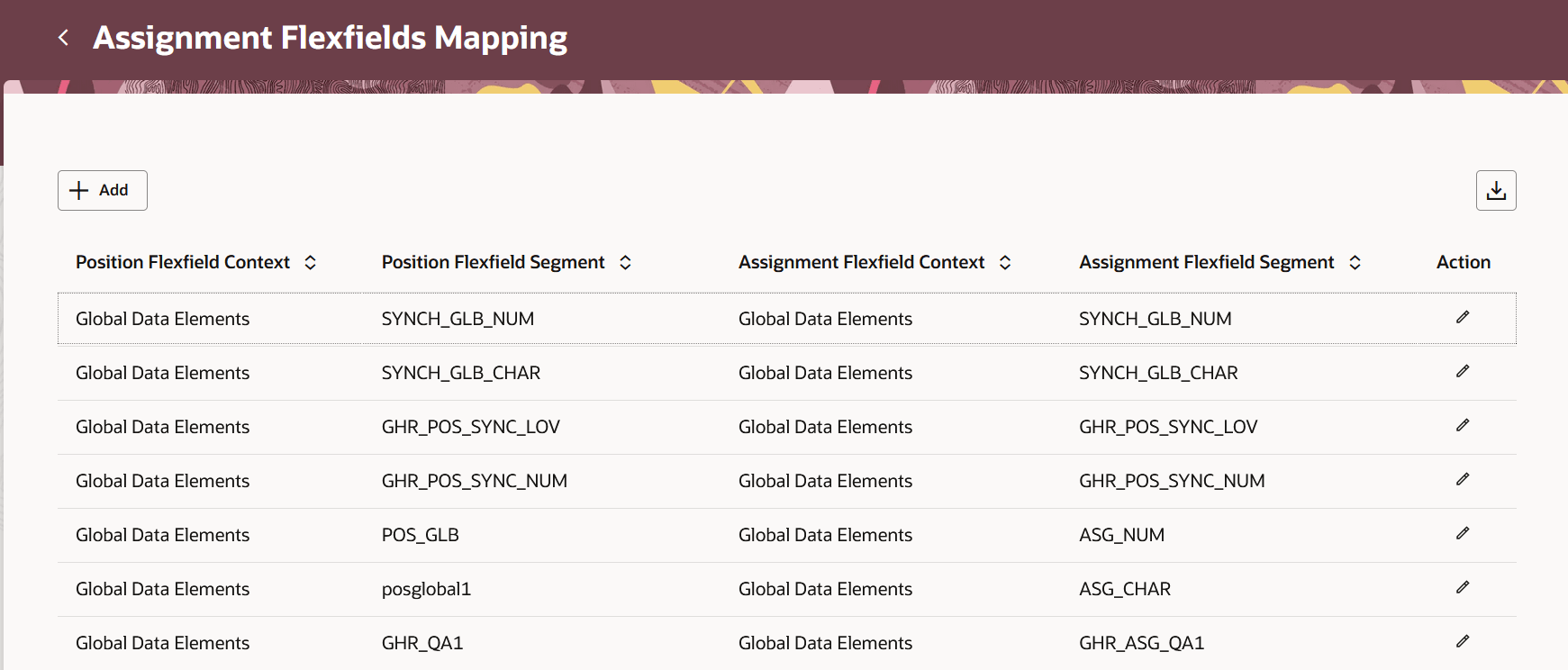
Assignment Flexfeilds Mapping page
You can add and edit the position and assignment flexfield contexts and segments
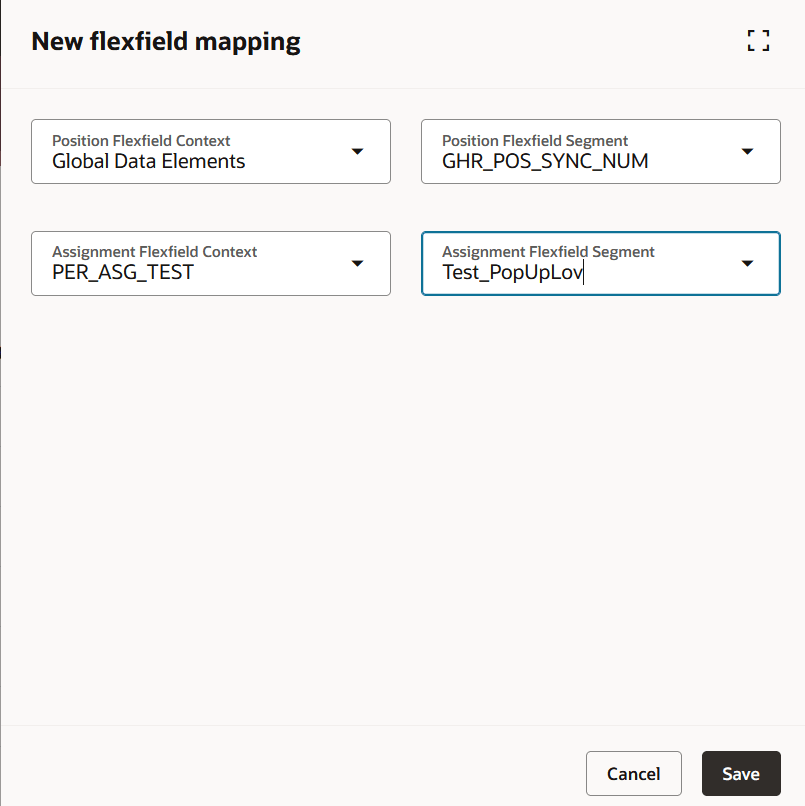
Add flexfield mapping panel
Some of the points for consideration are as follows:
Configuration at Enterprise vs. Legal Employer Level
The mapping configuration is defined at the Enterprise level, by default. Both the Enterprise configuration and Legal Employer configuration sections are hidden, by default, on the mapping page. If you want to configure mapping at the Legal Employer level, you must first configure the relevant page properties for this page in Business Rules to reveal the respective sections. The Legal Employer configuration section enables you to add Legal Employer–level mapping overrides. This approach ensures that these configurations are only available when explicitly enabled by an administrator.
Default Synchronization and Mapping Behavior
By default, synchronization is enabled and mapping is defined at the Enterprise level. When a mapping value is entered at the Legal Employer level, the system assumes that synchronization should follow the enterprise-level mapping rules. This means the Legal Employer–level entry overrides the mapped value, but the synchronization behavior itself continues to be governed at the Enterprise level.
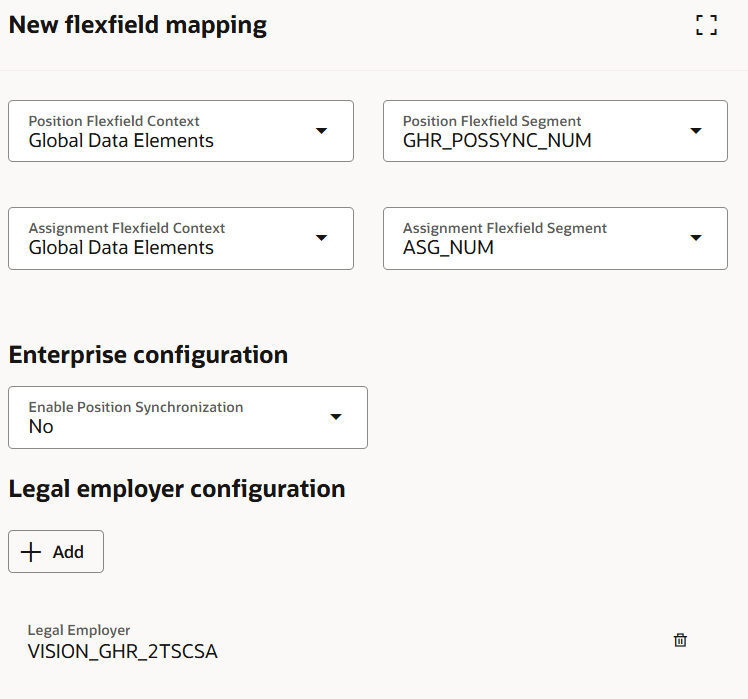
Assignment Flexfield Mapping page with Enterprise and Legal Employer configuration sections enabled
Page Properties - You can configure these page properties in Business Rules for this page:
- Set Guided Journeys at the Page level
- Set Guided Journey Tasks at the Page level
- Hide Add Button in Assignment Flexfields Mapping Page
- Hide Action Button in Assignment Flexfields Mapping Page
- Show enterprise configuration
- Show legal employer configuration
- Disable Save Button
- Hide Delete Button
The new page offers a modern look and feel, fewer clicks, and better performance. By using these new pages or flows, you can take advantage of the cohesiveness through the application.
Steps to enable and configure
To use the Redwood Assignment Flexfields Mapping page, check if the following profile options are set as follows..
|
Profile Option |
Check the profile value at Site level is |
|---|---|
|
ORA_HCM_VBCS_PWA_ENABLED |
Y |
| ORA_PER_EMPL_POSITION_ASG_FLEX_MAPPING_REDWOOD_ENABLED | Yes |
To check the profile options, navigate to the Setup and Maintenance work area:
- Search for and click the Manage Administrator Profile Values task.
- Search for and select each of the profile options listed above.
- Select the Level as Site.
- In the Profile Value field, check if the value is the same as in the above table.
- Click Save and Close.
Key resources
For more information, refer to this help resource on the Oracle.Help Center:
-
Synchronize Assignment Flexfields From Position Flexfields in the Implementing Global Human Resources guide